



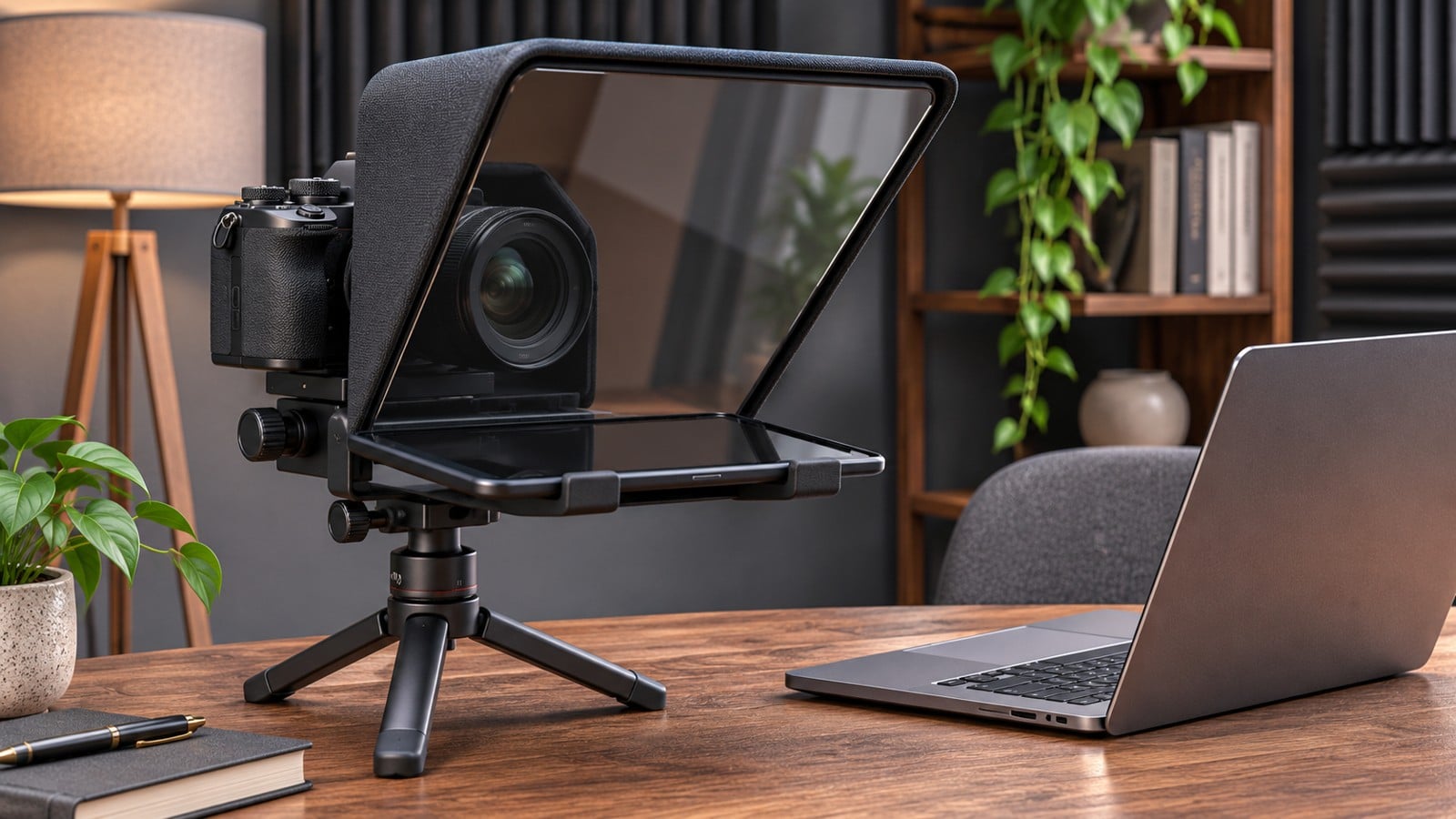
If Elgato Prompter has no image on a Windows PC, check Camera Hub and the DisplayLink driver before treating the screen as faulty. Elgato’s supported troubleshooting sequence updates those components and restarts Windows.
Update Camera Hub first
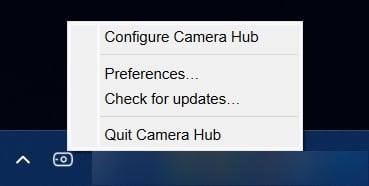
- Find the Camera Hub icon in the Windows notification area.
- Right-click it and check for updates.
- Install an available update using the app’s instructions.
- If Camera Hub is already current, quit it completely before proceeding to the display driver.
Closing an application window is not always the same as quitting its background process. Use the tray controls so the application is no longer running while you follow the next step.
Install the official DisplayLink driver
Follow Elgato’s no-image guide to the official Synaptics DisplayLink download. Install the current driver appropriate for the supported Windows system, then restart the PC. Reopen Camera Hub after the restart and check whether the Prompter displays an image.
A restart is part of this procedure, not a substitute for installing the driver. Save your work before restarting. Avoid third-party driver-download sites offering a similarly named package.
If the screen remains unavailable
Elgato next recommends checking motherboard or chipset drivers from the PC manufacturer. Use the exact computer or motherboard model’s support page; do not install a package intended for another machine.
Check the current compatibility requirements for the PC architecture too. A general Windows label does not establish support for every Windows on Arm configuration.
Record the Windows version, Camera Hub version, DisplayLink version, and connection arrangement for Elgato support. Once the screen appears, test the actual prompting mode you plan to use before a recording session. That confirms the display and app are working together rather than only detecting a connected USB device.
Featured image: AI-generated illustration of representative equipment, not an exact product photograph or a hands-on test.
Discussion (0)
Comments are closed.