



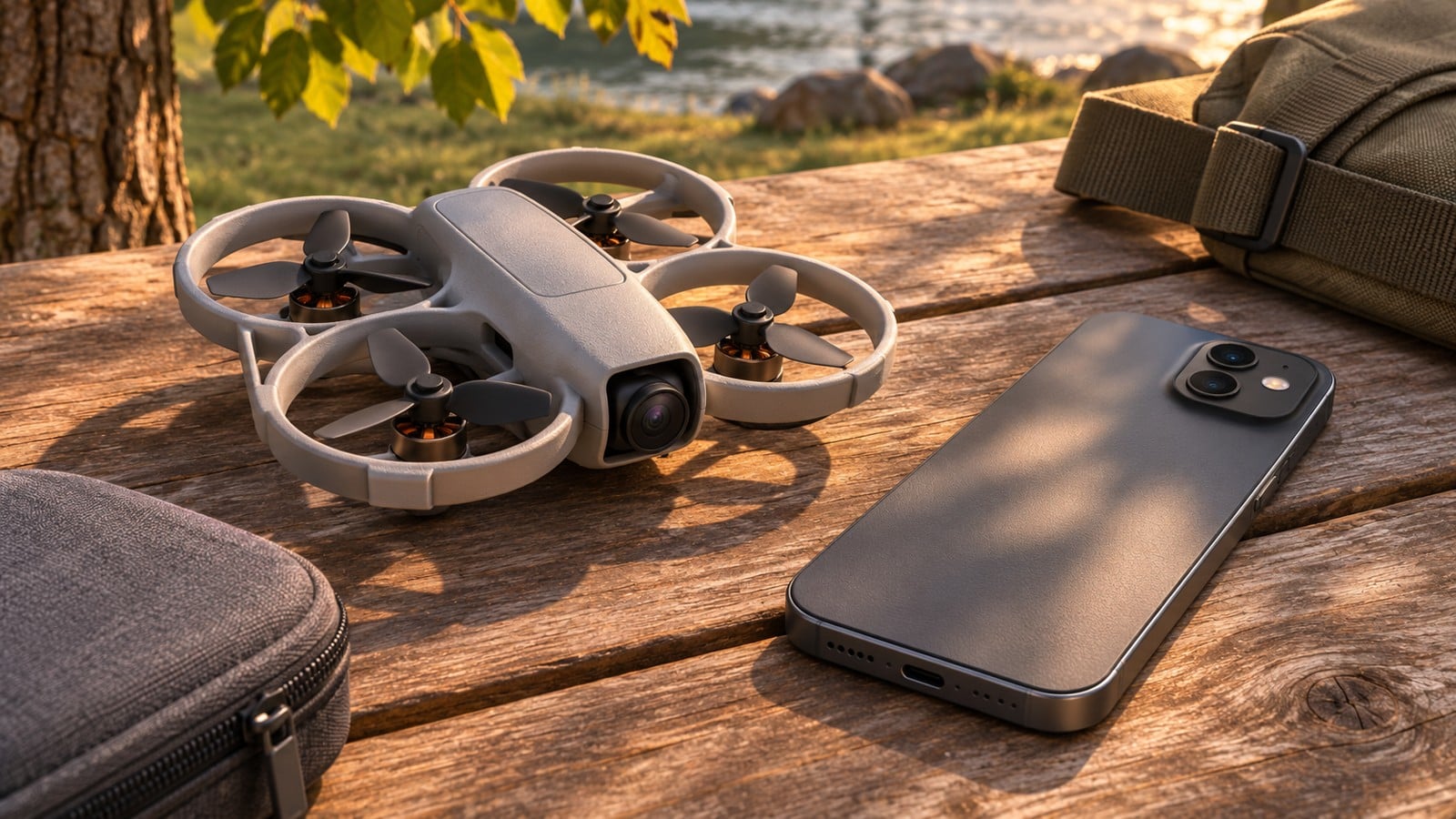
If DJI Neo will not connect to your phone for QuickTransfer, check whether another device is already occupying the connection. Power off the linked remote controller and disconnect any nearby phone already using the aircraft’s Wi-Fi before retrying.
Prepare the phone and aircraft
- Update DJI Fly and the Neo firmware using their supported update procedures.
- Restart the phone and aircraft.
- Enable the phone’s Wi-Fi, Bluetooth, and location services.
- Power off the linked controller and release any other phone’s aircraft connection.
- Try QuickTransfer again from DJI Fly.
DJI’s Neo connection guidance describes these checks. Use Neo-specific instructions; button sequences copied from another DJI aircraft can refer to a different mode.
If the phone keeps reusing a failed connection
Forget the aircraft’s saved Wi-Fi network on the phone, then repeat discovery through DJI Fly. On Android versions that separately control Wi-Fi access for apps, check that DJI Fly has the required permission.
With a supported controller, DJI also documents changing the aircraft’s Wi-Fi name under About and restarting afterward. Use that model-specific procedure only when the simpler connection checks fail.
Protect local media and records
Do not begin by clearing all DJI Fly app data. That can remove local information you still need. If support later requires it, preserve relevant media and records first.
Once connected, transfer a short clip and open the saved copy on the phone. If that works, continue with the remaining footage. If connection still fails, record the phone model, operating system, app and aircraft versions, and whether another phone can connect. Those comparisons help distinguish an occupied aircraft connection from phone-specific permissions or software trouble.
Featured image: AI-generated illustration of representative equipment, not an exact product photograph or a hands-on test.

Discussion (0)
Comments are closed.