




Temporary files are created by Windows and applications to store short-term data. Over time, these files can accumulate and take up unnecessary disk space. Deleting temporary files helps improve system performance and free up storage.
This guide explains different ways to delete temporary files in Windows 10 and Windows 11.
What Are Temporary Files
Temporary files are created for:
- System updates
- Application installations
- Browser caching
- Crash logs
- Background processes
Most temporary files are safe to remove.
Method 1: Delete Temporary Files Using Settings
This is the easiest method.
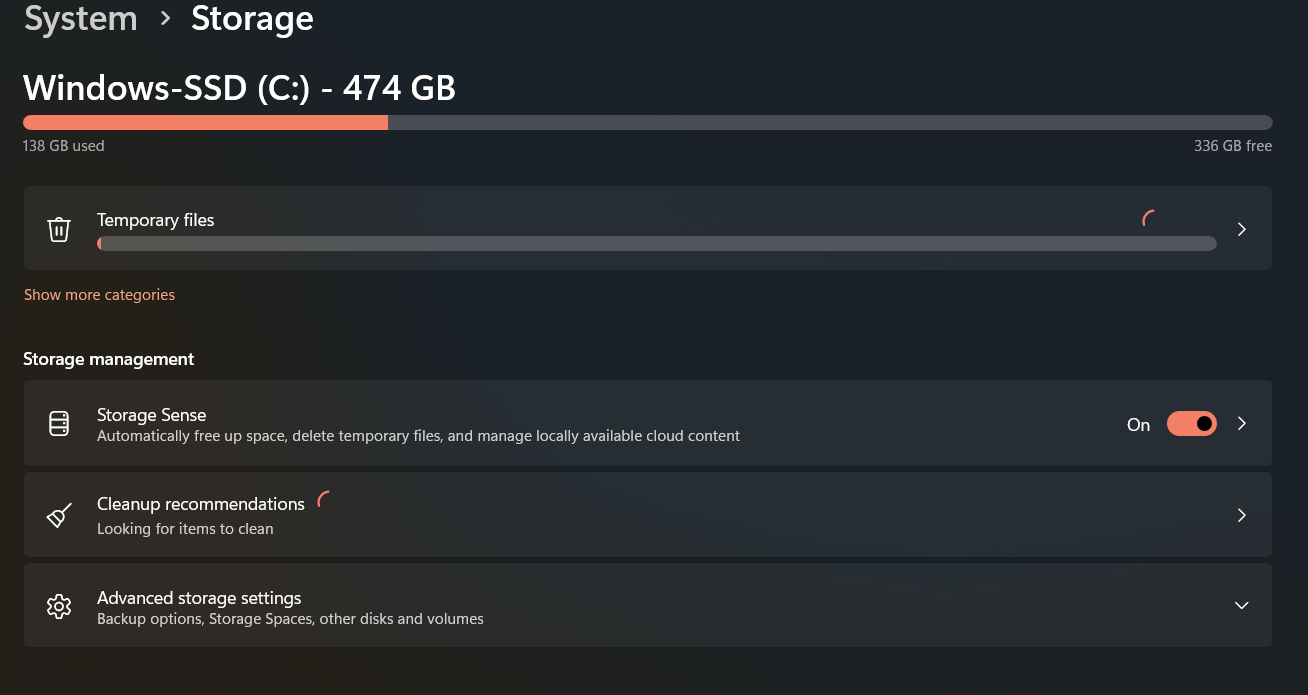
- Press Windows + I
- Go to System
- Click Storage
- Select Temporary files
- Check the items you want to remove
- Click Remove files
This method safely removes unnecessary system files.
Method 2: Use Disk Cleanup Tool
Disk Cleanup is a built-in Windows utility.
Steps:
- Press Windows + S
- Type Disk Cleanup
- Select your system drive
- Click OK
- Check file categories
- Click OK again
You can also click Clean up system files for deeper cleanup.
Method 3: Delete Temp Files Manually
You can manually access the Temp folder.
Steps:
- Press Windows + R
- Type:
%temp%
- Press Enter
- Select all files
- Delete them
Some files in use may not delete, which is normal.
Method 4: Use Run Command for System Temp Files
To access system temp files:
- Press Windows + R
- Type:
temp
- Press Enter
- Delete files inside
You may need administrator permission.
Method 5: Use Storage Sense
Storage Sense automatically removes temporary files.
Steps:
- Open Settings
- Go to System > Storage
- Turn on Storage Sense
- Configure cleanup schedule
This keeps your PC clean automatically.
Method 6: Clear Browser Temporary Files
Web browsers also store temporary files.
To clear:
- Open browser settings
- Go to Privacy or History
- Clear browsing data
- Select cached files
This helps free additional storage.
What Files Should You Avoid Deleting
Be cautious when deleting:
- Active system files
- Files currently in use
- Important logs needed for troubleshooting
Stick to official cleanup tools for safety.
Benefits of Deleting Temporary Files
Removing temporary files:
- Frees disk space
- Improves performance
- Reduces clutter
- Fixes minor software issues
Regular cleanup helps maintain system health.
Final Thoughts
Deleting temporary files in Windows 10 and Windows 11 is simple and safe when done correctly. Using Settings, Disk Cleanup, or Storage Sense ensures efficient cleanup without affecting essential system files. Regular maintenance keeps your PC running smoothly.
FAQs
Is it safe to delete temporary files
Yes, most temporary files are safe to remove.
Will deleting temp files speed up my PC
It can improve performance if storage space was limited.
What happens if some files cannot be deleted
They are likely in use and can be skipped.
How often should I clean temp files
Once a month is generally sufficient.
Does Windows automatically delete temporary files
Yes, if Storage Sense is enabled.


Discussion (0)
Be the first to comment.