




Predictive text and autocorrect can save time, until they start pushing the wrong words, names, or “learned” phrases. When that happens, a reset usually fixes it by clearing your keyboard history, learned words, and personalized suggestions.
You can’t “edit” predictive text perfectly on every device, but you can reset the data behind it. On iPhone, you reset the keyboard dictionary. On Android, you clear learned words inside your keyboard app (like Gboard), and you can also turn off personalization if you want a cleaner slate.
How To Reset Predictive Text Suggestions On iPhone
This option clears the keyboard dictionary so your iPhone stops using your typing history to suggest words and autocorrections.
- Open Settings.
- Tap General.
- Tap Transfer or Reset iPhone.
- Tap Reset.
- Tap Reset Keyboard Dictionary.
- Enter your iPhone passcode, then confirm.
If you use multiple keyboards (like English and Spanish), this reset applies to the Apple keyboard suggestions across the device.
How To Reset Predictive Text Suggestions On Android (Gboard)
Gboard stores learned words, typing habits, and personalization data. Clearing that data immediately resets many predictive text suggestions.
- Open your phone’s Settings app.
- Go to System (or General Management on some phones).

- Tap Keyboard or Language And Input.
- Tap On-Screen Keyboard (or Virtual Keyboard).
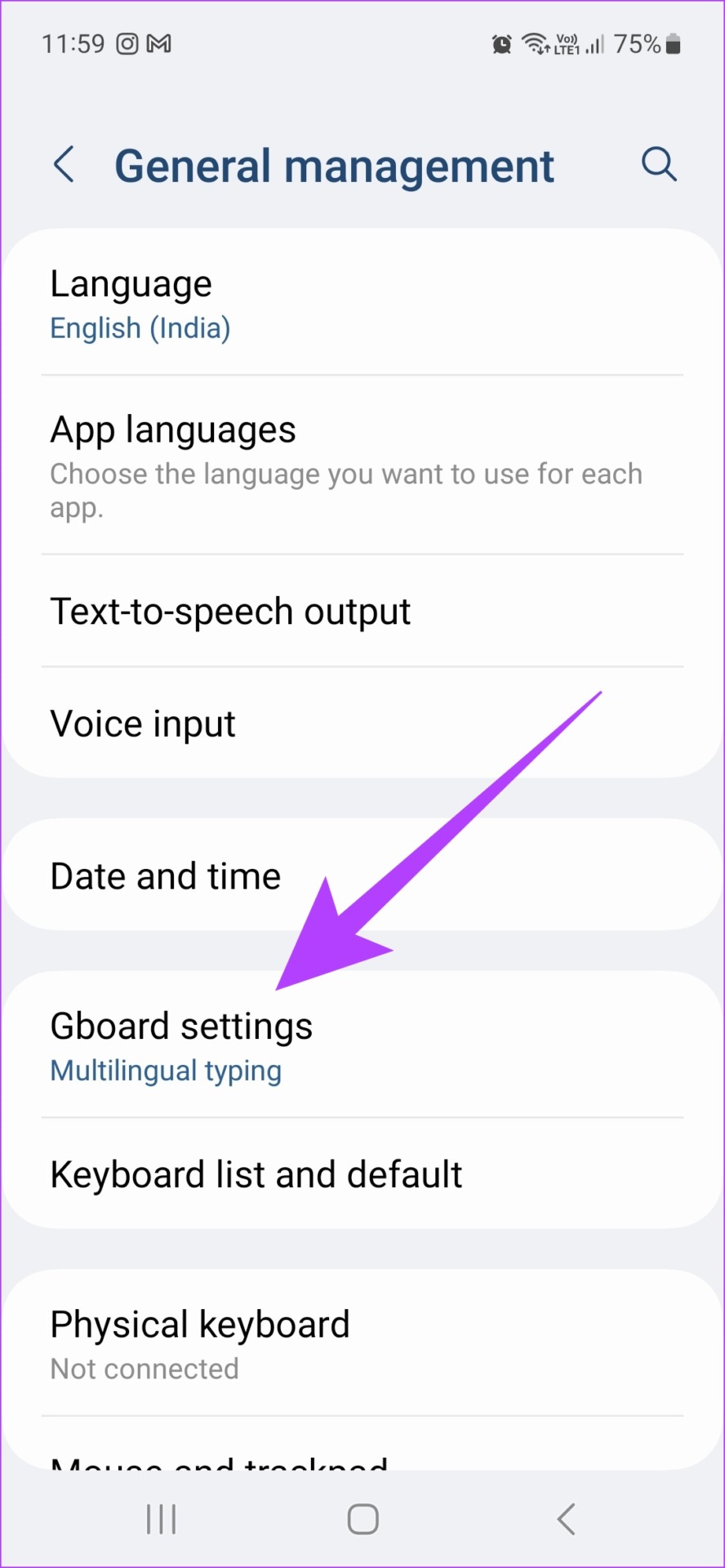
- Select Gboard settings.
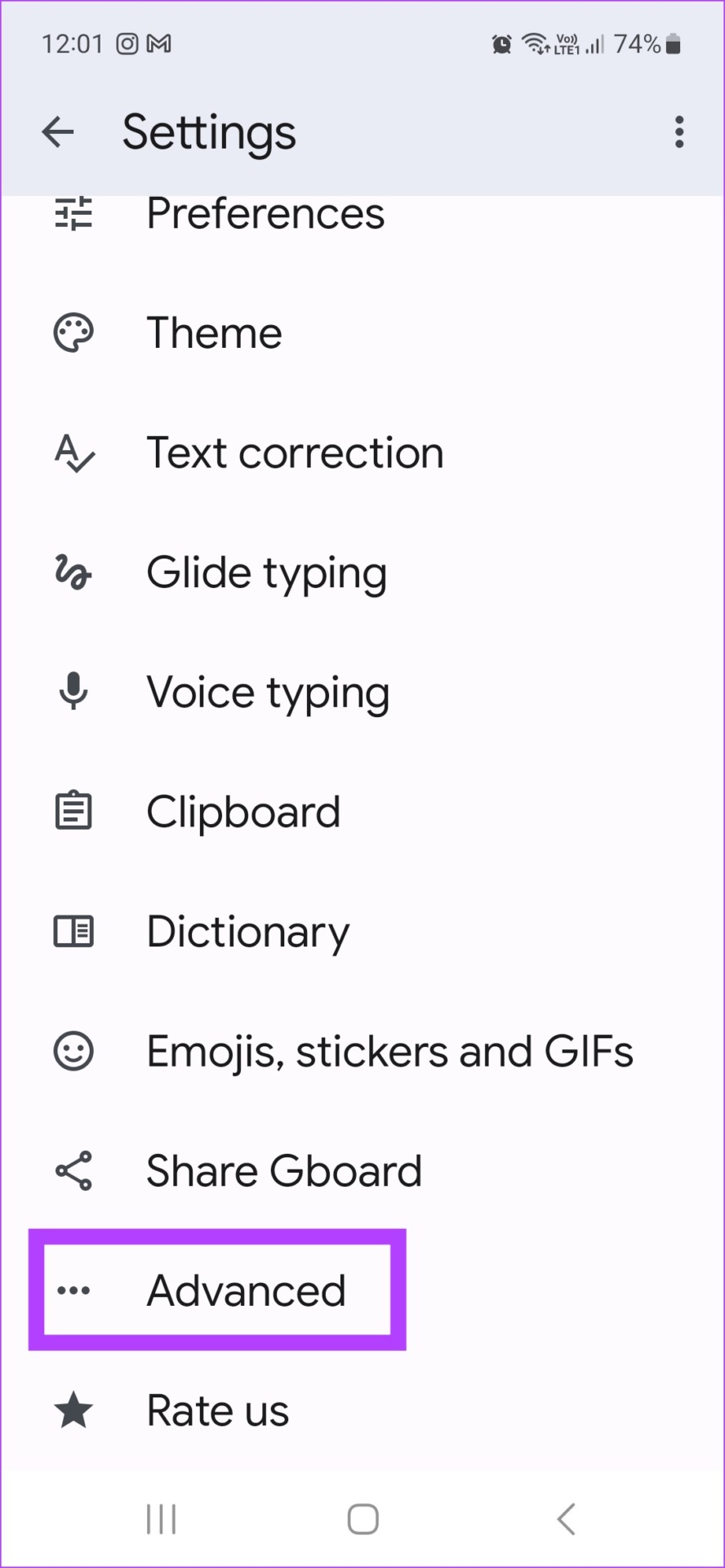
- Tap Advanced.
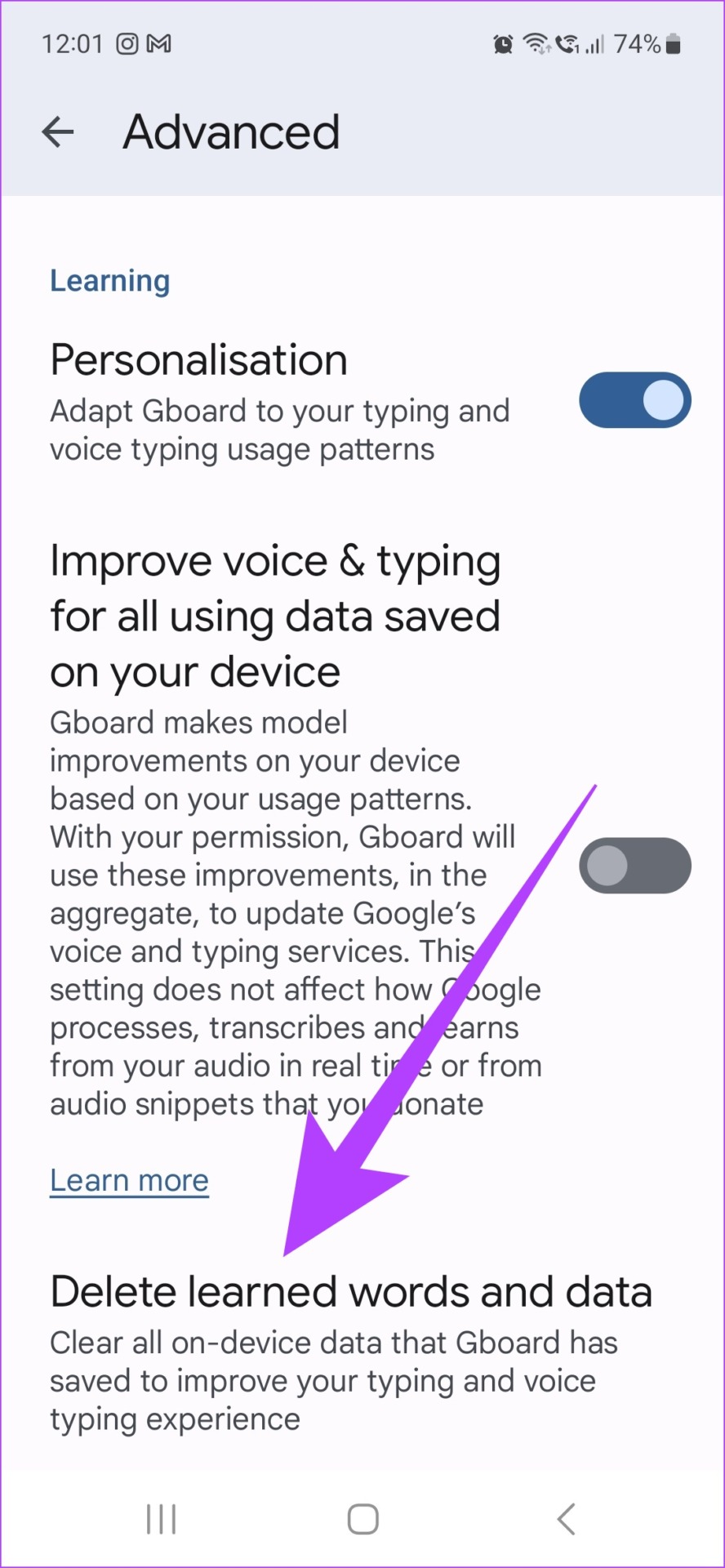
- Tap Delete Learned Words And Data.
- Enter the number shown, then tap OK.
After you clear the learned data, you can also disable personalization to keep Gboard from rebuilding suggestions too quickly.
- Open Gboard Settings.
- Tap Privacy or Personalization (wording varies by version).
- Turn Personalization off.
If you want fewer corrections, you can also adjust autocorrect features.
- Open Gboard Settings.
- Tap Text Correction.
- Turn off Auto-Correction (and any other suggestions you do not want).
How To Access Gboard Shortcut Settings From A Messaging App
If you prefer not to dig through system menus, you can jump into Gboard settings while typing in apps like WhatsApp, Messages, or Gmail.
- Open any app with a text field and bring up the Gboard keyboard.
- Tap the four-square icon (tools menu) on the keyboard bar.
- Tap the gear icon to open Gboard Settings.
- Use Advanced, Text Correction, or Privacy to change predictive text behavior.
How To Reset Predictive Text On Samsung Keyboard
If you use Samsung Keyboard, clearing personalized data resets many “learned” suggestions without changing your phone’s other settings.
- Open Settings.
- Tap General Management.
- Tap Samsung Keyboard Settings.
- Tap Reset To Default Settings.
- Tap Clear Personalized Data, then confirm.
How To Reset Predictive Text On Microsoft SwiftKey
SwiftKey syncs and learns your typing patterns. Resetting its learned data helps when suggestions feel “stuck” or inaccurate.
- Open Settings.
- Tap System or Language And Input.
- Tap On-Screen Keyboard, then select Microsoft SwiftKey.
- Tap Account (or Typing, depending on version).
- Choose the option to Clear Typing Data or Delete Personalized Dictionary Backup, then confirm.
Troubleshooting Common Problems
If predictive text still looks wrong after a reset, the issue usually comes from the keyboard you actually type with, not your phone’s main settings.
- If nothing changes, confirm your default keyboard in Settings > Language And Input > Default Keyboard.
- If suggestions return fast, turn off Personalization (Gboard) or disable Predictive Text (Samsung Keyboard).
- If you type in multiple languages, check that the correct language dictionary stays enabled for your keyboard.
- If your keyboard app looks different, update it, then look for Privacy, Advanced, or Reset menus.
Tips
- Reset the keyboard data first, then test in Messages or Gmail before changing more settings.
- Turn off Auto-Correction if your main problem involves unwanted replacements.
- Keep Predictive Text on but disable Personalization if you want suggestions without “learning” your habits.
- If one app triggers strange suggestions, test in another app to rule out app-specific text fields.
FAQ
Does resetting predictive text delete anything important?
No. It clears learned words and suggestion data, not your photos, messages, or apps.
Can I delete just one bad suggestion instead of resetting everything?
Some keyboards let you remove individual learned words, but iPhone’s reset option clears the full keyboard dictionary.
Why do my suggestions come back after I reset them?
Your keyboard starts learning again as you type. Turn off personalization to slow that down.
Will resetting predictive text fix autocorrect problems too?
It often helps, but autocorrect also depends on Text Correction settings like Auto-Correction and Suggest Contacts.
Summary
- Reset iPhone suggestions by using Reset Keyboard Dictionary.
- Reset Android suggestions by clearing your keyboard’s learned words (like Gboard’s Delete Learned Words And Data).
- Disable personalization if predictive text rebuilds too quickly.
- Adjust Auto-Correction if replacements cause most of the frustration.
Conclusion
When predictive text starts working against you, a reset gives you a clean slate. After you clear learned words and keyboard history, keep only the suggestion features you actually like, and turn off personalization if you want the results to stay consistent.
Discussion (0)
Be the first to comment.