



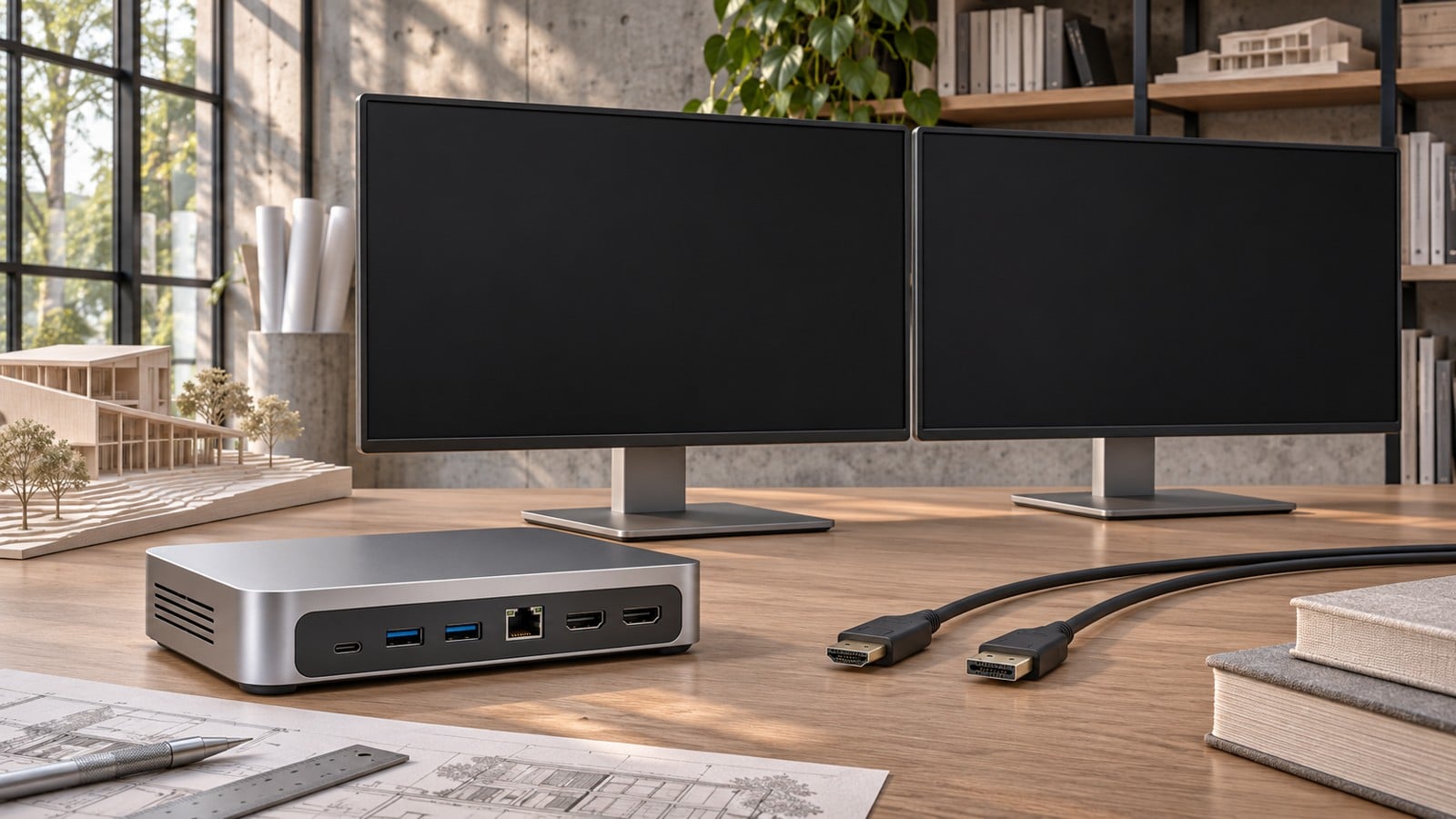
If one monitor works through your CalDigit TS4 but a second does not, check the laptop’s display capability and the dock ports used. An ordinary USB-C-only host supports one display through the TS4, and some early Thunderbolt 3 PCs also support only one.
Use the video-capable outputs
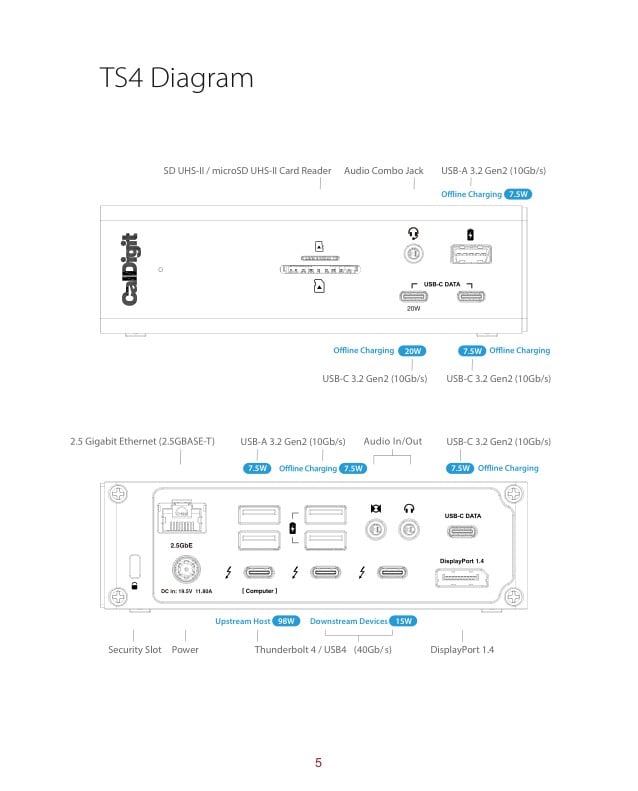
The TS4 manual shows two supported arrangements for compatible dual-display hosts: rear DisplayPort plus a spare Thunderbolt port, or both spare Thunderbolt ports. The dock’s ordinary 10Gbps USB-C ports are data-only.
- Check the exact laptop’s external-display support over the port being used.
- Connect the powered dock with the appropriate Thunderbolt cable.
- Place each monitor on a video-capable dock output.
- Test each monitor individually before reconnecting both.
A USB-C-shaped socket is not enough to identify a display output. Use the labels and manual diagram rather than assuming every USB-C port on the dock behaves alike.
Check adapters and bandwidth
When converting the TS4’s DisplayPort output to another connection, CalDigit requires an active adapter rather than a passive one. Confirm the adapter’s direction and supported resolution as well as its connector shape.
The manual includes dual 4K at 60Hz for compatible Windows Thunderbolt hosts, but the GPU, driver, firmware, and available bandwidth still determine the supported combination. Temporarily reduce resolution or refresh rate to test whether the requested mode is the limiting factor.
Confirm an extended desktop
Open Windows display settings and check that both monitors are detected, then choose the intended extend or duplicate mode. If both work individually but not together, report the host model, outputs, adapters, and requested modes to CalDigit. Reinstalling a display driver cannot add dual-display capability to an unsupported host connection.
Featured image: AI-generated illustration of representative equipment, not an exact product photograph or a hands-on test.
Discussion (0)
Comments are closed.