




Google Calendar can add flight and hotel bookings automatically, but it does not always work. Some bookings appear from Gmail, while others need manual setup.
This guide gives exact steps for automatic and manual methods on desktop and mobile.
Table of contents
- How Google Calendar adds flights and hotels automatically
- Enable automatic flight and hotel imports from Gmail
- Add flight bookings to Google Calendar manually
- Add hotel bookings to Google Calendar manually
- Add flights and hotels on mobile
- Fix flights or hotels not showing in Google Calendar
- What imports automatically vs what you must add manually
- Tips for managing trips in Google Calendar
- FAQs
- Summary
How Google Calendar adds flights and hotels automatically
Google Calendar scans Gmail for travel confirmations and creates events for your trip. It works best with major airlines, hotels, and booking platforms.
What booking details Google Calendar can detect
Google Calendar can detect flight numbers, departure and arrival times, hotel names, addresses, stay dates, and reservation details.
Requirements for automatic trip imports
Automatic imports work when you book with an email that lands in Gmail, you turn on smart features, and the confirmation email uses a supported format.
Enable automatic flight and hotel imports from Gmail
Turn on smart features in Gmail and Google Calendar
Start with Gmail on desktop, then enable the matching setting in Google Calendar.
- Open Gmail in a browser.
- Click the gear icon, then select See all settings.
- Open the General tab.
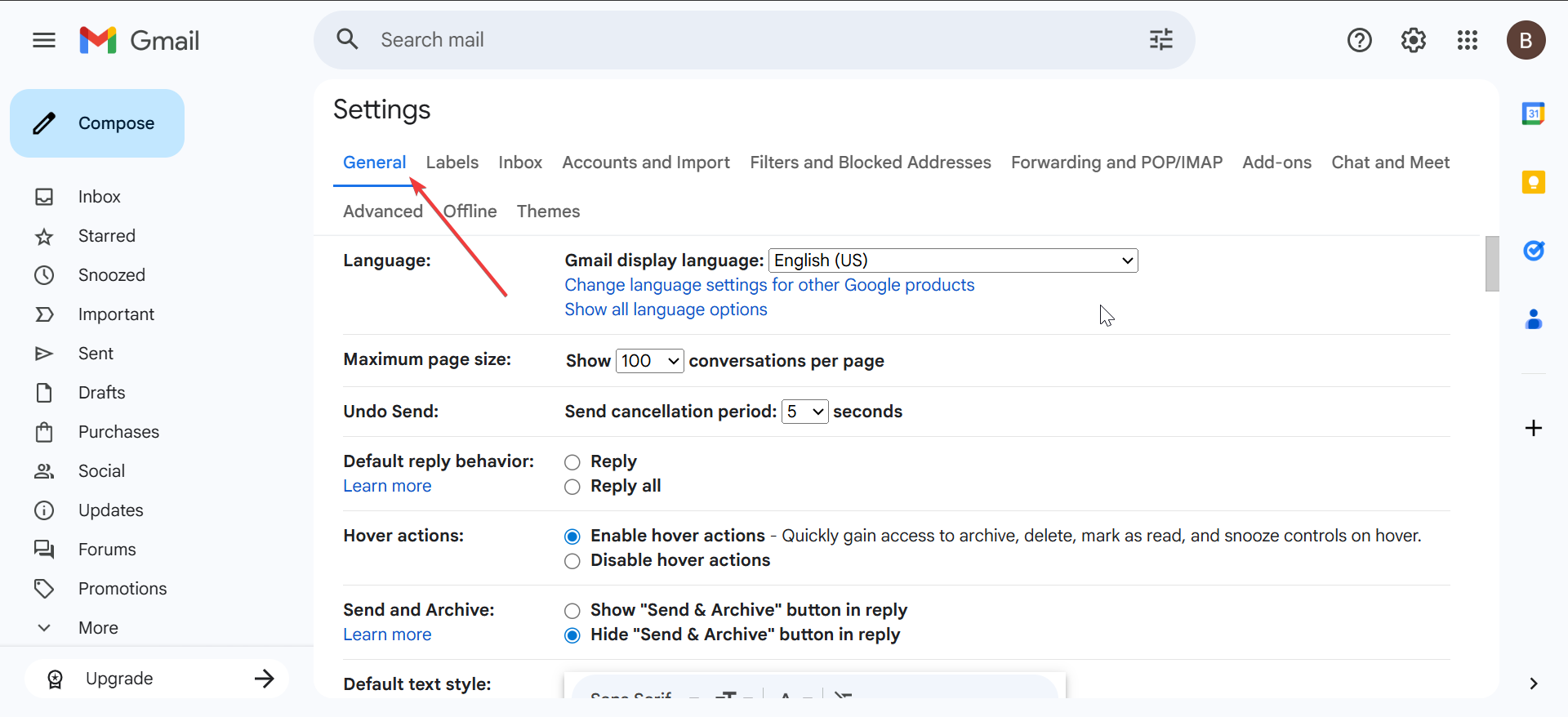

- Turn on Smart features and personalization.
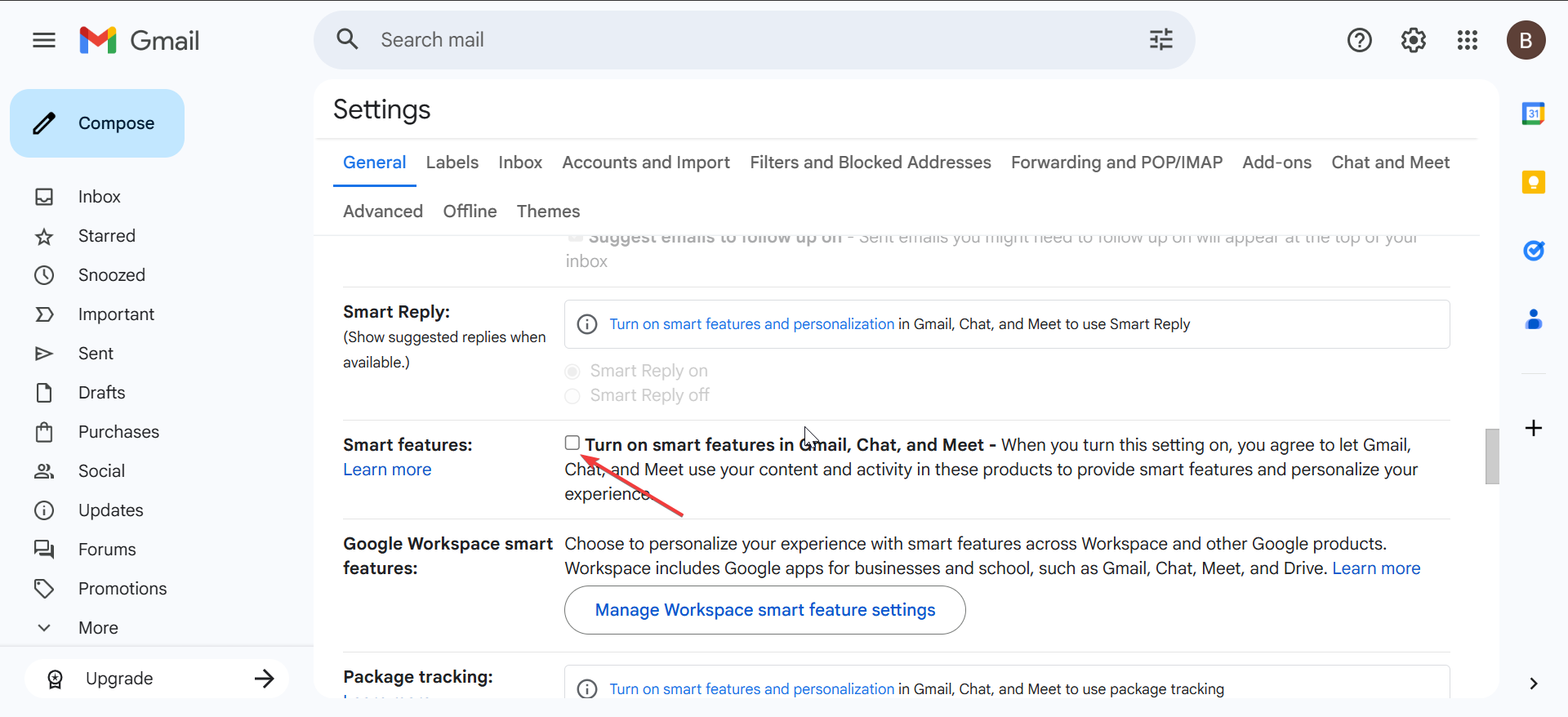
- Now, click the Turn on and reload button.
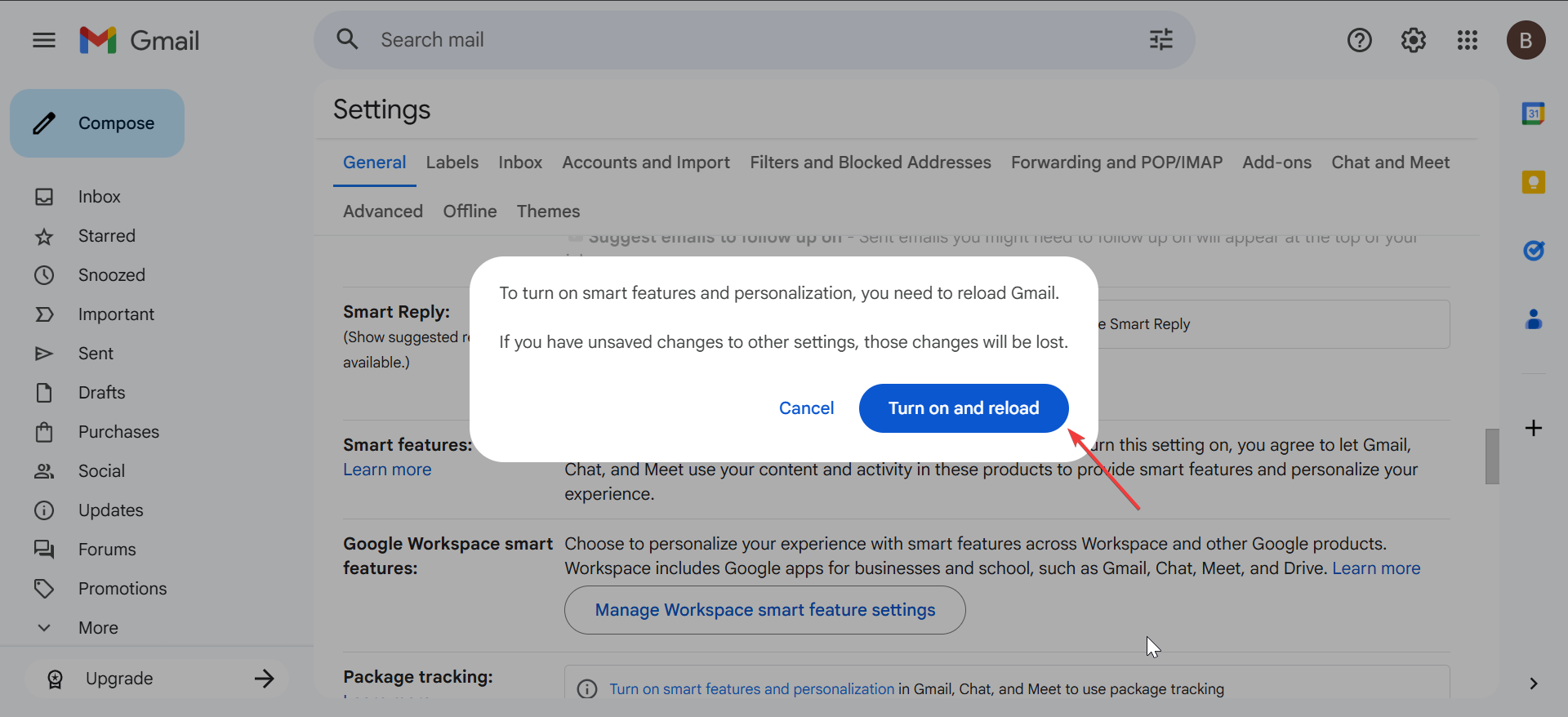
Then enable Calendar features:
- Open Google Calendar in a browser.
- Click the gear icon, then select Settings.
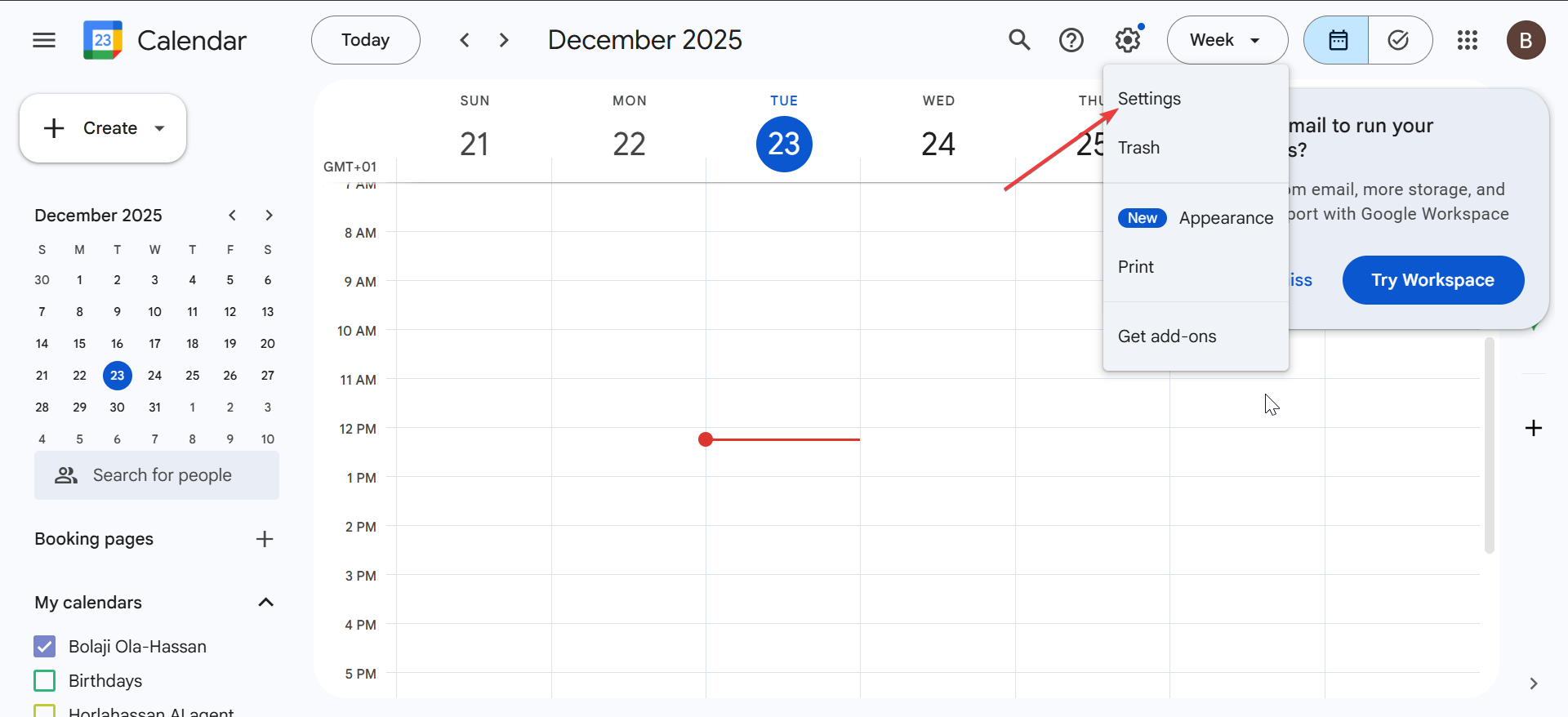
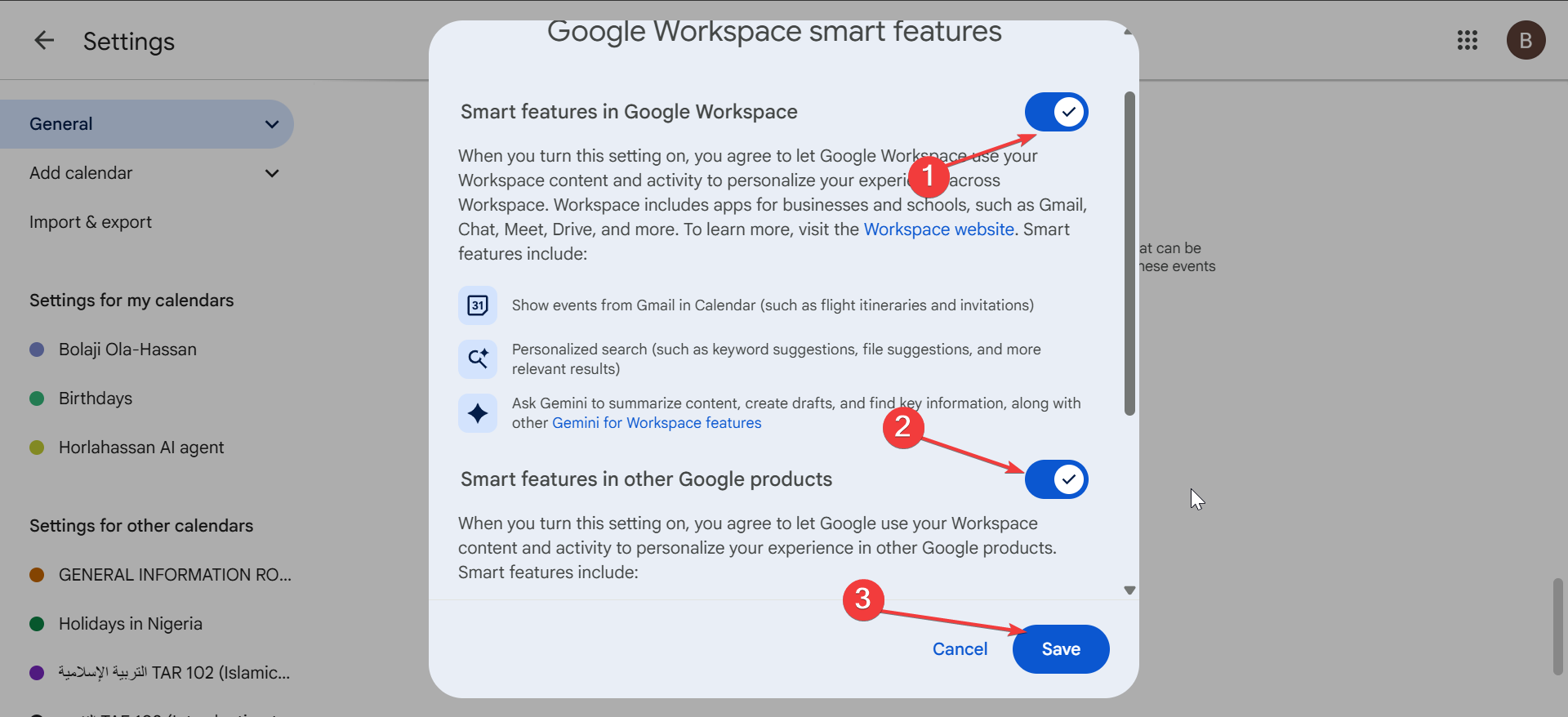
- Open General and go to the Google Workspace smart feature section.
- Next, click the Manage Workspace smart feature settings button.
- Now, toggle the two switches on the popup forward and click the Save button.
- Finally, close Settings and return to your calendar.
Confirm imported trips in Google Calendar
After you enable the settings, verify that Google Calendar shows the trip events on the correct dates.
- Open Google Calendar.
- Go to the dates of your flight or hotel stay.
- Click the travel event to confirm times and locations.
- Edit the event if Google imported wrong details.
Add flight bookings to Google Calendar manually
Use manual entry when Google Calendar does not import your flight, or when the booking email does not reach Gmail.
Add a flight using confirmation email details
Create one event for departure, then add your arrival details in the description.
- Open Google Calendar.
- Click Create.
- Select Event.
- Type your flight number as the event title.
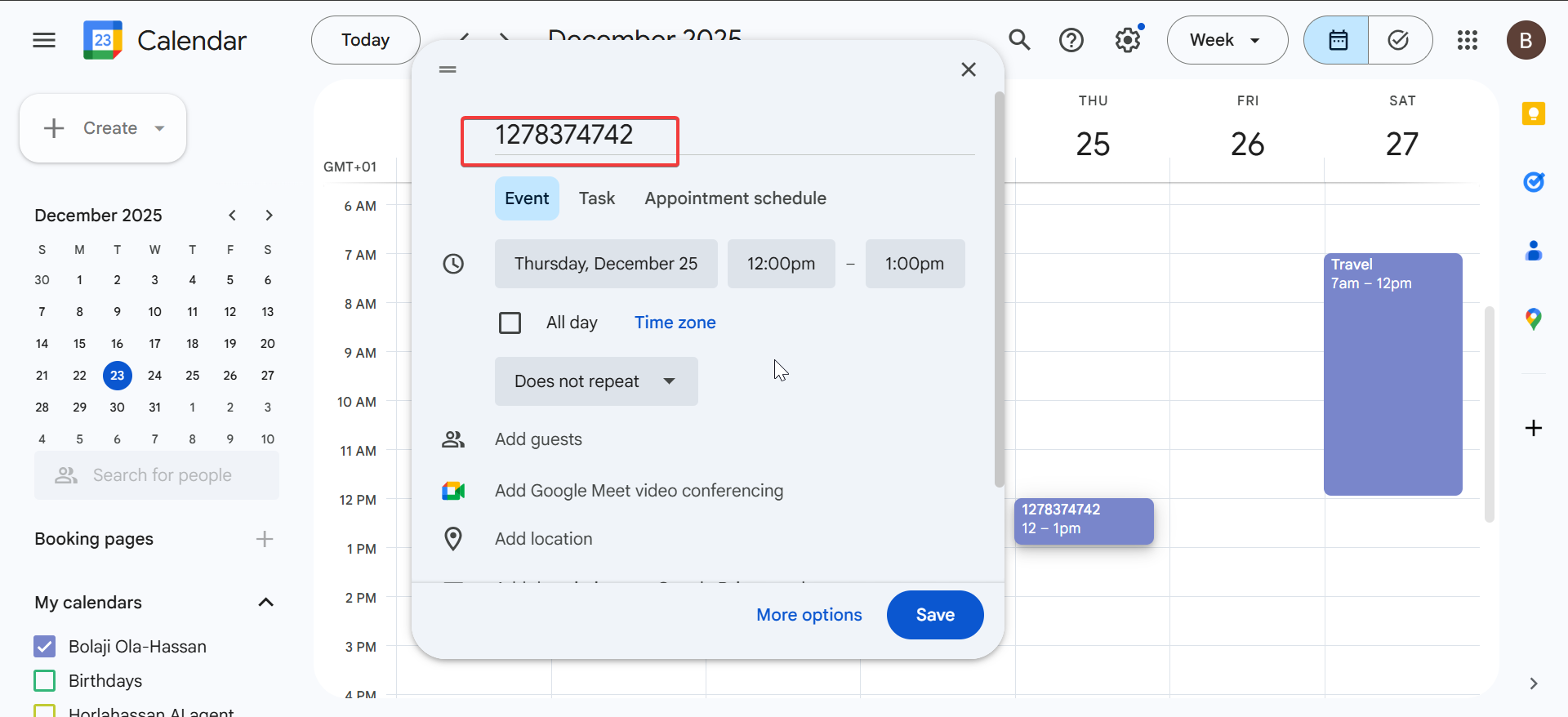
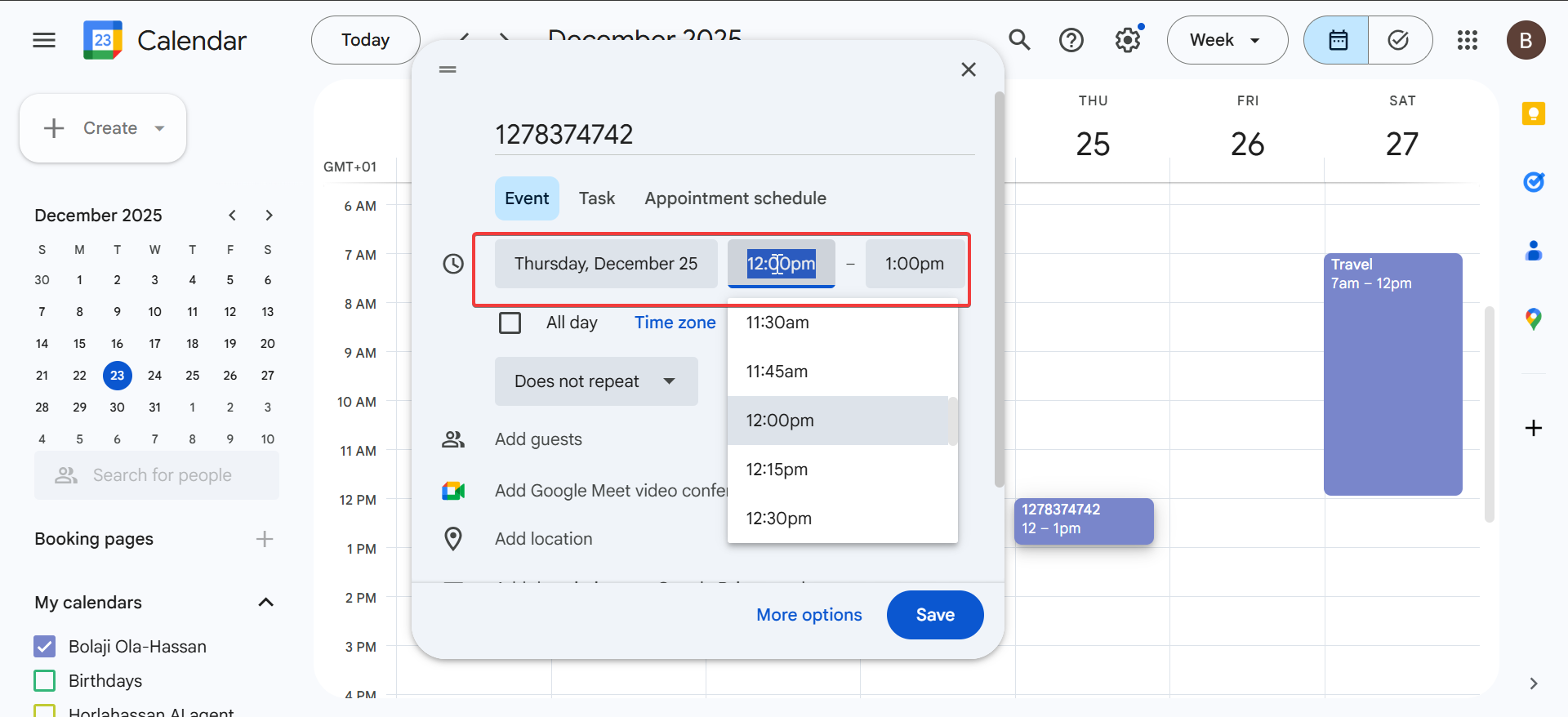
- Set the departure date and time.
- Set the end time to match your arrival time.
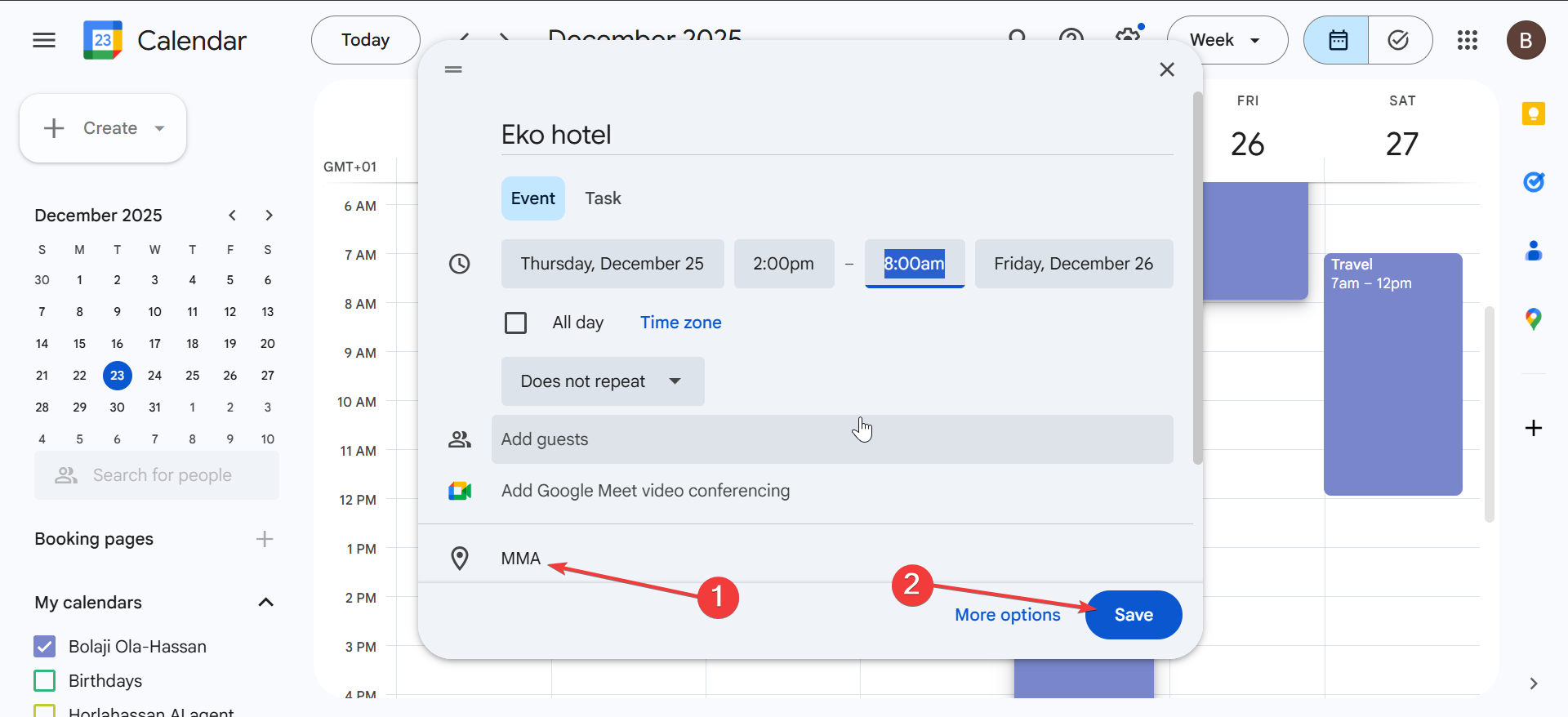
- Type the departure airport in Location.
- Paste the full itinerary into Description.
- Click Save.
Add a flight using a confirmation code or PDF
If your airline sends a PDF-only confirmation, pull the key details and create an event yourself.
- Open the booking PDF or confirmation page.
- Copy the flight number, dates, and times.
- Open Google Calendar and click Create.
- Select Event.
- Paste the details into Description.
- Add airports in Location.
- Click Save.
Add hotel bookings to Google Calendar manually
Manual hotel events help when the booking does not import, or when you want stronger reminders for check-in and checkout.
Create a hotel stay event with check-in and check-out times
Create an all-day, multi-day event so your stay spans the correct dates.
- Open Google Calendar.
- Click Create.
- Select Event.
- Type the hotel name as the title.
- Select the check-in date.
- Select the check-out date.
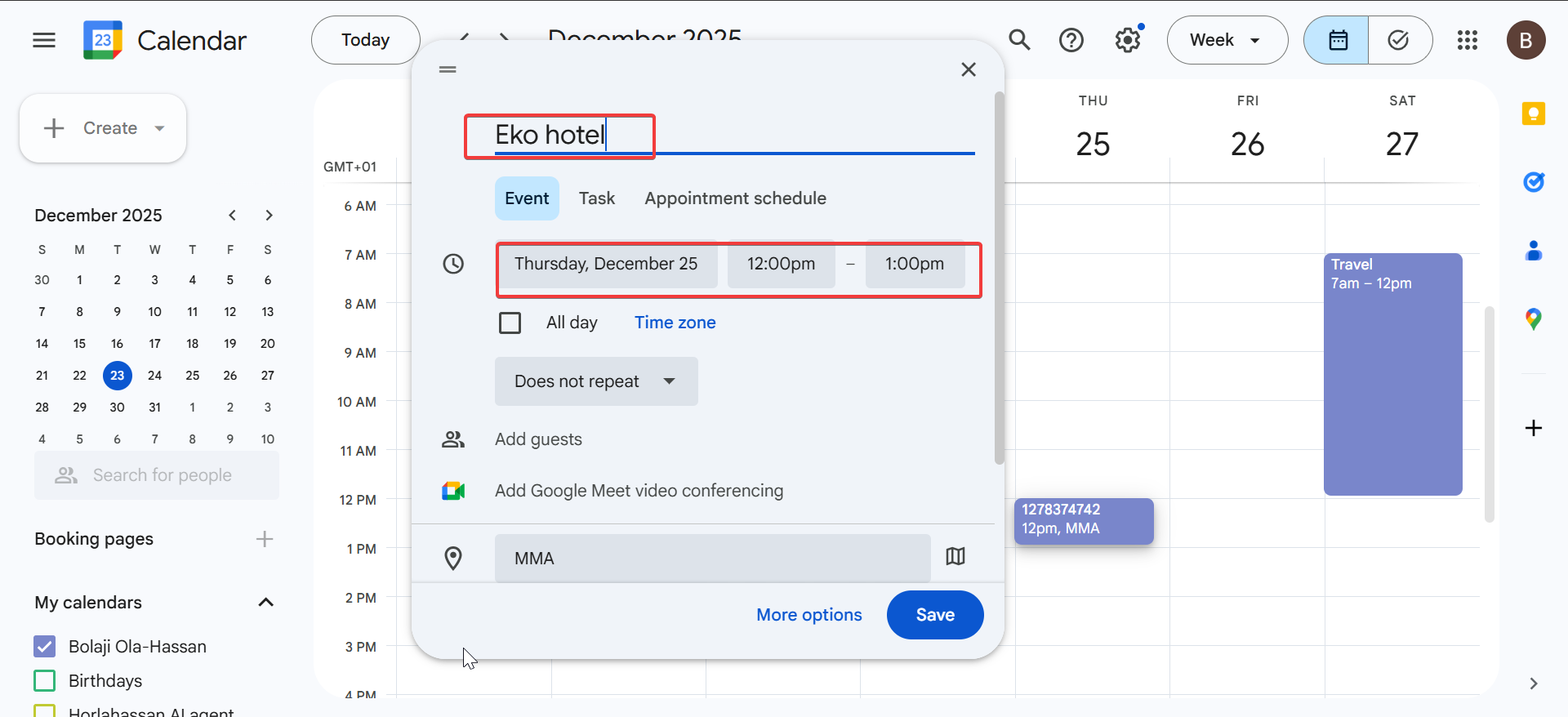
- Turn on All-day.
- Click Save.
Add hotel address and reservation details
Location and reservation details help when you need directions or quick access at the front desk.
- Open the hotel event in Google Calendar.
- Click the pencil icon to edit.
- Paste the hotel address into Location.
- Paste the reservation number into Description.
- Click Save.
Add flights and hotels on mobile
The Google Calendar app lets you create the same travel events on Android and iPhone, even when imports fail.
Add bookings using the Google Calendar app
- Open the Google Calendar app.
- Tap +.
- Tap Event.
- Enter the flight number or hotel name as the title.
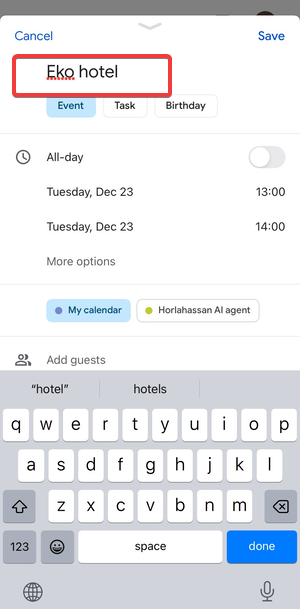

- Set the date and time, or turn on All-day for hotel stays.
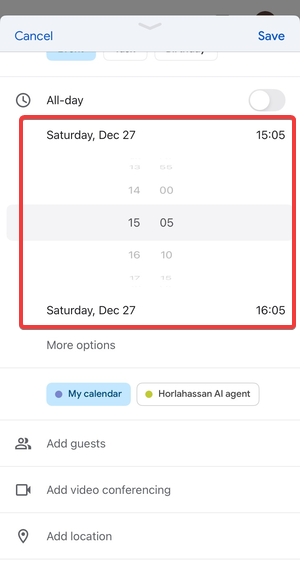

- Add airports or the hotel address in Location.
- Tap Save.
View and manage imported trips on mobile
- Open Google Calendar.
- Tap your flight or hotel event.
- Tap the pencil icon to edit details.
- Tap the three dots and choose Delete if you want to remove it.
Fix flights or hotels not showing in Google Calendar
When Google Calendar misses a booking, you can usually fix it by confirming the email location and settings.
Check Gmail filters and spam folders
Filters, spam, and archived mail can keep bookings out of the flow that triggers travel imports.
- Open Gmail.
- Search for the airline or hotel name.
- Open the booking email and confirm Gmail did not place it in Spam.
- Open All Mail and confirm Gmail did not archive the booking.
- Move the email to Inbox if Gmail archived it.
Fix wrong dates, times, or time zones
Google Calendar can misread time zones, especially when you cross borders. Edit the event and lock in the correct time zone before you travel.
- Open the travel event in Google Calendar.
- Click the pencil icon to edit.
- Now, click the time zone option next to the start and end time if you see it.
- Select the correct departure and arrival time zones.
- Click Save.
What imports automatically vs what you must add manually
Supported booking sources
Google Calendar usually imports bookings from large airlines, major hotel brands, and popular travel sites when the confirmation email lands in Gmail.
Unsupported or partially supported bookings
Small hotels, local carriers, forwarded confirmations, and PDF-only bookings often skip auto-import. Use the manual steps above to add them reliably.
Tips for managing trips in Google Calendar
- Create a separate travel calendar so trips do not clutter your work calendar.
- Add a reminder for online check-in 24 hours before departure.
- Add a checkout reminder for the morning you leave the hotel.
- Review time zones for flights as soon as Google adds the event.
FAQs
Why is my flight not showing in Google Calendar? Google Calendar may miss the booking when you turn off smart features, Gmail routes the email to spam, or the confirmation uses an unsupported format.
Can I add trips from a non-Gmail email account? Yes. Create the flight or hotel event manually in Google Calendar, then paste your booking details into the description.
Do hotel bookings show as multi-day events? They can, but manual entries work best when you turn on All-day and set check-in and check-out dates.
Can I edit imported trips? Yes. Open the trip event and edit the title, time, location, and reminders like any other event.
Summary
- Turn on smart features in Gmail and Google Calendar to enable travel imports.
- Confirm that Google Calendar added the trip events on the correct travel dates.
- Create manual flight and hotel events when imports fail or emails do not land in Gmail.
- Edit time zones and details right away to avoid day-of-travel confusion.
Google Calendar handles many bookings automatically when Gmail detects the confirmation email. When it misses a trip, manual events give you a reliable backup that keeps your itinerary in one place.


Discussion (0)
Be the first to comment.