




The WinX menu is one of those small Windows features you don’t think about until it stops working. Press Win + X, and suddenly nothing happens. No quick access to Device Manager, Terminal, or Settings. Just silence.
With Windows 11 version 24H2, some users have reported this exact issue. It is not widespread enough to be called a major bug, but it is common enough to be frustrating if you rely on that menu daily.
This guide focuses on what actually causes the problem and what fixes tend to work in real-world scenarios.
What Is the WinX Menu?
The WinX menu, also known as the Power User menu, is a shortcut menu that appears when you press Windows key + X or right-click the Start button.
It gives quick access to:
- Device Manager
- Disk Management
- Terminal
- Settings
- Task Manager
It is designed for speed. No searching, no navigation.
When it stops working, it slows down everyday tasks more than you would expect.
Why the WinX Menu Stops Working in Windows 11 (24H2)
There is no single cause. Based on user reports and system behavior, the issue usually comes down to one of these:
1. Explorer Process Glitches
The WinX menu is tied closely to the Windows Explorer process. If Explorer misbehaves, the menu may stop responding.
2. Corrupted System Files
Upgrading to version 24H2 can sometimes leave behind minor file inconsistencies, especially if the update was not clean.
3. Keyboard Shortcut Issues
In some cases, the problem is not the menu itself but the keyboard shortcut not registering properly.
4. Third-Party Interference
Customization tools, shell extensions, or even aggressive system tweaks can interfere with how the WinX menu functions.
Fixes That Actually Work
Instead of listing every possible tweak, here are the fixes that consistently solve the issue.
Restart Windows Explorer
This is the simplest and often the most effective fix.
- Press Ctrl + Shift + Esc to open Task Manager
- Find Windows Explorer
- Right-click and select Restart
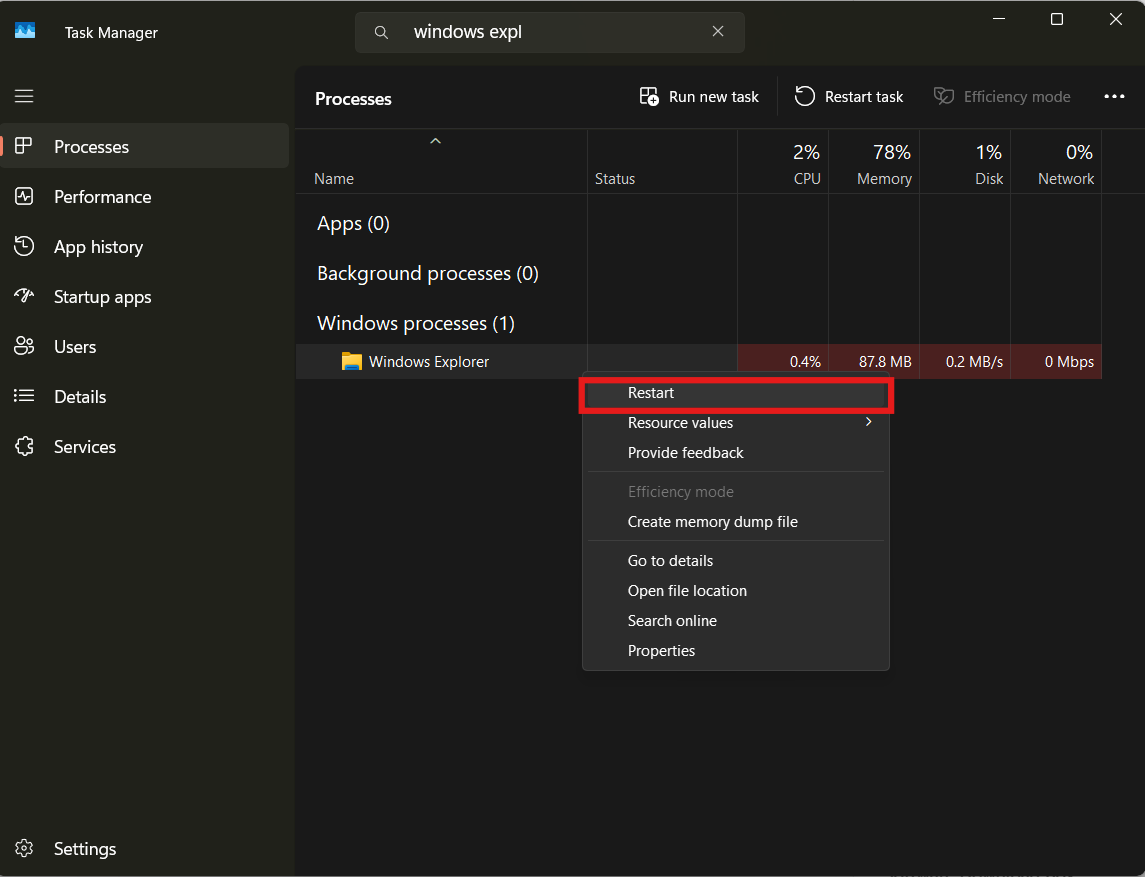
If the issue is temporary, this usually brings the WinX menu back immediately.
Check If Right-Click on Start Works
Right-click the Start button manually.
- If it works, the issue is likely with the keyboard shortcut
- If it does not, the problem is deeper in the system
This quick check helps narrow down the cause.
Run System File Checks
Corrupted system files are a common reason after updates.
Open Command Prompt as administrator and run:
sfc /scannowDISM /Online /Cleanup-Image /RestoreHealth
These commands repair system-level issues that might be affecting the menu.
Update or Roll Back Windows
Since this issue is linked to a specific version of Windows 11, updates matter.
- Check for new updates that may fix the bug
- If the issue started immediately after upgrading, consider rolling back temporarily
Microsoft often patches these inconsistencies over time.
Disable Third-Party Tweaks
If you use tools that modify the Windows interface, try disabling them.
This includes:
- Start menu replacements
- UI customization tools
- Shell extensions
These can interfere with system-level menus like WinX.
Create a New User Profile
If nothing else works, the issue might be profile-specific.
Creating a new user account can help confirm this:
- If WinX works there, your original profile is likely corrupted
- If not, the issue is system-wide
Real-World Insight: What Usually Fixes It
In most cases, the issue is not permanent.
The fixes that work most often are:
- Restarting Windows Explorer
- Running system file checks
- Installing pending updates
More complex fixes like registry edits are rarely needed and often unnecessary.
What Not to Do
When something like this breaks, it is tempting to try aggressive fixes. That usually makes things worse.
Avoid:
- Random registry modifications
- Downloading unknown “fix tools”
- Reinstalling Windows immediately
Start simple and escalate only if needed.
Limitations and Known Issues
Since this is tied to a newer version of Windows 11, there may still be unresolved bugs.
Some users report:
- The issue returning after restart
- Temporary fixes not lasting
- Inconsistent behavior across sessions
This suggests that in some cases, it is not just user-side but also version-related.
Should You Be Concerned?
Not really.
The WinX menu not working is inconvenient, but it is not a critical system failure. Most core functions of Windows continue to work normally.
Still, if you rely on quick access tools, it is worth fixing.
Final Thoughts
The WinX menu is a small feature, but it plays a big role in everyday efficiency. When it stops working in Windows 11 24H2, the impact is more noticeable than expected.
The good news is that the issue is usually fixable without drastic measures. Start with simple fixes, avoid unnecessary complexity, and let updates handle the rest over time.
FAQs
What is the WinX menu in Windows 11?
It is a shortcut menu that appears with Win + X, providing quick access to system tools.
Why is WinX not working in Windows 11 24H2?
It can be due to Explorer issues, corrupted files, or update-related bugs.
Does restarting fix the problem?
Yes, restarting Windows Explorer often resolves it.
Is this a permanent issue?
Usually not. It is often temporary or fixable with updates.
Should I reinstall Windows to fix it?
No, that should be a last resort only if all other fixes fail.
Discussion (0)
Be the first to comment.