



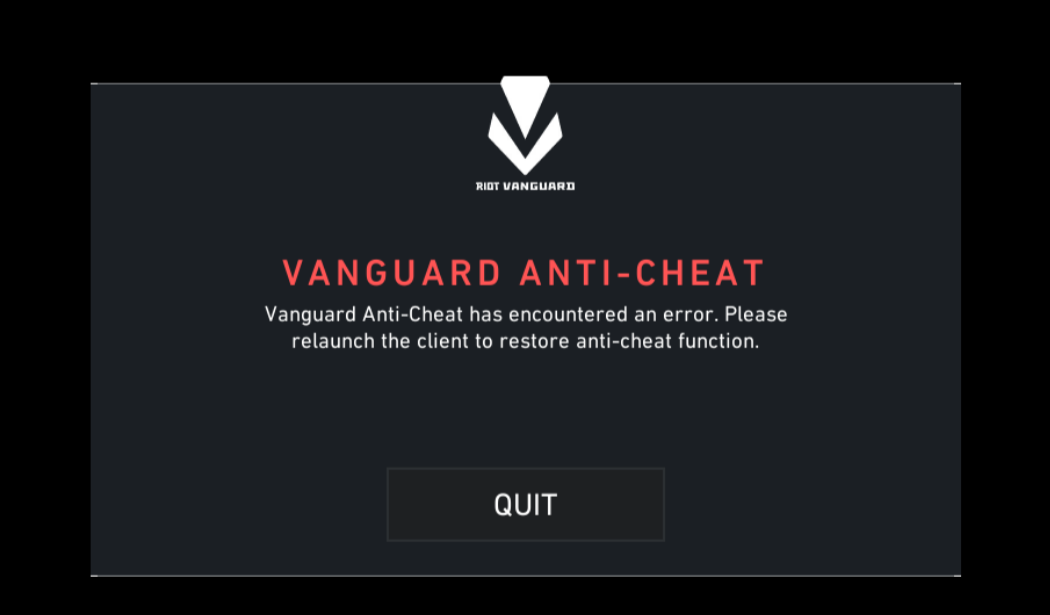
Riot Vanguard is an anti-cheat system developed by Riot Games to prevent cheating in its games. It is primarily used for the game Valorant and works by detecting unauthorized software that may give players an unfair advantage.
Riot Vanguard runs at the system level to monitor suspicious activity and protect competitive gameplay. However, some users experience issues such as Vanguard errors, startup problems, or connection failures. This guide explains what Riot Vanguard is and how to fix common problems.
What Is Riot Vanguard?
Riot Vanguard is an anti-cheat software designed to detect cheating tools in online games. It helps ensure fair gameplay by preventing players from using hacks such as aimbots or wallhacks.
The system includes two main components:
Vanguard Driver
This is a kernel-level driver that starts when Windows boots and monitors system processes.
Vanguard Client
This component runs when you launch the game and communicates with Riot’s servers.
Because of its deep system access, Vanguard can detect advanced cheats that normal anti-cheat programs may miss.
Why Riot Vanguard Runs at Startup
Riot Vanguard loads when Windows starts to prevent cheats from running before the game launches.
By starting early, Vanguard can:
- Detect system-level cheat programs
- Block unauthorized drivers
- Prevent hidden cheat tools from loading
Although this improves anti-cheat detection, some users prefer to disable it when they are not playing the game.
Common Riot Vanguard Issues
Some players encounter problems related to Riot Vanguard.
Common issues include:
- Vanguard not initialized
- Vanguard error codes
- Valorant not launching
- Vanguard blocking drivers or software
- Vanguard not starting after system updates
These problems are usually related to driver issues or corrupted Vanguard files.
Fix Riot Vanguard Not Initialized
One of the most common errors is Vanguard not initialized.
To fix it:
- Restart your computer.
- Open Services by pressing Windows + R and typing
services.msc. - Find vgc in the list.
- Right-click it and select Start.
If the service is already running, restart it.
Reinstall Riot Vanguard
If Vanguard is corrupted, reinstalling it often fixes the problem.
Follow these steps:
- Open Settings.
- Go to Apps > Installed apps.
- Find Riot Vanguard.
- Click Uninstall.
- Restart your computer.
- Launch Valorant again.
The game will automatically reinstall Vanguard.
Update Windows and Drivers
Outdated drivers can cause Vanguard errors.
To update your system:
- Open Settings.
- Go to Windows Update.
- Click Check for updates.
Also update your graphics drivers through the manufacturer’s website.
Disable Conflicting Software
Some security tools or system utilities may interfere with Vanguard.
Possible conflicting programs include:
- Third-party antivirus software
- System monitoring tools
- Driver modification utilities
Temporarily disabling these tools can help identify the issue.
Check Secure Boot and TPM
Some Vanguard versions require security features like Secure Boot.
To check:
- Press Windows + R.
- Type
msinfo32. - Check Secure Boot State.
If Secure Boot is disabled, enabling it in BIOS may resolve Vanguard errors.
Final Thoughts
Riot Vanguard is an advanced anti-cheat system designed to protect competitive games such as Valorant. By monitoring system-level activity, it helps prevent cheating and ensures fair gameplay.
Although Vanguard can sometimes cause errors or compatibility issues, most problems can be resolved by restarting the service, reinstalling the software, or updating your system. Once properly configured, Riot Vanguard runs quietly in the background while protecting the game.
FAQs
What is Riot Vanguard used for?
Riot Vanguard is an anti-cheat system used mainly in Valorant to detect cheating software.
Why does Riot Vanguard run when Windows starts?
It runs at startup to detect cheat tools that load before the game launches.
Can I uninstall Riot Vanguard?
Yes, but Valorant will not run unless Vanguard is installed.
How do I fix Vanguard errors?
Common fixes include restarting the Vanguard service, reinstalling Vanguard, updating Windows, or enabling Secure Boot.

Discussion (0)
Be the first to comment.