




Most note-taking apps store your notes on their servers, lock them in proprietary formats, and charge a subscription to sync across devices. Obsidian works differently. It stores everything as plain text files on your own computer, works fully offline, and costs nothing for personal use. It has become genuinely popular among students, writers, and researchers who want more control over their notes. This guide explains what Obsidian is and how to get started on Windows.
What Is Obsidian?
Obsidian is a free note-taking and knowledge management app available for Windows, macOS, Linux, Android, and iOS. At its core, it is a Markdown text editor. What makes it different is linking. You can connect any note to any other note using double square brackets, and Obsidian tracks all those connections and displays them visually as a graph. Over time, a network of linked ideas builds up that reveals patterns and relationships you would never see in a flat list of files.
All your notes are stored as plain Markdown text files in a folder on your computer called a vault. Because they are just text files, you can open them in any text editor, back them up anywhere, and move them freely. You are never locked into Obsidian's format.
Obsidian is free for personal use with no meaningful restrictions. Optional paid services exist for encrypted syncing across devices and for publishing notes publicly, but neither is required.
How to Install Obsidian on Windows
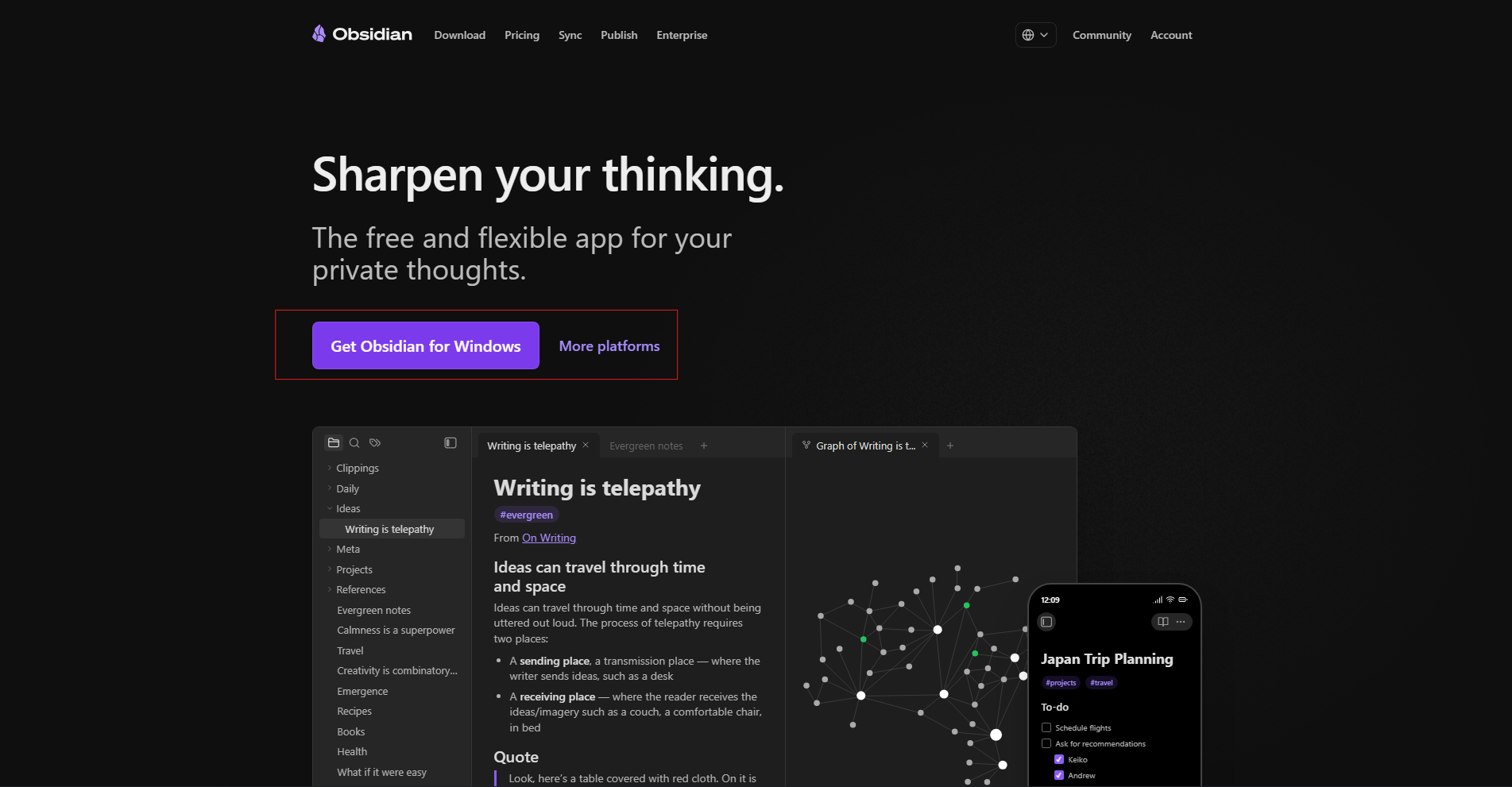
Go to obsidian.md and click Download. The site detects Windows automatically. Run the installer and Obsidian opens when complete.
Creating Your First Vault
When Obsidian opens for the first time, it asks you to create a vault. Click Create new vault, give it a name, and choose a location on your hard drive. Your Documents folder works well. This vault folder is where every note you create will be saved as a plain text file.
Writing Notes
Press Ctrl + N to create a new note. Give it a title, which becomes the file name, and start writing. Obsidian uses Markdown for formatting. A hash symbol at the start of a line creates a heading. Double asterisks make text bold. Single asterisks make it italic. Hyphens create bullet lists. You do not need to know all of Markdown before starting. The basics take a few minutes to pick up.
Obsidian's Live Preview mode shows your formatting applied as you type, so bold text looks bold while you are writing. Your notes save automatically with no save button needed.
Linking Notes Together
To link one note to another, type two opening square brackets and start typing the name of a note. Obsidian shows matching notes as you type. Select one and press Enter. Clicking the link opens that note instantly.
If you link to a note that does not exist yet, Obsidian creates a placeholder. Clicking it creates a new empty note with that name. This lets you reference ideas before you have written them.
Every note also shows its backlinks in the right sidebar, meaning every other note that links to it. Connections are tracked in both directions automatically.
The Graph View
Press Ctrl + G to open the Graph View. This shows every note in your vault as a dot, with lines representing the links between them. Notes with many connections appear larger and more central. Isolated notes sit at the edges. As your vault grows, the graph becomes a useful way to see how your knowledge is connected and to spot ideas that have not been linked to anything yet.
Organizing Your Vault
Obsidian does not prescribe how you organize your notes, which is a deliberate choice. You can use folders, tags by typing a hash followed by a word like #research anywhere in a note, or rely primarily on links and let the graph reveal the structure naturally. Many users start with a simple Inbox folder for new unorganized notes and a Notes folder for everything else, then evolve their system over time.
Search works vault-wide with Ctrl + Shift + F, making it easy to find anything regardless of how you organize.
Core Plugins Worth Enabling
Go to Settings then Core plugins to see optional built-in features. Daily Notes automatically creates a note named with today's date when you click a button in the sidebar, useful as a daily journal or capture point. Templates lets you define reusable note structures that get inserted when creating certain note types. Backlinks shows every note that links to your current note as a panel at the bottom of the editor.
Community Plugins
Obsidian has thousands of community plugins built by users. Go to Settings, then Community plugins, then Browse to explore them. The most widely used include Dataview, which lets you query your notes like a database and create dynamic tables from your note contents, Calendar which adds a visual calendar connected to your Daily Notes, and Templater which extends the built-in Templates plugin with more powerful automation. Start with core plugins before adding community ones.
Syncing Across Devices
Obsidian Sync is the official encrypted syncing service at $4 per month. Free alternatives work just as well. Place your vault inside a OneDrive, Google Drive, or Dropbox folder and it syncs automatically across your devices. On mobile, install Obsidian for Android or iOS and point it at the same cloud folder.
Obsidian vs Notion
Notion stores notes in the cloud and excels at structured databases and team collaboration. Obsidian stores everything locally and excels at deeply connected personal notes and data ownership. Notion is better for shared team workspaces. Obsidian is better for a private, long-term knowledge base that you fully control. Many people use both for different purposes.
Final Thoughts
Obsidian rewards patience. It does not hand you a structure out of the box, but for people who invest the time to set it up around how they actually think, it becomes genuinely hard to replace. Your notes are yours, stored in a format that will remain readable for decades, connected in ways that surface insights over time, and running fast and offline on your own machine. If you take notes seriously and want a tool built around your thinking rather than someone else's template, Obsidian is worth exploring.
Frequently Asked Questions
Is Obsidian free to use on Windows?
Yes. Obsidian is completely free for personal use with no meaningful restrictions. Optional paid services exist for device sync and public publishing, but both have free alternatives and neither is required to use the app.
Does Obsidian store notes in the cloud?
No. By default, Obsidian stores all notes as plain text files locally on your computer. Nothing is sent to any server unless you choose to use Obsidian Sync or place your vault inside a cloud storage folder like OneDrive or Google Drive.
What is a vault in Obsidian?
A vault is a folder on your computer where Obsidian stores all your notes as Markdown text files. You create or choose this folder when you first open the app. Everything inside it is your notes collection.
Do I need to know Markdown to use Obsidian?
No. The basics of Markdown take about five minutes to learn, and Obsidian's Live Preview mode shows your formatting applied as you type, which makes learning it intuitive. You can start writing immediately and pick up formatting as you go.
How does Obsidian compare to Notion?
Obsidian stores notes locally as plain text files and excels at linking ideas between notes with full data ownership and offline access. Notion stores notes in the cloud and excels at structured databases, rich formatting, and team collaboration. Both are strong tools for different purposes.



Discussion (0)
Be the first to comment.