




There is a version of Claude that sits in a chat window and answers questions. That version is useful. Then there is a version of Claude that can see your Slack messages, create a Linear issue from your bug report, search your Google Drive for a specific document, and draft a response in your email, all without you copying and pasting a single thing. That version is significantly more useful, and the difference between the two is Connectors.
Connectors are direct integrations between Claude and the apps you use every day. They have been available since mid-2025 and have grown considerably since then, both in the number of services supported and in what they can actually do. If you have not set any up yet, this guide covers what they are, how they work, and how to get started.
What Connectors Actually Do
The simplest way to think about Connectors is as secure bridges between Claude and your tools. Without them, Claude knows a lot about the world but nothing about your specific world. It does not know what is in your Notion workspace, who is on your team in Asana, what tickets are open in Linear, or what documents are sitting in your Google Drive.
With a Connector, that changes. Claude can search your files, read your tasks, see your messages, and in many cases take action within the connected service directly. That last part is important. These are not read-only connections. Depending on the service, Claude can create, update, and send, not just retrieve.
The example that makes this concrete: after connecting Linear, you can tell Claude "create an issue for the bug where the login button disappears on mobile" and Claude will do exactly that in your Linear workspace. You do not need to open Linear, fill in the form, or copy anything. Claude handles the action through the Connector.
Some Connectors go even further with what Anthropic calls interactive mode. These render live interfaces, dashboards, task boards, design tools, directly inside your conversation. You are not just exchanging text about a tool. You are interacting with a live version of it within Claude itself. Connectors with this capability carry an Interactive badge in the directory.
What Services Are Available
The Connectors Directory at claude.ai/connectors is the place to browse everything currently available. The catalogue is organised by category and each listing includes details on what the connector can read, what it can write, and who can use it.
Services span a broad range of work categories. Productivity tools like Google Drive, Notion, and Microsoft 365 are there for document and file access. Communication tools including Slack and Gmail allow Claude to read conversations and send messages. Project management tools like Linear and Asana connect Claude to tasks and issues. Design tools like Figma and Canva have connectors with interactive capabilities. Canva in particular works closely with Claude Design, allowing visual work created in Claude to flow directly into Canva for editing and publishing.
Healthcare connectors are available for US-based Pro and Max subscribers, allowing Claude to access health records and lab results on an opt-in basis, with users in full control of what is shared and the ability to disconnect at any time. Anthropic does not use health data for model training.
Custom Connectors are also available for all plans, including a limit of one for free users. These allow you to connect Claude to any service that supports the Model Context Protocol, including internal tools that are not in the public directory. They require entering a name and server URL and are currently in beta.
How to Set One Up
The process is straightforward and takes a couple of minutes.
From within a chat, click the plus button in the lower left corner or type a forward slash to open the menu. Hover over Connectors and select Manage connectors. Click the plus button next to Connectors to open the directory. Browse by category or scroll through the list, click the connector you want, review what access it is requesting, and click Connect or Install. Follow the authentication steps to grant Claude access to your account in that service.
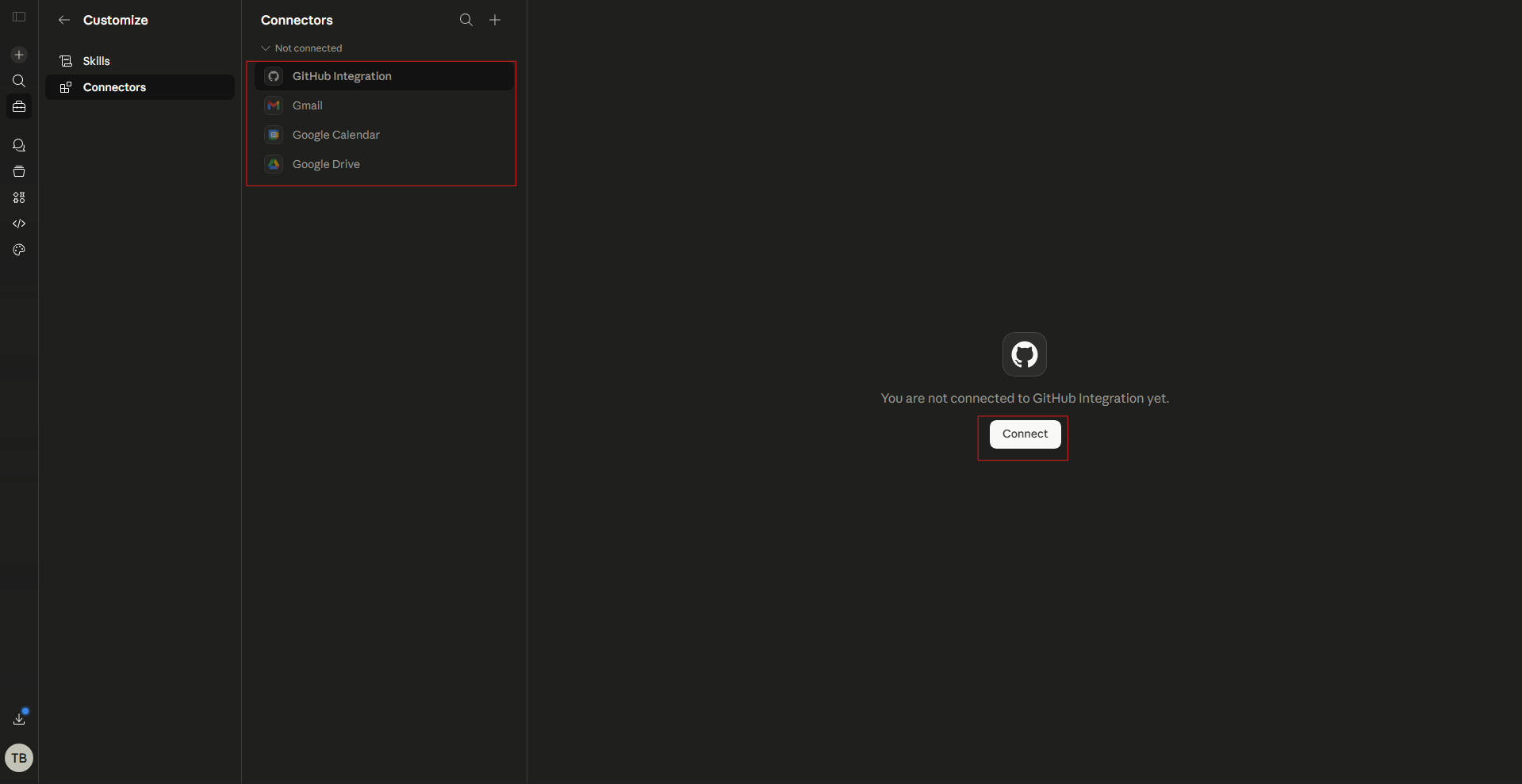
Alternatively, you can manage everything from Settings. Navigate to Customize and then Connectors, and use the same plus button to browse and add services from there.
On Team and Enterprise plans, an Owner or Primary Owner needs to enable a connector at the organisation level first. Once they have done that through Organisation Settings, individual users authenticate with the service themselves and begin using it. Once connected on desktop or web, the connector is also available when you log into Claude on iOS or Android, though adding new connectors from mobile is not currently supported.
Using Connectors in a Conversation
Once connected, services do not automatically activate in every conversation. You enable them per conversation by clicking the plus button or typing a forward slash, hovering over Connectors, and toggling on the specific services you want Claude to have access to for that session.
This gives you control. A conversation about your codebase does not need access to your health records. A conversation about a client project does not need every tool you have ever connected. You choose what is relevant for the task at hand.
If you connect a lot of services over time, Claude gives you a setting called Tool access that determines how connectors load. The default is Auto, which works well for most people. If you have ten or more connectors active, switching to On demand gives your conversations more breathing room by loading tools only when Claude determines they are needed.
Custom Connectors
Beyond the official directory, you can connect Claude to any service that supports MCP, the Model Context Protocol, using Custom Connectors. This is how organisations connect Claude to their own internal tools, proprietary systems, or services that are not yet in the public directory.
To add one, go to Customize, then Connectors, click the plus button, and select Add custom connector. Enter the connector's name and the URL of your MCP server. If your server requires OAuth authentication, you can enter a Client ID and secret in the advanced settings.
One technical note worth knowing: custom connectors connect from Anthropic's cloud, not from your local machine. This is true even when you are using Claude Desktop locally. If your MCP server is behind a corporate firewall or on a private network, you will need to either make it publicly reachable or allowlist Anthropic's IP ranges. Anthropic's documentation covers the specific network requirements if that applies to your setup.
Custom connectors are not verified by Anthropic, so the guidance is to connect only to servers from trusted organisations and review what permissions they are requesting before confirming.
Security and Privacy
All data transfers through Connectors are encrypted. When you connect a service, you can only access content within that service that your own account already has permission to view. Claude does not gain access beyond your own permissions.
Anthropic recommends reviewing what each connector requests access to before connecting it, and disconnecting services you no longer actively use. This keeps your connected surface area intentional rather than accumulated.
On Team and Enterprise plans, there are additional boundaries. Connectors are only available in private projects, so shared or public project chats cannot use connected service data. Chats containing synced content from a connector cannot be shared externally. Access permissions are enforced at the individual user level, so each person on a team authenticates with the third-party service themselves, even after an admin enables it organisation-wide.
Why This Changes How Claude Feels to Use
The shift that Connectors create is worth naming directly. Most of the friction in using an AI assistant comes from the gap between what you know and what the AI knows. You know your project. You know what is in that document. The AI does not, until you copy it across, explain it, or upload it. That gap turns every conversation into a setup exercise before the actual work begins.
Connectors close that gap. When Claude can see what is in your Google Drive, you do not need to paste the document. When Claude is connected to Slack, you can ask it to summarise the last week of discussion in a channel without copying a single message. linking claude to your project management tool, you can describe a task and have it created rather than switching context to do it yourself.
The result is not just a more capable Claude. It is a Claude that fits more naturally into how you actually work rather than requiring you to adapt your work around it.
Final Thoughts
Connectors are one of those features that feels optional until you try them, and then it becomes difficult to understand why you waited. If you spend time every day moving information between tools and conversations, setting up even one or two Connectors will change how that feels. Start with the tools you use most, connect them from Settings, and let Claude do the bridging.
Frequently Asked Questions
Are Connectors available on the free plan?
Directory connectors are available to all users. Custom connectors using remote MCP are also available to free users, with a limit of one custom connector. Some specific connectors, like Microsoft 365, are restricted to Team and Enterprise plans.
Can Claude take actions in connected apps or just read from them?
Both, depending on the service. Many connectors support read and write access. For example, after connecting Linear, Claude can create and update issues, not just view them. The connector's page in the directory lists exactly what read and write capabilities it has.
What is the difference between a directory connector and a custom connector?
Directory connectors are services officially listed in Anthropic's Connectors Directory and have been through a review process. Custom connectors allow you to connect any MCP-compatible server, including internal tools, but they have not been verified by Anthropic. Anthropic recommends only using custom connectors from trusted sources.
Do I need to enable connectors every time I start a new conversation?
Yes. Connected services need to be toggled on per conversation using the plus button or forward slash menu. This is intentional, so Claude only has access to the tools relevant to the specific task you are working on.
Are my data and conversations with connected services private?
All data transfers are encrypted. On Team and Enterprise plans, chats using connector data cannot be shared externally, and connectors are only available in private projects. Health data from healthcare connectors is not used to train Anthropic's models.



Discussion (0)
Be the first to comment.