



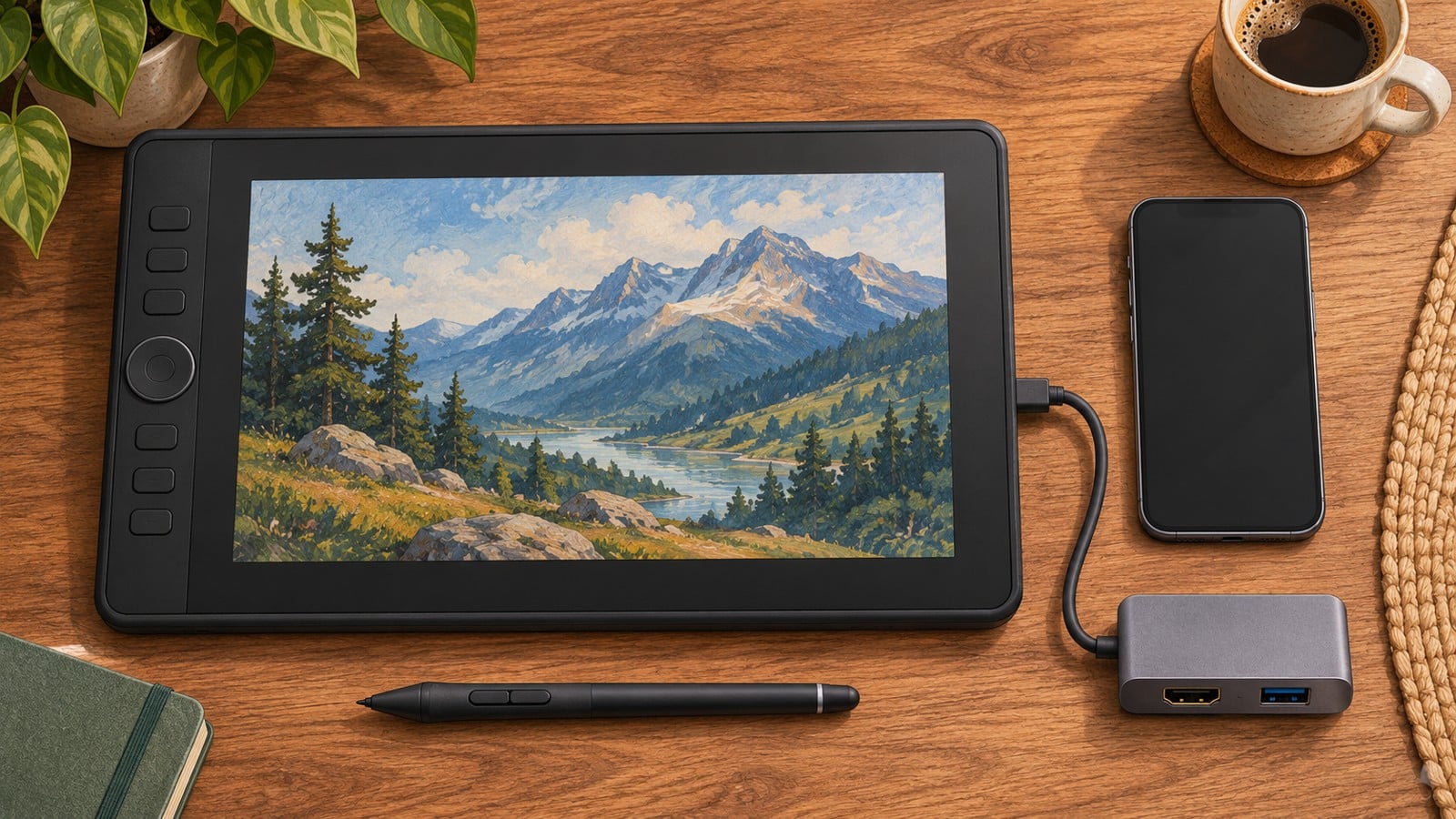
The original Wacom One DTC133 needs both a video path and a USB data path when used with a supported Android device. If the screen displays an image but the pen does nothing, check the USB-A data connection in the X-shaped cable arrangement.
Confirm the model and Android compatibility
This procedure is for DTC133, not newer Wacom One displays or the Movink. Wacom supports selected Android devices with display output; a USB-C socket alone is not enough. Check Wacom’s compatibility guidance before buying adapters.
Connect in Wacom’s specified order
- Use a suitable USB-C hub with HDMI and USB-A, plus the supplied X-shaped cable.
- Connect the display’s HDMI and USB-A data connections to the hub.
- Connect the hub to the compatible Android device’s USB-C port.
- Connect the display’s separate USB power cable to its power adapter and AC supply.
Wacom’s connection instructions distinguish the data and power connections. Connecting only HDMI can deliver a picture while leaving the pen without a route back to Android.
Try Android mode after checking the cables
If the compatible setup still does not work, Wacom’s troubleshooting says holding the display’s power button for six seconds switches Android mode. Apply that model-specific instruction only after confirming compatibility and wiring.
Test pen movement in a currently supported drawing app. An old list of tested apps does not guarantee that each app remains available or unchanged. If the picture works but input still fails, report the phone model, Android version, hub model, and which X-cable connections are attached. That separates a display-output problem from the missing pen-data connection.
Featured image: AI-generated illustration of representative equipment, not an exact product photograph or a hands-on test.

Discussion (0)
Comments are closed.