



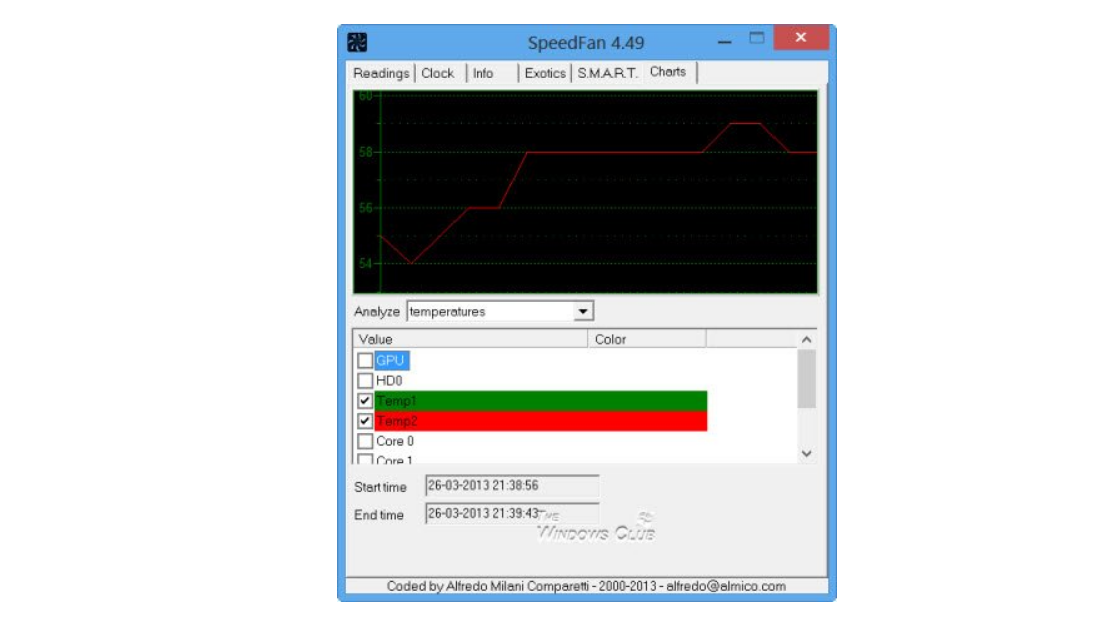
SpeedFan is a lightweight system monitoring tool that allows you to monitor temperatures, voltages, and fan speeds on your Windows PC. It was widely used for adjusting fan speeds and checking hardware health, especially on older systems.
This guide explains what SpeedFan does, how to download it safely, and how to use it on Windows.
What Is SpeedFan
SpeedFan is a free hardware monitoring utility that reads temperature sensors, fan speeds, and voltage levels from your motherboard and other components.
It can monitor:
- CPU temperature
- GPU temperature
- Hard drive temperature
- Fan speeds
- System voltages
In some cases, it can also adjust fan speeds manually.
Is SpeedFan Still Relevant
SpeedFan was very popular in the past, but it has not received major updates in recent years. While it still works on many systems, compatibility with newer motherboards may be limited.
Modern alternatives often provide better support for new hardware.
How to Download SpeedFan Safely
If you choose to use SpeedFan, download it only from the official website or trusted sources.
Steps:
- Visit the official SpeedFan website
- Download the latest available version
- Save the installer file
- Run the installer and follow the setup instructions
Avoid downloading from unknown third-party websites.
How to Use SpeedFan
After installation, follow these steps:
- Launch SpeedFan
- Wait while it detects hardware sensors
- View temperature readings on the main screen
- Check fan speeds and voltage levels
If supported, you can adjust fan speeds manually by enabling advanced settings.
How to Control Fan Speed in SpeedFan
Fan control depends on motherboard support.
Steps:
- Open SpeedFan
- Click Configure
- Go to the Advanced tab
- Select your chip from the dropdown
- Look for PWM settings
- Change settings from automatic to manual
Be cautious when adjusting fan speeds to avoid overheating.
Limitations of SpeedFan
SpeedFan may not work properly if:
- Your motherboard is not supported
- You are using newer UEFI systems
- BIOS restricts fan control
- Drivers are outdated
Always monitor temperatures carefully when making changes.
Modern Alternatives to SpeedFan
If SpeedFan does not work well on your system, consider:
- HWMonitor for temperature monitoring
- MSI Afterburner for GPU control
- Open Hardware Monitor
- Manufacturer software like ASUS Armoury Crate or MSI Center
These tools are better suited for newer hardware.
Is SpeedFan Safe
SpeedFan itself is safe if downloaded from official sources. However, incorrect fan configuration can cause overheating. Use caution when adjusting advanced settings.
Final Thoughts
SpeedFan remains a useful tool for monitoring system temperatures and fan speeds, especially on older Windows systems. However, its compatibility with modern hardware may be limited. If you need advanced monitoring or fan control, consider newer alternatives designed for current systems.
FAQs
Is SpeedFan free
Yes, SpeedFan is free to use.
Does SpeedFan work on Windows 11
It may work, but compatibility with modern hardware is not guaranteed.
Can SpeedFan damage my PC
Only if fan speeds are set incorrectly. Monitor temperatures carefully.
Is SpeedFan still updated
It has not received frequent updates in recent years.
What is the best alternative to SpeedFan
HWMonitor and manufacturer tools are popular alternatives.

Discussion (0)
Be the first to comment.