



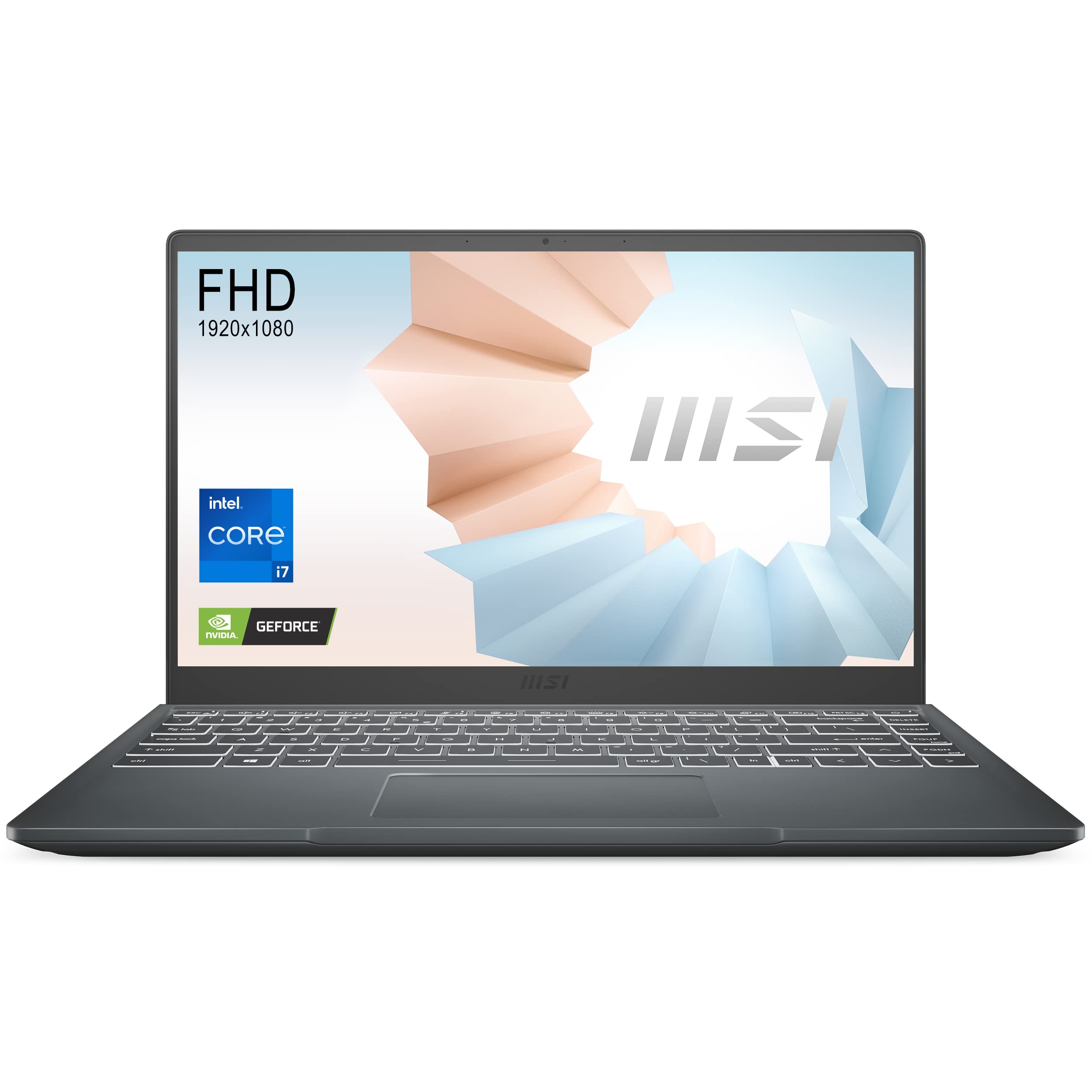
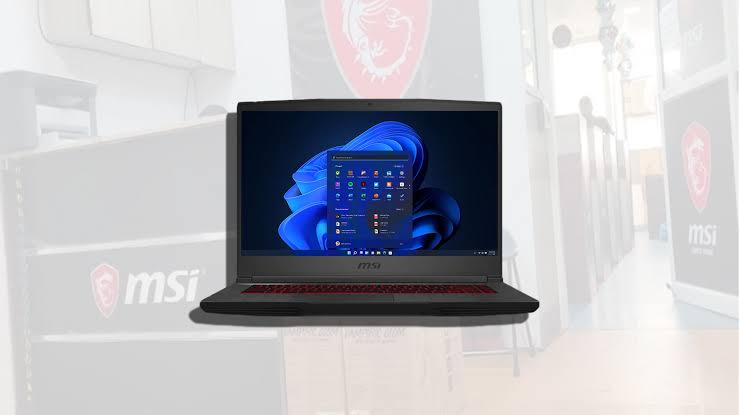
An MSI GF65 Thin 10UE owner has accused an authorised service centre of replacing his laptop’s original 144Hz display with a slower 60Hz panel, but the available hardware details make that explanation unlikely.
The laptop was reportedly sent for repair after its screen stopped working. It returned around 15 days later, and the owner noticed that mouse movement and animations no longer appeared as smooth as before.
He then concluded that the 144Hz display had been replaced with a cheaper 60Hz panel. However, the two screen types listed for this laptop family use different display connectors, which means a direct swap would not normally work without additional hardware changes.
The more likely explanation is that Windows reverted the display refresh rate to 60Hz after the screen replacement or graphics driver installation.
The Panels Use Different eDP Connectors
Screen listings for the MSI GF65 Thin series show that its 60Hz and 144Hz panels are not interchangeable in a simple repair.
The 144Hz display uses a 40 pin embedded DisplayPort connector, while the 60Hz option uses a 30 pin connector. The cable inside the laptop must match the panel connection.
| Display type | Resolution | Refresh rate | Connector |
|---|---|---|---|
| Standard GF65 Thin panel | 1920 × 1080 | 60Hz | 30 pin eDP |
| High refresh GF65 Thin panel | 1920 × 1080 | 144Hz | 40 pin eDP |
A technician could not normally connect a 30 pin 60Hz display to the existing 40 pin cable. The connectors differ physically, so the panel would not simply plug in and operate.
Replacing the screen with the slower model would likely require changing the display cable or using an unsuitable adapter. That would involve more work than installing the correct replacement and would be unusual for an authorised repair centre.
This does not prove that the repair was handled perfectly, but it weakens the claim that the centre quietly installed a standard 60Hz panel as a cost saving measure.
Windows Often Returns to 60Hz After a Repair
Windows 10 and Windows 11 may set a newly detected display to 60Hz by default.
This can happen after replacing a laptop panel, reinstalling graphics drivers, resetting Windows, or connecting a different monitor. The display may fully support 144Hz even though the operating system is currently sending a 60Hz signal.
The difference is easy to notice during mouse movement, scrolling, gaming, and window animations. A player familiar with 144Hz may immediately feel that the laptop is less responsive.
The refresh rate can be checked through Windows settings:
- Right click an empty area of the desktop.
- Select Display settings.
- Open Advanced display.
- Find Choose a refresh rate.
- Select 144Hz when it is available.
If both 60Hz and 144Hz appear in the menu, the laptop almost certainly still has a high refresh panel.
| Windows setting result | Likely meaning |
|---|---|
| 144Hz option is available | Correct high refresh panel is probably installed |
| Only 60Hz appears | Driver, cable, firmware, or panel issue may exist |
| Display name looks generic | Driver may not be installed correctly |
| Screen flickers at 144Hz | Possible cable or panel compatibility problem |
The owner should take screenshots of the Advanced display page before returning to the service centre.
Graphics Drivers May Need Reinstallation
A missing or damaged graphics driver can also prevent higher refresh rate options from appearing.
The MSI GF65 Thin 10UE uses dedicated NVIDIA graphics alongside integrated graphics. Both driver packages may influence how the internal display is detected and controlled.
A normal driver update may solve the problem. If it does not, the existing graphics drivers can be removed completely before installing fresh versions.
Display Driver Uninstaller, commonly known as DDU, is often used for this purpose. It is best run in Windows Safe Mode because that prevents active graphics services from interfering with the removal process.
After restarting, the correct Intel and NVIDIA drivers should be installed from MSI or the hardware manufacturer.
This procedure should only be attempted by someone comfortable with driver troubleshooting. Creating a restore point and downloading the replacement installers before removing anything can reduce the risk of being left without a working graphics driver.
The Panel Model Can Be Verified With Software
The owner does not need to rely only on how smooth the display feels.
Hardware information applications can often identify the installed panel model through its EDID data. Tools such as HWiNFO can show the manufacturer, model number, supported resolution, and available refresh rates.
That model number can then be compared with replacement screen listings.
| Verification method | Information provided |
|---|---|
| Windows Advanced display | Current and available refresh rates |
| HWiNFO or similar tool | Panel model and supported modes |
| Device Manager | Display and graphics driver status |
| Physical inspection | Connector type and exact panel label |
| Repair invoice | Part number reportedly installed |
Physical inspection gives the strongest confirmation, but opening a laptop may affect repair coverage or cause damage. It is better to ask the service centre to inspect the panel while the owner is present.
The repair invoice may also list the replacement part number. If it identifies a 144Hz compatible model, that provides another useful comparison point.
The Claim Should Not Be Dismissed Without Testing
The connector difference makes a direct 144Hz to 60Hz swap difficult, but it does not automatically prove that every part of the repair was correct.
A technician could have installed a different 40 pin panel limited to 60Hz, used an incorrect cable, or fitted a display with incomplete compatibility. The source only compares commonly listed replacement screens and does not confirm the exact panel installed in this laptop.
The owner should therefore verify the display model rather than relying on assumptions from either side.
A sensible troubleshooting order would be to check Windows refresh rate settings, reinstall the correct graphics drivers, identify the panel through hardware software, and then request the installed part number from the service centre.
If the system still shows only 60Hz and the detected panel does not match the original specification, the owner would have stronger evidence for a warranty complaint.
The situation is most likely a settings or driver problem, especially because Windows frequently defaults to 60Hz after hardware changes. However, only the panel model and supported display modes can confirm what was actually installed.
Discussion (0)
Be the first to comment.