


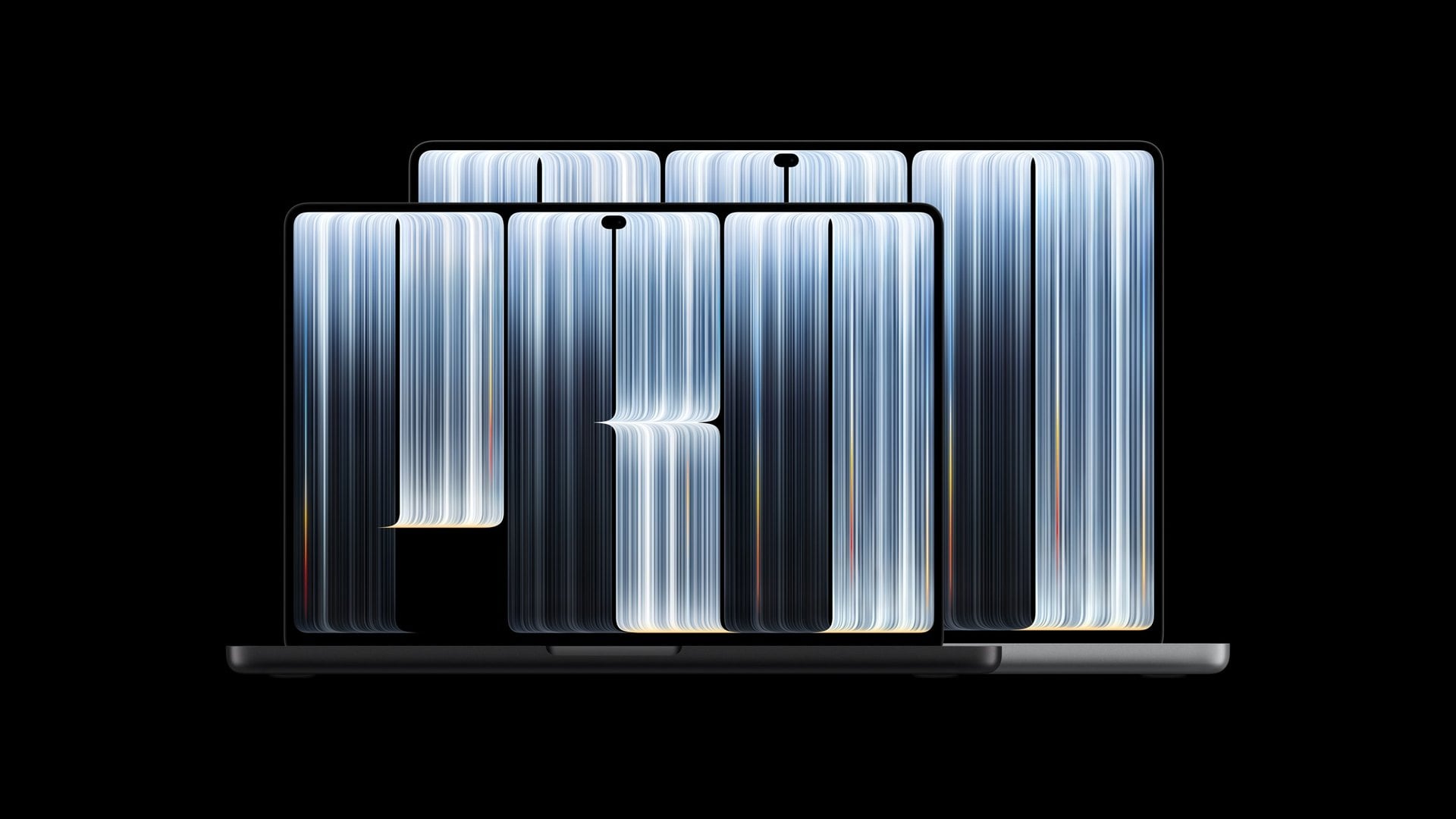
The lit Apple logo is back on the MacBook Pro, and System Settings has no switch for it. A support document Apple published on November 5 says the only official way to turn off the glow on the new MacBook Pro with PROLED XDR Display is a command typed into Terminal.
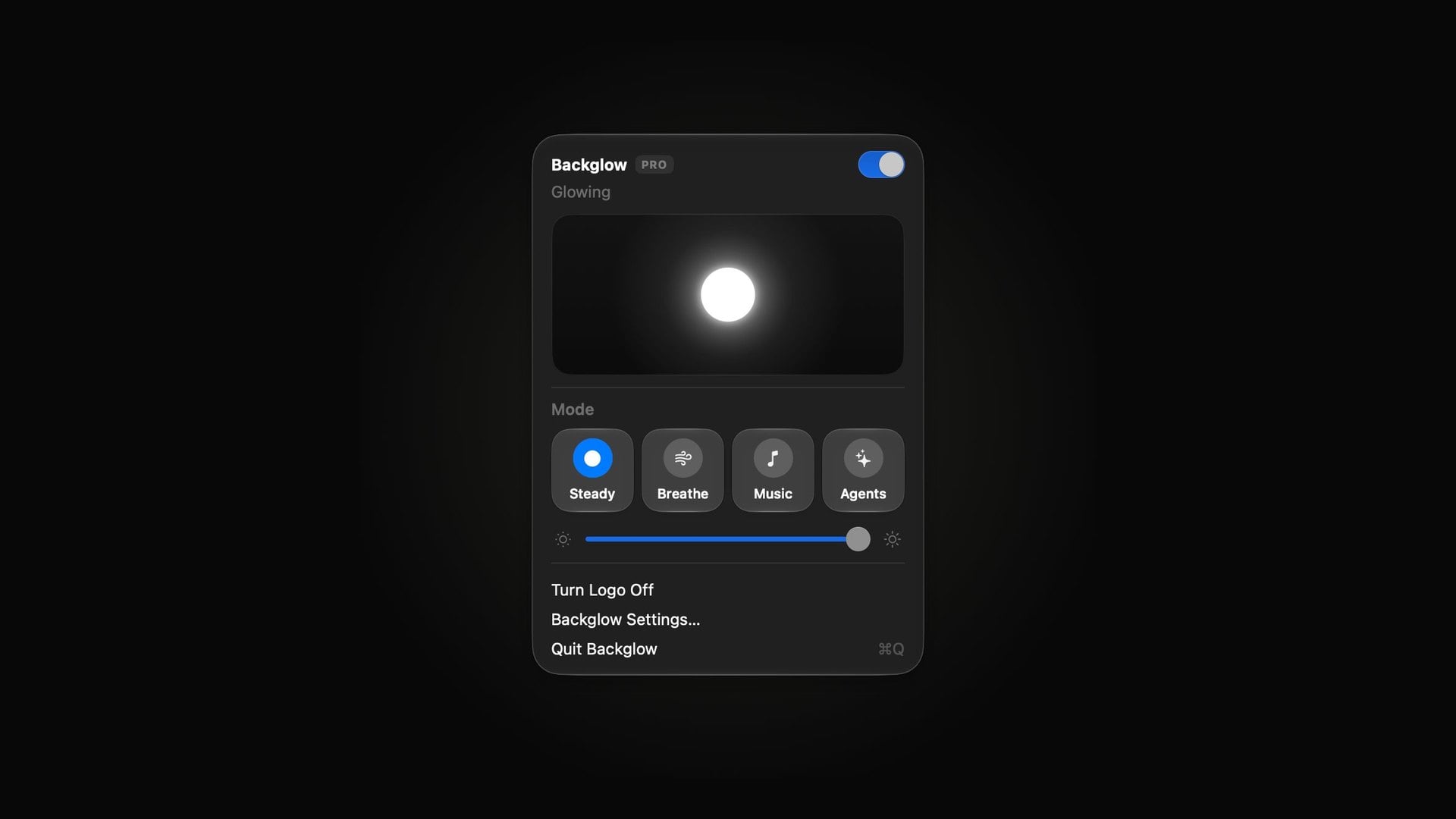
Independent developers moved quickly to fill that gap. Within two days of the laptop reaching customers on Friday, November 6, two menu bar apps, Backglow and LogoLight, shipped with one-click off switches and the brightness control Apple leaves out.
How the glowing Apple logo on the new MacBook Pro works
The light sits behind the Apple logo on the lid of the 14-inch and 16-inch MacBook Pro with PROLED XDR Display, which starts at $2,899 with an M5 Pro chip. According to Apple, the logo is lit whenever the Mac is awake.
You do not get to pick how bright it is. The glow follows the built-in screen's brightness and the ambient light sensor, so it runs dimmer in a dark room and brighter in a bright one, whatever level the screen is set to.
That works in a sunny office. It is less welcome in a dark recording studio, on a night flight or in a lecture hall, where everyone facing you sees a lit logo for hours. Apple's October 28 launch announcement did not mention the light at all.
Developer Guilherme Rambo wrote on X that the logo is controlled by software, uses 25kHz PWM dimming and is calibrated per device. He also said its brightness is tuned differently depending on the enclosure color.
How to turn off the MacBook Pro Apple logo with Terminal
Open Terminal from the Utilities folder or with Spotlight. Then type or paste sudo defaults write com.apple.CoreBrightness LEBacklightMode -int 0 and press Return.
Terminal asks for your administrator password and shows nothing while you type it. Apple says the logo goes dark immediately.
The change reaches further than it looks. It applies to every user account on the Mac, including when you start up from macOS Recovery, and it carries over when you migrate to a new Mac.
To bring the glow back, run sudo defaults delete com.apple.CoreBrightness LEBacklightMode. Reinstalling macOS also turns it back on. Apple documents only those two states, with no dimmer in between.
Copy the command from Apple's own page rather than from a forum post or a pop-up. Fake instructions that ask Mac owners to paste commands into Terminal are a known ClickFix malware trick, and anything run with sudo gets full administrator rights.
Backglow and LogoLight add the brightness controls Apple left out
Backglow, from designer Juan Buis, launched on November 6 as a small dot in the menu bar. The free version sets the logo's brightness and turns it off with one click and no password. It also offers Steady and Breathe modes, the second a slow fade like the sleep light on older Macs.
The Pro upgrade costs $9 as of November 8, a launch price that Buis says will rise to $15, and it is a one-time purchase per Mac. It adds Music, which flashes the logo to whatever the Mac is playing, and Agents, which pulses while Claude Code works and double-blinks when the AI coding tool needs you.
Music listens to the Mac's own audio output, not the microphone, and records nothing, according to the app's FAQ. Backglow never touches the screen's brightness, pauses when the display sleeps or the Mac is locked, and hands the logo back to Apple's automatic behavior when you quit.
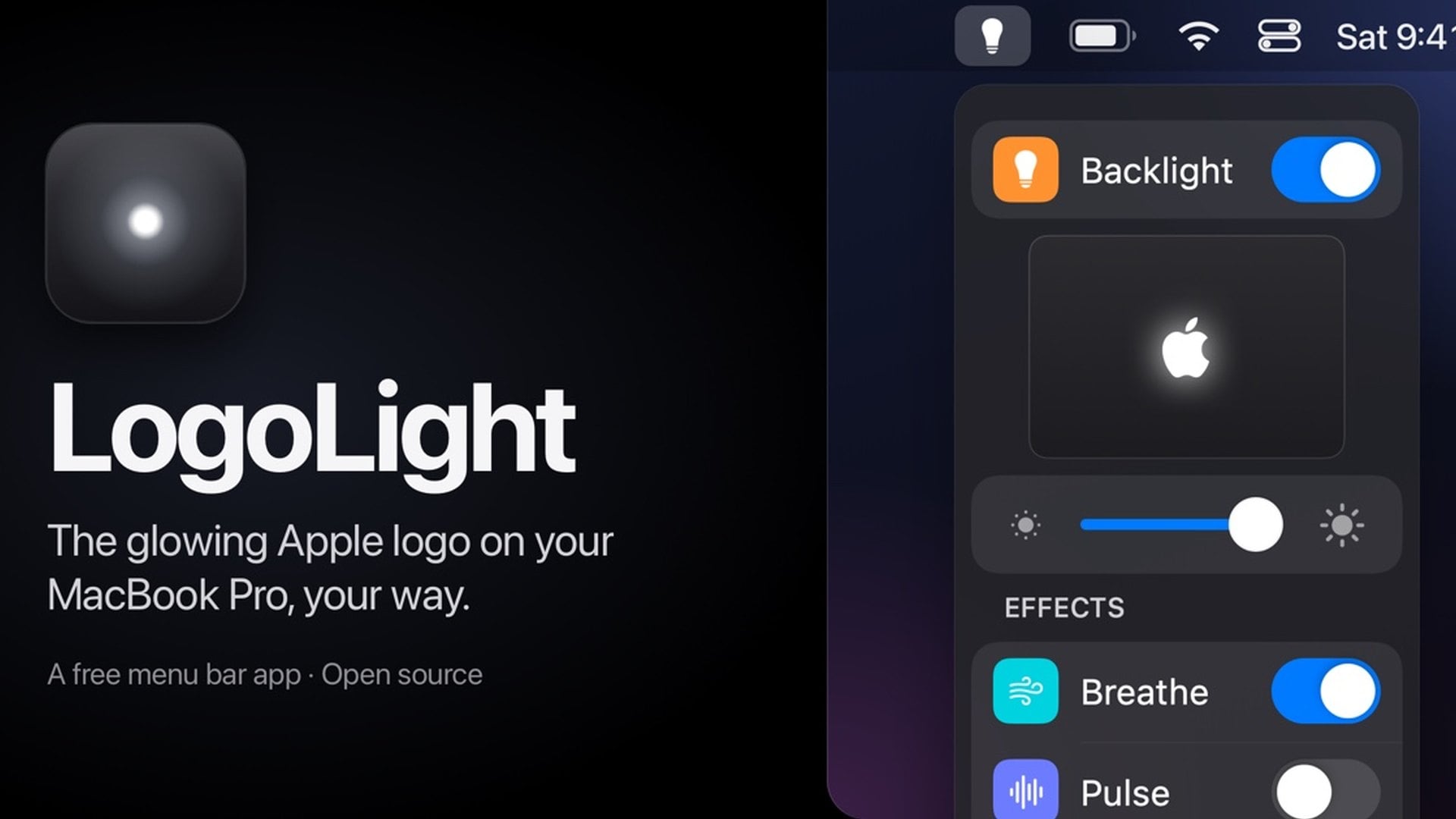
LogoLight followed on November 7 as a free alternative whose source code is on GitHub under the MIT license. Besides an on-off switch and a brightness slider, it offers Breathe, Pulse and Heartbeat effects, a Battery mode that dims the logo as the charge runs down, and a Morse code player.
Should you use Terminal or an app to control the logo light
If you simply want the light gone, Apple's command is the cleanest route. It needs no extra software, survives restarts and takes one more command to undo.
If you would rather have the logo dimmer than dark, or want it to tell you something, an app is the only option so far. Both apps work only on the MacBook Pro with PROLED XDR Display, and neither comes from Apple.
LogoLight is signed with a Developer ID and notarized by Apple, but it is not on the Mac App Store because it relies on system interfaces that store apps are not allowed to use. Unless Apple adds a logo setting to macOS, a menu bar dot is the only dimmer switch on offer.


Discussion (0)
Be the first to comment.