



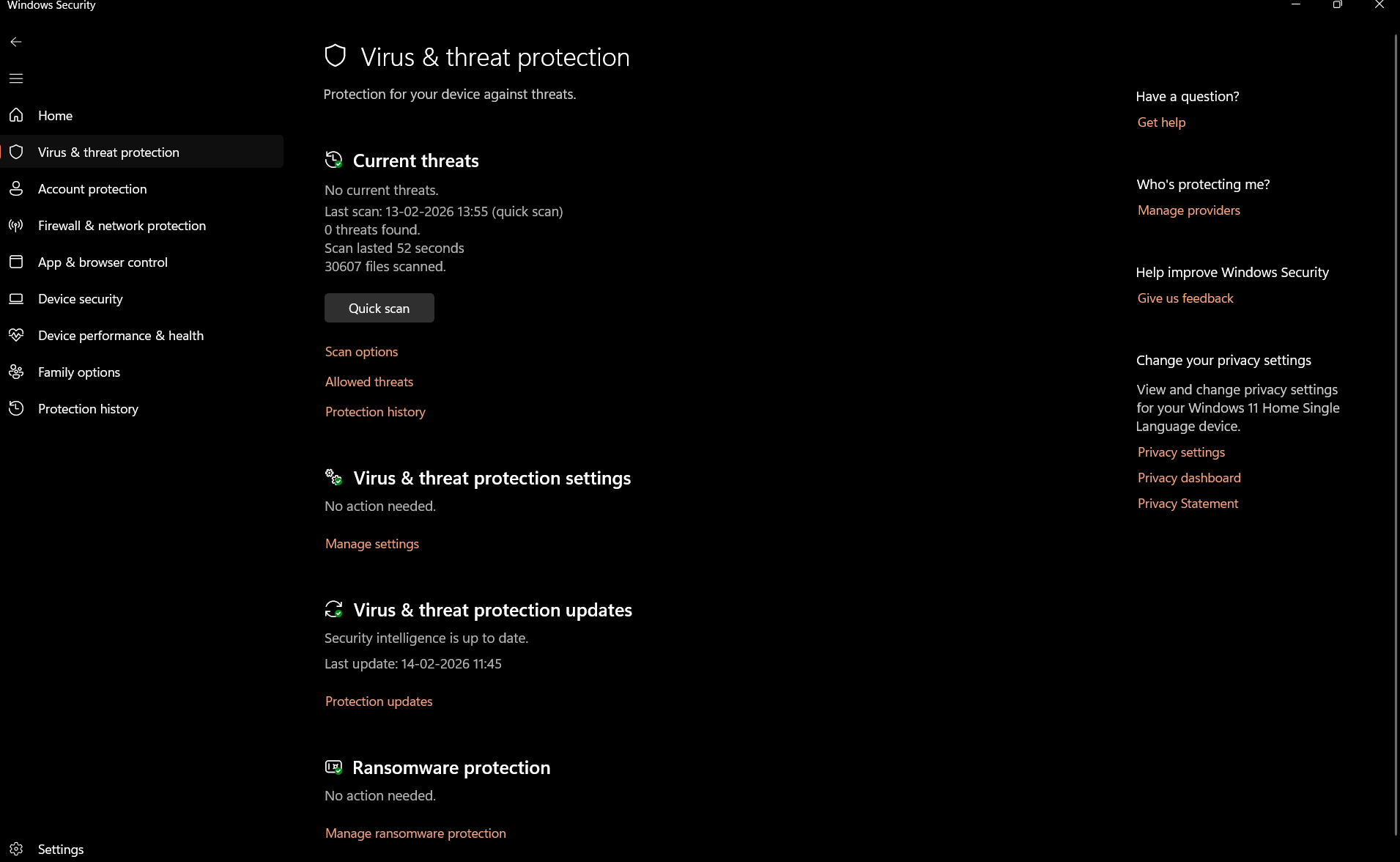
Windows Defender, now called Microsoft Defender Antivirus, is the built-in security software in Windows 10 and Windows 11. It protects your PC from viruses, malware, and other threats.
Many users look for ways to uninstall Windows Defender. However, it is important to know that Microsoft does not allow complete removal of Defender on modern Windows versions. You can disable it temporarily or automatically when installing another antivirus.
This guide explains what is possible and how to disable Windows Defender safely.
Can You Uninstall Windows Defender
In Windows 10 and Windows 11, Windows Defender cannot be permanently uninstalled. It is a core part of the operating system.
However:
- It disables automatically when you install a third-party antivirus
- You can temporarily disable real-time protection
- You can disable it using Group Policy on supported editions
Removing it completely is not recommended and may cause system instability.
Method 1: Disable Windows Defender Temporarily
To turn off real-time protection:
- Open Settings
- Go to Privacy & Security
- Click Windows Security
- Select Virus & threat protection
- Click Manage settings
- Turn off Real-time protection
This setting may automatically turn back on after a restart.
Method 2: Install a Third-Party Antivirus
The easiest way to disable Defender permanently is to install another antivirus.
Steps:
- Download and install a trusted antivirus program
- Restart your PC
- Windows Defender will disable automatically
Windows does this to prevent conflicts between security programs.
Method 3: Disable Defender Using Group Policy (Pro Editions)
This method works on Windows Pro and Enterprise editions.
Steps:
- Press Windows + R
- Type:
gpedit.msc
- Press Enter
- Navigate to:
Computer Configuration > Administrative Templates > Windows Components > Microsoft Defender Antivirus
- Double-click Turn off Microsoft Defender Antivirus
- Select Enabled
- Click Apply and restart
This disables Defender through policy settings.
Method 4: Disable Defender Using Registry Editor
This method is for advanced users.
Steps:
- Press Windows + R
- Type:
regedit
- Navigate to:
HKEY_LOCAL_MACHINE\SOFTWARE\Policies\Microsoft\Windows Defender
- Create a new DWORD value
- Name it DisableAntiSpyware
- Set value to 1
- Restart your PC
Be careful when editing the registry.
Is It Safe to Disable Windows Defender
Disabling Windows Defender reduces your system’s protection. If you choose to disable it:
- Install a reliable third-party antivirus
- Keep Windows updated
- Avoid unsafe downloads
Running a PC without active protection increases security risks.
Why Microsoft Does Not Allow Full Uninstallation
Windows Defender is integrated deeply into the operating system. It provides:
- Real-time protection
- Firewall integration
- Ransomware protection
- Cloud-based threat detection
Removing it could leave the system vulnerable.
Final Thoughts
Windows Defender cannot be fully uninstalled in Windows 10 or Windows 11. However, it can be disabled temporarily or automatically replaced by another antivirus solution. For most users, keeping Defender enabled provides strong built-in protection without additional cost.
FAQs
Can I completely uninstall Windows Defender
No, it cannot be fully removed in modern Windows versions.
Does installing another antivirus disable Defender
Yes, Windows automatically disables it to avoid conflicts.
Is it safe to turn off Windows Defender
Only if you install another trusted antivirus program.
Does this work on Windows 11
Yes, the same methods apply to Windows 11.
Will Defender turn itself back on
If no other antivirus is detected, it may re-enable automatically.

Discussion (0)
Be the first to comment.