




If you want to turn on Efficiency Mode from Task Manager in Windows 11, you can enable it for specific apps or processes directly inside the Task Manager. Efficiency Mode helps reduce CPU usage and improves power efficiency by lowering the priority of selected processes.
This feature is useful when certain apps consume too many system resources. By enabling Efficiency Mode, Windows allocates fewer resources to that process, allowing other applications to run more smoothly.
What Is Efficiency Mode in Windows 11?
Efficiency Mode is a Task Manager feature that reduces the impact of resource-heavy applications. It limits CPU usage for selected processes so your system can run more efficiently.
Efficiency Mode helps with:
- Reducing CPU usage
- Improving overall system performance
- Extending battery life on laptops
- Preventing background apps from slowing down the computer
It is especially useful when running multiple applications at the same time.
Open Task Manager in Windows 11
Before enabling Efficiency Mode, you need to open Task Manager.
You can do this using one of the following methods:
- Press Ctrl + Shift + Esc
- Right-click the Start button and select Task Manager
- Press Ctrl + Alt + Delete and choose Task Manager
Once opened, Task Manager will display running applications and processes.
How to Turn On Efficiency Mode from Task Manager
Follow these steps to enable Efficiency Mode.
Step 1: Open the Processes Tab
- Launch Task Manager.
- Click the Processes tab.
This section shows all running apps and background processes.
Step 2: Select the Process
- Locate the application or process you want to manage.
- Right-click the process.
Step 3: Enable Efficiency Mode
- Click Efficiency mode.
- Confirm the action if prompted.
Windows will now reduce the resources used by that process.
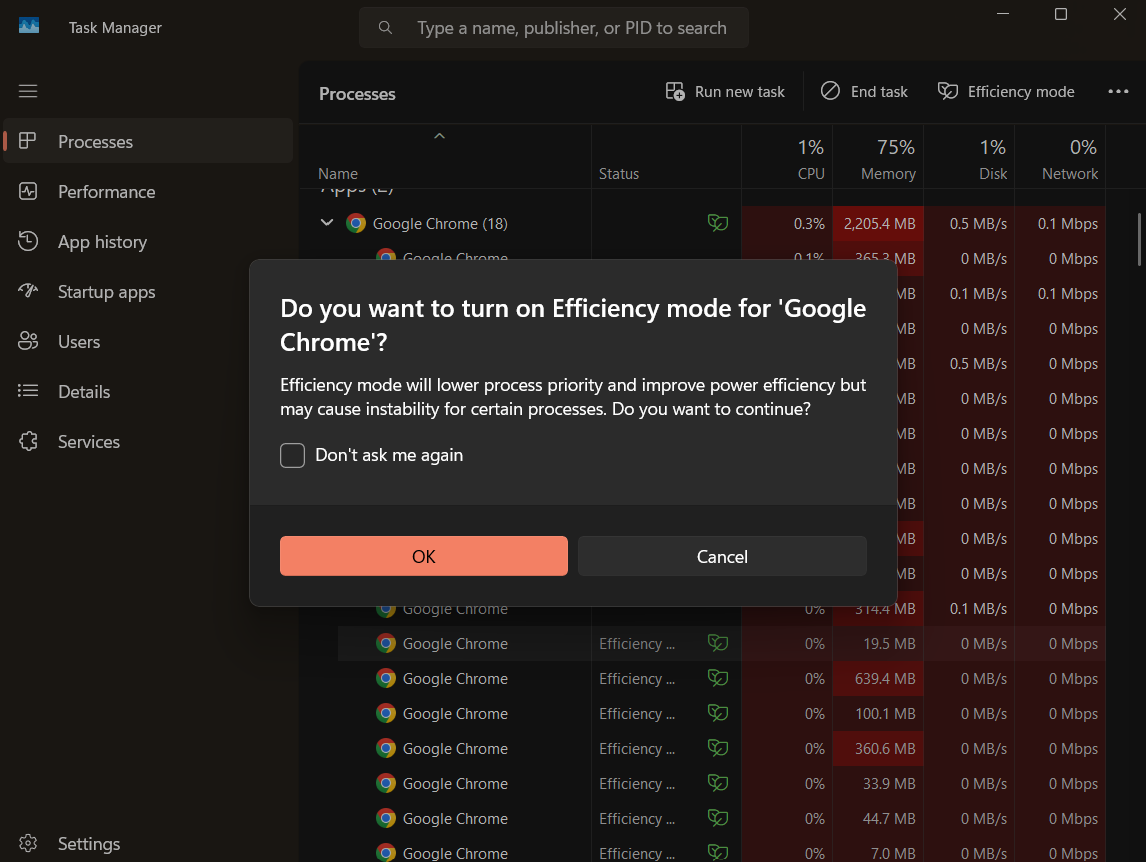
Identify Processes Running in Efficiency Mode
When Efficiency Mode is enabled, Task Manager displays a leaf icon next to the process.
This icon indicates that the process is running in power-efficient mode.
When to Use Efficiency Mode
Efficiency Mode is helpful in several situations.
You may want to enable it when:
- A background app uses excessive CPU
- Your system becomes slow during multitasking
- You want to conserve battery on a laptop
- A non-essential application is consuming resources
However, avoid enabling it for critical system processes.
Turn Off Efficiency Mode
If you want to disable Efficiency Mode for a process:
- Open Task Manager.
- Go to the Processes tab.
- Right-click the process.
- Click Efficiency mode again to turn it off.
The process will return to normal priority.
Final Thoughts
Learning how to turn on Efficiency Mode from Task Manager in Windows 11 can help improve system performance and reduce resource usage. By lowering the priority of heavy applications, Efficiency Mode allows Windows to allocate resources more efficiently.
This feature is especially useful when multitasking or when trying to extend battery life on portable devices.
FAQs
What does Efficiency Mode do in Windows 11?
Efficiency Mode reduces CPU usage for selected processes to improve system performance and power efficiency.
Where is Efficiency Mode located?
It can be enabled in Task Manager under the Processes tab.
Can Efficiency Mode improve battery life?
Yes. It reduces CPU usage, which can help extend battery life on laptops.
Should I enable Efficiency Mode for all apps?
No. It is best used for background apps or processes that are not critical to system performance.


Discussion (0)
Be the first to comment.