




If you want to start a Google Meet, you can do it through the Google Meet website, the Gmail interface, or the mobile app. Google Meet is a video conferencing service that allows users to host online meetings, video calls, and virtual classes.
Starting a meeting only takes a few steps, and you can invite participants using a meeting link. This guide explains how to start a Google Meet on different devices.
What Is Google Meet?
Google Meet is a video meeting platform developed by Google. It allows users to host online meetings with video, audio, screen sharing, and chat features.
Google Meet is commonly used for:
- Business meetings
- Online classes
- Remote collaboration
- Video calls with teams
- Virtual presentations
It works directly through a web browser or the mobile app.
Requirements to Start a Google Meet
Before starting a meeting, ensure you have the following:
- A Google account
- Internet connection
- A device with a camera and microphone (optional but recommended)
- A web browser or the Google Meet app
Once signed in, you can create meetings instantly.
Start a Google Meet Using the Website
You can quickly start a meeting through the Google Meet website.
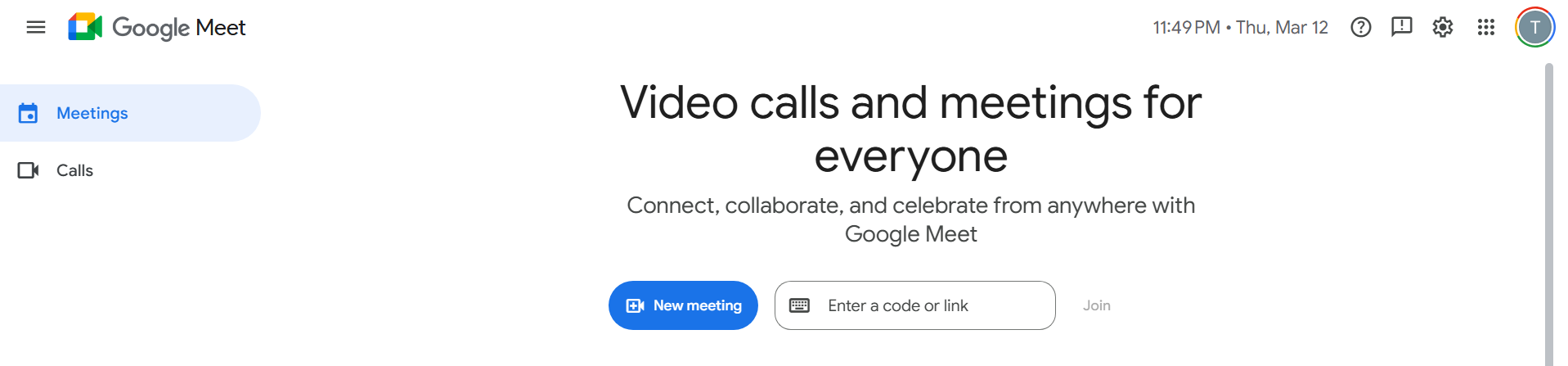
Step 1: Open Google Meet
- Open your web browser.
- Go to the Google Meet website.
- Sign in with your Google account if prompted.
Step 2: Start a New Meeting
- Click New meeting.
- Choose one of the options:
- Create a meeting for later
- Start an instant meeting
- Schedule in Google Calendar
Selecting Start an instant meeting will launch the meeting immediately.
Step 3: Invite Participants
After the meeting starts:
- Copy the meeting link.
- Send it to participants through email, chat, or messaging apps.
Participants can join by opening the link.
Start a Google Meet from Gmail
You can also start a Google Meet directly from Gmail.
Steps:
- Open Gmail.
- Look for the Meet section on the left sidebar.
- Click New meeting.
- Share the meeting link with participants.
This method is convenient if you already use Gmail.
Start a Google Meet Using the Mobile App
Google Meet can also be used on smartphones.
Step 1: Install the Google Meet App
Download the Google Meet app from:
- Google Play Store (Android)
- Apple App Store (iPhone)
Step 2: Start a Meeting
- Open the Google Meet app.
- Tap New meeting.
- Choose Start an instant meeting.
Step 3: Share the Meeting Link
Send the meeting link to participants so they can join.
Schedule a Google Meet in Google Calendar
If you want to plan a meeting in advance, you can schedule it through Google Calendar.
Steps:
- Open Google Calendar.
- Click Create.
- Add event details.
- Click Add Google Meet video conferencing.
- Invite participants and save the event.
Participants will receive the meeting link automatically.
Final Thoughts
Learning how to start a Google Meet makes it easy to host video meetings for work, education, or personal communication. You can start meetings instantly from the Google Meet website, Gmail, or the mobile app.
Once the meeting is created, simply share the meeting link and participants can join from any device.
FAQs
Do I need a Google account to start a Google Meet?
Yes. A Google account is required to create and host meetings.
Can participants join Google Meet without an account?
In some cases, users can join meetings as guests if the host allows it.
Is Google Meet free to use?
Yes. Google Meet offers free video meetings with certain limits.
Can I start a Google Meet from Gmail?
Yes. Gmail includes a built-in option to start a meeting directly from the sidebar.


Discussion (0)
Be the first to comment.