




If you want to show This PC on the desktop in Windows 11, you can enable it from the Desktop Icon Settings. The This PC icon provides quick access to system drives, folders, and connected storage devices directly from the desktop.
Windows 11 hides some desktop icons by default, including This PC, but you can easily add it back in just a few steps. This guide explains how to show the This PC icon on the Windows 11 desktop.
What Is the This PC Icon in Windows 11?
This PC is a system shortcut that allows you to access your computer’s storage drives, system folders, and connected devices.
Opening This PC lets you quickly view:
- Local disk drives
- External storage devices
- Network drives
- System folders like Documents and Downloads
Many users prefer having this icon on the desktop for faster access to files and storage.
Why Add This PC to the Desktop?
Although you can access This PC through File Explorer, adding it to the desktop can make navigation easier.
Benefits include:
- Faster access to system drives
- Easier file management
- Quick access to storage devices
- Convenient shortcut on the desktop
It can be especially useful for users who frequently work with files and folders.
How to Show This PC on the Desktop in Windows 11
Follow these steps to enable the This PC icon.
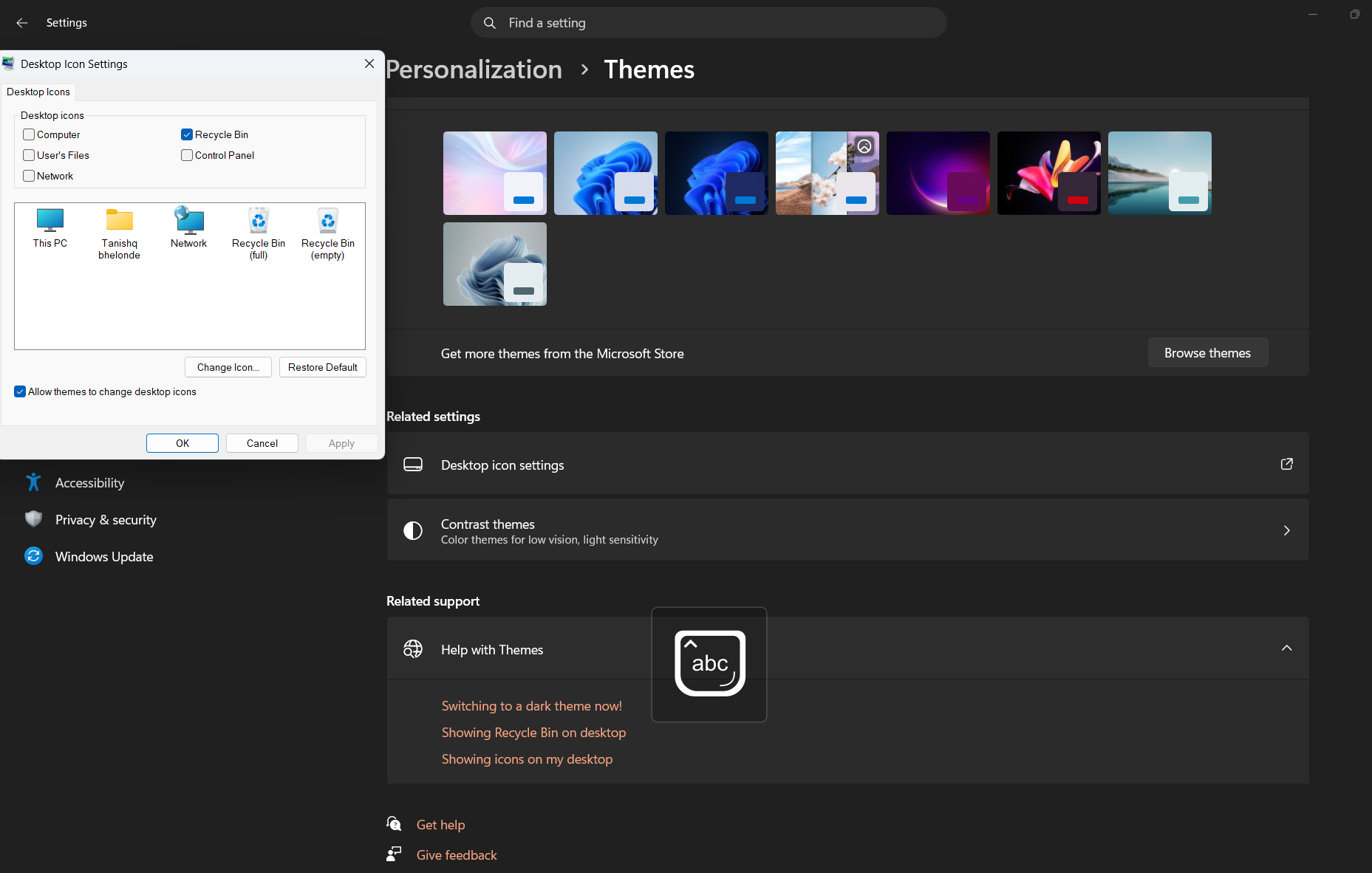
1: Open Desktop Icon Settings
- Right-click an empty space on the desktop.
- Select Personalize.
2: Open Themes
- In the Settings window, click Themes.
- Scroll down and select Desktop icon settings.
3: Enable the This PC Icon
- In the Desktop Icon Settings window, check the box next to Computer (This PC).
- Click Apply.
- Click OK.
The This PC icon will now appear on your desktop.
Open This PC from the Desktop
Once the icon is visible:
- Double-click the This PC icon on the desktop.
- File Explorer will open showing your drives and devices.
You can also right-click the icon to access additional options.
Alternative Ways to Open This PC
Even without the desktop icon, you can open This PC using other methods.
Common methods include:
- Press Windows + E to open File Explorer
- Click This PC in the left navigation pane
- Search for This PC in the Start menu
However, many users prefer the desktop shortcut.
Remove This PC from the Desktop
If you no longer want the icon on the desktop, you can disable it.
Steps:
- Right-click the desktop and select Personalize.
- Go to Themes.
- Open Desktop icon settings.
- Uncheck Computer (This PC).
- Click Apply.
The icon will disappear from the desktop.
Final Thoughts
Learning how to show This PC on the desktop in Windows 11 makes it easier to access drives, files, and storage devices quickly. Although Windows hides the icon by default, enabling it through Desktop Icon Settings takes only a few seconds.
Once added, the This PC icon provides a convenient shortcut for managing files and system storage.
FAQs
How do I add This PC to the desktop in Windows 11?
Right-click the desktop, open Personalize > Themes > Desktop icon settings, and enable Computer (This PC).
Why is This PC not on my desktop?
Windows 11 hides some desktop icons by default. You can enable them in Desktop Icon Settings.
Can I open This PC without the desktop icon?
Yes. You can open it through File Explorer or by pressing Windows + E.
Is This PC the same as My Computer?
Yes. This PC is the modern name for the older My Computer feature in Windows.

Discussion (0)
Be the first to comment.