




The Select All shortcut is one of the simplest yet most useful keyboard commands. It lets you highlight everything in a document, web page, or folder instantly - perfect for copying, deleting, or formatting large amounts of data in seconds. Here’s how to use it across all major devices.
1) Select All on Windows

Press Ctrl + A to select everything in a text editor, browser, or File Explorer window. This works in most applications, including Word, Notepad, and browsers like Edge or Chrome. If you’re managing files, it will highlight all visible items in a folder.
2) Select All on Mac

Use Command + A to select all content in the current app window. Whether you’re in Finder, Safari, or Pages, this shortcut highlights everything on the screen for quick editing or copying.
3) Select All on Chromebook
On Chromebooks, press Ctrl + A to select everything in a document, webpage, or Google Drive folder. It’s the same shortcut as Windows, and it even works inside Android apps that support text editing.
4) Select All on Linux
Most Linux environments, like GNOME or KDE, also use Ctrl + A for Select All. However, behavior may vary in terminal applications or code editors. In terminals, you might need a context menu or app-specific command.
5) Select All on iPad and iPhone
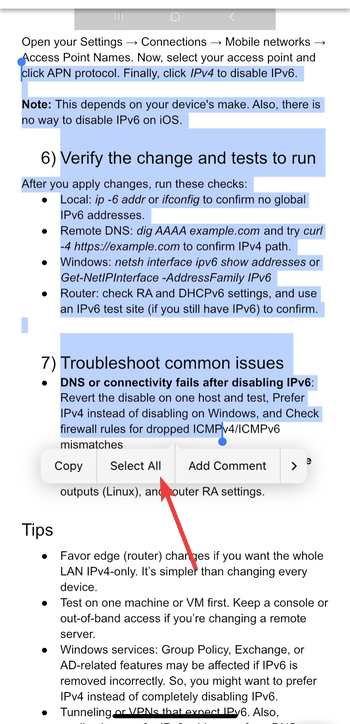
If you’re using a physical keyboard, press Command + A to select all. On touchscreens, tap and hold any text area, then tap Select All from the pop-up menu. This works in Notes, Mail, and most editing apps.
6) Select All on Android devices
For touchscreens, tap and hold in an editable field, then choose Select All. If you’re using a Bluetooth or wired keyboard, Ctrl + A performs the same function as on a computer.
7) Select All in app-specific scenarios
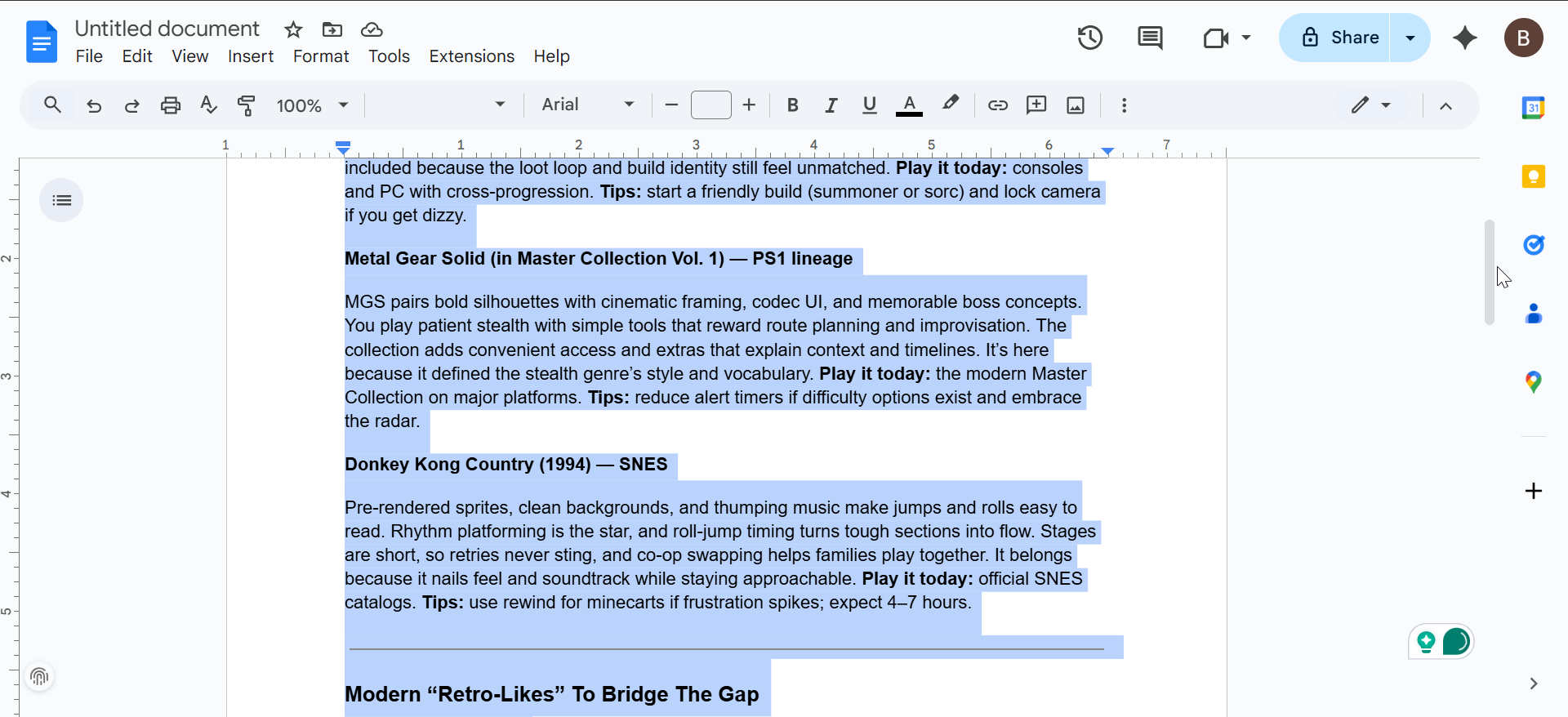
For popular apps like Microsoft Word, Google Docs, Excel, Google Sheets, and web browsers, Select All still remains Ctrl + A (Windows) or Command + A (Mac). And on mobile devices like iPhone and Android, you only need to tap and hold the screen and choose Select All to select the entire document, including tables and images.
8) When Select All doesn’t work
The shortcut might fail if the app doesn’t support keyboard commands, if the window isn’t active, or if your keyboard layout has been changed. Certain fields, like password boxes or protected PDFs, also block full selection for security reasons.
To fix this, ensure the target window is active, check that shortcut keys aren’t remapped, and test the keyboard in a simple app like Notepad or TextEdit. Re-enable keyboard shortcuts in the app’s settings if they’ve been disabled.
Productivity tips with Select All
- Combine with other shortcuts: After selecting all, you can copy, cut, and paste on Windows anywhere you like. Press Ctrl + C (copy) or Ctrl + X (cut) to move content, then Ctrl + V (paste) to duplicate it elsewhere. You can also press Delete to quickly clear everything.
- Use it for bulk actions: In email clients, photo folders, or chat apps, Select All helps you delete or move multiple items at once. It’s an easy way to clean up files and inboxes without clicking each item individually.
FAQs
What is the shortcut key for Select All? Press Ctrl + A on Windows, Linux, or Chromebook, and Command + A on Mac. Both instantly highlight all items or text in the active window.
How do I select all without a keyboard? Use the on-screen Edit menu and choose Select All, or long-press a text area on mobile devices to reveal the same option.
Why is my Select All not working? If the shortcut doesn’t respond, check that the window is active and the keyboard is properly connected. Some applications block it intentionally for security or design reasons.
Summary
- To quickly select everything on your screen, use Ctrl + A (Windows/Linux/Chromebook)
- Use Command + A (Mac/iPad).
- The universal shortcut (Ctrl + A and Command + A) works across documents, browsers, and file managers.
- If Select All stops working, check your app settings or keyboard layout. Once mastered, it’s one of the fastest ways to manage and edit digital content efficiently.
Conclusion
Knowing how to use the Select All keyboard shortcut makes editing, organizing, and cleaning up digital content much faster. Whether you’re on Windows, Mac, Chromebook, or a mobile device, mastering Ctrl + A or Command + A helps you manage tasks efficiently with just one keystroke. If it ever stops working, recheck your app focus or keyboard settings to restore this essential time-saver.

Discussion (0)
Be the first to comment.