




SD cards are still one of the easiest ways to transfer photos, videos, and documents between devices. Windows 10 can usually detect them automatically, but sometimes you may not see the card appear in File Explorer. Here’s how to open, access, and fix any SD card detection issues on your PC.
1. Check that your SD card is properly inserted
Before trying any software fixes, make sure the SD card is fully inserted into your laptop or external reader. A loose or partially connected card often won’t show up at all. If your computer doesn’t have a built-in slot, plug in a USB SD card reader instead.
How to Identify Your Slot Type
Look at your device’s documentation or search its specifications online to check whether it supports full-size SD, miniSD, or microSD cards. Some models only read SDHC or SDXC cards. Knowing your slot type helps prevent compatibility errors when using large-capacity cards.
2) Open the SD card using File Explorer
If the card is detected, it should appear in File Explorer under This PC → Devices and drives. You can open File Explorer quickly by pressing Windows + E and then clicking the drive that matches your SD card’s name or letter.
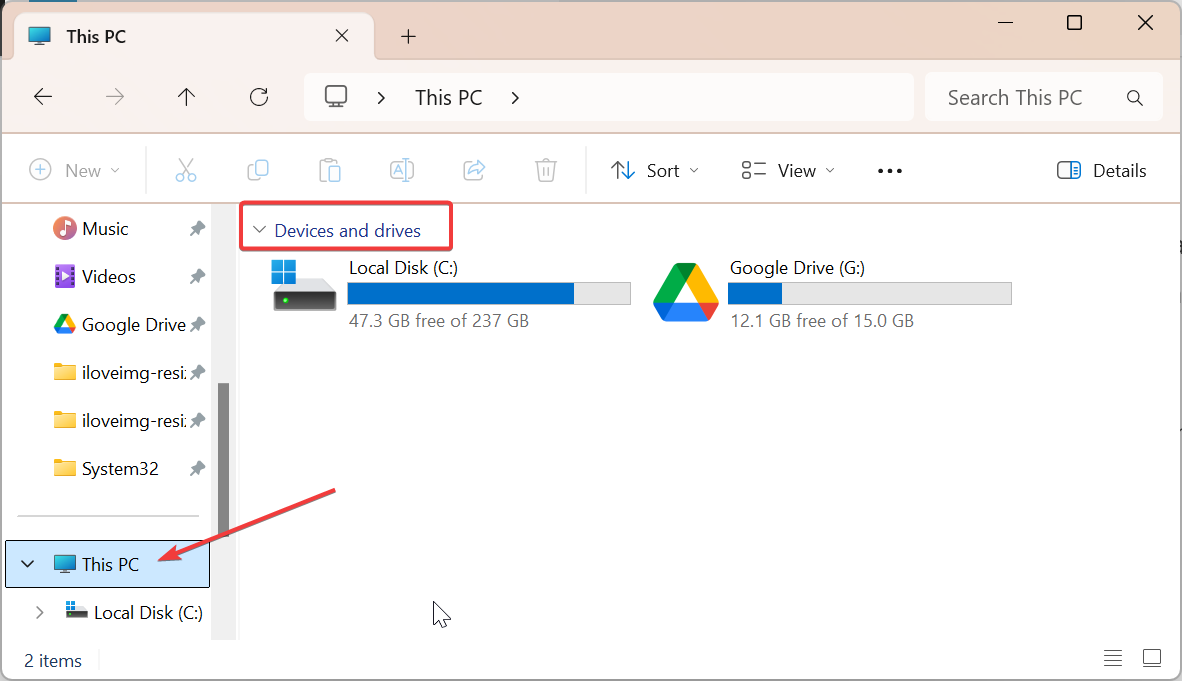
Once opened, you can copy, move, or delete files just like on any USB drive. To stay organized, rename your SD card by right-clicking it and selecting Rename. This makes it easier to find during future connections.
3) Use Disk Management if the SD card doesn’t appear
If the SD card doesn’t show up in File Explorer, it may still be recognized by Windows. Right-click the Start button and select Disk Management. This tool lists all storage drives detected by your PC.
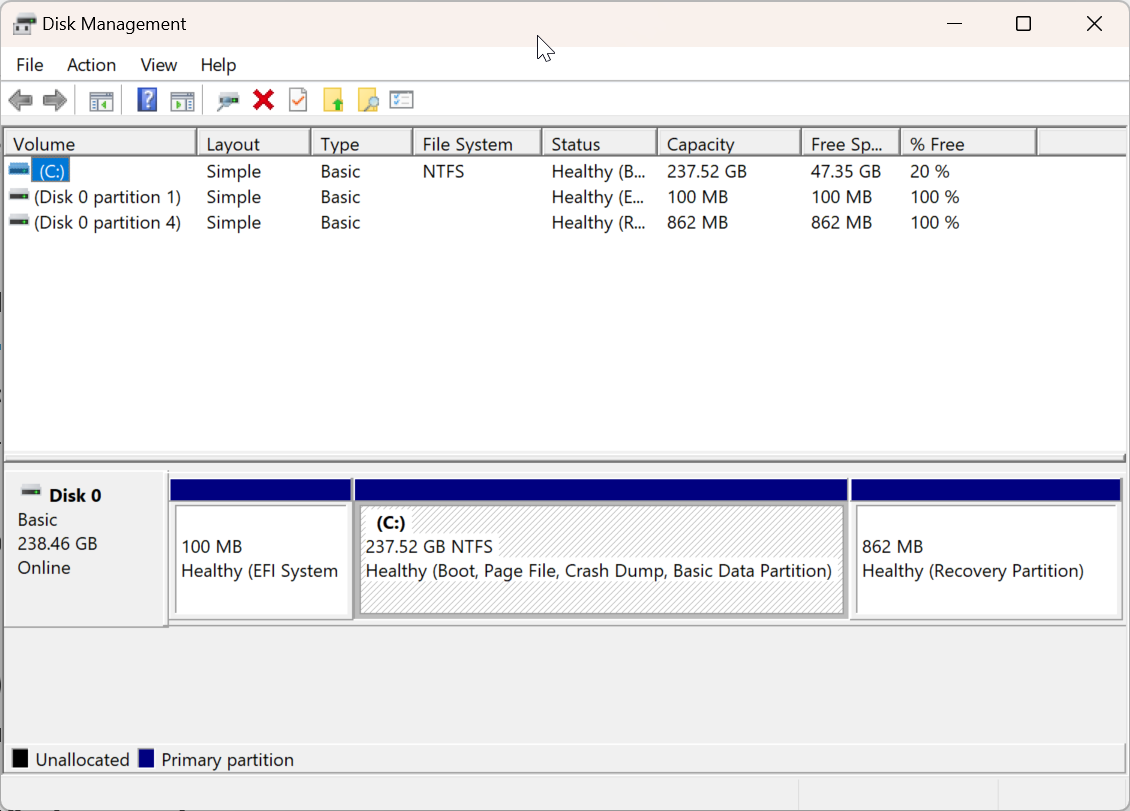
If the card appears in Disk Management without a letter, right-click it and choose Change Drive Letter and Paths → Add → Assign a letter → OK. The SD card should now display in File Explorer under that letter.
4) Update or reinstall SD card drivers
Driver issues can prevent your card from appearing or working properly. Open Device Manager, expand Disk drives or Memory technology devices, right-click the SD card entry, and select Update driver. Choose automatic search to let Windows find compatible updates.

Check for Windows updates
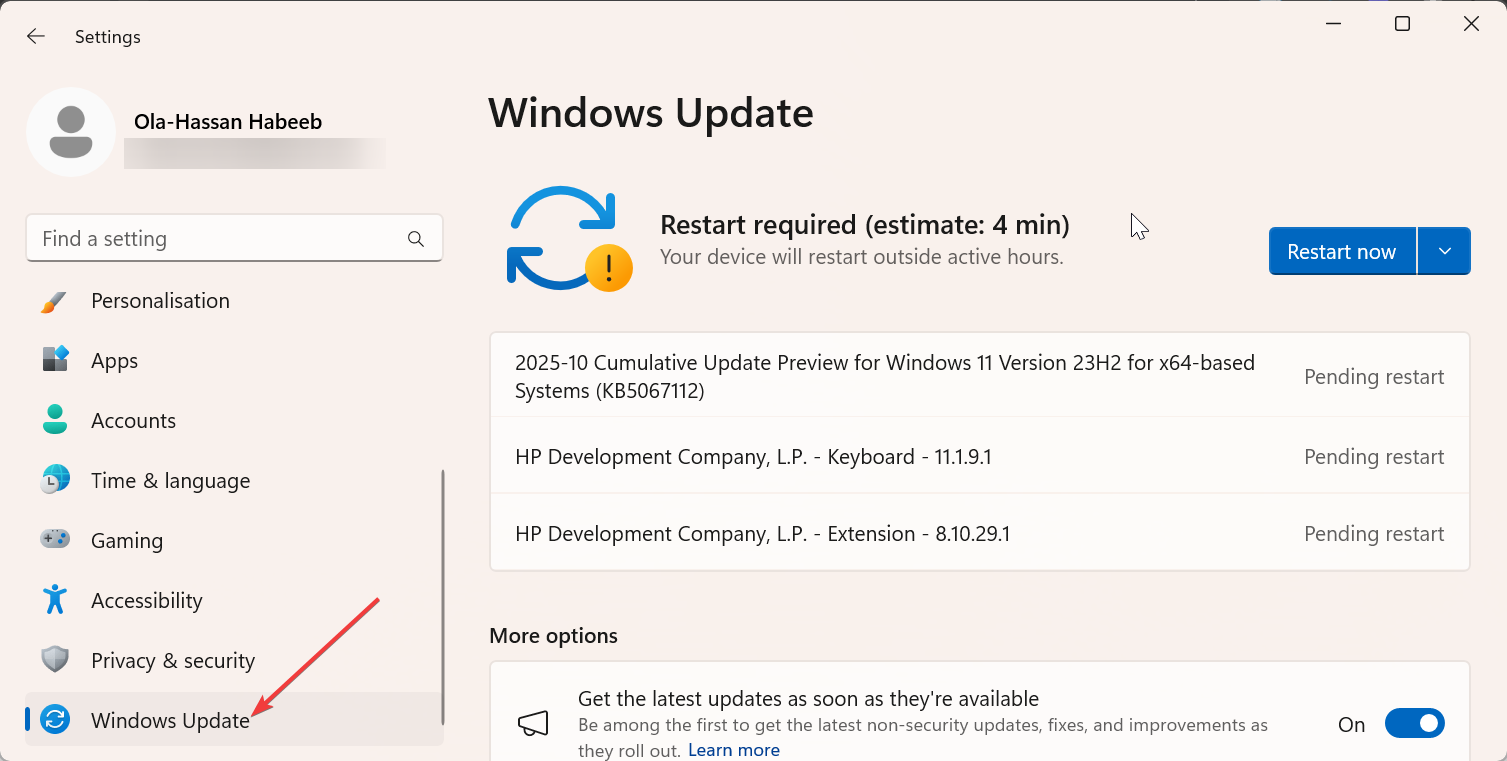
Sometimes SD reader drivers are bundled with optional Windows updates. Go to Settings → Update & Security → Windows Update → Check for updates and install everything listed. Restart your PC once the updates complete.
5) Safely eject the SD card
Once you finish transferring or editing files, right-click the SD card and select Eject. You can also use the system tray Safely Remove Hardware icon to prevent data loss.
Note that removing the SD card while files are still being transferred can corrupt the file system or make the card unreadable. Always wait for Windows to confirm it’s safe before physically pulling it out.
6) Troubleshooting quick reference table
- SD card not showing in File Explorer: You can fix this by assigning a letter via Disk Management.
- Files appear corrupted: Run error check or format card to fix this.
- Slow file transfer: This is usually caused by a low-speed card or port. You can fix it by using a USB 3.0 reader or a UHS card.
- Windows can’t detect SD card: Update or reinstall drivers.
Tips for better SD card performance
- Avoid filling your SD card completely - leave 15–20 % free space to maintain performance.
- Use high-speed UHS-I or UHS-II cards for 4K videos or large photos.
- Run an occasional error check via File Explorer → Properties → Tools → Check to detect and fix bad sectors.
FAQs
Why doesn’t my SD card show up in File Explorer? It may lack a drive letter, the reader could be damaged, or drivers might be outdated. Use Disk Management or Device Manager to verify detection and reassign letters if needed.
Can I use a microSD card with an adapter? Yes. Just make sure the adapter matches the card size and supports the same SDHC or SDXC standard. A loose adapter can cause the card to disconnect frequently.
What’s the best format for an SD card on Windows 10? Choose FAT32 for cards up to 32 GB or exFAT for 64 GB and above. These formats ensure the best compatibility across Windows devices and cameras.
Summary
- Insert your SD card securely into the slot or reader.
- Open it through File Explorer under This PC.
- Use Disk Management if it doesn’t appear.
- Update or reinstall card reader drivers.
- Format only when necessary and eject safely.
Conclusion
Opening an SD card on Windows 10 is usually as simple as finding it in File Explorer. If your PC doesn’t recognize it, tools like Disk Management or Device Manager can quickly fix most issues. Once detected, you can safely manage and transfer your files without risk of corruption.


Discussion (0)
Be the first to comment.