




If you’ve seen AI-powered answers in Google Search, you might be wondering how to open AI mode from the Google Chrome search bar. Google’s AI Mode (also called AI Overviews or Search Generative Experience) is integrated directly into search, so you don’t need a separate app to use it.
However, accessing it depends on your region, account, and whether the feature is enabled for you.
What Is AI Mode in Google Search?
AI Mode in Google Search is an AI-powered feature that provides summarized answers directly at the top of search results.
Instead of just showing links, it:
- Gives instant explanations
- Summarizes multiple sources
- Suggests follow-up questions
- Helps with research and comparisons
It is designed to make search faster and more interactive.
Can You Open AI Mode Directly from Chrome Search Bar?
The Chrome address bar (also called the Omnibox) does not have a separate “AI mode button”.
Instead:
- You type your query in the search bar
- Google automatically shows AI results (if available)
So AI Mode is triggered by how you search, not by a toggle in Chrome.
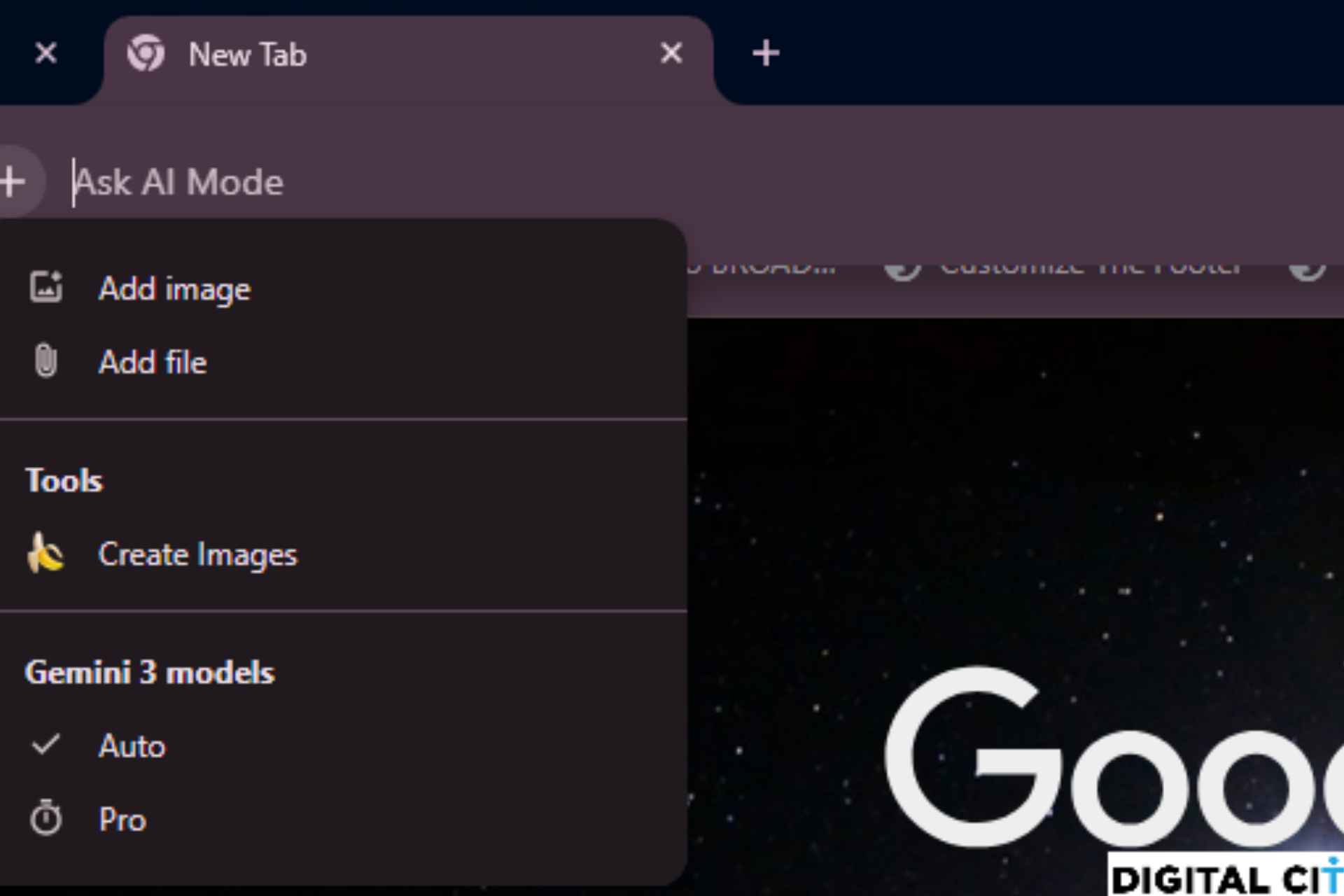
How to Use AI Mode from Chrome Search Bar
Follow these steps.
Step 1: Open Google Chrome
Launch Google Chrome on your PC and Click on the AI Model toggle
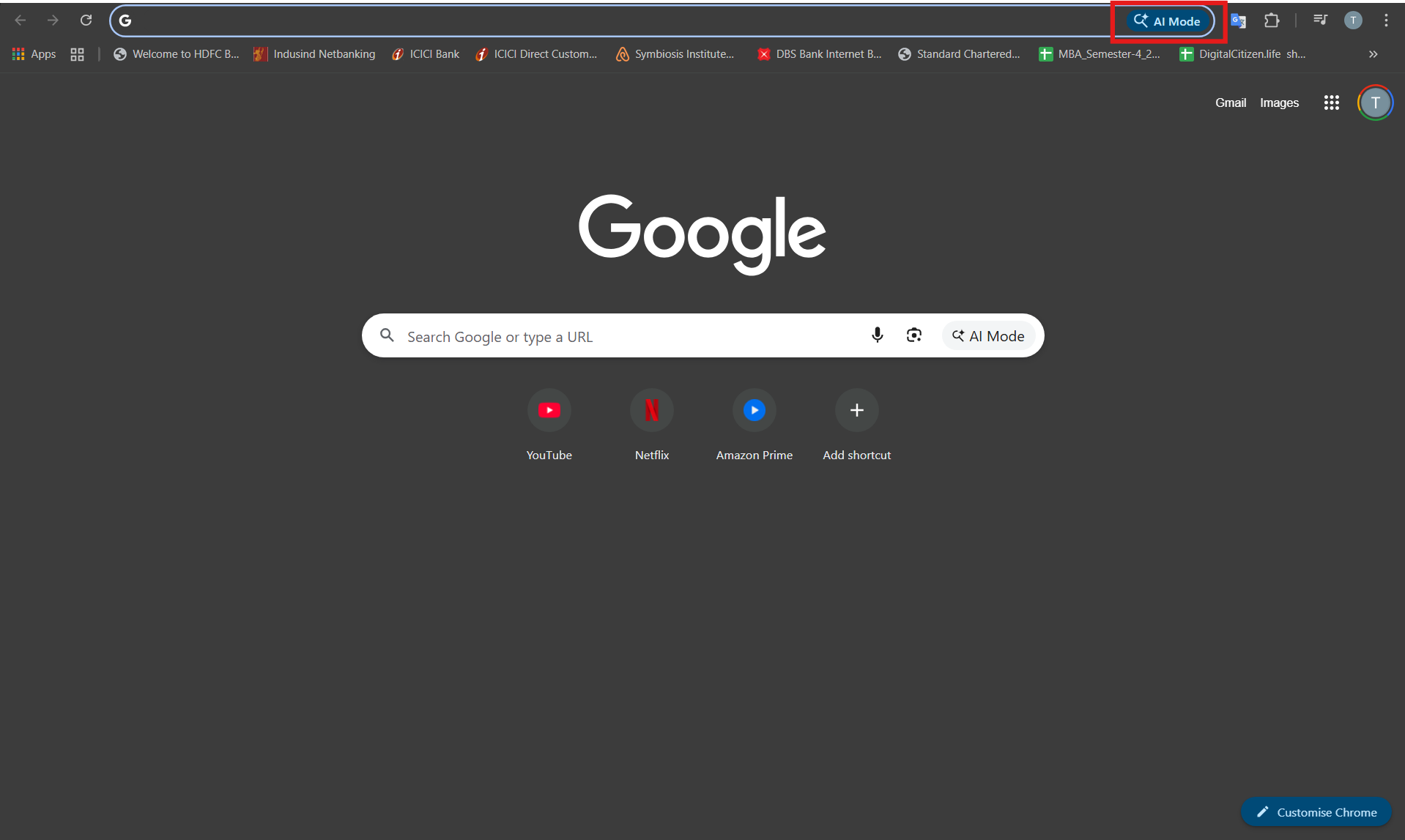
Step 2: Type a Query in the Search Bar
Use natural language queries like:
- “Best laptop for students under budget”
- “Explain how VPN works in simple terms”
- “Compare iPhone vs Android advantages”

Step 3: View AI Results
If AI Mode is available:
- You will see an AI-generated answer at the top
- It may include summaries, bullet points, and links
This makes the experience more interactive.
How to Enable AI Mode (If Not Visible)
If you do not see AI results, it may not be enabled.
Option 1: Check Google Labs
- Go to Google Search
- Look for Labs or experimental features
- Enable Search Generative Experience (SGE) if available
Option 2: Use Supported Region
AI Mode may only be available in certain countries or accounts.
Option 3: Update Chrome
Make sure you are using the latest version of Chrome.
Tips to Trigger AI Mode More Often
AI Mode works best with certain types of queries.
- Use full questions instead of keywords
- Ask for explanations or comparisons
- Avoid very short or vague searches
Example:
Instead of typing:
“VPN”
Type:
“How does a VPN work and is it safe”
Limitations of AI Mode
There are a few things to keep in mind.
- Not available for all users or regions
- May not appear for every search
- Some answers may need verification
- Still evolving feature
It is helpful, but not perfect.
Final Thoughts
If you want to open AI mode from Google Chrome search bar, you don’t need a special setting. Just type a detailed query, and Google will show AI-powered results automatically when available.
The key is to use natural, question-based searches. As AI features expand, this will likely become a standard part of everyday browsing.
FAQs
Can I manually turn on AI mode in Chrome?
No. It is controlled by Google Search, not Chrome settings.
Why don’t I see AI results?
It may not be available in your region or account.
Does AI mode work for all searches?
No. It appears mainly for complex or informational queries.
Is AI mode accurate?
It is helpful, but important information should still be verified.


Discussion (0)
Be the first to comment.