




A wireless bridge connects two routers over Wi-Fi, letting devices share one internet connection without long Ethernet cables. It’s a practical way to extend coverage, reuse old hardware, and connect distant rooms or buildings to your main network. It is ideal when you need connectivity far from your primary router, like in a detached garage, workshop, or upstairs office.
It’s also an easy option when you want to link wired devices - such as smart TVs or PCs - to your main network without running long cables. This guide shows you how to make this connection effortlessly.
But before you start, you will need the following:
- Two routers that support WDS or bridge mode
- A stable Wi-Fi connection between their locations
- Ethernet cable for initial setup
- Router admin login credentials
- Firmware updated to the latest version
Step 1: Check router compatibility
Before starting, confirm that both routers support WDS (Wireless Distribution System) or bridge mode. You’ll usually find this in the router’s wireless settings or advanced configuration page. Popular models from TP-Link, ASUS, Netgear, and Linksys include these options by default.
Step 2: Reset and prepare both routers
Reset the secondary router to factory defaults to remove old settings. Connect it to your computer using an Ethernet cable. Then, log in to both routers’ admin dashboards to ensure you can access their configuration pages easily.
Step 3: Configure the primary router
Open your main router’s settings and note its SSID, channel, frequency band (2.4 GHz or 5 GHz), and security type. The secondary router will need to match these settings exactly to form a stable wireless link.
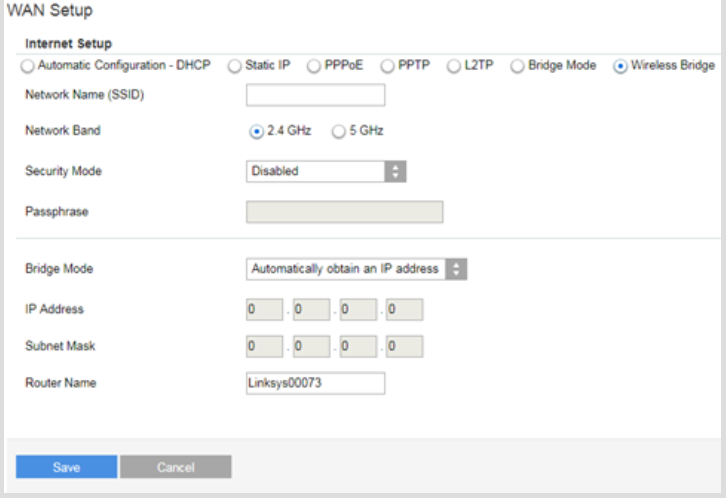
Step 4: Enable bridge or WDS mode on the second router
On the secondary router, open the wireless settings and enable Bridge mode or WDS. Enter the SSID and password of your main router. Disable the DHCP server on this router so only the main router assigns IP addresses.
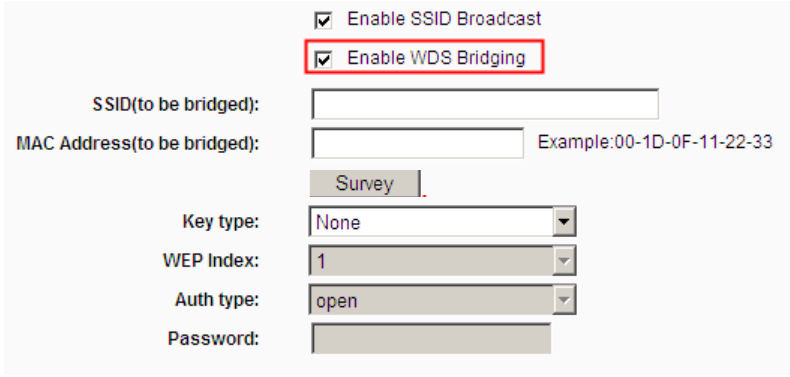
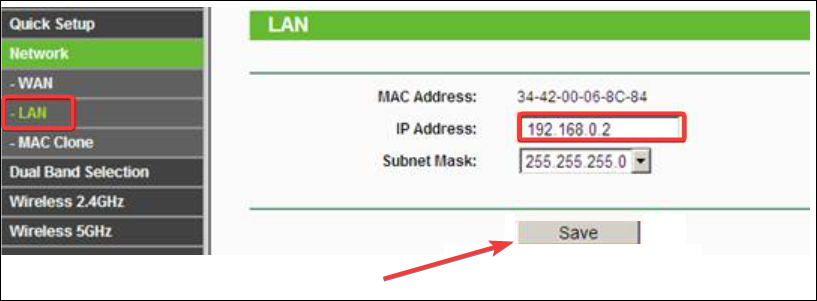
Step 5: Assign a static IP address
Set a static IP address for the secondary router that’s within the same subnet as the primary one. For example, if your main router uses 192.168.1.1, set the second router to 192.168.1.2. This keeps both devices reachable without IP conflicts.
Step 6: Connect and test the wireless bridge
Save all settings and reboot both routers. Once restarted, disconnect the Ethernet cable and check the secondary router’s status page. You should see a successful wireless link to the main router. Test by opening a website or running a ping command to confirm internet access.
Troubleshoot common issues
If there’s no internet on the bridged router, recheck the SSID and password, or ensure DHCP is off on the secondary device. Firmware mismatches can block connection - update both routers to the latest software. For weak signals, reposition routers or switch bands for better range.
Tips to optimize wireless bridge performance
- Place routers with minimal obstacles between them and maintain a line of sight when possible
- Use 5 GHz for higher speeds or 2.4 GHz for greater range
- Choose non-overlapping Wi-Fi channels
- Keep both routers away from microwaves, cordless phones, and thick walls to reduce interference.
FAQs
Can you bridge routers from different brands? Yes. Most routers with WDS or universal bridge support can connect, though menu layouts and setup steps may vary slightly.
Does a wireless bridge reduce speed? Yes, because traffic shares the same wireless channel between routers. Expect about half the normal Wi-Fi throughput, depending on signal strength and interference.
Can I use Ethernet ports on the bridged router? Yes. Once the bridge is active, any device connected to the secondary router’s LAN ports joins the same network and gains full internet access.
Summary
- Check both routers support WDS or bridge mode.
- Reset and prepare the secondary router.
- Match the main router’s wireless settings.
- Enable bridge mode and disable DHCP.
- Assign a static IP and reboot both routers.
- Test the connection and optimize placement.
Conclusion
Creating a wireless bridge with two routers is one of the most efficient ways to expand Wi-Fi coverage without new cabling. Once configured, both routers act as a single network, sharing the same internet connection and improving coverage in hard-to-reach areas.
Take time to position both routers strategically, matching channels and frequency bands for the strongest signal. If you experience drops or lag, consider upgrading firmware or exploring mesh systems for seamless whole-home performance.

Discussion (0)
Be the first to comment.