



Creating a QR code in Google Chrome is quick and built right into the browser. Whether you’re on Windows, macOS, Android, or iPhone, Chrome lets you turn any web page into a scannable code in seconds.
QR codes are perfect for sharing links without typing or sending long URLs. Let’s see exactly how to make one and what to do if the feature doesn’t show up.
1) Create a QR Code in Chrome on desktop
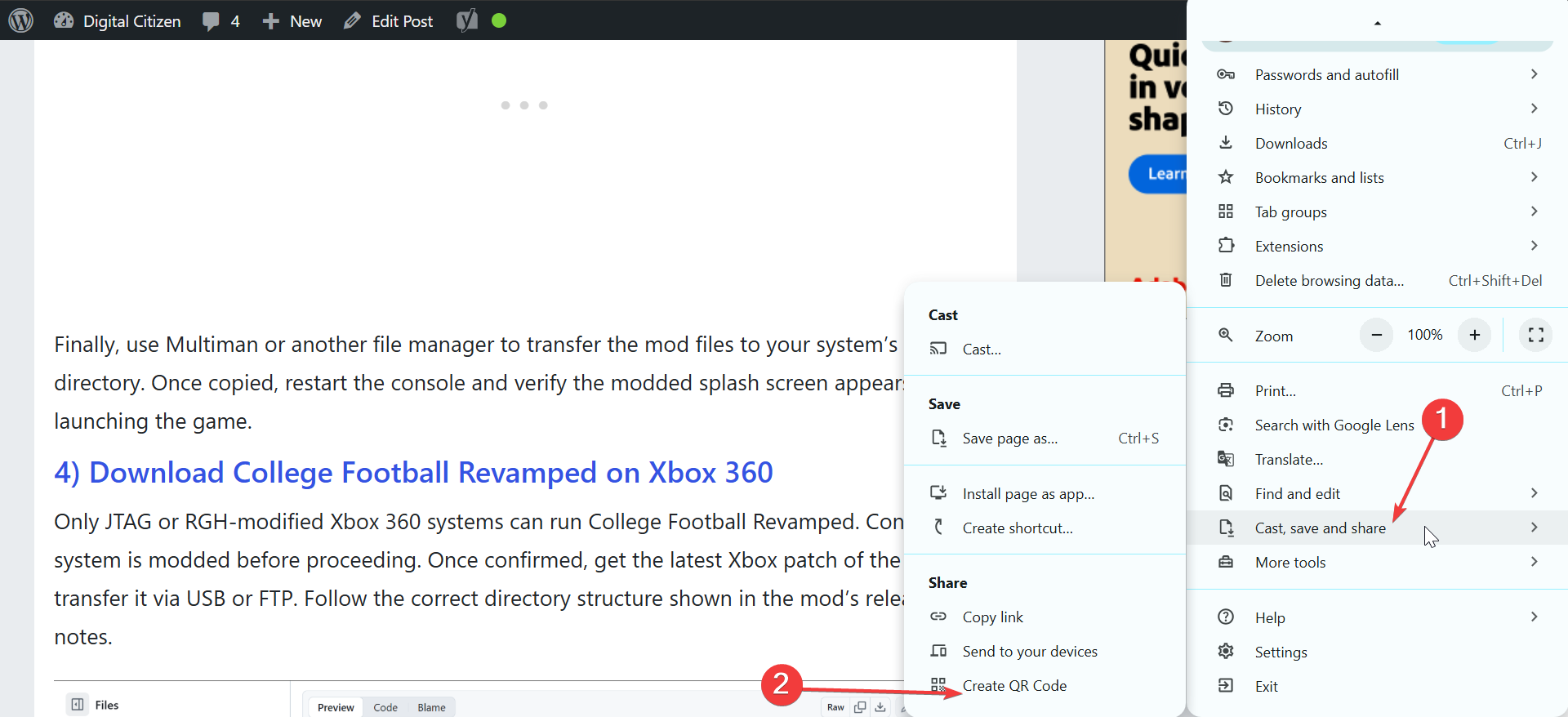
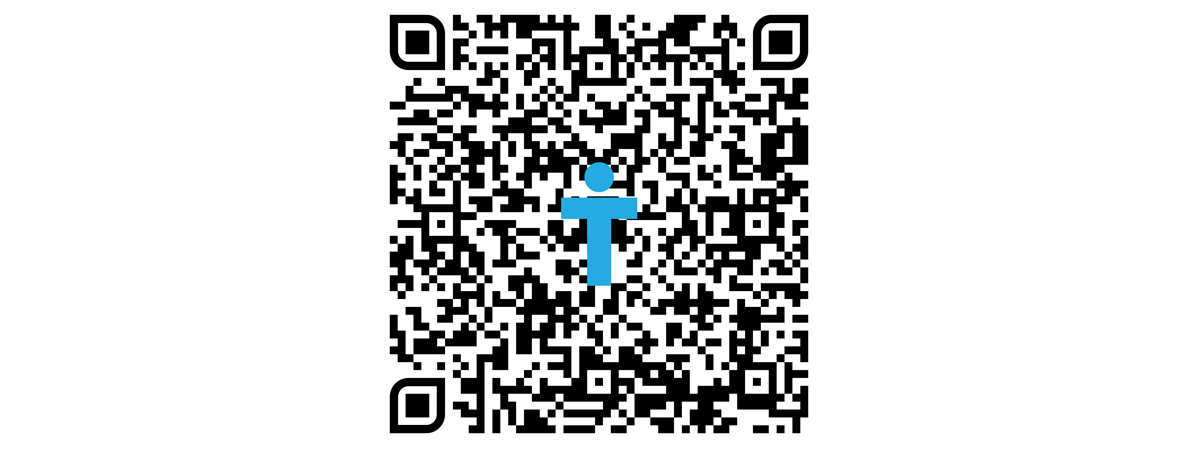
Open Chrome and go to the webpage you want to share. Click the three vertical dots in the top right corner and hover on Cast, save and share. Now, click the Create QR Code option under Share. A QR image appears instantly with a small dinosaur logo in the center.
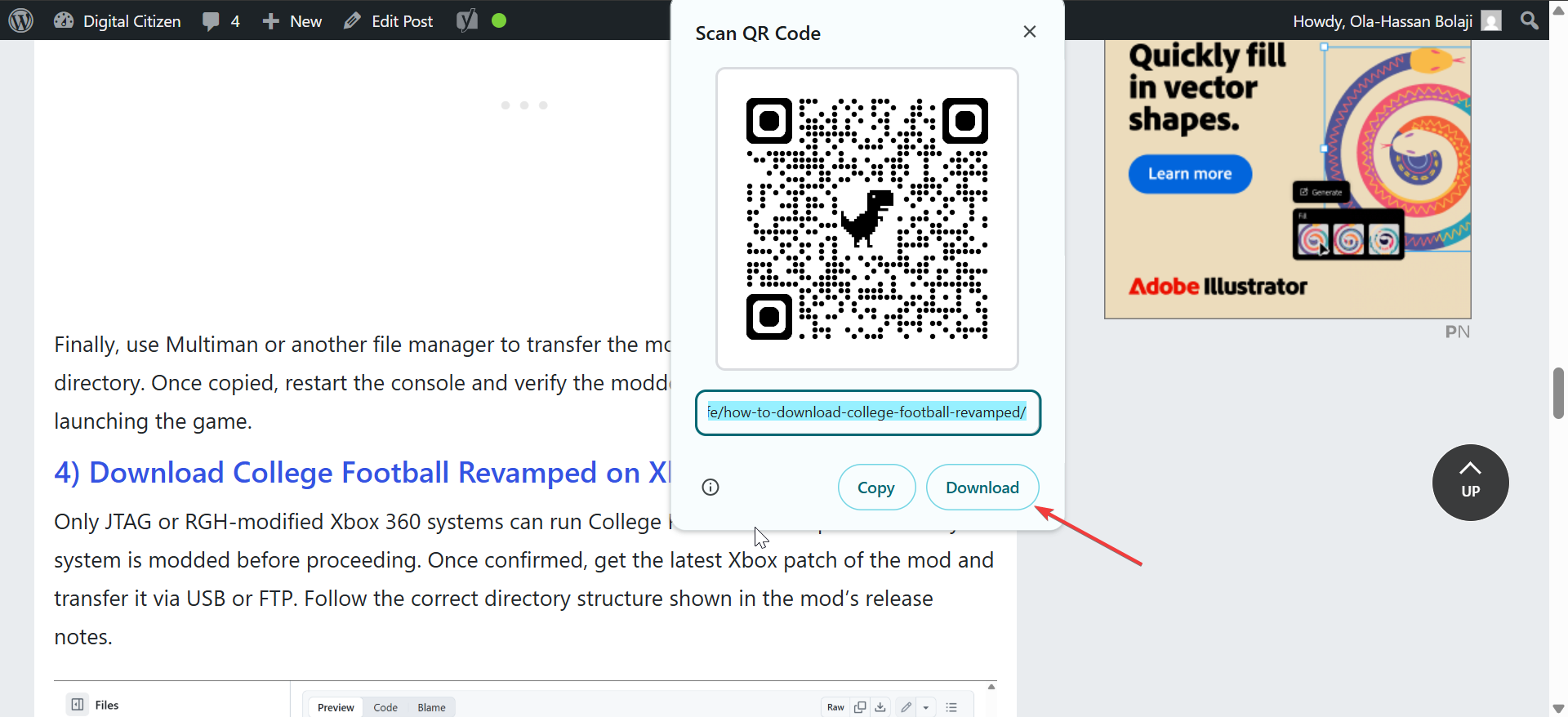
You can also right-click anywhere on the page and choose Create QR Code for this page from the context menu. From here, click Download below the generated code and Chrome will save it as a PNG file in your default download folder. You can now insert this image into an email, presentation, or printed flyer for easy sharing.
2) Make a QR Code on Chrome mobile
On Android
Open Chrome, navigate to the page you want, and tap the three-dot menu in the upper-right corner. Next, choose Share > QR Code. You can now scan it from another phone or tap Download to save it.
On iPhone or iPad
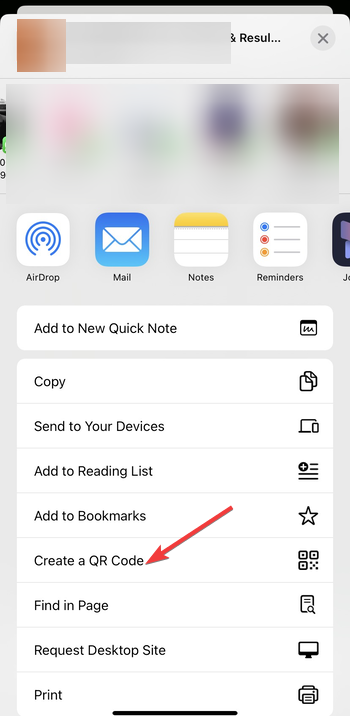
Tap the Share icon in Chrome’s address bar. Scroll and select Create a QR Code. Finally, tap Save Image to keep it in your Photos app. You can also try scanning your code with your camera app to verify it opens the right page.
3) How to share or print your QR code
After downloading, paste the PNG into Word, PowerPoint, or any design app. When printing, make sure the code is large enough and has high contrast for easier scanning.
If you plan to share it online, test it on both Android and iPhone to confirm compatibility.
4) How to customize QR codes in Chrome
Chrome’s built-in codes are static and black-and-white. If you want color themes, logos, or trackable scans, use extensions like QR Code Generator available on the Chrome Web Store. Just click the Add to Chrome button and the extension will be added to your browser.
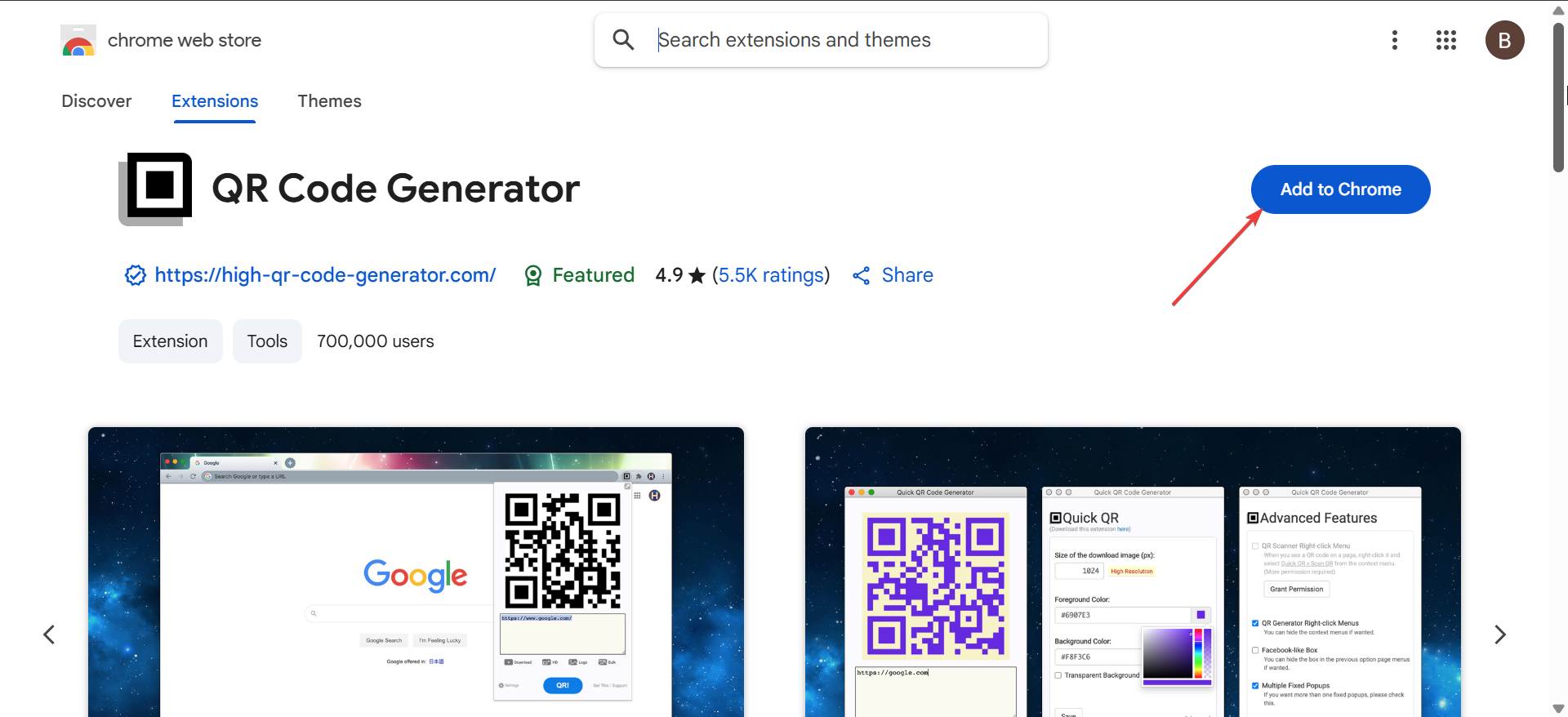
Some allow exporting as SVG files for high-resolution prints or adding your brand’s logo.
5) What to do if Create QR Code is missing on Chrome

If you’re using a work or school account, the policy might be disabled by the admin. You should also update your browser, as older versions might not show the option. Finally, check if there is any extension blocking the feature from appearing.
Tips for using QR codes safely and effectively
- Always link to HTTPS pages to avoid browser warnings.
- Keep your design simple and avoid distorting or blurring the code.
- Test your printed or shared QR code on multiple devices to confirm it opens the correct destination.
FAQs
Can I make a QR code for images or files in Chrome? Yes. Right-click an image and choose Create QR Code. Chrome generates a link specific to that file.
Can I scan QR codes with Chrome? Yes. On Android, tap the camera icon in Chrome’s search bar to scan a QR code directly.
Why does my QR code not scan properly? If the printed version is too small or has poor contrast, scanners may fail. Re-export it at higher resolution.
Are QR codes made in Chrome private? Yes. They’re static images that store only the link - no tracking or analytics.
Summary
- Open a page in Chrome.
- Click or tap Share > Create QR Code.
- Download and save the PNG file.
- Test it before sharing or printing.
- Use extensions for colors or dynamic features.
Conclusion
Making a QR code on Google Chrome is quick, built-in, and works across all platforms. It’s the easiest way to share links without copying URLs.
If you want more customization or analytics, pair Chrome’s feature with trusted QR extensions or marketing tools to match your goals.


Discussion (0)
Be the first to comment.