



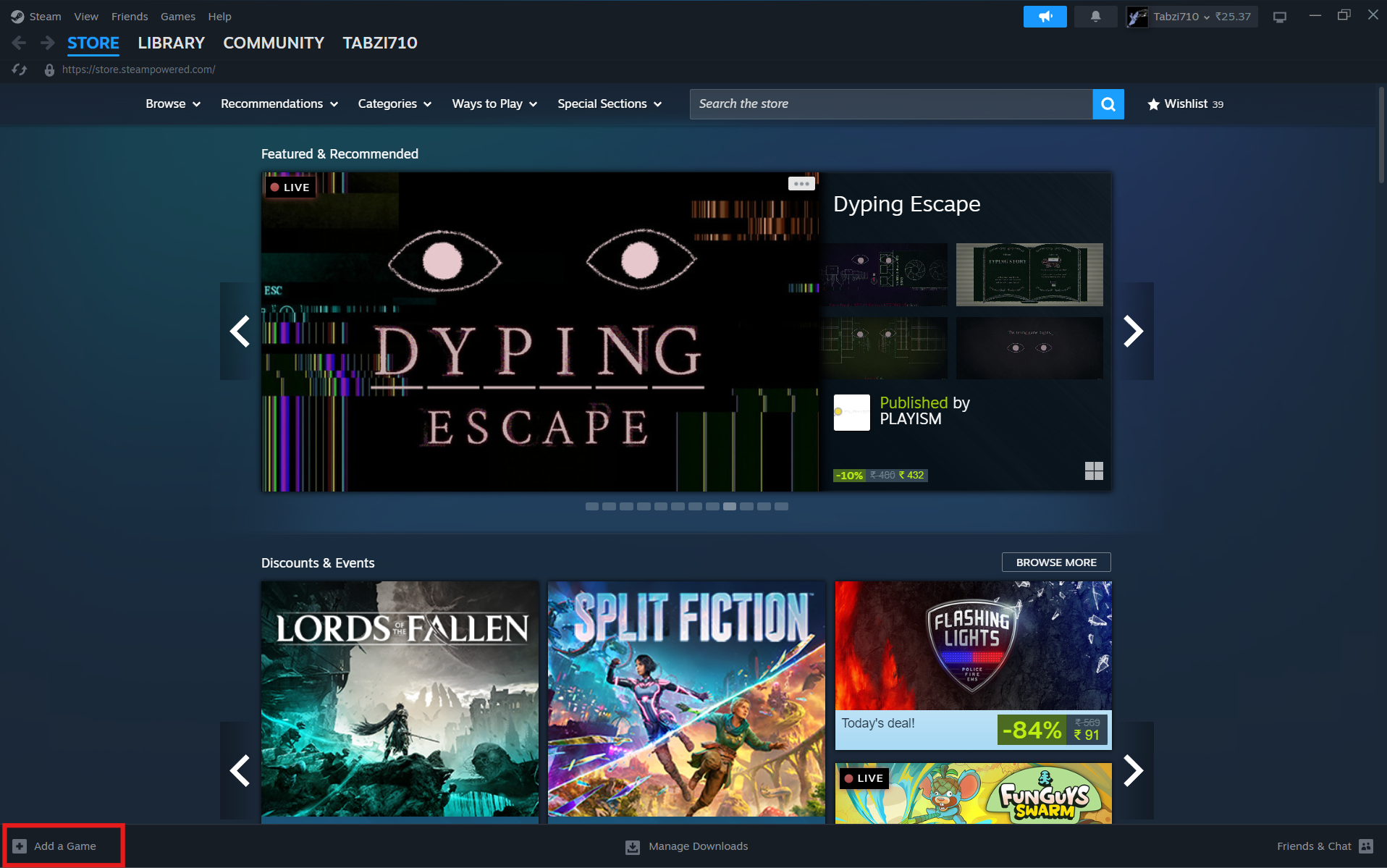
Gaming on Linux used to mean compromises. Limited game support, inconsistent performance, and a lot of manual tweaking. That’s changed significantly with Proton, Valve’s compatibility layer that allows Windows games to run on Linux through Steam.
But installing Proton isn’t just about flipping a switch. If you want a smooth experience, you need to understand how it works and how to set it up correctly.
What is Proton (Steam Play)?
Proton is a compatibility layer developed by Valve that allows Windows-based games to run on Linux via Steam.
It’s built on technologies like Wine and DXVK, which translate Windows API calls into something Linux can understand.
The result is surprisingly effective. Many Windows games now run on Linux with little to no modification.
How Proton Works in Practice
Instead of running a game natively, Proton acts as a translation layer.
When you launch a Windows game through Steam on Linux:
- Proton intercepts Windows system calls
- Translates them into Linux-compatible instructions
- Handles graphics through Vulkan
- Manages compatibility behind the scenes
For the user, this often feels seamless. You install and play as if the game were native.
Step 1: Install Steam on Linux
Before anything else, you need Steam installed.
Most Linux distributions include Steam in their software repositories. Install it using your package manager or download it directly from the official site.
Once installed, log into your Steam account as usual.
Step 2: Enable Steam Play (Proton)
This is where Proton comes in.
Open Steam, then go to:
Settings > Compatibility
Enable:
- “Enable Steam Play for supported titles”
- “Enable Steam Play for all other titles”
Then choose a Proton version from the dropdown.
If you want the most stable experience, use the default recommended version. If you want better compatibility with newer games, you can try newer Proton versions.
Step 3: Install a Game
Once Proton is enabled, installing games works the same as on Windows.
Pick a game from your library and install it.
If the game is supported by Proton, Steam will automatically use it to run the game.
There’s no separate installation process for Proton per game.
Step 4: Use Proton GE (Optional but Recommended)
For better compatibility, many users install Proton GE (GloriousEggroll), a community-enhanced version of Proton.
It often includes fixes and improvements not yet available in the official version.
To use it:
- Download Proton GE
- Place it in the Steam compatibility tools directory
- Restart Steam
- Select it per game in properties
This step isn’t required, but it can significantly improve compatibility for certain titles.
Step 5: Check Game Compatibility
Not all games work perfectly with Proton.
Before installing, it’s worth checking compatibility through ProtonDB.
It provides real user reports on:
- Whether a game works
- Performance expectations
- Required tweaks
This saves time and avoids frustration.
Real-World Usage: What Actually Works Well
Proton works best for a large portion of single-player and non-competitive games.
Many popular titles run with minimal issues, and performance can be close to native Windows in some cases.
However, games with strict anti-cheat systems are still a problem. These often fail to run due to compatibility restrictions.
So while Proton has come a long way, it’s not universal.
Common Issues and How to Avoid Them
If something doesn’t work, it’s usually due to one of a few reasons.
Wrong Proton version is a common issue. Switching versions often fixes problems.
Missing dependencies or drivers can also cause issues, especially with graphics.
And sometimes, the game simply isn’t compatible yet.
The key is to treat Proton as a compatibility layer, not a guarantee.
Limitations You Should Know
Proton is powerful, but it’s not perfect.
Not all games are supported, especially newer titles with advanced anti-cheat.
Performance can vary depending on hardware and drivers.
And troubleshooting can sometimes require trial and error.
If you expect a completely plug-and-play experience like Windows, you may run into some friction.
Final Thoughts
Installing Proton on Linux is easy. Getting the most out of it takes a bit more understanding.
Once set up properly, it opens up a large portion of the Windows gaming library on Linux without needing dual-boot.
It’s not a perfect replacement for Windows gaming, but it’s close enough for many users.
And more importantly, it keeps improving.
FAQs
Do I need to install Proton separately?
No, it’s built into Steam. You just need to enable Steam Play.
What is Proton GE?
It’s a community version of Proton with additional fixes and improvements.
Can all Windows games run on Linux with Proton?
No, especially games with anti-cheat systems may not work.
Does Proton affect performance?
Performance is often close to Windows, but it can vary depending on the game.
Is Proton safe to use?
Yes, it’s developed by Valve and widely used in the Linux gaming community.



Discussion (0)
Be the first to comment.