



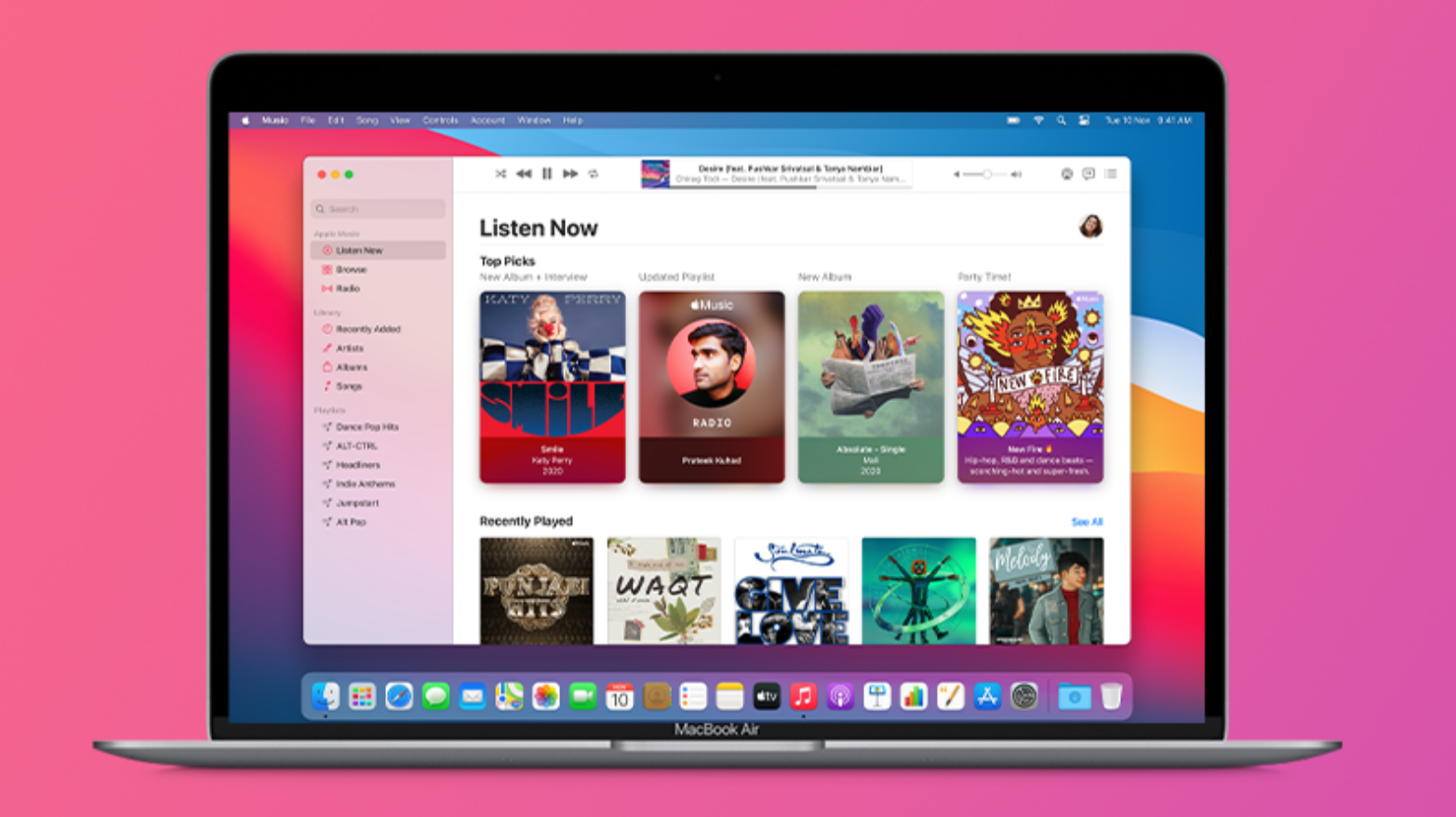
If you want to install iTunes on Windows 11, you can download it either from the Microsoft Store or from Apple’s official website. iTunes allows you to manage music, sync Apple devices, purchase media, and back up iPhones or iPads directly from your computer.
Although Apple now offers separate apps for music and media on some platforms, iTunes is still widely used on Windows for device management and media libraries. This guide explains how to install iTunes on Windows 11 step by step.
What Is iTunes?
iTunes is a media management application developed by Apple. It allows users to organize music libraries, purchase content from the Apple Store, and manage Apple devices connected to a computer.
Common uses of iTunes include:
- Managing music and playlists
- Syncing iPhones and iPads
- Creating device backups
- Updating iOS devices
- Purchasing media from Apple services
It is often required for advanced iPhone management on Windows computers.
Method 1: Install iTunes from the Microsoft Store
The easiest way to install iTunes on Windows 11 is through the Microsoft Store.
1: Open Microsoft Store
- Click the Start button.
- Open the Microsoft Store.
2: Search for iTunes
- Type iTunes in the search bar.
- Select the official iTunes app by Apple.
3: Install the App
- Click Install.
- Wait for the download and installation to complete.
Once installed, you can open iTunes from the Start menu.
Method 2: Download iTunes from Apple’s Website
You can also install iTunes using the installer from Apple.
1: Visit Apple’s Website
- Open your web browser.
- Go to the Apple iTunes download page.
2: Download the Installer
- Click Download iTunes for Windows.
- Save the installer file.
3: Run the Installer
- Double-click the downloaded installer.
- Follow the setup instructions.
4: Complete the Installation
- Click Install.
- Wait for the installation to finish.
- Launch iTunes.
Set Up iTunes After Installation
After installing iTunes, you can configure it for use.
Typical setup steps include:
- Signing in with your Apple ID
- Importing your music library
- Connecting your iPhone or iPad
- Setting up device backups
This allows iTunes to sync and manage your media.
Connect an iPhone or iPad to iTunes
To connect an Apple device:
- Use a USB cable to connect the device to your computer.
- Open iTunes.
- Unlock the device and tap Trust This Computer.
- The device will appear in iTunes.
You can now sync music, photos, and backups.
Troubleshooting iTunes Installation Issues
If you have trouble installing iTunes, try these solutions:
- Restart your computer
- Update Windows 11
- Download the installer again
- Install through Microsoft Store instead
These steps usually resolve installation problems.
Final Thoughts
Learning how to install iTunes on Windows 11 is useful if you want to manage music libraries or connect Apple devices to your computer. The easiest method is installing it from the Microsoft Store, but you can also download it directly from Apple.
Once installed, iTunes allows you to organize media, sync devices, and back up your iPhone or iPad easily.
FAQs
Is iTunes available for Windows 11?
Yes. iTunes is available for Windows 11 through the Microsoft Store or Apple’s website.
Can I manage my iPhone with iTunes on Windows?
Yes. iTunes allows you to sync, update, and back up Apple devices.
Is iTunes free to download?
Yes. iTunes is free to download and use.
Do I need an Apple ID for iTunes?
You only need an Apple ID if you want to access Apple services such as purchases or cloud features.


Discussion (0)
Be the first to comment.