



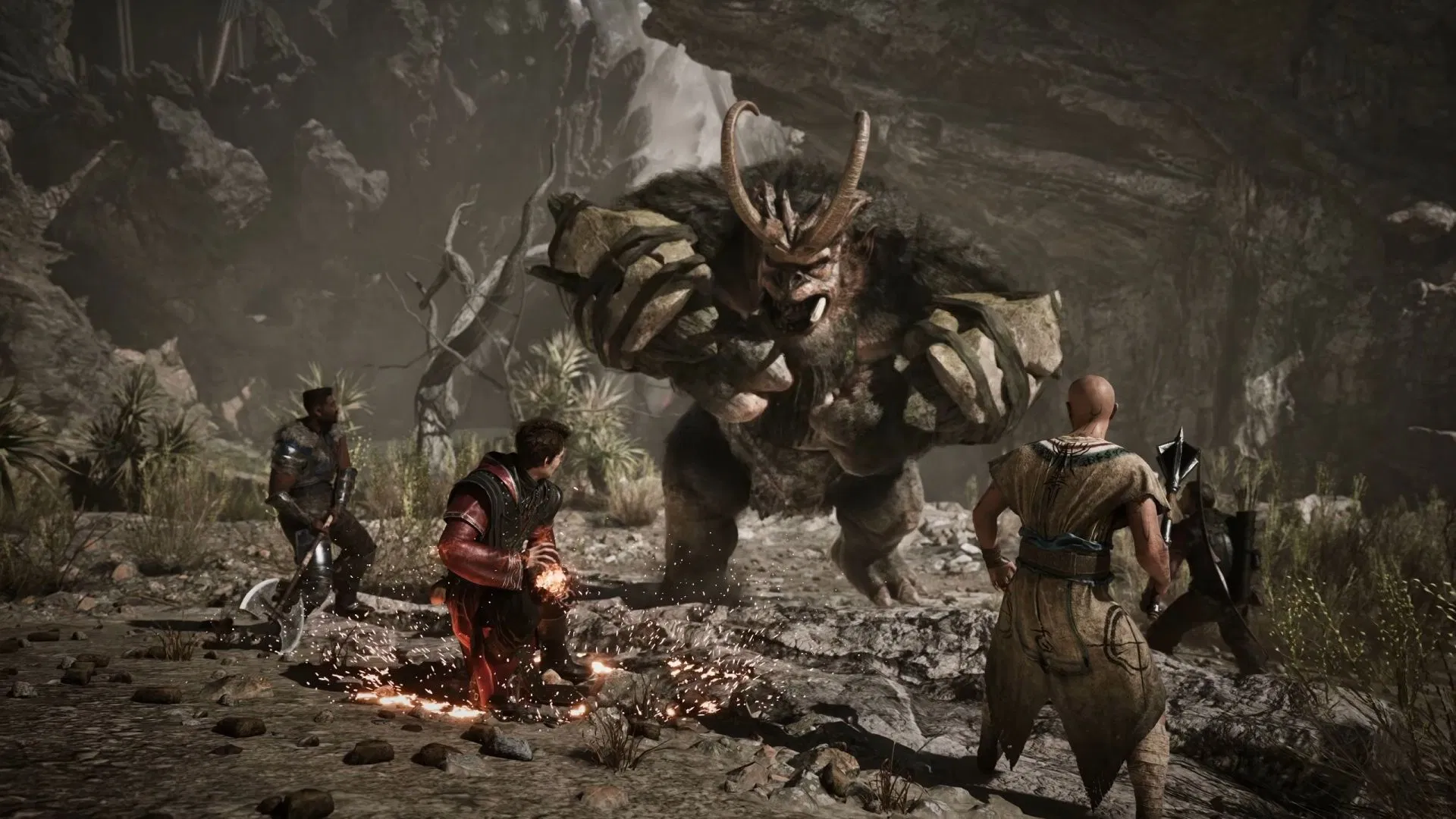
You can improve performance in Gothic 1 Remake by lowering Shadow Quality and Effects Quality first, while keeping most other settings high to preserve the game’s visual style. The game is demanding on modern hardware, especially in outdoor areas with dense foliage, dynamic lighting, and busy settlements, but a few sensible changes can raise average frame rates without making the Valley of Mines look noticeably worse.
Gothic 1 Remake uses Unreal Engine 5, which helps create richer environments than the original game but also brings common issues such as shader compilation stutter and traversal hitches. Graphics settings can reduce GPU load, but they cannot fully remove stuttering caused by shader compilation or asset streaming.
For the best balance, start with the Very High preset, avoid the experimental Alkimia Overdose option, and then adjust only the settings that provide meaningful gains.
How to Use the Best Gothic 1 Remake Graphics Settings
The settings below are designed for 1440p gaming and should work well on a wide range of modern GPUs. They preserve detailed terrain, foliage, reflections, and textures while reducing some of the heavier visual effects.
| Graphics setting | Recommended option | Why it works |
|---|---|---|
| View Distance Quality | Very High | Keeps distant areas detailed with little benefit from lowering it |
| Anti Aliasing Quality | High | Maintains good image stability at a lower cost |
| Shadow Quality | Medium | Offers one of the best performance gains |
| Global Illumination Quality | High | Retains strong lighting without the highest GPU cost |
| Reflection Quality | Very High | Lower settings offer little real improvement |
| Post Processing Quality | Very High | Keep quality high, then adjust effects manually |
| Texture Quality | Very High | Suitable for 8GB or higher VRAM at 1440p |
| Effects Quality | Medium | Reduces GPU load with limited visual loss |
| Foliage Quality | High | Keeps outdoor areas dense without the extra cost |
| Shading Quality | Very High | Lowering it hurts image quality too much |
| Landscape Quality | Very High | Terrain quality is worth keeping high |
How to Gain More FPS Without Ruining Image Quality
Shadow Quality and Effects Quality are the first settings you should lower. Both can reduce GPU demand in busy combat scenes, towns, weather effects, fire, smoke, and heavily detailed outdoor areas.
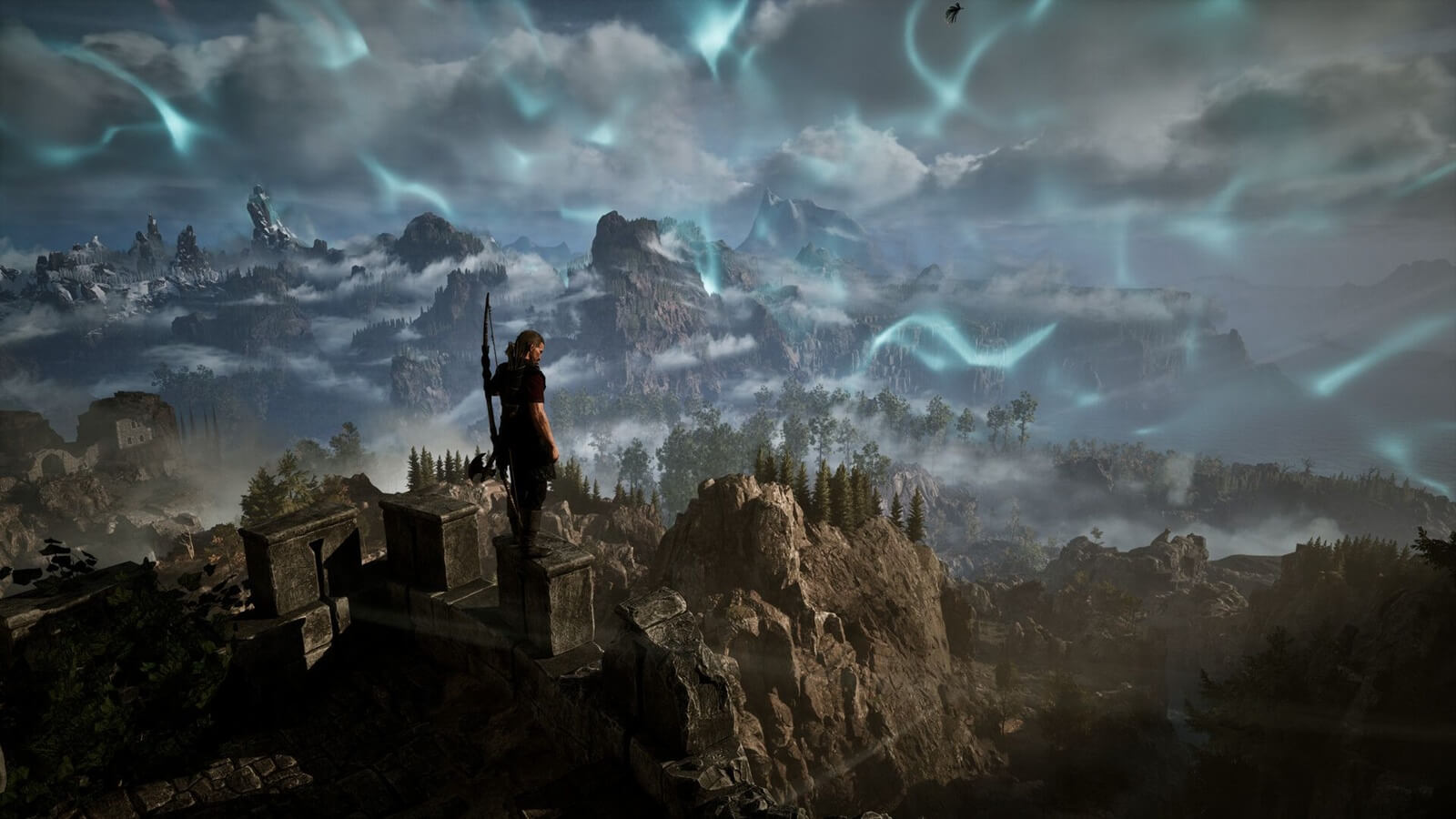
Lowering Anti Aliasing Quality from Very High to High is also worthwhile. Gothic 1 Remake uses Unreal Engine 5’s Temporal Super Resolution, and High still provides good image stability while cutting a small amount of rendering overhead.
Foliage Quality can be reduced to High without making forests and grasslands look empty. However, lowering View Distance, Landscape Quality, or Reflection Quality does not provide enough benefit to justify the visual compromise in most situations.
How to Handle Stutters and Frame Time Spikes
Some performance issues in Gothic 1 Remake are not caused by graphics settings. Shader compilation stutters can happen as you move through new areas, enter settlements, or trigger effects that have not been compiled before.
Installing the game on an NVMe SSD can help reduce streaming delays. Closing background apps may also free system memory and reduce interruptions. The game recommends 32GB of RAM, and that amount can be useful in a large Unreal Engine 5 open world with many assets loading in the background.
Using upscaling is often better than lowering every graphics setting. Start with a reasonable temporal upscaling mode before reducing texture, terrain, or lighting quality too heavily.
How Much Performance Can Optimized Settings Add
Testing at 1440p showed that the optimized settings improved average performance from 92 FPS to 108 FPS. That is roughly a 17% increase while keeping most of the game’s intended visual presentation intact.
The 1% low frame rate also improved, which should make normal gameplay feel smoother. However, very low frame time spikes can still appear because of shader compilation and world streaming. These hitches may remain even after lowering demanding settings.
At 1440p, 8GB of VRAM can be enough with Texture Quality set to Very High. Lower the texture setting if you notice texture pop in, long loading pauses, or VRAM related stutter.

Discussion (0)
Be the first to comment.