



If you are customizing slides, you may need to edit background graphics in PowerPoint to change logos, watermarks, or design elements that cannot be edited directly.
These elements are usually part of the Slide Master, which controls the overall design of your presentation. This guide explains how to access and edit them easily.
What Are Background Graphics in PowerPoint?
Background graphics are design elements that appear on slides but cannot be selected or edited in normal view.
These include:
- Logos
- Watermarks
- Background shapes
- Theme elements
They are usually added through the Slide Master.
Why Can’t You Edit Background Graphics Directly?
If you try to click on a background element and nothing happens, it is because:
- It is part of the Slide Master
- It is locked in the layout
- It is applied as a theme element
To edit it, you need to access the Slide Master view.
How to Edit Background Graphics in PowerPoint
Follow these steps to edit hidden or locked elements.
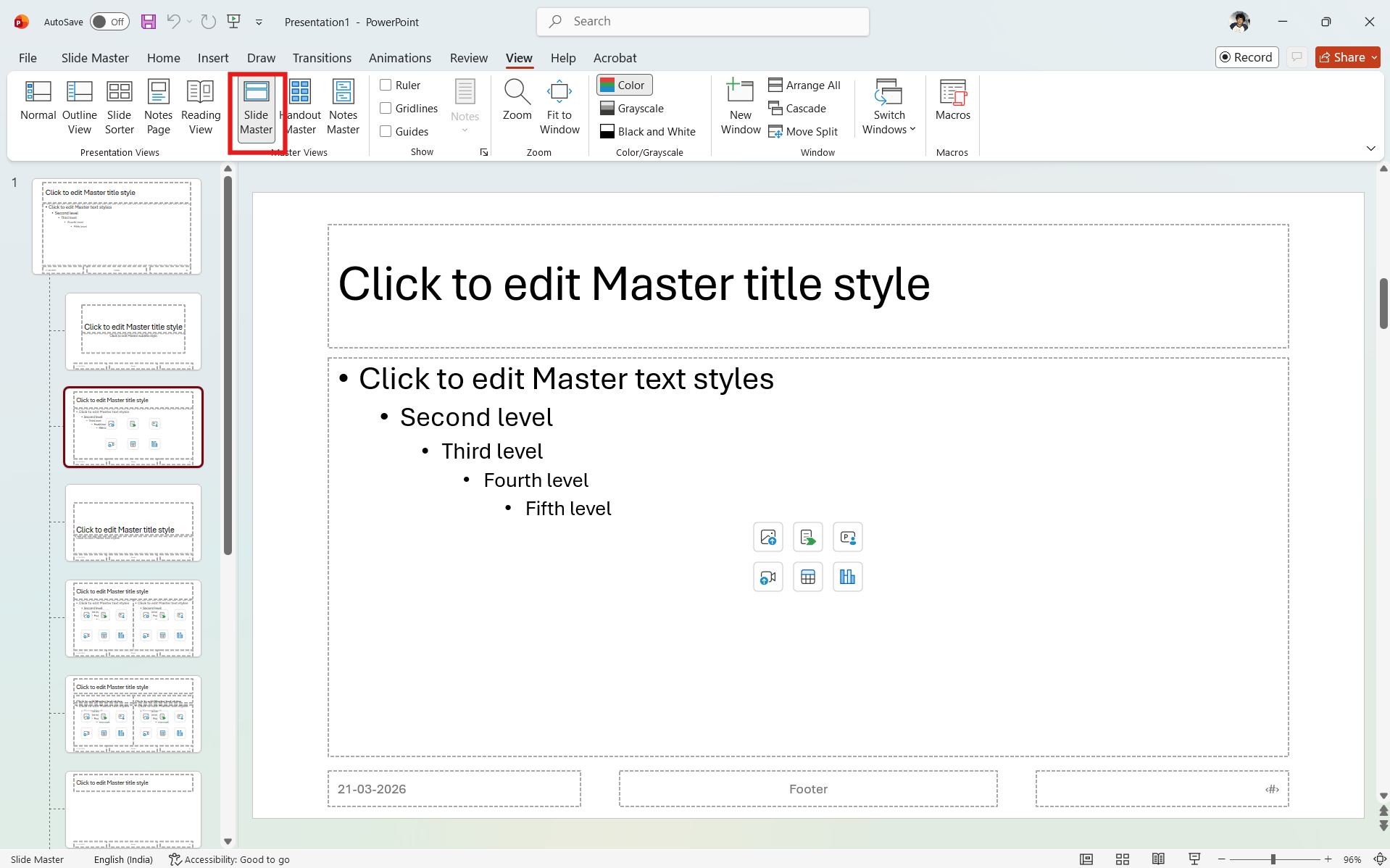
Step 1: Open Slide Master
- Open your presentation in PowerPoint
- Go to the View tab
- Click Slide Master
This will open the master layout view.
Step 2: Select the Correct Layout
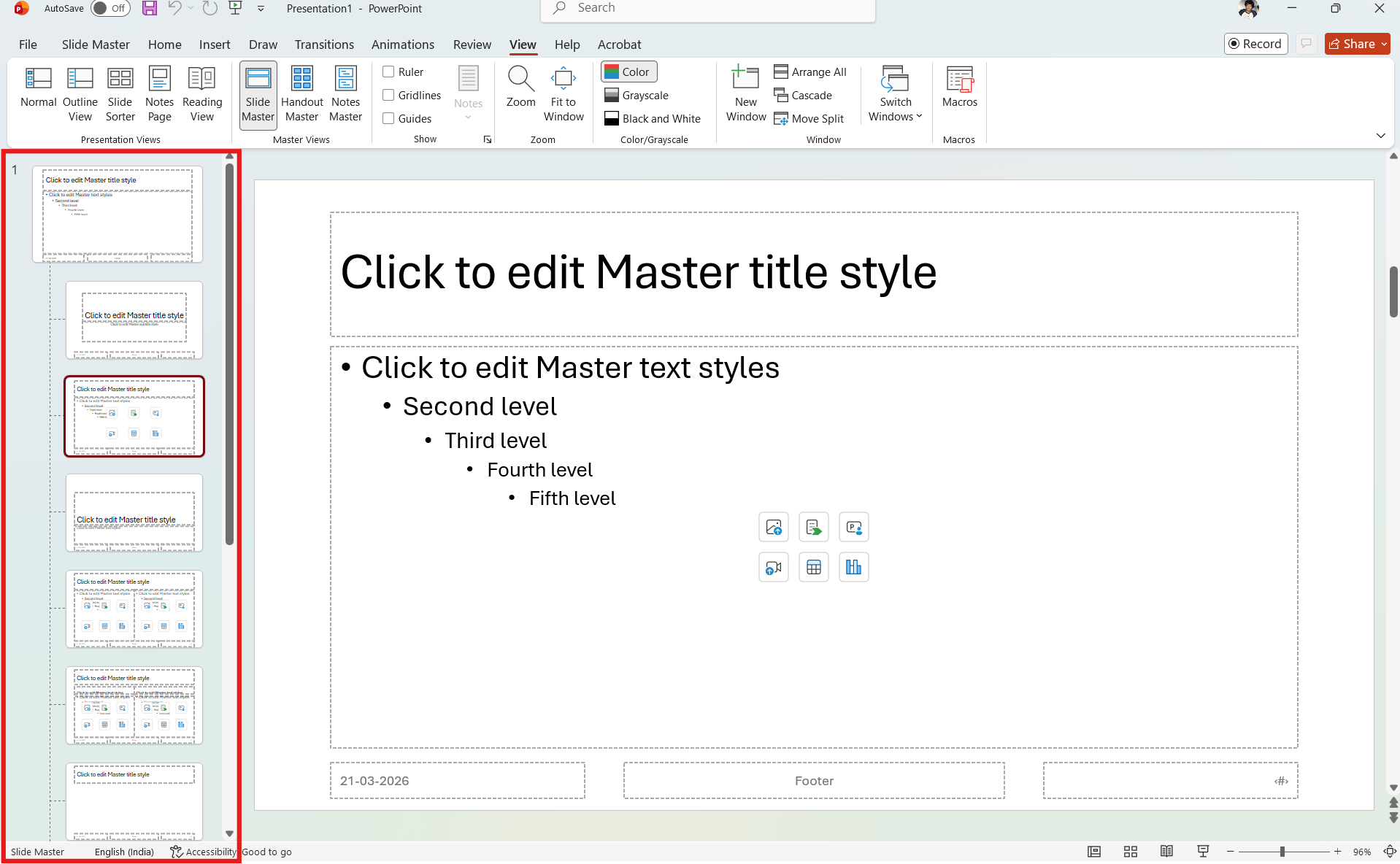
- In the left panel, choose the layout where the graphic appears
- Click on the slide
You will now see the background elements.
Step 3: Edit or Remove Graphics
- Click on the background object (logo, shape, etc.)
- You can:
- Move it
- Resize it
- Delete it
- Replace it
Changes will apply to all slides using that layout.
Step 4: Close Slide Master
- Click Close Master View
- Return to normal editing mode
Your changes will now appear on slides.
How to Hide Background Graphics (Quick Method)
If you do not want to edit but just hide them:
- Select a slide
- Go to the Design tab
- Click Format Background
- Check Hide background graphics
This removes them from that slide only.
When to Use Slide Master Editing
Editing Slide Master is useful when:
- You want consistent design changes
- You need to update logos across all slides
- You are customizing templates
- You want to remove unwanted branding
It saves time compared to editing slides individually.
Common Issues and Fixes
Cannot find the graphic:
- Check different layouts in Slide Master
Changes not applying:
- Ensure slides use the correct layout
Graphic still visible:
- Check if it is part of the background fill
Final Thoughts
Learning how to edit background graphics in PowerPoint helps you customize presentations more effectively. Instead of struggling with locked elements, using Slide Master gives you full control over design.
It is a simple feature, but it makes a big difference when working with templates or branded presentations.
FAQs
Why can’t I edit background graphics in PowerPoint?
Because they are part of the Slide Master and not editable in normal view.
How do I remove a logo from all slides?
Edit or delete it in the Slide Master.
Can I hide background graphics without deleting them?
Yes, use the “Hide background graphics” option.
Will changes affect all slides?
Yes, if they use the same layout.



Discussion (0)
Be the first to comment.