




OptiFine is one of the most popular ways to boost FPS, smooth out lag, and upgrade graphics in Minecraft Java Edition. If you want better performance, cleaner textures, or support for shaders, learning how to download OptiFine for Minecraft is a simple first step.
This guide shows you how to download OptiFine, install it, and run Minecraft using the OptiFine profile. You also learn how to adjust OptiFine settings for a good balance between visuals and performance on your PC.
Check Your Minecraft And Java Setup
Before you download OptiFine for Minecraft Java, confirm your game version and Java setup. OptiFine must match your exact Minecraft version to work correctly.
- Open the Minecraft Launcher and note the Minecraft Java Edition version you use most often.
- Make sure the game launches normally without mods before you install OptiFine.
- Confirm that Java is installed on your PC so you can run the OptiFine installer file.
Once you know your exact Minecraft version and you have Java installed, you are ready to download the OptiFine installer that matches it.
Download The Correct OptiFine Version
The most important step when you download OptiFine for Minecraft is choosing the build that matches your Minecraft Java Edition version. A mismatch can cause crashes or missing options.
- Open your browser and search for the latest stable OptiFine release that matches your Minecraft version.
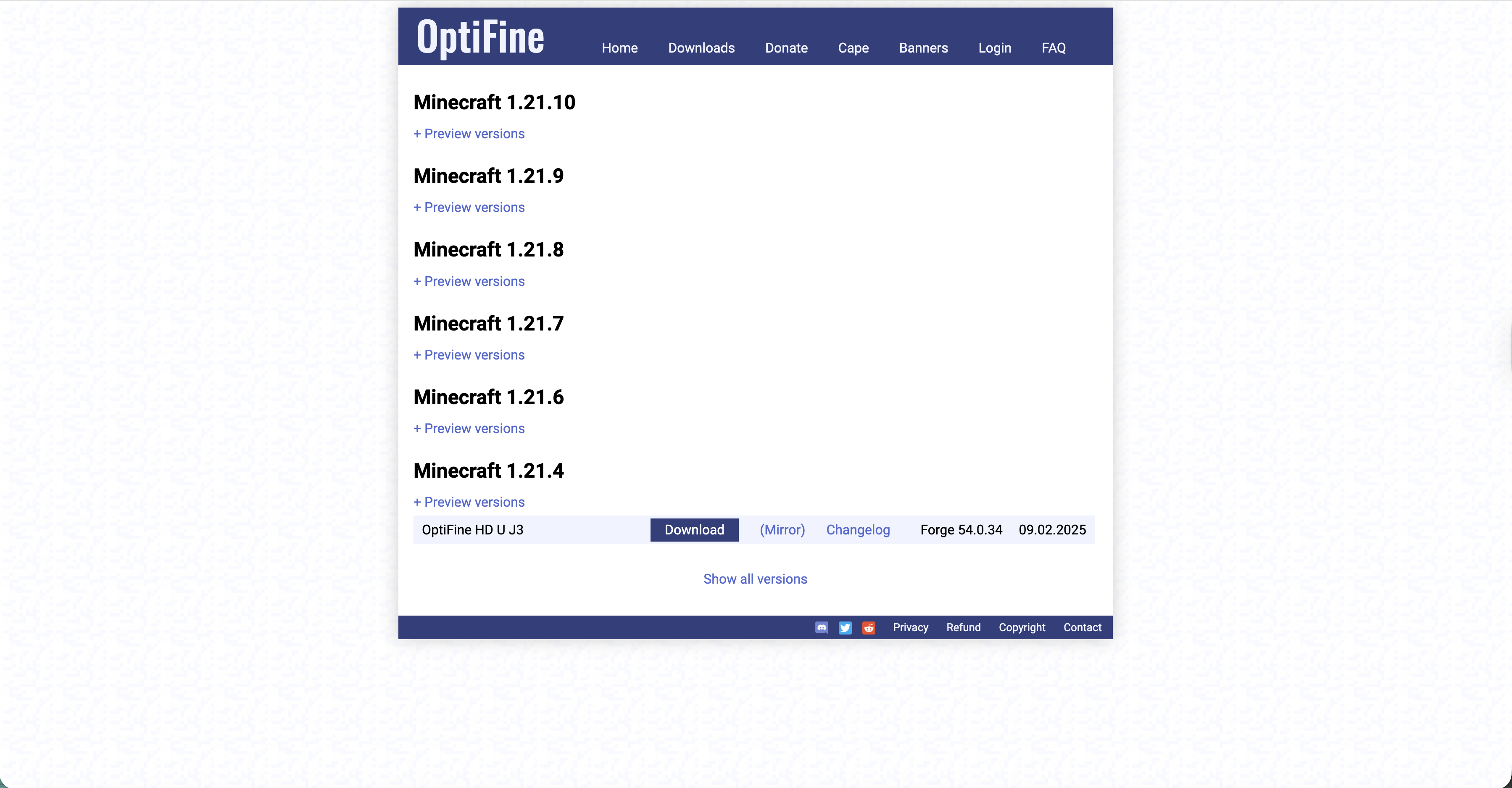
- Check that the OptiFine version name includes the same Minecraft version number you saw in your launcher.
- Choose the OptiFine edition you prefer, such as a standard build for stability or a feature-rich build for advanced tweaks.
- Download the OptiFine JAR file to a folder you can find easily, such as your Downloads folder.
After the download finishes, you will have the OptiFine installer JAR file ready to run. This file is the base of your OptiFine Minecraft mod setup.
Install OptiFine On Minecraft Java
Installing OptiFine is usually a one-click process if Java is properly installed on your Windows PC. The installer adds a new OptiFine profile to the Minecraft Launcher.
- Navigate to the folder where you saved the OptiFine JAR file.
- Right-click the OptiFine JAR and select Open With > Java if it does not open by default.
- Review the Minecraft installation path shown in the installer window to make sure it points to your main Minecraft folder.
- Click Install and wait until the installer reports that OptiFine has been successfully installed.
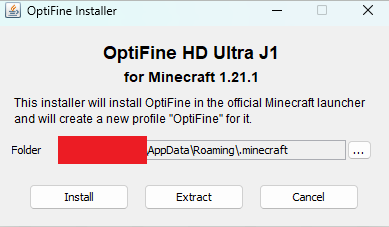
If the installer will not open, you may need to install or update Java before you can complete the OptiFine install for Minecraft Java Edition.
Launch Minecraft Using The OptiFine Profile
Once you install OptiFine, the Minecraft Launcher creates a special OptiFine profile. You must choose this profile any time you want to play with the OptiFine mod enabled.
- Open the Minecraft Launcher on your Windows PC.
- Click the drop-down menu next to the Play button to open the list of profiles.
- Select the profile that includes the word OptiFine and matches your Minecraft version.
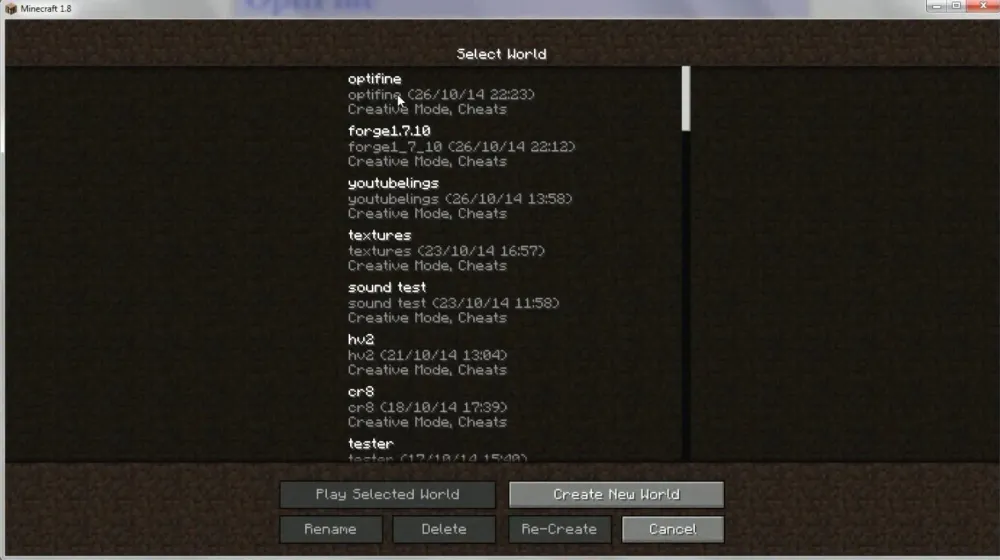
- Click Play and wait for Minecraft to launch with OptiFine loaded.
When Minecraft opens with the OptiFine profile, your game now runs with the OptiFine performance mod instead of the default renderer.
Adjust OptiFine Settings For Better Performance
OptiFine for Minecraft gives you detailed control over performance and visuals. You can use it as an FPS boost mod or a graphics upgrade, depending on how you tune the settings.
- From the Minecraft main menu, click Options, then select Video Settings.
- Lower Render Distance and turn off fancy clouds or smooth lighting if you want a higher FPS boost.
- Enable features like Dynamic Lighting and better textures if your PC has a stronger graphics card.
- Open the Performance and Quality submenus to toggle animations, chunk loading, and other OptiFine features.
- Click Done to save changes, then load a world and test how smooth the game feels.
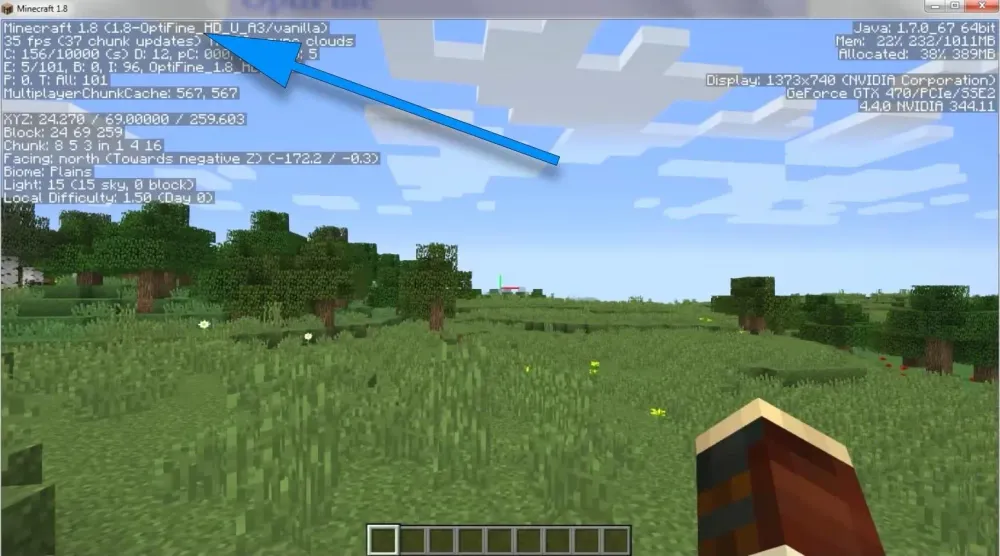
It may take a few rounds of testing to find the best OptiFine settings for your Minecraft FPS and the look you want.
Troubleshooting Common Problems
Most problems with downloading or installing OptiFine for Minecraft come from version conflicts, Java issues, or launcher profiles. These quick checks resolve many common errors.
- OptiFine Installer Will Not Open: Install or update Java, then try opening the OptiFine JAR again.
- No OptiFine Profile In Launcher: Close the Minecraft Launcher completely, reopen it, and check the profile list again.
- Game Crashes On Start: Confirm that the OptiFine version exactly matches your Minecraft version and remove other mods temporarily.
- Low FPS Even With OptiFine: Lower render distance, turn off heavy effects, and close background apps that use CPU or GPU power.
- Black Screen With Shaders: Test OptiFine without shaders first, then try different shader packs designed for your Minecraft and OptiFine version.
If you still have issues after these steps, reinstall your matching OptiFine version and reset the Video Settings menu to defaults before trying again.
Tips
- Back up your .minecraft folder before major OptiFine or shader changes so you can roll back if needed.
- Test OptiFine alone before adding other Minecraft mods to limit conflicts and make troubleshooting easier.
- Use lower graphics settings on older laptops and reserve higher OptiFine quality options for gaming desktops.
- Turn on OptiFine’s performance options first if your main goal is a higher FPS rather than better visuals.
- Try small setting changes one at a time to see which options give you the best performance boost.
FAQ
Can I Use OptiFine With Minecraft Bedrock Edition?
OptiFine is designed for Minecraft Java Edition only. It does not work with the Windows Store, console, or mobile Bedrock versions.
Is OptiFine Safe To Download For Minecraft?
OptiFine itself is widely used as a Minecraft performance mod. Always download the OptiFine installer from a trusted source and make sure the file matches your Minecraft version.
Do I Need OptiFine To Use Shaders?
Most popular Minecraft shader packs expect OptiFine or a similar mod. OptiFine adds the video options needed for advanced shader support.
Why Does Minecraft Run Slower After I Install OptiFine?
If you enable every visual feature, OptiFine can be heavy on weak hardware. Lower your graphics settings and turn off extra effects to use it mainly as an FPS boost tool.
Can I Switch Back To Vanilla Minecraft?
Yes. In the Minecraft Launcher, select a non-OptiFine profile and click Play to run the standard game without OptiFine.
Summary
- Confirm your Minecraft Java Edition version and make sure Java is installed.
- Download the OptiFine installer that matches your exact Minecraft version.
- Run the OptiFine JAR file and install it into your main Minecraft folder.
- Select the OptiFine profile in the Minecraft Launcher before you click Play.
- Tune OptiFine settings to balance FPS, graphics quality, and shader support on your PC.
Conclusion
Learning how to download OptiFine for Minecraft gives you more control over performance and visuals than the default game offers. Once you install OptiFine and launch the OptiFine profile, you can fine-tune render distance, lighting, and effects to match your hardware. Whether you want smoother FPS on a basic laptop or high-end shader support on a gaming PC, OptiFine helps you customize Minecraft so it looks and runs the way you prefer.


Discussion (0)
Be the first to comment.