



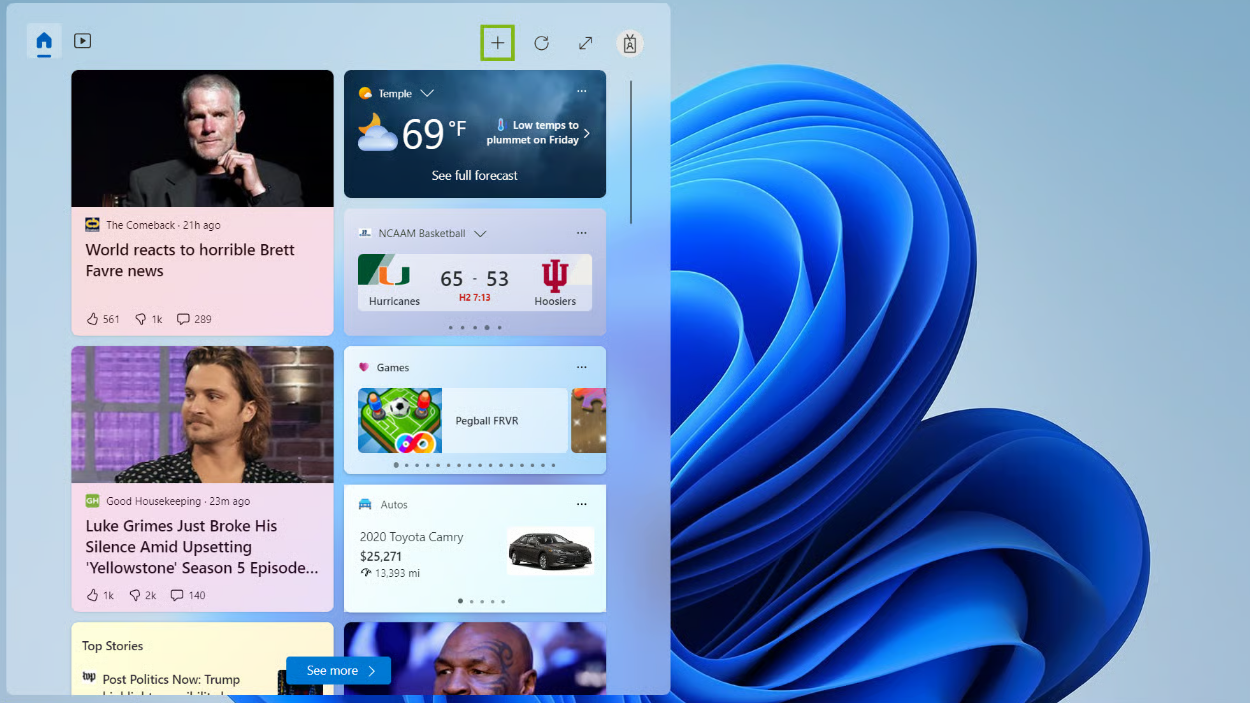
Windows 11 includes a Widgets panel that gives you quick access to news, weather, calendar events, sports scores, traffic updates, and more. You can personalize this panel to show only the information that matters to you.
This guide explains how to customize Widgets in Windows 11 step by step.
What Are Widgets in Windows 11
Widgets are small interactive panels that display personalized content such as:
- Weather updates
- News headlines
- Stock prices
- Calendar events
- To-do lists
- Sports scores
They are accessible from the taskbar.
How to Open Widgets in Windows 11
To open the Widgets panel:
- Click the Widgets icon on the taskbar
or - Press Windows + W
The Widgets board will slide in from the left side of the screen.
How to Add New Widgets
To add more widgets:
- Open the Widgets panel
- Click your profile icon or the + Add widgets option
- Browse available widgets
- Click the + button next to the widget you want
The selected widget will appear on your board.
How to Remove a Widget
If you want to remove a widget:
- Open the Widgets panel
- Click the three dots in the top-right corner of the widget
- Select Remove widget
The widget will be removed immediately.
How to Resize Widgets
Some widgets support resizing.
To resize:
- Click the three dots on the widget
- Choose Small, Medium, or Large
This helps you organize the layout based on your preferences.
How to Rearrange Widgets
You can move widgets easily.
Steps:
- Open the Widgets panel
- Click and drag the widget
- Drop it in your preferred position
This allows you to prioritize important widgets.
Customize News and Interests Feed
The news section can also be personalized.
- Open the Widgets panel
- Scroll to the news feed
- Click the three dots on any article
- Choose options like Hide this story or More stories like this
You can also adjust interests:
- Click your profile icon
- Select Manage interests
- Customize topics you want to follow
Sign In for Full Personalization
For full customization:
- Sign in with your Microsoft account
- Enable syncing
This ensures widgets show personalized content across devices.
Disable Widgets Completely
If you do not use Widgets:
- Right-click the taskbar
- Select Taskbar settings
- Toggle off Widgets
The Widgets icon will disappear from the taskbar.
Fix Widgets Not Working
If Widgets are not loading:
- Restart your PC
- Update Windows
- Sign out and sign back in
- Restart Windows Explorer from Task Manager
Updates often fix widget-related issues.
Final Thoughts
Customizing Widgets in Windows 11 allows you to create a personalized information hub directly on your desktop. By adding, removing, resizing, and organizing widgets, you can tailor the experience to your needs. If you prefer a minimal interface, you can also disable Widgets entirely.
FAQs
How do I open Widgets in Windows 11
Press Windows + W or click the Widgets icon.
Can I remove the news feed from Widgets
You can personalize it, but complete removal may not be available.
Do I need a Microsoft account for Widgets
Yes, signing in enables full personalization.
Can I disable Widgets entirely
Yes, from Taskbar settings.
Do Widgets affect performance
They use minimal system resources on most PCs.


Discussion (0)
Be the first to comment.