




If you want to sign up on Twitter on Windows 11, you can create a new account directly from your web browser. Twitter, now officially called X, allows you to register using your email address, phone number, or a Google account.
Creating an account only takes a few minutes. Once you sign up, you can follow people, post updates, and interact with content on the platform. This guide explains how to sign up on Twitter using a Windows 11 PC.
What You Need Before Signing Up on Twitter
Before creating a Twitter account, make sure you have:
- A valid email address or phone number
- A web browser such as Microsoft Edge or Google Chrome
- A stable internet connection
You may also be asked to verify your email or phone number during the signup process.
How to Sign Up on Twitter on Windows 11
Follow these steps to create your account.
Step 1: Open the Twitter Website
- Open your preferred browser on Windows 11.
- Go to the official Twitter (X) website.
- Click Create account.
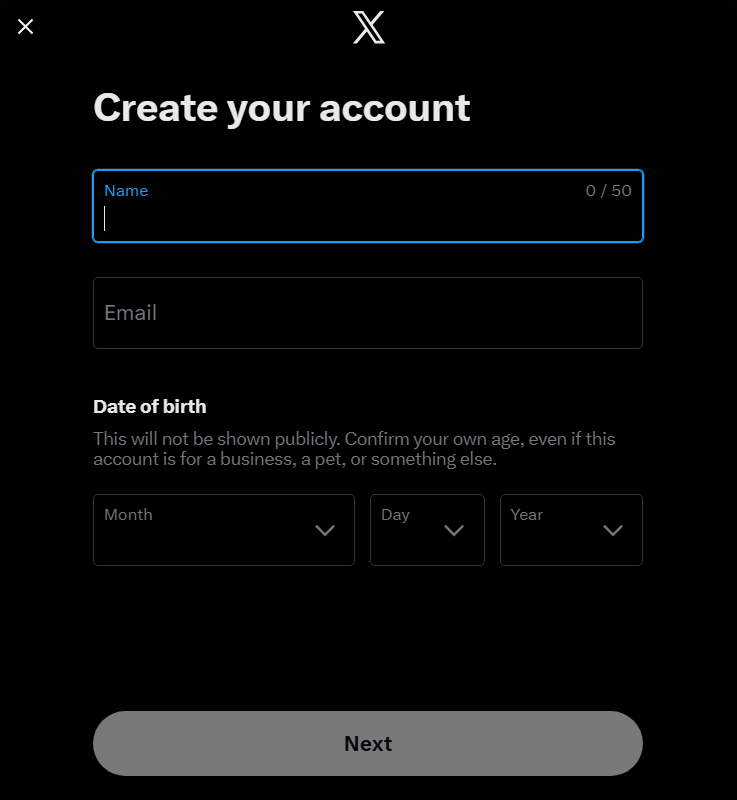
Step 2: Enter Your Basic Information
You will be asked to provide:
- Your name
- Your phone number or email address
- Your date of birth
Click Next after entering the details.
Step 3: Customize Your Experience
Twitter may ask whether you want the platform to personalize your experience based on activity. Choose your preference and continue.
Step 4: Verify Your Email or Phone Number
Twitter will send a verification code.
- Check your email inbox or phone messages.
- Enter the verification code on the signup page.
Step 5: Create a Password
Choose a strong password that includes:
- Letters
- Numbers
- Special characters
Click Next to continue.
Step 6: Choose a Username
Your username becomes your Twitter handle (for example, @username). If your preferred name is unavailable, Twitter will suggest alternatives.
Step 7: Complete Profile Setup
You can add:
- A profile picture
- A short bio
- Interests to follow
These steps are optional and can be completed later.
Can You Use Twitter Without Installing an App?
Yes. On Windows 11, most users access Twitter through a web browser.
However, you can also install it as a web app in Microsoft Edge.
To do this:
- Open Twitter in Edge.
- Click the three-dot menu.
- Select Apps > Install this site as an app.
This creates a separate app-like window for Twitter.
Tips for New Twitter Users
If you just created your account, consider these tips:
- Follow topics and people you are interested in
- Adjust privacy settings
- Enable two-factor authentication for security
- Complete your profile to make it easier for others to find you
These steps help improve your experience on the platform.
Final Thoughts
Learning how to sign up on Twitter on Windows 11 is simple and only takes a few minutes. By creating an account, you can participate in discussions, follow news, and connect with people around the world.
Once your account is set up, you can access Twitter from any browser or install it as a web app for quicker access on your Windows 11 PC.
FAQs
Can I sign up on Twitter using email?
Yes. Twitter allows you to create an account using an email address or phone number.
Do I need the Twitter app on Windows 11?
No. You can use Twitter directly through a web browser.
Is signing up on Twitter free?
Yes. Creating a Twitter account is completely free.
Can I change my Twitter username later?
Yes. You can change your username from the account settings after signing up.


Discussion (0)
Be the first to comment.