




Paint 3D is a built-in Windows application that allows users to create and edit 3D images easily. Unlike classic Paint, Paint 3D includes tools for designing 3D shapes, adding textures, and exporting 3D models.
This guide explains how to create 3D images using the Paint 3D app in Windows 10 and Windows 11.
What Is Paint 3D
Paint 3D is a creative app introduced by Microsoft to help users design both 2D and 3D content. It includes:
- 3D shapes
- Stickers and textures
- 3D text
- Lighting effects
- Model export options
It is beginner-friendly and does not require professional design experience.
How to Open Paint 3D
Follow these steps:
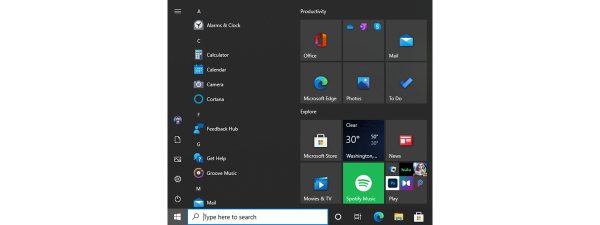
- Press Windows + S
- Type Paint 3D
- Click the app from the search results
If it is not installed, you may need to download it from the Microsoft Store if available in your region.
Create a 3D Object in Paint 3D
To start creating a 3D image:
- Open Paint 3D
- Click New
- Select the 3D Shapes tab
- Choose a 3D shape such as cube, sphere, or cylinder
- Click and drag on the canvas to place the object
You can rotate and resize the object using the handles that appear around it.
Add 3D Text to Your Image
Paint 3D allows you to create 3D text easily.
Steps:
- Click the Text tool
- Select the 3D Text option
- Type your text
- Adjust font and size
- Use the rotation tool to position it in 3D space
This is useful for logos or creative designs.
Apply Stickers and Textures
To enhance your 3D image:
- Click the Stickers tab
- Choose a texture or image
- Drag it onto the 3D object
- Adjust alignment as needed
Textures can wrap around the object automatically.
Adjust Lighting and Effects
Lighting affects how your 3D image looks.
Steps:
- Click the Effects tab
- Choose a lighting environment
- Adjust the light angle
This adds depth and realism to your design.
Save or Export Your 3D Image
Once finished:
- Click Menu
- Select Save as
- Choose image format such as PNG or JPEG
- You can also export as a 3D model file if needed
Saving as an image creates a flat version, while 3D formats preserve depth.
Tips for Better 3D Designs
- Combine multiple shapes for complex objects
- Use different textures for realism
- Adjust camera angles to improve perspective
- Keep designs simple if you are a beginner
Practice improves results over time.
Final Thoughts
Paint 3D makes creating 3D images simple for Windows users. While it is not a professional modeling tool, it is excellent for beginners, students, and casual designers. With basic shapes, 3D text, and lighting effects, you can quickly create attractive 3D visuals.
FAQs
Is Paint 3D free
Yes, Paint 3D is free for Windows users.
Does Paint 3D work on Windows 11
Yes, it works on both Windows 10 and Windows 11.
Can I export 3D models from Paint 3D
Yes, you can export supported 3D file formats.
Is Paint 3D good for beginners
Yes, it is designed for simple and beginner-friendly 3D creation.
Is Paint 3D still supported
Microsoft has reduced focus on it, but it still works if installed.

Discussion (0)
Be the first to comment.