



There was a time when copying text from an image meant manually typing everything out. It was slow, error-prone, and honestly not worth the effort unless you had no other option.
That has changed in Windows 11. The Snipping Tool now includes a built-in Text Extractor, allowing you to pull text directly from screenshots, scanned documents, or even random images on your screen.
It is one of those features that feels small until you start using it regularly. Then it becomes difficult to go back.
What Is Text Extractor in Snipping Tool?
Text Extractor is an OCR-based feature inside the Snipping Tool that detects and copies text from images.
OCR stands for Optical Character Recognition. It essentially converts visual text into editable digital text.
With this feature, you can:
- Copy text from screenshots
- Extract content from PDFs opened as images
- Grab text from presentations, videos, or websites that block copying
It works directly within the Snipping Tool, so you do not need third-party apps.
How It Works
When you capture a screenshot using the Snipping Tool, Windows analyzes the image and identifies text patterns.
Once detected, you can:
- Select specific text
- Copy all detected text at once
- Remove line breaks for cleaner formatting
The accuracy is generally good, especially for clear fonts and high-resolution images. However, it is not perfect and can struggle with stylized fonts or low-quality visuals.
How to Use Text Extractor in Windows 11
Using this feature is straightforward once you know where to look.
Step 1: Open Snipping Tool
Search for Snipping Tool in the Start menu and open it.
Step 2: Capture the Screen
Click New and take a screenshot of the area containing text.
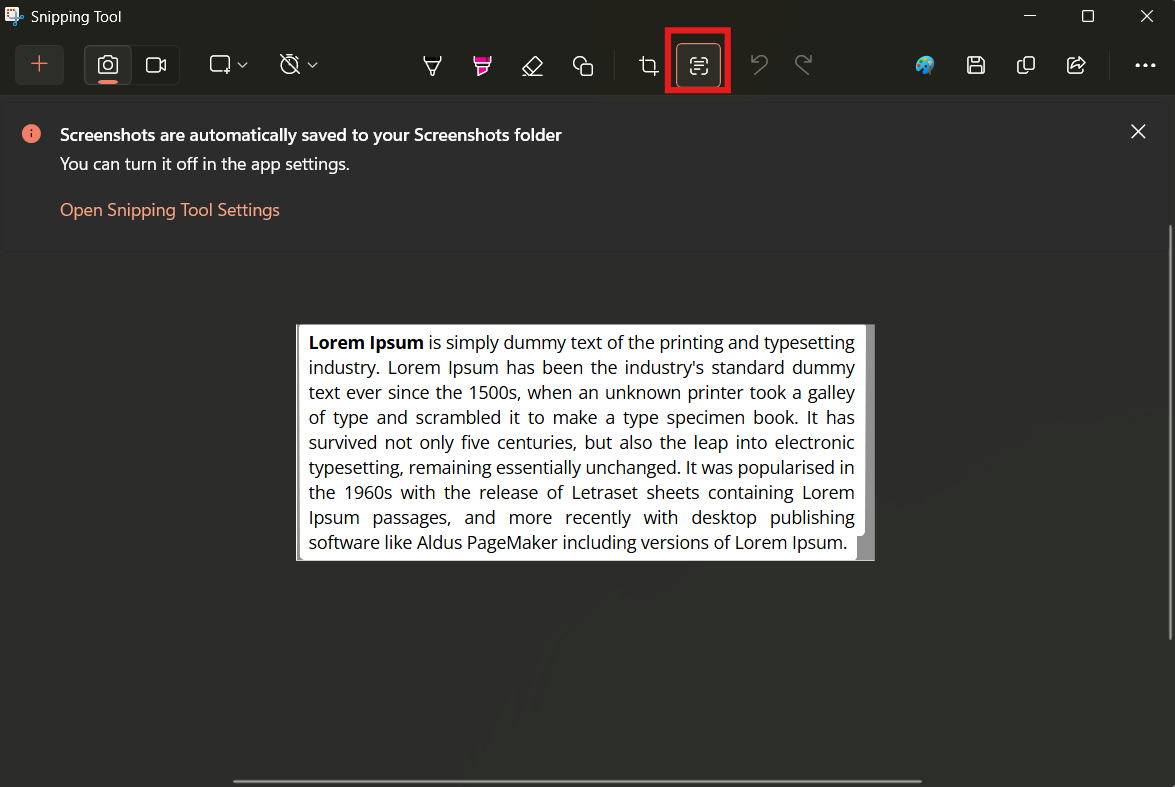
Step 3: Use Text Actions
After capturing:
- Click on Text Actions in the toolbar
- The tool will highlight detected text
Step 4: Copy the Text
You can either:
- Select specific portions manually
- Use Copy all text
There is also an option to remove line breaks, which is useful when copying from paragraphs or scanned documents.
Why This Feature Actually Matters
Text Extractor solves a very common but overlooked problem.
You often encounter text that cannot be copied:
- Screenshots shared on WhatsApp or email
- Infographics or charts
- Locked PDFs
- UI elements inside apps
Instead of retyping everything, you can extract it in seconds.
For students, professionals, and anyone working with documents, this saves a surprising amount of time.
Real-World Usage: Where It’s Most Useful
The practical value becomes obvious once you start using it in daily tasks.
Working with Documents
If you receive scanned files or image-based PDFs, you can quickly extract key information without converting the entire file.
Research and Note-Taking
Copying quotes or data from images becomes effortless. This is especially useful when compiling notes from multiple sources.
Troubleshooting and Error Messages
Sometimes error messages appear in places where copying is not possible. A quick screenshot and extraction solves that instantly.
Social Media and Messaging Apps
Text shared as images can be captured and reused without typing it manually.
Accuracy and Limitations
While Text Extractor is convenient, it is not flawless.
It works best with:
- Clear, high-resolution images
- Standard fonts
- Well-aligned text
It struggles with:
- Handwritten text
- Decorative or stylized fonts
- Blurry or low-quality screenshots
- Complex layouts with overlapping elements
You may still need to make small corrections after extracting text.
How It Compares to Third-Party OCR Tools
There are dedicated OCR tools that offer more advanced features, but for most users, the built-in solution is enough.
Compared to tools like Adobe Acrobat or online OCR services:
- It is faster for quick tasks
- It requires no uploads or internet connection
- It integrates directly into your workflow
However, advanced tools still have an edge in:
- Bulk document processing
- Higher accuracy for complex files
- Language support and formatting retention
Should You Use It?
If you regularly deal with images containing text, this feature is worth using.
It is especially useful if:
- You want a quick, no-friction solution
- You do not need advanced OCR capabilities
- You prefer built-in tools over third-party apps
For heavy-duty OCR work, you may still need dedicated software. But for everyday use, this is more than enough.
Final Thoughts
The Text Extractor in the Snipping Tool is one of the most practical upgrades in Windows 11.
It does not try to replace professional OCR tools, but it handles everyday tasks efficiently. More importantly, it removes a small but persistent friction point in how we interact with text.
Once you start using it, it quickly becomes part of your routine.
FAQs
What is Text Extractor in Windows 11?
It is an OCR feature in the Snipping Tool that lets you copy text from images.
Does it work offline?
Yes, it works without an internet connection.
Can it extract text from handwritten notes?
It may struggle with handwriting and works best with printed text.
Is it accurate?
Accuracy is generally good for clear images, but errors can occur with complex layouts.
Do I need to install anything?
No, it is built into Windows 11 and available through the Snipping Tool.
Discussion (0)
Be the first to comment.