




A Linksys WiFi extender strengthens your home network by expanding the range of your router’s signal. If you struggle with weak WiFi spots or dropped connections, setting up an extender can make your connection stable and reliable. This guide covers three ways to connect your Linksys extender and how to optimize it for the best performance.
But before you start the connection, ensure your router broadcasts both 2.4GHz and 5GHz bands if available. This ensures the extender connects properly during the process.
1) Connect using WPS (easiest way)
The WPS (Wi-Fi Protected Setup) method is the fastest way to connect your extender without a browser. To use this method, plug the Linksys extender into a wall outlet close to your router and press the WPS button on your router. Next, press the WPS button on your extender within two minutes.
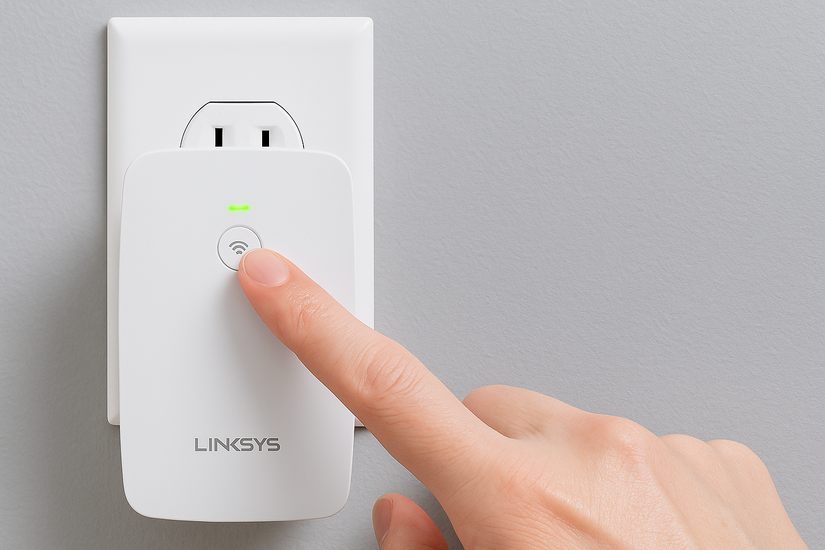
Wait until the LED on the extender turns solid. This confirms the connection. Unplug and move the extender halfway between your router and the area with weak WiFi.
To verify the connection, connect a device to the new network name, usually ending with -EXT, and check internet access. If the connection fails, reset and try the WPS process again, or use manual setup.
2) Connect manually through a web browser
Plug the extender into a wall outlet and wait for the LED to stabilize. Next, connect your computer or phone to the extender’s default WiFi network (for example, Linksys Extender Setup).
Now, open a browser and type https://extender.linksys.com. Follow the setup prompts to select your home WiFi and enter the correct password. Lastly, assign a custom network name for your extender and click Save.
Tip: Keep the extender within the router’s range but near your weak signal zone. Avoid placing it behind thick walls or near devices that cause interference such as microwaves and cordless phones.
3) Use Access Point mode (wired)
Access Point mode uses a wired Ethernet connection between the extender and router. It provides the fastest and most stable WiFi speeds, especially for large homes or high-bandwidth users.
Just connect the extender to your router using an Ethernet cable and plug the extender into a power outlet. Then, connect your computer to its setup network.

Now, go to https://extender.linksys.com and choose Access Point mode. From here, follow the onscreen steps to set your network name, security type, and save the setup.
4) Optimize and test your connection
After setup, confirm that both 2.4GHz and 5GHz signals are active. Run a speed test from your phone or laptop to verify improvement. If speeds are still low, move the extender slightly closer to the router and retest.

5) Compatibility with any router brand
Linksys extenders work with routers from other brands such as Netgear, TP-Link, or ASUS. If pairing fails, make sure both devices use the same WiFi band and temporarily disable MAC filtering on the router.
6) Troubleshooting common issues
- Extender not connecting: Check that your router’s WPS feature is enabled or re-enter the WiFi password correctly. Restart both the router and extender before retrying setup.
- Weak signal after setup: Move the extender to a more open spot and update its firmware via the Linksys app or the setup page. Firmware updates often fix performance bugs.
- Can’t access extender login page: Make sure you’re connected to the extender’s WiFi network. If the setup page doesn’t load, type 192.168.1.1 in your browser instead of the default web address.
Tips to secure and maintain your extender
- Always keep your extender in a cool and dry place
- Change the default admin password after setup to prevent unauthorized access
- Check for firmware updates monthly to keep your extender secure and compatible with new router firmware.
FAQs
Can I connect multiple extenders? Yes, but connect each extender directly to the main router instead of chaining them together. This prevents bandwidth loss and improves stability.
What if WPS is not available on my router? Use the manual setup method. It works on all routers and gives you more control over settings and the network name.
How do I reset my Linksys extender? Press and hold the reset button for 10 seconds until the LED blinks. Wait for the extender to reboot, then repeat the setup steps.
Summary
- Use WPS for fast one-button pairing.
- Try manual browser setup for full control.
- Use Access Point mode for the fastest speed.
- Position the extender midway between router and weak-signal area.
- Update firmware regularly for stable performance.
Conclusion
Connecting your Linksys WiFi extender is straightforward whether you use WPS, manual setup, or Access Point mode. Once positioned correctly, it boosts your signal coverage and eliminates WiFi dead zones for good. Keep it updated and secure to maintain reliable performance across all your devices.

Discussion (0)
Be the first to comment.