




Apple makes it easy to check the warranty status of its devices, but the method depends on what you have access to. You can use a serial number, your Apple ID, or the device itself to see coverage details in minutes.
Below, you’ll find every reliable way to check Apple warranty status, explained clearly and in the right order.
Table of contents
- Check Apple warranty status using Apple’s official coverage page
- Check warranty status using your Apple ID
- Check warranty status for specific Apple devices
- Understand your Apple warranty and coverage results
- Fix problems when Apple warranty status doesn’t show
- Tips for checking Apple warranty status accurately
- FAQs
- Summary
Check Apple warranty status using Apple’s official coverage page
This method works for all Apple devices and gives you the most direct answer. You only need the device’s serial number.
Where to find your Apple device serial number
Apple assigns a unique serial number to every device, and you can find it in several places:
- On iPhone or iPad: Open Settings → General → About


- On Mac: Click the Apple menu → About This Mac
- On Apple Watch: Open the Watch app on iPhone → General → About
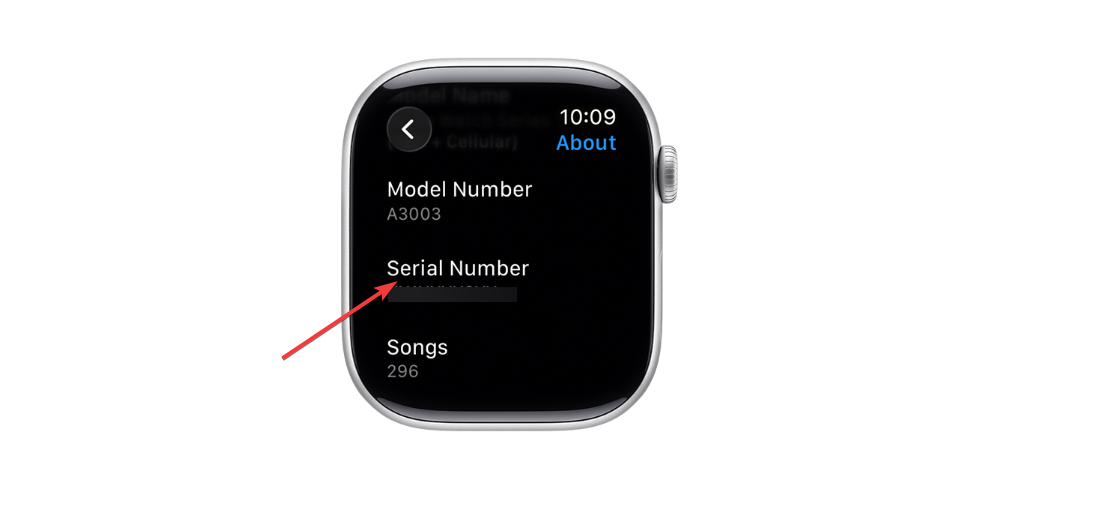

- On AirPods: Open Settings → Bluetooth, tap the info icon next to your AirPods
If the device does not turn on, check the original box, purchase receipt, or Apple ID account linked to it.
How to check warranty status with a serial number
Once you have the serial number:
- Open Apple’s official coverage checker on the Apple Support website.


- Enter the serial number and complete the security check.
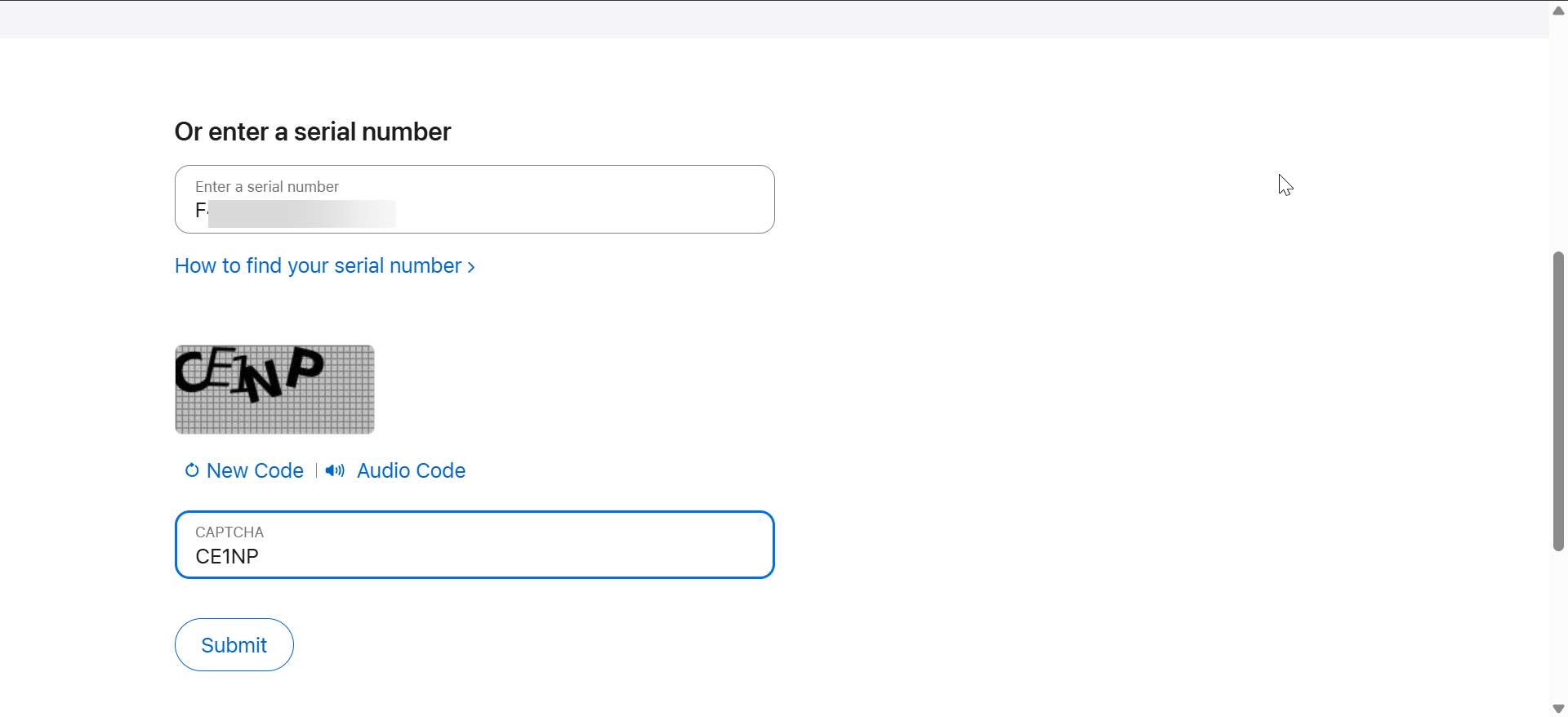
- Review the coverage details shown on screen.
Apple displays warranty status, AppleCare coverage, and eligibility for repairs or support.
Check warranty status using your Apple ID
If you no longer have the serial number, your Apple ID can still show warranty information for devices linked to your account.
Check warranty status on iPhone or iPad
This method works best for devices signed into your Apple ID.
- Open Settings.
- Tap your Apple ID name at the top.
- Next, select your device from the list.


- Now, choose AppleCare & Warranty.
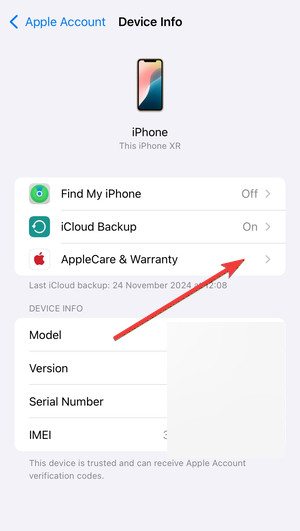

- This will show your warranty and other details.
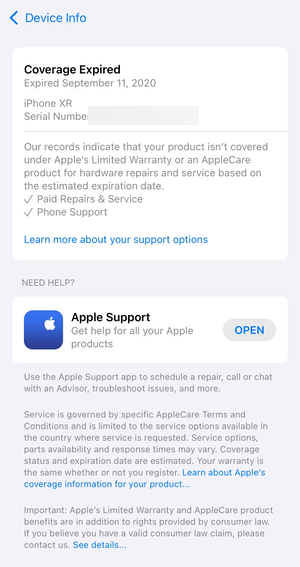

You’ll see active coverage, expiration dates, and AppleCare details.
Check warranty status on Mac
macOS shows warranty details directly in system settings.
- Click the Apple menu.
- Open System Settings.
- Select General → About.
- Next, select AppleCare & Warranty.
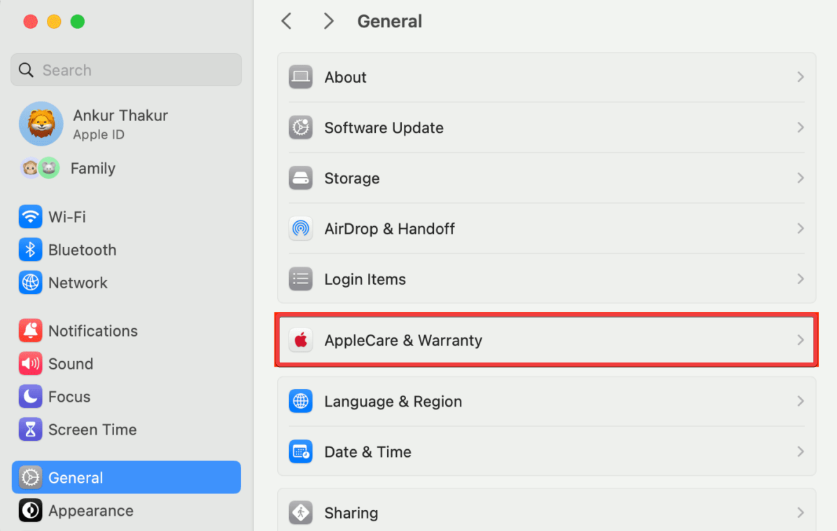

- Finally, wait till your warranty status loads.
This view updates automatically and reflects your Apple ID-linked coverage.
Check warranty status for specific Apple devices
Some Apple products handle warranty data differently, which can confuse users.
How to check warranty for Apple Watch
Apple Watch links its warranty to the paired iPhone.
- Open the Watch app on iPhone.
- Go to General → About.
- Tap Coverage.
This method shows the most accurate Watch warranty details.
How to check warranty for AirPods
AirPods display coverage separately for the earbuds and the charging case.
- Open Settings → Bluetooth
- Tap the info icon next to your AirPods
- Review coverage details for each component
AppleCare for AirPods often shows different expiration dates for the case and earbuds.
Understand your Apple warranty and coverage results
Apple’s coverage page uses short labels that don’t always explain what you actually get.
Apple limited warranty explained
Apple includes a one-year limited warranty with most devices. It covers manufacturing defects and hardware issues, but not accidental damage.
AppleCare and AppleCare+ coverage
AppleCare extends warranty duration and adds phone support. AppleCare+ also includes accidental damage protection, usually with a service fee.
What “expired coverage” really means
Expired coverage means Apple no longer offers free repairs. You can still get paid repairs and out-of-warranty service from Apple or authorized providers.
Fix problems when Apple warranty status doesn’t show
- Serial number not recognized: This issue usually happens because of typing errors, refurbished devices, or regional mismatches. Recheck the serial number and try again.
- Warranty status missing or incorrect: Apple servers may take time to sync new purchases. Sign out and back into your Apple ID or contact Apple Support if the issue persists.
Tips for checking Apple warranty status accurately
- Always use your Apple ID when possible
- Double-check serial numbers before submitting
- Save screenshots of coverage details
- Verify AppleCare expiration dates early
FAQs
Can I check the warranty status of Apple devices without a serial number?
Yes. If the device is signed in to your Apple ID, you can view warranty details directly in device settings without the serial number.
Does Apple warranty transfer to a new owner?
Yes. Apple’s limited warranty and AppleCare coverage transfer automatically when the device changes ownership.
How long does the Apple limited warranty last?
Apple provides a one-year limited warranty from the original purchase date for most devices.
Why does my Apple warranty show as expired even though I bought the device recently?
This usually happens when Apple has not yet registered the purchase. Contact Apple Support with your proof of purchase to correct it.
Summary
- Use Apple’s coverage page for quick serial-number checks.
- Use your Apple ID for the most accurate, device-linked results.
- Check Apple Watch and AirPods using device-specific methods.
- Review coverage details before repairs or resale.
Checking the warranty status of Apple devices takes only a few minutes when you use the right method. For most users, the Apple ID option gives the clearest results, while serial numbers work best for unlinked or powered-off devices. Once you confirm coverage, you can decide whether to request support, schedule a repair, or plan for out-of-warranty service.


Discussion (0)
Be the first to comment.