




If you want to monitor your data consumption, you can easily check internet usage in Windows 11 using built-in tools. This helps you track which apps are using the most data and manage your internet usage more efficiently.
It is especially useful if you have a limited data plan or want to reduce background data usage.
What Does Internet Usage Mean in Windows?
Internet usage shows how much data your system and apps consume over a specific period.
Windows tracks:
- Total data usage
- Per-app data consumption
- Network type (Wi-Fi or Ethernet)
This gives you a clear view of where your data is going.
Why Check Internet Usage?
You may want to monitor usage for several reasons.
- Avoid exceeding data limits
- Identify apps using too much data
- Improve network performance
- Control background data usage
It helps you stay in control of your internet.
How to Check Internet Usage in Windows 11
Follow these steps to view your data usage.
1: Open Settings
- Press Windows + I
- Go to Network & Internet
2: Open Data Usage
- Click Advanced network settings
- Select Data usage
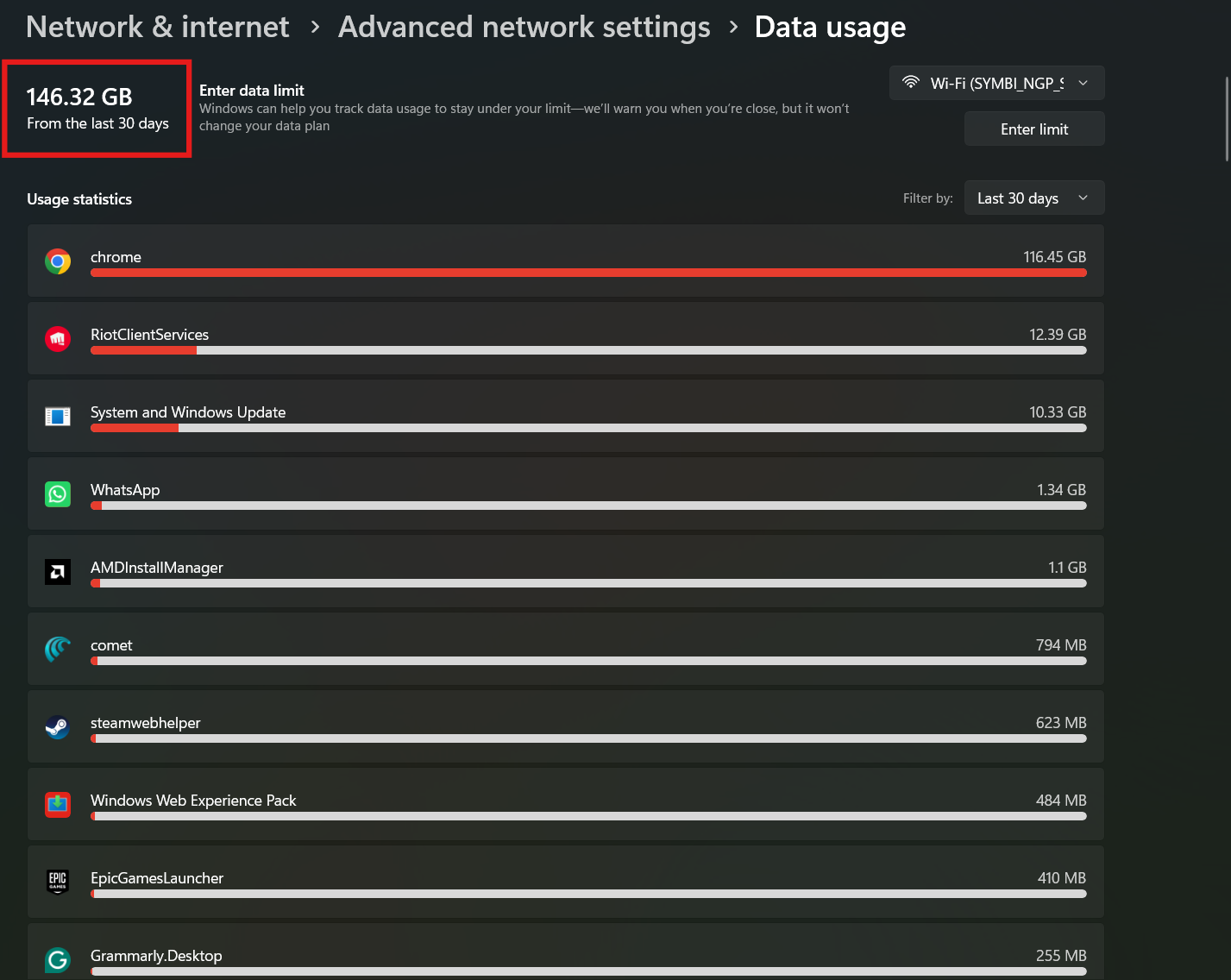
3: View Usage Details
You will see:
- Total data used in the last 30 days
- Breakdown by apps
- Network usage (Wi-Fi or Ethernet)
You can scroll down to see which apps are using the most data.
How to Reset Data Usage
If you want to start fresh tracking:
- Go to Data usage
- Click Reset usage stats
This will reset all usage data.
Set Data Limit in Windows
You can also set a data limit.
Steps:
- Go to Network & Internet > Data usage
- Click Enter limit
- Set your data cap (daily, monthly, or one-time)
Windows will track usage against this limit.
Check Internet Usage Per App
Windows shows detailed usage per app.
You can see:
- Which apps consume the most data
- Background vs active usage
- System services usage
This helps you identify heavy data users.
Tips to Reduce Internet Usage
If your usage is high, try these:
- Disable background apps
- Turn off automatic updates
- Use metered connection
- Limit cloud syncing
- Close unused apps
These steps help save data.
Alternative Ways to Monitor Usage
You can also use:
- Task Manager (basic network usage)
- Third-party monitoring tools
- Router-level tracking
These provide additional insights.
Final Thoughts
Learning how to check internet usage in Windows 11 helps you manage your data more effectively. With built-in tools, you can track usage, identify heavy apps, and set limits easily.
It is a simple feature, but it can help you avoid unnecessary data consumption and improve performance.
FAQs
How do I check internet usage in Windows 11?
Go to Settings > Network & Internet > Data usage.
Can I see which app uses the most data?
Yes. Windows shows a detailed breakdown by apps.
Can I reset data usage stats?
Yes. Use the reset option in Data usage settings.
Does Windows track usage automatically?
Yes. It tracks data usage over the last 30 days by default.

Discussion (0)
Be the first to comment.