




Most people know how much RAM their PC has, but that’s only part of the picture. If you’re upgrading, troubleshooting, or just trying to understand your system better, you need more detailed information.
Things like RAM speed, type, form factor, and part number actually matter. And Windows gives you multiple ways to access this information, some more useful than others.
What “Full RAM Specs” Actually Include
When we talk about RAM details, we’re not just talking about total capacity.
You’re looking for:
- Total memory (e.g., 8GB, 16GB)
- Speed (e.g., 3200 MHz)
- Type (DDR3, DDR4, DDR5)
- Form factor (DIMM or SODIMM)
- Manufacturer and part number
These details help you determine compatibility, performance limits, and upgrade options.
Method 1: Task Manager (Quick Overview)
The easiest way to check basic RAM details is through Task Manager.
Press Ctrl + Shift + Esc, then go to the Performance tab and select Memory.
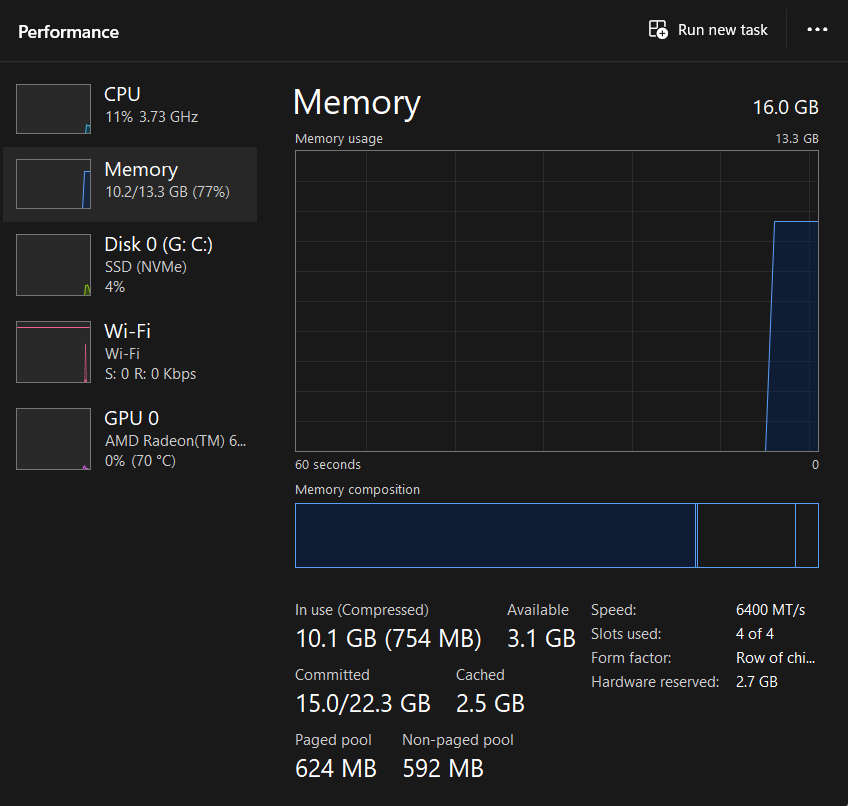
Here you’ll see:
- Total RAM
- Speed
- Slots used
- Form factor
This is useful for a quick check, but it doesn’t show everything, especially part numbers or full technical details.
Method 2: System Information (More Detailed, Still Limited)
Open the Run dialog and type:
msinfo32
This opens the System Information window.
You’ll find general memory details here, but it still doesn’t give you everything, especially module-specific information.
It’s helpful, but not complete.
Method 3: Use Command Prompt (Best Built-In Method)
For full details, Command Prompt is the most reliable built-in option.
Open Command Prompt and run:
wmic memorychip get capacity, speed, memorytype, partnumber, manufacturer, formfactor
This gives you:
- Capacity per module
- Speed
- Memory type
- Manufacturer
- Part number
- Form factor
This is the closest you’ll get to complete RAM information without third-party tools.
Understanding the Output
Some values may not be immediately clear.
For example:
- Form factor codes:
8 = DIMM (desktop)
12 = SODIMM (laptop) - Memory type codes may not directly show DDR versions, depending on your system
If the output looks confusing, that’s normal. It’s raw system data, not user-friendly formatting.
Real-World Usage: Why This Matters
Knowing your RAM specs is essential when upgrading.
If you add incompatible RAM, you can run into:
- Reduced performance
- Stability issues
- System not recognizing new memory
Matching speed, type, and form factor ensures everything works properly.
It’s also useful for diagnosing performance bottlenecks or verifying what’s actually installed in your system.
Limitations of Built-In Tools
Windows doesn’t present RAM information in a clean, unified way.
You often need to combine multiple tools or interpret raw data.
Also, some systems may not report all fields correctly, especially older hardware.
For complete clarity, third-party tools can sometimes provide a better overview.
Final Thoughts
Checking full RAM details in Windows isn’t difficult, but it’s not perfectly streamlined either.
Task Manager is good for a quick look. Command Prompt gives you the full picture.
If you’re planning an upgrade or troubleshooting, take the time to check the details properly. It can save you from compatibility issues later.
FAQs
How do I check RAM speed in Windows?
Use Task Manager or Command Prompt.
Can I see RAM type (DDR4, DDR5) in Windows?
Sometimes, but Command Prompt may show it in coded form.
What is RAM form factor?
It indicates whether the RAM is for desktops (DIMM) or laptops (SODIMM).
Do I need the part number?
Yes, it helps ensure compatibility when upgrading.
Is Task Manager enough for RAM details?
For basic info, yes. For full specs, use Command Prompt.



Discussion (0)
Be the first to comment.