




If you are seeing volume, brightness, or media pop-ups on your screen, you might be wondering about the position of on-screen indicator settings in Windows 11. These indicators (also called OSD – On-Screen Display) show system changes like volume or brightness.
However, Windows has limited built-in control over their position.
What Are On-Screen Indicators?
On-screen indicators are small pop-ups that appear when you:
- Change volume
- Adjust brightness
- Use media controls (play/pause)
- Toggle system features
They usually appear near the top-left or bottom area of the screen, depending on the Windows version.
Can You Change Their Position in Windows 11?
By default, Windows 11 does not allow you to move on-screen indicators.
- There is no setting in Settings app
- Position is fixed by the system
- It is controlled by Windows UI
So you cannot directly reposition them like widgets.
Where to Find Related Settings
While you cannot move them, you can adjust related behavior.
Step 1: Open Settings
- Press Windows + I
- Go to System
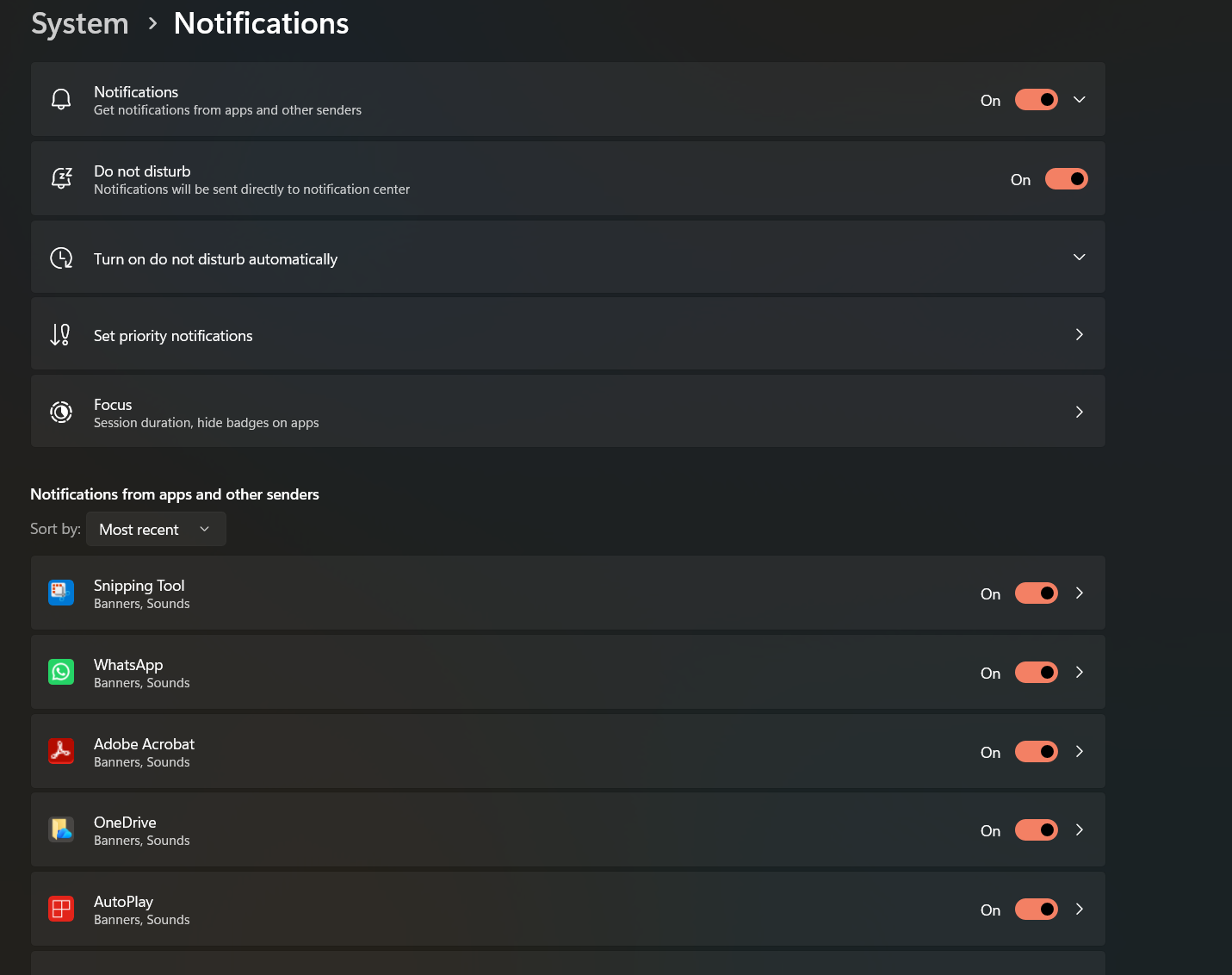
Step 2: Go to Notifications
- Click Notifications
Here you can:
- Turn notifications on/off
- Control app notifications
Note: This does not change OSD position, only general alerts.
How to Hide Media On-Screen Indicator (Optional)
The media overlay (for music/videos) can sometimes be disabled in browsers.
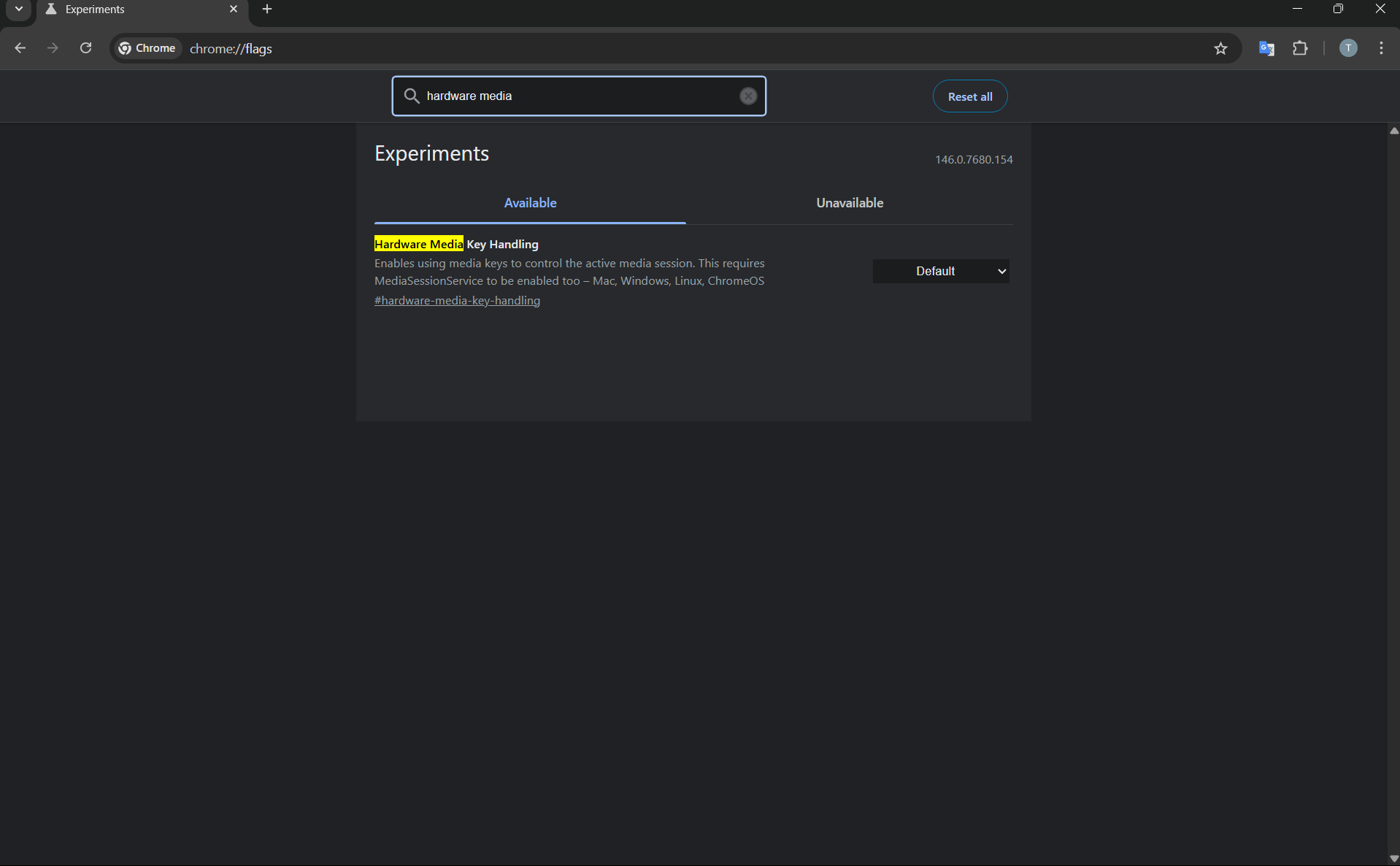
For Chrome / Edge:
- Open browser
- Type
chrome://flags - Search for Hardware Media Key Handling
- Disable it
This removes media pop-up controls.
Alternative: Use Third-Party Tools
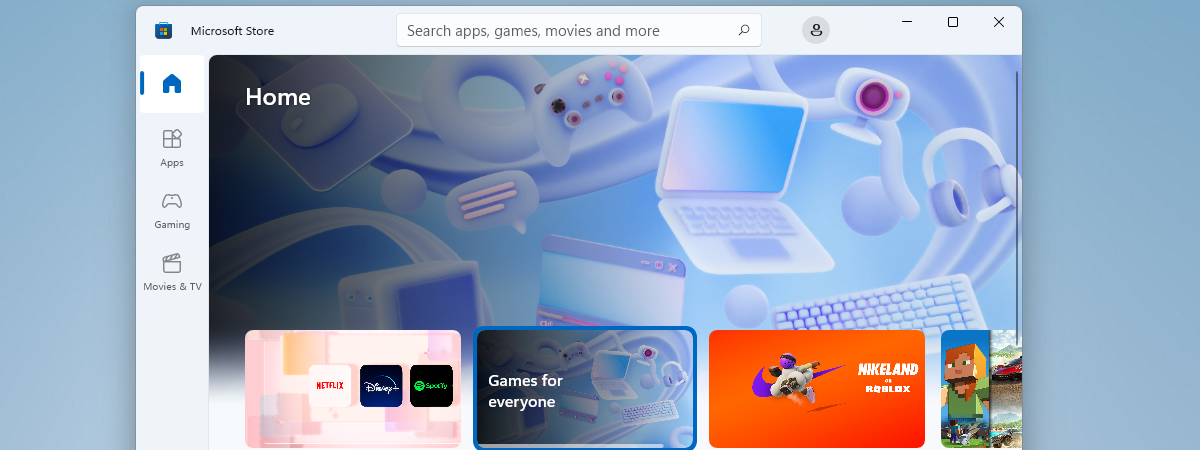
If you want more control, you can use third-party apps.
These tools can:
- Replace default OSD
- Customize position
- Change appearance
Examples include:
- ModernFlyouts
- Custom volume overlays
Use trusted sources when installing such tools.
Why Windows Limits This Setting
Microsoft keeps OSD position fixed to:
- Maintain consistent UI
- Avoid layout conflicts
- Ensure compatibility across apps
This is why customization is limited.
Common Issues
OSD appears in wrong place:
- Restart your PC
- Update Windows
OSD overlapping content:
- Use fullscreen apps
- Adjust app layout
Final Thoughts
If you are looking for position of on-screen indicator settings in Windows 11, the key thing to know is that Windows does not currently allow changing their position.
You can manage notifications or use third-party tools for customization, but the default system position remains fixed.
FAQs
Can I move volume indicator in Windows 11?
No. Windows does not provide an option to change its position.
Where are on-screen indicator settings?
There are no direct settings. Only related notification controls exist.
Can I disable on-screen indicators?
Not fully, but some overlays can be controlled via apps or browser settings.
Discussion (0)
Be the first to comment.