




If you want to change Notepad font and size in Windows 11, you can do it directly from the Notepad settings menu. Windows 11 allows you to customize the font style, size, and script used in Notepad so that text is easier to read and edit.
Changing the font does not affect your files or formatting. It only changes how text appears inside the Notepad editor. This guide explains how to adjust the font settings in Notepad on Windows 11.
Why Change Notepad Font and Size in Windows 11?
The default Notepad font may feel too small or difficult to read on high-resolution displays. Increasing the font size or choosing a different font style can improve visibility and comfort.
You may want to change the Notepad font if:
- Text appears too small on your screen
- You prefer a clearer font style
- You are editing code or structured text
- You want better readability while working for long periods
Windows 11 makes this customization quick and easy.
How to Change Notepad Font and Size in Windows 11
Follow these steps to adjust the font settings.
First - Open Notepad
- Click the Start button.
- Type Notepad.
- Open the Notepad app.
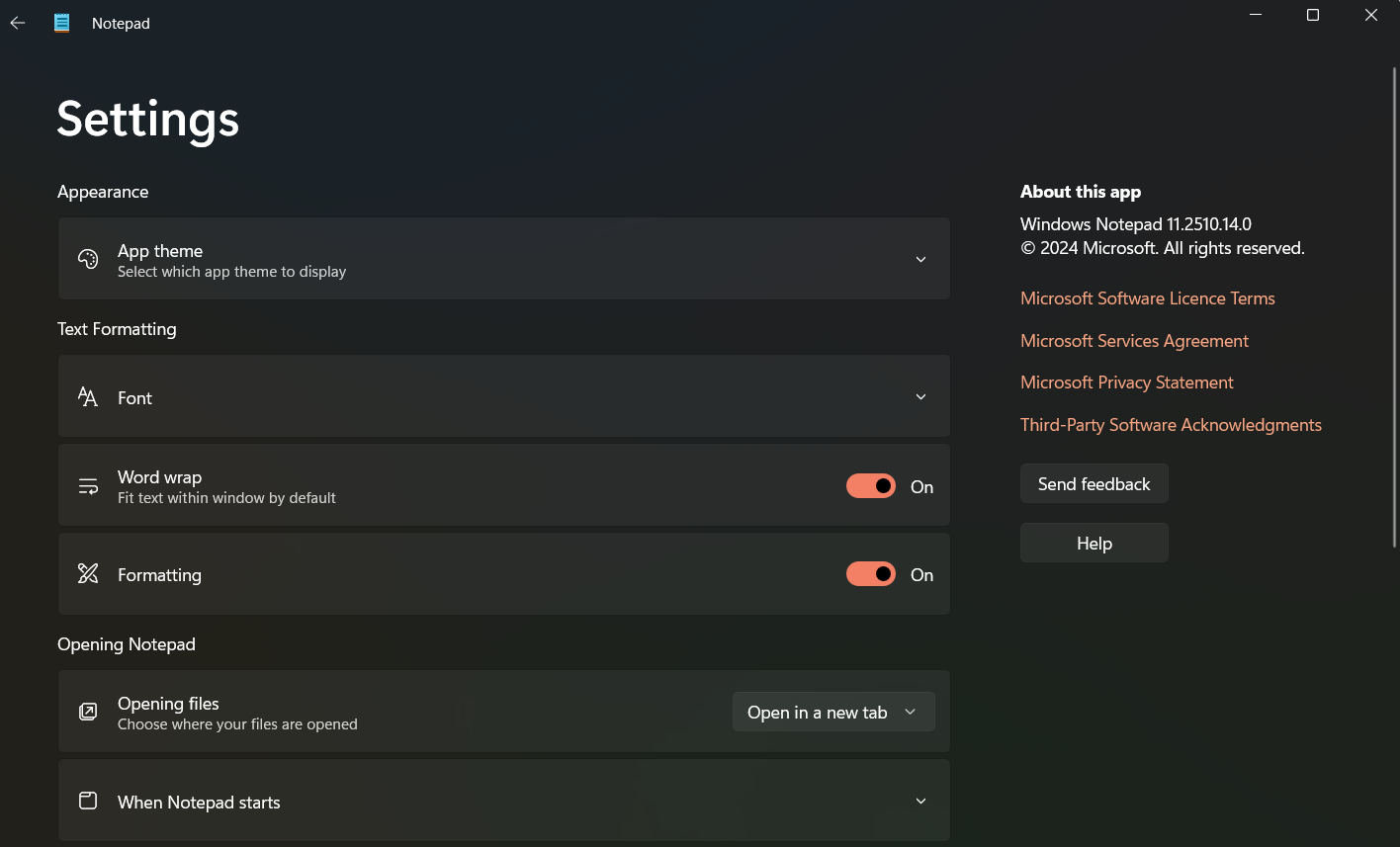
Second - Open Font Settings
- Click the gear icon (Settings) in the top-right corner of Notepad.
- Scroll to the Font section.
Third - Change Font Style and Size
Inside the Font section you can choose:
- Font family
- Font style
- Font size
Select the font you prefer and adjust the size until the text appears comfortable to read.
The changes apply immediately.
Alternative Method: Use the Classic Font Menu
Some versions of Notepad also allow font changes through the menu.
- Open Notepad.
- Click Format in the top menu.
- Select Font.
- Choose the font style, font size, and script.
- Click OK.
Your new font settings will be applied to the editor.
Recommended Fonts for Notepad
Certain fonts are easier to read when working with plain text.
Popular choices include:
- Consolas – good for coding and structured text
- Courier New – classic monospaced font
- Segoe UI – modern and clean
- Lucida Console – clear and readable
Monospaced fonts are often preferred for programming or editing configuration files.
Does Changing the Notepad Font Affect Files?
No. Changing the font in Notepad only affects how text appears on your screen.
Your saved text files remain unchanged because plain text files do not store formatting information.
How to Reset Notepad Font to Default
If you want to restore the default font:
- Open Notepad Settings.
- Go to the Font section.
- Select the default font and size.
You can also reinstall or reset the Notepad app if necessary.
Final Thoughts
Changing the Notepad font and size in Windows 11 is a simple way to improve readability and make text editing more comfortable. Whether you prefer larger text or a different font style, the settings are easy to adjust from the Notepad interface.
Experiment with different fonts and sizes until you find a setup that suits your workflow. Since the changes only affect the display, you can modify them anytime without affecting your files.
FAQs
How do I change the font in Notepad in Windows 11?
Open Notepad, click the Settings icon, go to the Font section, and select your preferred font and size.
Can I increase the text size in Notepad?
Yes. You can adjust the font size from the Notepad font settings.
What is the best font for Notepad?
Monospaced fonts like Consolas or Courier New are commonly used for readability.
Does changing the Notepad font affect saved files?
No. It only changes how text appears in the editor and does not modify the file content.
Discussion (0)
Be the first to comment.