



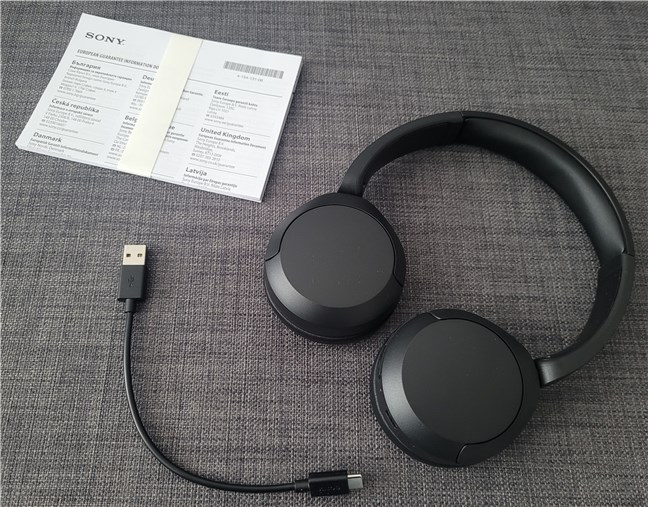
If your audio sounds unbalanced or only comes from one side, you may need to change headphone output channel on Windows 11. This usually involves adjusting left and right audio balance or switching between mono and stereo output.
It is a simple fix, but it can make a big difference in how your audio sounds.
What Does “Headphone Output Channel” Mean?
The output channel refers to how sound is distributed between your headphones.
There are two main types:
- Stereo – Separate left and right channels
- Mono – Same sound in both ears
You can also adjust the balance between left and right channels.
When Should You Change Audio Channels?
You may need to adjust this if:
- Sound is louder in one ear
- One side is not working
- You prefer equal sound in both ears
- You are using a single-ear headset
This helps improve your listening experience.
How to Change Left and Right Audio Balance
If one side is louder than the other, adjust the balance.
1: Open Sound Settings
- Press Windows + I
- Go to System > Sound
2: Select Output Device
- Under Output, select your headphones
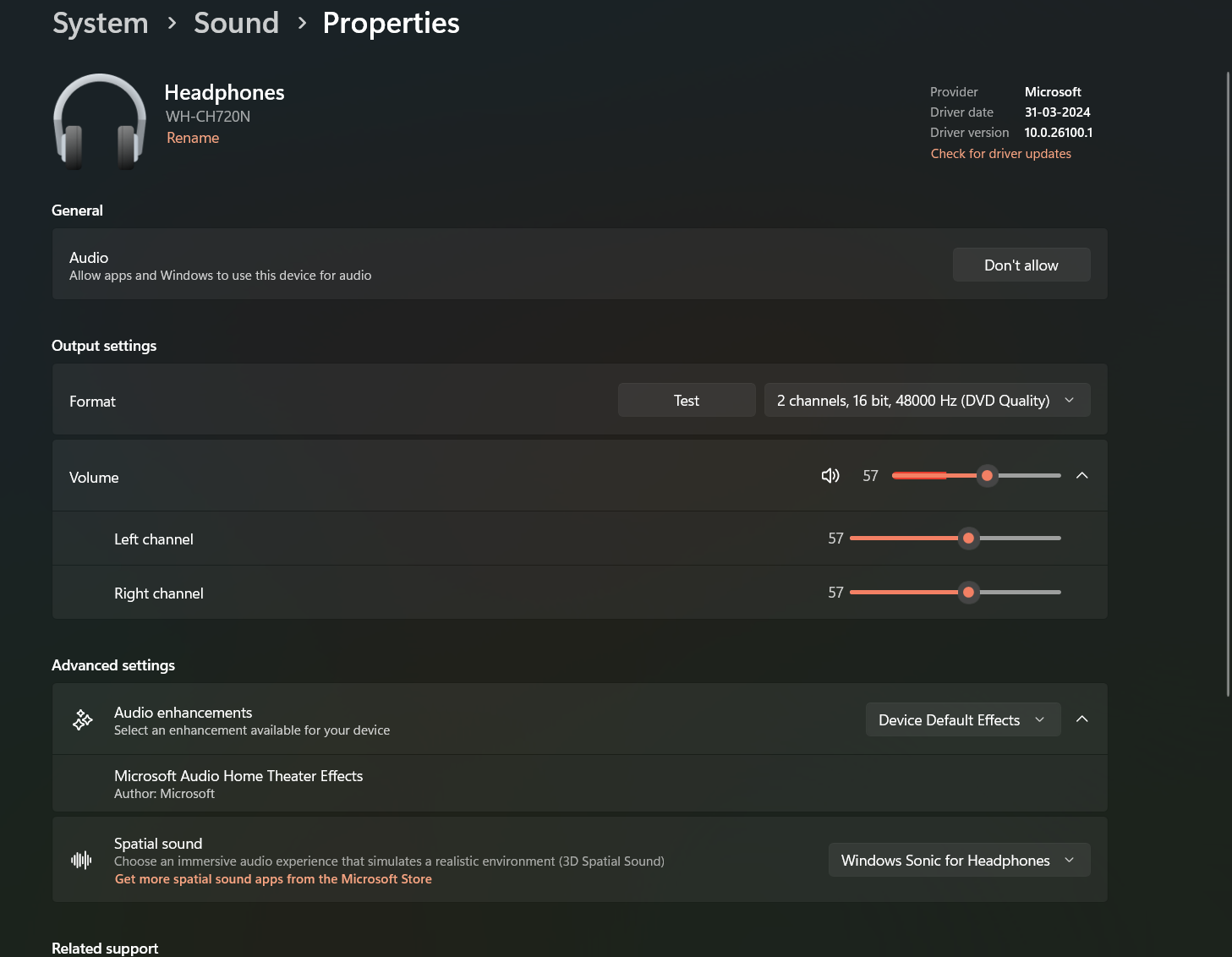
3: Adjust Balance
- Click Device properties or More sound settings
- Find Balance
- Adjust left (L) and right (R) levels
Set both to equal values for balanced sound.
How to Enable or Disable Mono Audio
If you want the same sound in both ears, use mono audio.
Steps:
- Open Settings
- Go to Accessibility > Audio
- Turn Mono audio ON or OFF
- ON = same sound in both ears
- OFF = normal stereo sound
How to Change Audio Channels Using Control Panel
You can also adjust settings through classic options.
Steps:
- Right-click the Sound icon in the taskbar
- Click Sound settings → More sound settings
- Go to the Playback tab
- Select your headphones
- Click Properties
- Go to Levels > Balance
- Adjust left and right channels
Click OK to save changes.
Check Audio Format (Stereo Mode)
Make sure your headphones are set to stereo.
Steps:
- Open Sound settings
- Click More sound settings
- Select your headphones → Properties
- Go to Advanced tab
- Ensure a stereo format is selected
This ensures proper channel output.
Common Issues and Fixes
If the problem persists:
- Check headphone jack connection
- Try different headphones
- Update audio drivers
- Restart your PC
- Check app-specific audio settings
These steps help identify hardware vs software issues.
Final Thoughts
Knowing how to change headphone output channel on Windows 11 helps fix uneven audio and improve sound quality. Whether you adjust balance or switch to mono, these settings are easy to access and configure.
Small changes in audio settings can make a noticeable difference in your listening experience.
FAQs
How do I fix sound only in one ear?
Adjust the left and right balance in sound settings.
What is mono audio?
Mono audio plays the same sound in both ears.
Should I use stereo or mono?
Stereo is better for most cases, while mono is useful for accessibility.
Why is my headphone audio unbalanced?
It could be due to settings, drivers, or hardware issues.
Discussion (0)
Be the first to comment.