



If you want quick access to your files, you can add Google Drive to This PC in Windows 11 by installing Google Drive for Desktop. This lets you access your Drive files directly from File Explorer, just like a normal folder.
Once set up, you can open, edit, and manage your cloud files without using a browser. This guide explains how to do it step by step.
What Does Adding Google Drive to This PC Mean?
When you add Google Drive to This PC, it appears as a drive or folder inside File Explorer.
This allows you to:
- Access Google Drive files like local files
- Drag and drop files easily
- Sync files between your PC and cloud
- Work offline with selected files
It makes file management faster and more convenient.
Why Add Google Drive to This PC?
Adding Google Drive improves your workflow.
Some key benefits include:
- Faster file access without opening a browser
- Easy file uploads and downloads
- Automatic syncing
- Better organization using File Explorer
It is especially useful if you use Google Drive frequently.
Download Google Drive for Desktop
Before adding it to This PC, you need to install the app.
Step 1: Download the App
- Open your browser
- Go to the Google Drive download page
- Download Google Drive for Desktop
Step 2: Install the App
- Open the downloaded file
- Follow the installation steps
- Launch the app after installation
After installation:
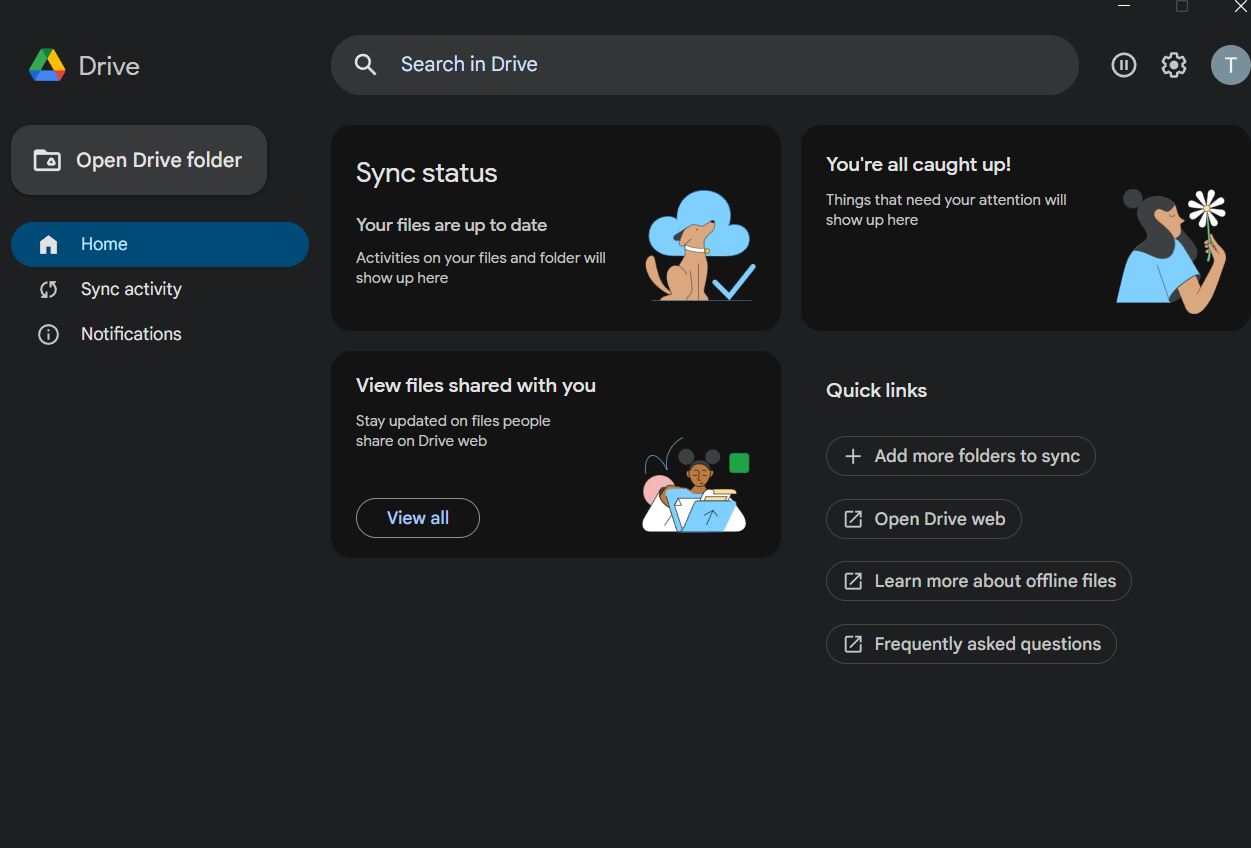
- Open Google Drive for Desktop
- Sign in with your Google account
- Allow required permissions
Your Drive will now connect to your PC.
Add Google Drive to This PC
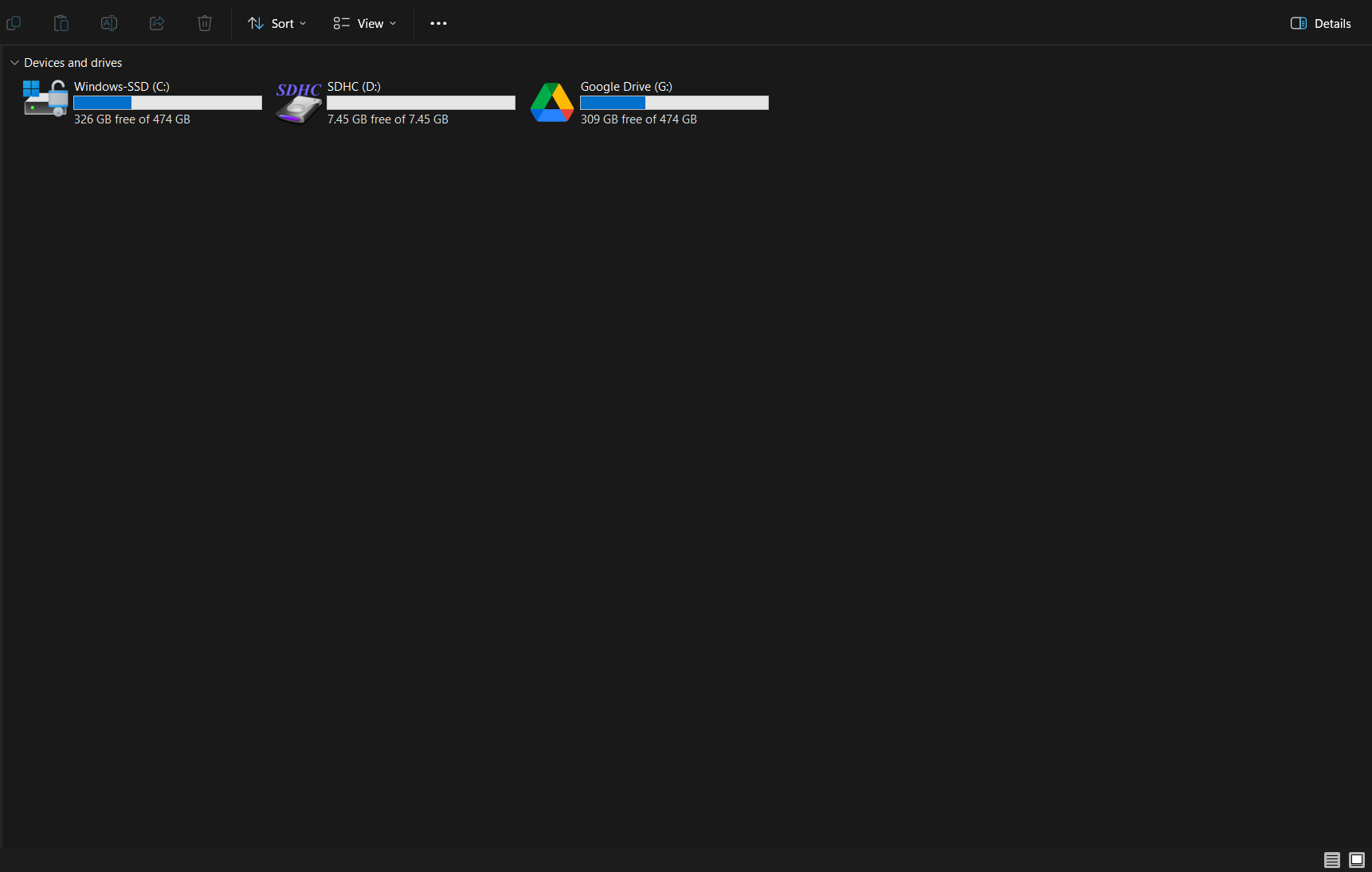
Once signed in, Google Drive is automatically added.
Step 1: Open File Explorer
- Press Windows + E
- Click This PC
Step 2: Locate Google Drive
You will see:
- Google Drive (G:) or similar
Click it to access your files.
Choose Sync Settings
You can customize how files are stored.
Option 1: Stream Files (Recommended)
- Files stay in the cloud
- Download only when opened
- Saves storage space
Option 2: Mirror Files
- Files are stored locally
- Available offline
- Uses more storage
You can change this in Drive settings.
How to Use Google Drive from This PC
Once added, you can use it like any folder.
You can:
- Drag and drop files into Drive
- Copy files from Drive to PC
- Open files directly
- Organize folders
Changes sync automatically.
Final Thoughts
Learning how to add Google Drive to This PC in Windows 11 makes file management much easier. Instead of switching between browser and desktop, you can access everything directly from File Explorer.
For anyone who uses Google Drive regularly, this setup saves time and improves productivity.
FAQs
How do I add Google Drive to This PC?
Install Google Drive for Desktop and sign in. It will appear automatically in File Explorer.
Does Google Drive take space on my PC?
Only if you use the mirror option. Streaming files saves space.
Can I access files offline?
Yes, if you enable offline access or mirror files.
Why is Google Drive not showing in This PC?
It may be due to sign-in issues or the app not running properly.


Discussion (0)
Be the first to comment.