When working with larger amounts of text you can quickly find yourself looking for a part you just can't remember exactly. This is when Microsoft Word's Find feature comes in handy. This feature lets you quickly pinpoint all occurrences of a word or words, and also replace some or all of these with something else, if you need to. Here's how to do this in the Microsoft Word Android app.
NOTE: Before going any further, in order to format paragraphs in your document, launch Word and create a new document and enter text, or open an existing one - follow the links for the required steps.
How To Find Text In Microsoft Word For Android
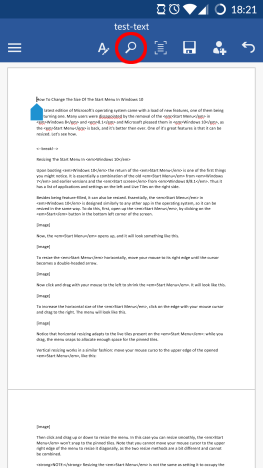
To access the Find feature in Word, tap its magnifying glass icon from the top row.
Android, Microsoft, Office, Word, text, replace, find, search
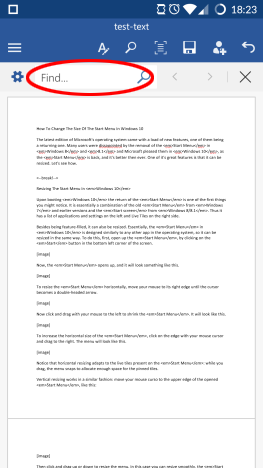
The Find... panel opens. In the text box, enter the text to look for.
Android, Microsoft, Office, Word, text, replace, find, search
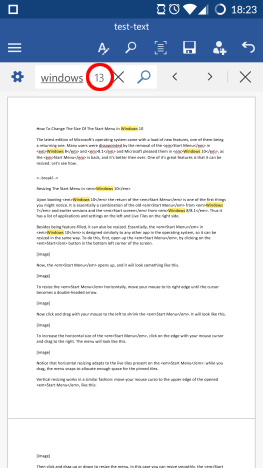
Once you have entered some text, a number will show how many times that text was found in the document, and all its occurrences will be highlighted.
Android, Microsoft, Office, Word, text, replace, find, search
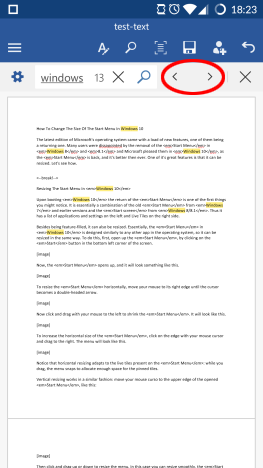
In order to step to the previous or the next occurrence of the text, tap the Previous and Next arrows in the Find... bar.
Android, Microsoft, Office, Word, text, replace, find, search
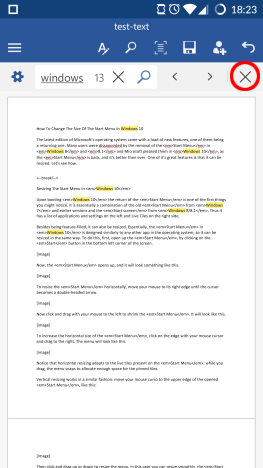
You can close the Find... bar by tapping the X icon on its right side.
Android, Microsoft, Office, Word, text, replace, find, search
How To Replace Text In Microsoft Word For Android
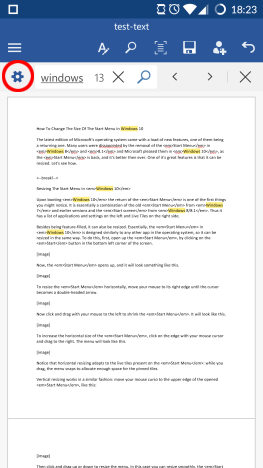
With the Find... bar open, tap the gear icon on its left side to access additional options.
Android, Microsoft, Office, Word, text, replace, find, search
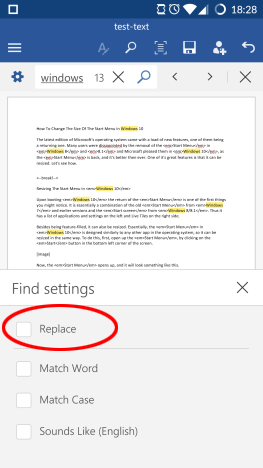
On the menu that opens, tick the Replace checkbox to activate this feature.
Android, Microsoft, Office, Word, text, replace, find, search
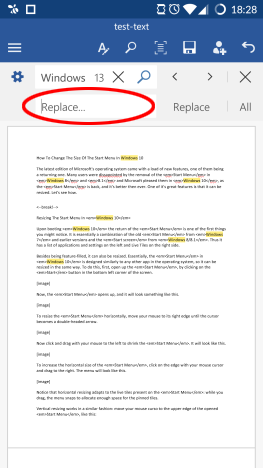
Another text box appears in the Find... bar, where you can enter the text you want the original to change to.
Android, Microsoft, Office, Word, text, replace, find, search
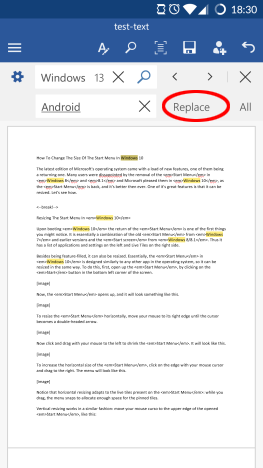
After entering the new text, tap Replace to replace the current occurrence (marked with a darker highlight color) with the new text.
Android, Microsoft, Office, Word, text, replace, find, search
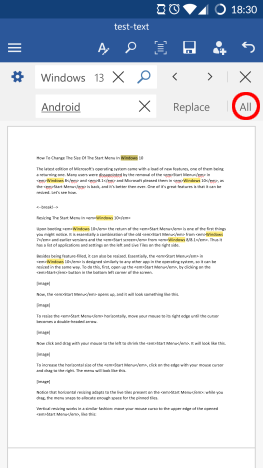
To replace every occurrence in the document, tap All.
Android, Microsoft, Office, Word, text, replace, find, search
How To Set Additional Find Options In Microsoft Word For Android
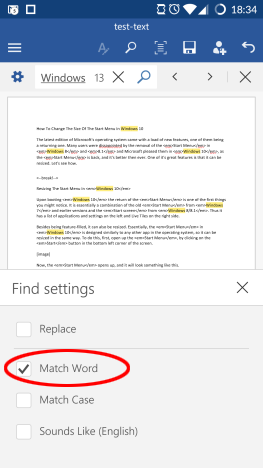
The Find feature has some additional options that you can access by tapping the gear icon on the Find... bar. Ticking Match Word will find only occurrences that match the entered word. So, for example, looking for wind will find this exact word, but won't find windows.
Android, Microsoft, Office, Word, text, replace, find, search
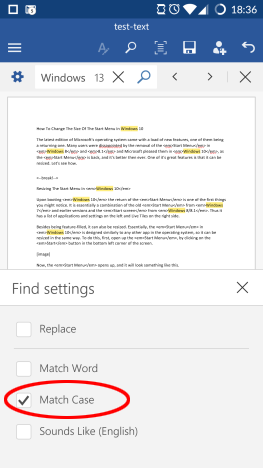
Checking the Match Case box will find only text that has the same uppercase and lowercase letters, so, when looking for windows you will find this word, but not Windows.
Android, Microsoft, Office, Word, text, replace, find, search
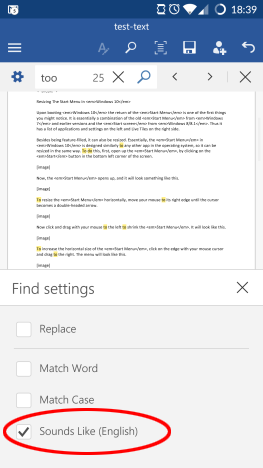
When the Sounds like (English) box is checked, it will also let you find words that sound similar in the English language. So, for example, when looking for too you will also find to and do.
Android, Microsoft, Office, Word, text, replace, find, search
Conclusion
Although Find is not a very complicated feature of Word, it is an absolute must-have in any word processing application. Fortunately, Microsoft designed its Android app in such a way that using it is really easy. Also, the additional options are really handy. All in all, this feature has everything you should need when searching for text within your documents on an Android device.
Be sure to keep reading our series on the Microsoft Office Android apps for other in-depth tutorials about this productivity suite. And don't forget that you can always ask your questions in the comments section!







Discussion (0)
Comments are closed.