




Keeping your Google Drive files safe on an external hard drive protects your data from accidental deletions, sync errors, or account loss. Whether you want a one-time backup or an ongoing copy, there are several easy ways to move your files securely. This guide covers the most reliable ways for you to back up files and keep it safe for as long as you want.
But before you start, ensure your external drive has enough free space for your Google Drive content. Use a format that works on your operating system - NTFS or exFAT for Windows, and exFAT for both Windows and macOS. Also confirm you have a stable internet connection for large downloads.
1) Use Google Drive’s web interface
Open Google Drive in your browser, select the files or folders you want to save, and right-click to choose Download. Drive will bundle your selection into a ZIP archive.
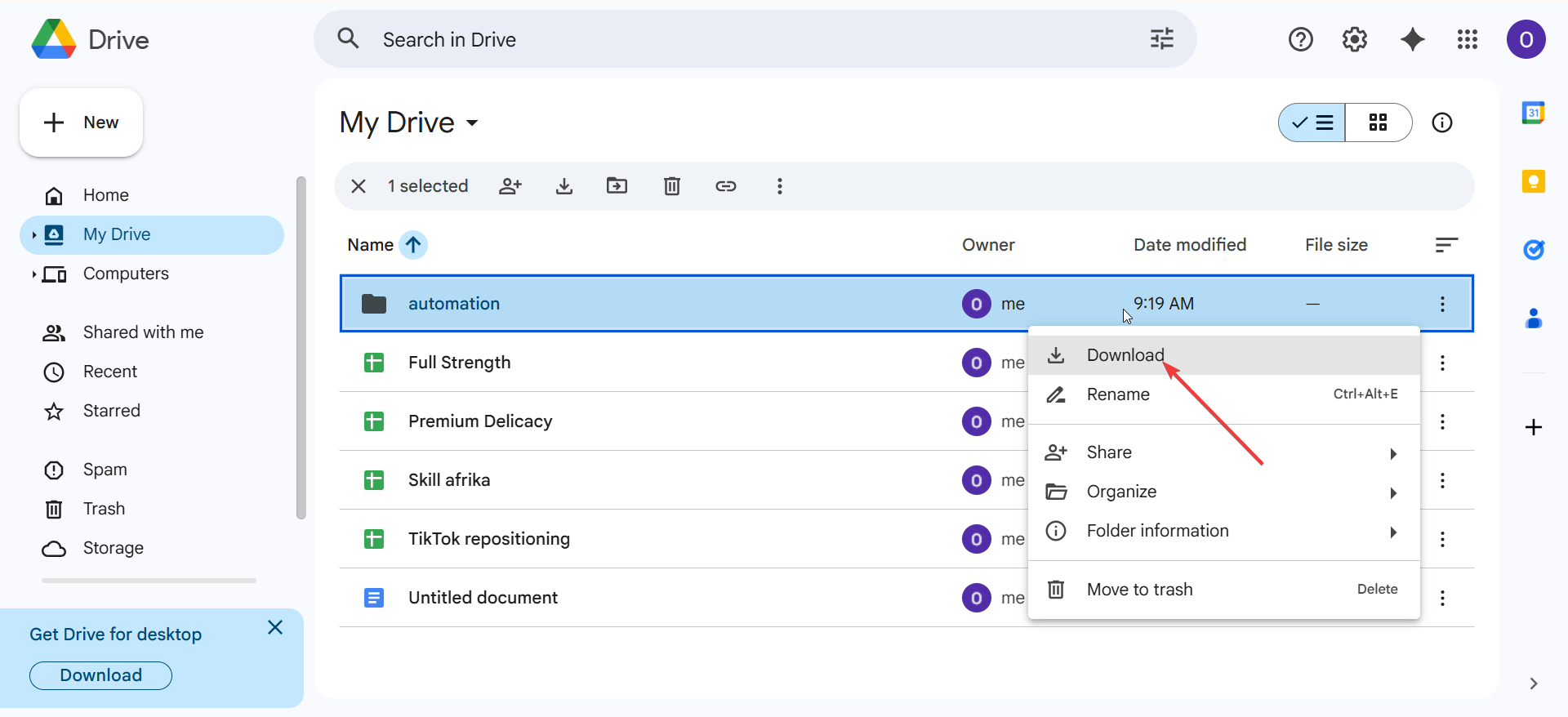
Once the ZIP file finishes downloading, extract it on your computer. Then drag the unzipped folder to your external hard drive using File Explorer or Finder. This keeps your structure organized and easy to restore later.
2) Use Google Takeout for full account backup
Google Takeout lets you download everything from your account, including Drive. Go to the Google Takeout website and deselect everything.
Now, select Google Drive as the export source, click Next step, pick your preferred file formats, and start the export. Google sends you an email with a link once the archive is ready. From here, click the download link from your email, then save the archive to your computer.
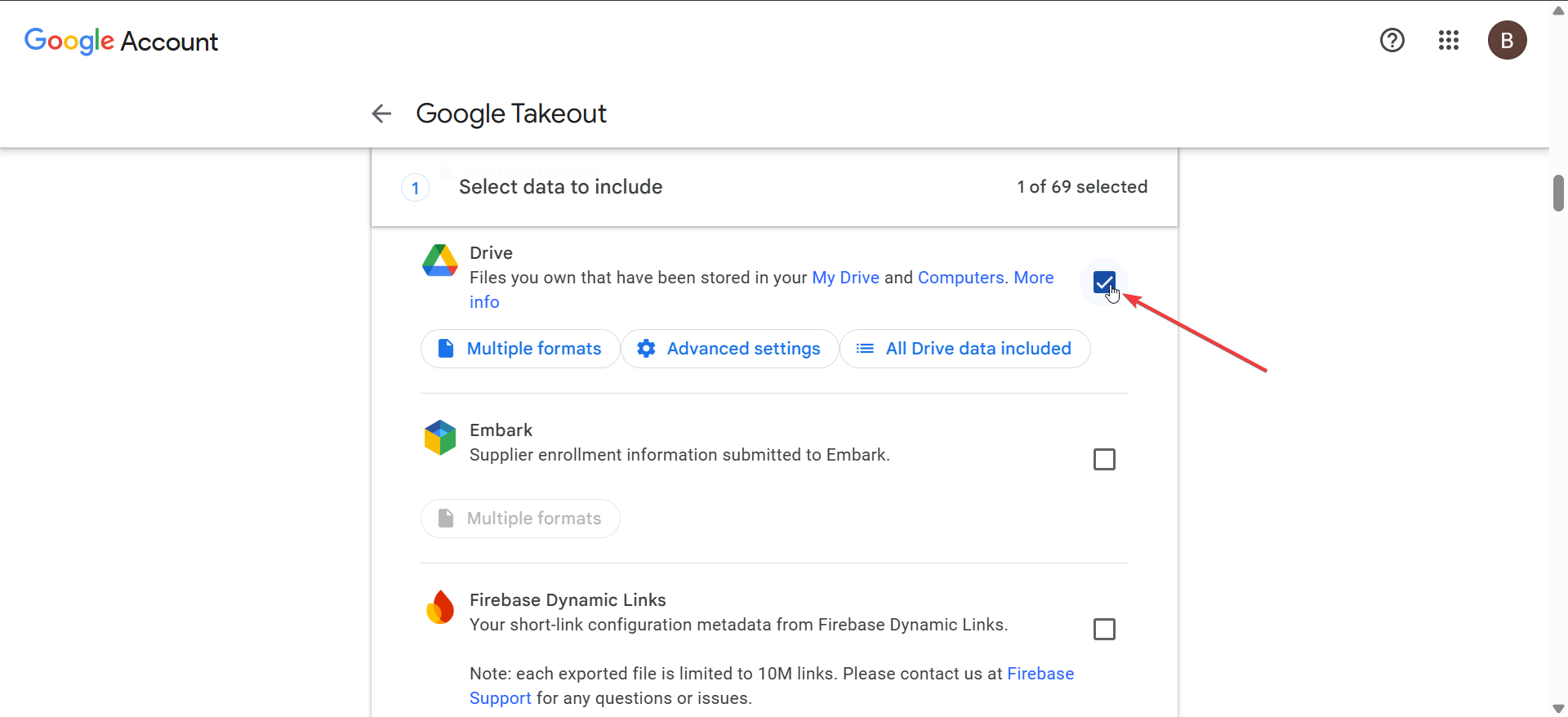
Once downloaded, copy it to your external hard drive. Double-check the transfer to ensure the entire file moved correctly before deleting temporary copies.
3) Sync Drive to your computer first
Install Google Drive for Desktop and sign in with your account. Choose folders you want to sync locally, and the tool will mirror them on your hard drive. Now, locate your local Google Drive folder, usually under Users\[YourName]\Google Drive on Windows or Finder → Google Drive on macOS.
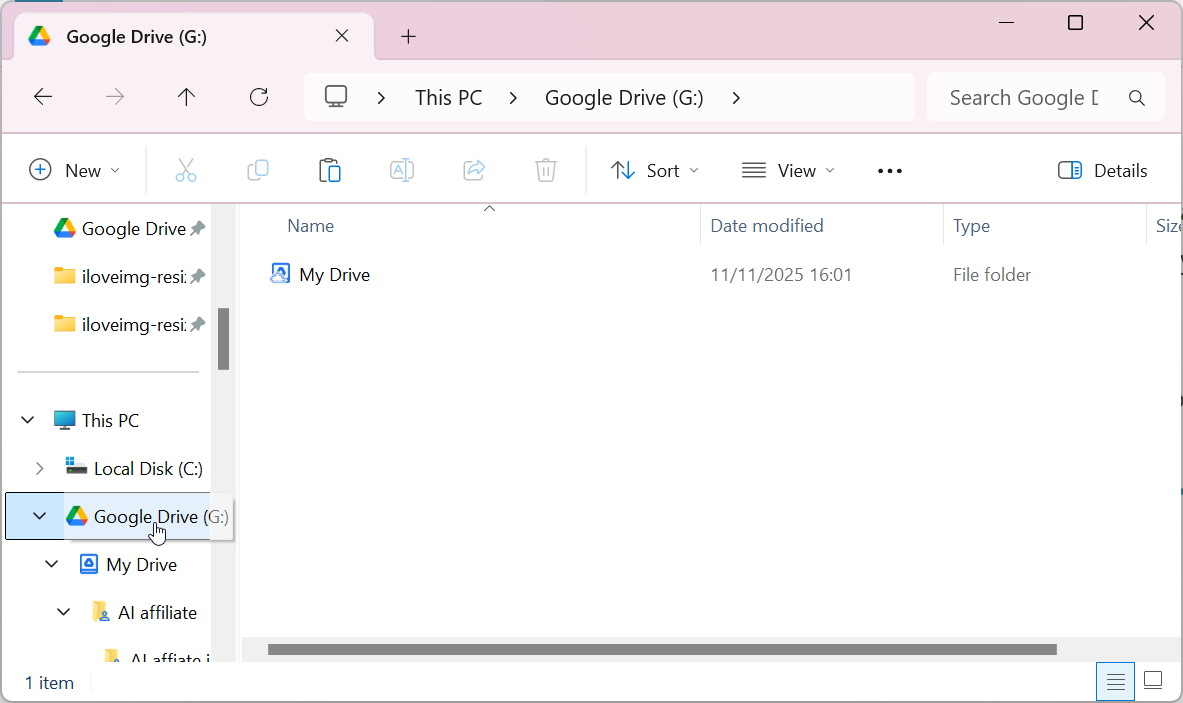
Next, copy the folder directly to your external hard drive. This gives you a complete offline mirror of your cloud data.
This method makes future backups faster since files already exist on your system.
4) Automate future backups
You can automate transfers between your Google Drive folder and an external hard drive using tools like FreeFileSync, SyncBack, or rsync. These apps compare folders and copy only the new or changed files, saving time on each backup.
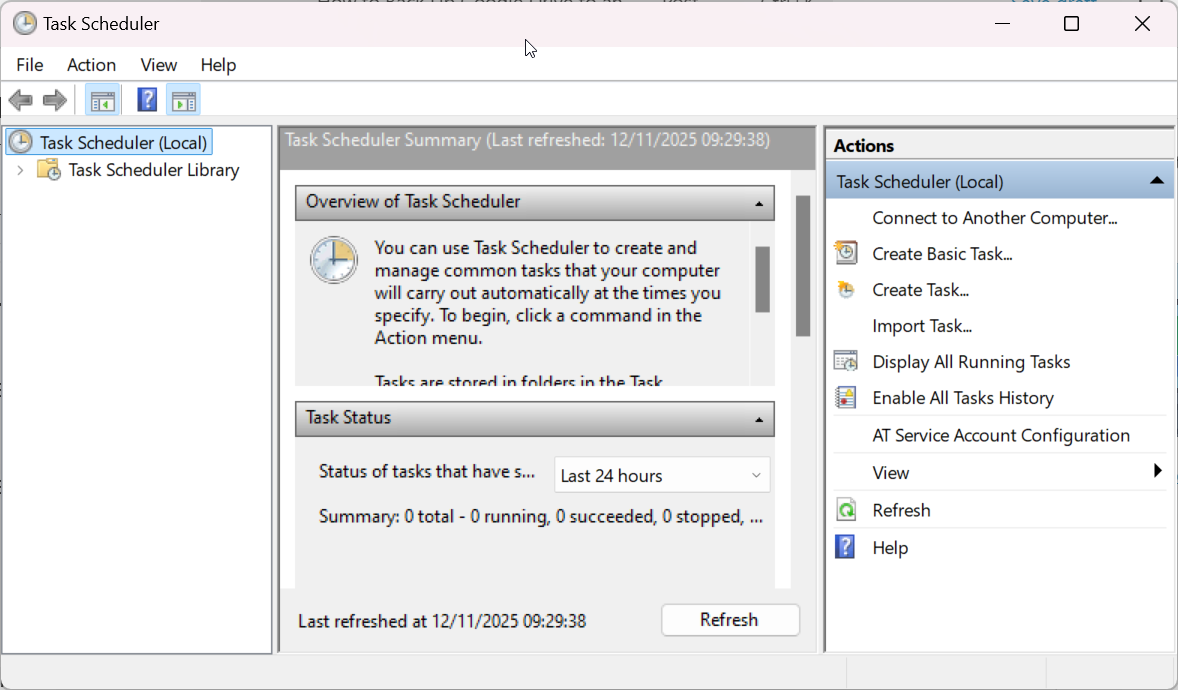
You can also schedule a time-based back up for future use. In Windows, open Task Scheduler to create a recurring job that runs your sync software weekly or monthly. On macOS, use Automator or Calendar actions to do the same. Scheduled tasks keep your offline copy always up to date.
5) How to handle large or complex backups
For drives over 50 GB, download data in smaller batches. USB 3.0 or SSD drives transfer faster than older disks, reducing backup time. Verify large transfers by checking file counts or comparing folder sizes between the source and target.
Tips for long-term backup maintenance
- Label your backups by date and rotate between two drives to ensure redundancy
- Store one copy in another location for extra safety
- Replace external drives every few years as part of preventive maintenance.
FAQs
How often should I back up my Google Drive? If you frequently update files, a weekly backup keeps everything current. For light use, a monthly schedule is usually enough.
Can I back up shared files or Team Drives? Yes, but you must have permission to download those files. If you don’t own them, create local copies before backing up.
Does deleting files from Google Drive affect my external copy? No. Once you’ve downloaded your data, it stays safe on your drive until you manually remove it.
Summary
- Download small batches from Google Drive manually.
- Use Google Takeout for complete account exports.
- Sync Google Drive to your PC for quicker updates.
- Automate future backups using sync tools.
- Verify and protect backups regularly.
Conclusion
Backing up Google Drive to an external hard drive ensures your data remains safe even if something happens to your cloud account. Whether you prefer downloading manually, using Google Takeout, or automating the process, each option gives you more control over your files.
For small libraries, manual downloads work fine. But if you manage large or frequently updated data, set up Google Drive for Desktop and use a sync tool for scheduled backups. Always verify your files and store one copy off-site for maximum protection.

Discussion (0)
Be the first to comment.