



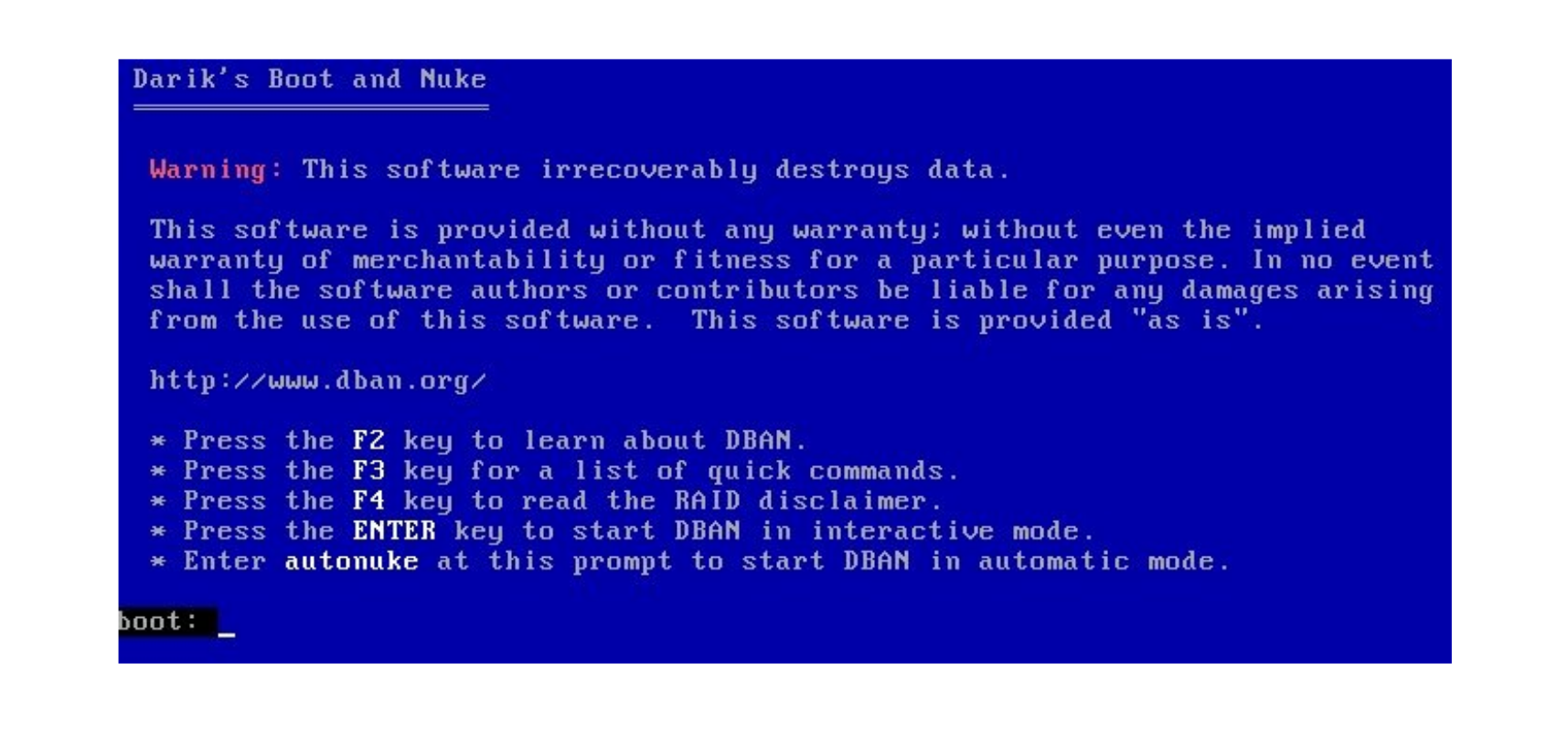
If you plan to sell, donate, or recycle a computer, simply deleting files or formatting the drive is not enough. Old data can still be recovered. DBAN, short for Darik’s Boot and Nuke, is a free tool designed to securely wipe hard drives by permanently erasing all data.
This guide explains what DBAN is, how it works, and how to use it safely to wipe a hard drive.
What Is DBAN
DBAN is a bootable data destruction tool that completely erases all data on a hard drive. It works outside Windows by running from a USB drive or CD, which allows it to wipe disks regardless of the installed operating system.
Once DBAN finishes, data cannot be recovered using normal or forensic methods.
When You Should Use DBAN
DBAN is useful in situations such as:
- Selling or giving away an old PC
- Recycling a computer
- Removing sensitive personal or business data
- Wiping a drive before reinstalling Windows
If you plan to keep using the same Windows installation, DBAN is not the right tool.
Important Limitations of DBAN
Before using DBAN, you should be aware of its limitations.
- It does not support modern SSDs properly
- It permanently deletes all data with no undo option
- It does not work well with NVMe drives
- It erases entire drives, not individual files
For SSDs, manufacturer tools or Windows reset options are safer choices.
How to Download DBAN
DBAN is available as a free ISO file.
Steps:
- Visit the official DBAN download page
- Download the ISO file
- Verify the file if possible
Avoid downloading DBAN from unknown third-party websites.
Create a DBAN Bootable USB Drive
You need a bootable USB or CD to run DBAN.
Steps:
- Insert an empty USB drive
- Download a tool like Rufus
- Open Rufus and select the DBAN ISO
- Choose the USB drive
- Click Start and wait for completion
This will erase all data on the USB drive.
How to Securely Wipe a Hard Drive Using DBAN
Once the bootable media is ready, follow these steps.
Steps:
- Insert the DBAN USB into the target PC
- Restart the computer
- Enter the boot menu or BIOS
- Select the USB drive as the boot device
- Wait for DBAN to load
At the DBAN screen, you can choose:
- Autonuke for automatic wiping
- Interactive mode for advanced control
After confirming, DBAN will begin erasing the selected drive. This process can take several hours depending on drive size and method used.
Is DBAN Safe to Use
DBAN is safe if used correctly, but it is extremely destructive.
Always make sure:
- You have backed up important data
- You selected the correct drive
- You understand the data cannot be recovered
Using DBAN on the wrong drive will result in permanent data loss.
Alternatives to DBAN
For modern systems, consider these alternatives:
- Windows Reset with drive cleaning
- Manufacturer SSD secure erase tools
- DiskPart clean all command
- Built-in BIOS secure erase options
These tools are better suited for SSDs and newer hardware.
Final Thoughts
DBAN is a powerful tool for securely wiping traditional hard drives, especially before selling or disposing of a computer. However, it should be used with caution and is not recommended for SSDs. Always confirm the drive selection and back up important files before proceeding.
FAQs
What does DBAN stand for
DBAN stands for Darik’s Boot and Nuke.
Can DBAN erase SSDs
DBAN can run on SSDs, but it is not recommended due to wear and effectiveness issues.
Is DBAN free to use
Yes, DBAN is completely free.
Can data be recovered after using DBAN
No, DBAN permanently erases data.
Does DBAN work on Windows 10 and Windows 11 PCs
Yes, because DBAN runs outside Windows, it works regardless of the installed version.


Discussion (0)
Be the first to comment.