A while back, we published an article about risks to watch for when downloading and installing free software. While we had an idea of how damaging it can be to perform quick (or typical) application installations, without carefully reading what you are about to install, what we wanted was to have some numbers, and do some testing to evaluate the full impact. We decided to run a few tests and here are the results we got: tangible ways in which you ruin both the performance of your system and your computing experience if you choose to make quick (or typical) desktop app installations, without reading what you are about to install:
The testing procedure and the desktop apps we installed
We took our test laptop and installed Windows 10 on it with the latest updates. Then we installed Bootracer, to measure the average time needed for the operating system to boot, before our tests, and after they were done. This gave us a good picture of the adverse effect quick app installations have on the boot time of a typical computer.
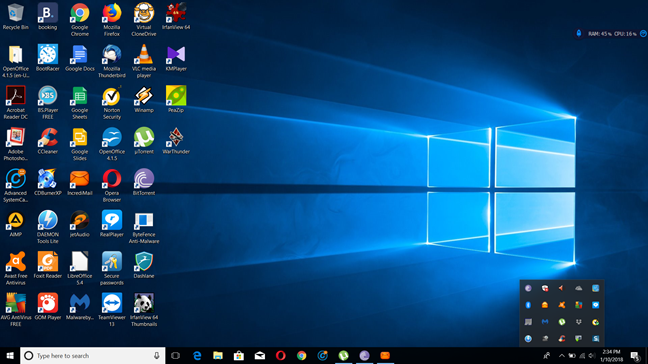
Then, we selected a total of 34 free and popular desktop apps to download, each representative for the type of functionality offered. To choose the applications, we checked Softpedia, Download.com, and Ninite, to see the most popular applications for each category. We installed the following popular apps: Firefox, Google Chrome, Opera, Thunderbird, IncrediMail, Winamp, jetAudio Basic, AIMP, RealPlayer, KMPlayer, VLC Media Player, BS. Player, IrfanView, Adobe Photoshop Album SE, Adobe Acrobat Reader DC, LibreOffice, OpenOffice, Foxit Reader, AVG Antivirus Free, Avast Free Antivirus, Malwarebytes, uTorrent, BitTorrent, StrongDC++, Dropbox, Google Backup and Sync, 7 Zip, PeaZip, Daemon Tools Lite, Virtual CloneDrive, CCleaner, Advanced SystemCare Free, CDBurnerXP, TeamViewer. They are all very popular and should be familiar to most readers.
The applications were downloaded from their official websites or from the sites where we were redirected to: Download.com, SourceForge, etc. We used only stable releases, and we did not install any beta versions.
We installed the applications one by one, using their default selections which usually meant Quick, Standard, Express or Typical installations. When we were asked to install the additional software that was bundled, we accepted all the dialogues, as they were presented by each application as something recommended to the user.
When evaluating the unwanted things installed by each application, we did not consider a desktop shortcut as being unwanted. Also, other applications that were required by an application so that it could function without problems, such as Microsoft Visual C++ Redistributables, .NET Framework or drivers, we considered them to be legitimate prerequisites, and we did not count them as "unwanted software" in the tables you are about to see.
The summary of tests results
We centralized all the tests results in a spreadsheet that you can check below:
If it doesn't load correctly in your web browser, you can download the spreadsheet from our OneDrive. Now let's break down the table and analyze the results:
1. Major web browsers, audio media players, and file compression tools are the safest
Probably the safest categories of applications are Web browsers, Audio media players, and Compression tools. As you can see from the following table, they did not install anything you might not want to have on your system. Google Chrome, Firefox, and Opera have clean default installations, without any unwanted items bundled, as long as you download them from official channels or download locations with a good reputation.
The same is true about audio players such as Winamp, jetAudio Basic, AIMP, and also about archivers like 7 Zip or PeaZip.
2. Many video media players, but also some virtual drive emulators are plain evil
Out of all the applications we installed, we found out that two video media players we tried, were the worst. RealPlayer and KMPlayer not only set themselves to load on the Windows startup, but they also installed browser add-ons and other unwanted software. RealPlayer, for instance, installs a 30-day trial version of Norton Security, while KMPlayer goes even further and installs not one, but two additional apps: Avast Free Antivirus and ByteFence. The latter, although it advertises itself as antimalware software, is also known as a potentially unwanted program because of its distribution tactics of being bundled with other legitimate software. RealPlayer and KMPlayer's default installations lead to slower boot times, a slower operating system, and a slower web browsing experience.
We have witnessed similar bad behavior in one of the drive emulators that we tested: Daemon Tools Lite. Its typical installation meant that we also installed not one, but two unwanted apps: an app of Booking.com and a game called WarThunder. How could these two applications be useful and recommended to users who want a drive emulator, is beyond our understanding.
3. Most office applications and e-mail clients have safe installations
If you use popular email clients such as Thunderbird or Incredimail, going through with their default installation options is safe. That is also true about open source office applications such as OpenOffice or LibreOffice. Some of these apps can set themselves to load at Windows startup (Incredimail), and some can install add-ons (Adobe Acrobat Reader DC). However, we do not consider these as unwanted behavior, as they are well intended.
On the other hand, OpenOffice was the only application that left its installation files in a folder on the desktop, requiring the user to delete them manually.
4. Security software slows down the Windows startup and the browsing experience
AVG Antivirus Free and Avast Free Antivirus set themselves to load at Windows startup. Unlike with other applications, we do not consider this to be unwanted behavior. It is needed to receive the required protection against viruses and malware. Also, they install browser add-ons, so that they can scan internet traffic. Again, we do not consider this to be unwanted behavior, as it is meant to protect you from online dangers. If you want some basic security, you must be OK with these minor negatives.
Conclusion: quick app installations can lead to long startup times and other annoyances
Quick app installations
Looking at the statistics resulting from this experiment, we can draw several conclusions:
27 out of the 34 applications we tested installed the things we expected to have installed. That is 79% of the applications that were tested. Considering our previous experience with free apps, we consider this an improvement than what was happening a few years ago.
41% (14 out of 34) of installed applications set themselves to run at the Windows startup even though, in most cases, the service being offered is not required by the user at each Windows startup. The only exception to this rule is antivirus products. The result is longer boot times and added user annoyance with each login. All the applications added a total of 35 seconds to our system's initial 22 seconds spent booting. To put things in perspective, this makes for a boot procedure that is slower by 159%. To contribute to the annoyance, at each startup we were also welcomed by an increased number of open windows and shortcuts. It all makes for a terrible computing experience.
4 out of the 34 applications we tested, installed additional unwanted software on our test computer. That is a rather low number, only about 12% of the total number of applications we tested. However, out of these four apps, two are video media players, one is a drive emulator, and one is a system optimisation app. In our opinion, it is clear that these three categories of applications have the most dangerous default installations. Also, the additional unwanted software you get is usually more harmful to your PC's speed and reliability than other installation annoyances.
Open-source software tends to behave much better than other types of free software. The open-source software we tested did not bundle anything we would not want, or that was not critical to its proper operation.
On the good side of things, it looks like modern applications no longer try to install unwanted toolbars (although exceptions still exist, such as Norton's toolbar), or change your default search engine, as many used to do in the past.
Do you still make quick/typical app installations?
Having seen how some free desktop apps try to make unwanted system changes or install additional unwanted apps on your Windows computer, we are curious to know your opinion on this subject. Did this analysis convince you to stop making quick app installations? Do you plan to switch to custom installations and read everything carefully before installing apps on your Windows PC? Feel free to share your thoughts and opinions in the comments section.
I have overcome this problem by using portable apps every time I can and installing in my HD on,ly those very few apps that are better run from the HD for speed purposes like the web browsers and few others. This way I have been able to keep my laptop rather clean and uncluttered over time.
Andrew ·
File Hippo (.com) is a good source for hundreds of application downloads. And their (free) “Update Checker” lets you know whenever there are updates for your programs. Have used it for about 2 years without problems. Do NOT recommend Cnet’s TechTracker. It pretty much tells you everything on your computer is out of date, and installs a lot of crapware. I consider it a virus in itself. As for WinPatrol (mentioned above), I’ve been using it for several years and am very happy with it. Recommend the PRO version which you only pay for once and all updates are free. It has many features including being able to DELAY the startup of any program and stopping what you don’t want to run automatically, cookie control and letting you know when something tries to install itself. The PRO version has enhanced INFORMATION about what’s on your computer.
HLAScarlet ·
Great article. I always wondered if I should do custom installs but was afraid I didn’t know enough. I’m more confident now. It would have been nice for you to kinda sum it up and say OK do this or how can I fix it now. Would you recommend going back and re-installing/fixing those programs you mentioned and others? Thanks for the good work.
Ciprian Adrian Rusen ·
The simplest way is to uninstall them and all the unwanted stuff they installed and then make a custom install and select only what you want.
I will continue writing a series of articles on this subject in the next few weeks. So… if you keep following us, you will get more useful advice.
jthelw ·
The absolute worst example of this for me has been HotSpotShield (VPN software, which was, incidentally, recommended to me by an article in a legit publication. This garbage very nearly trashed my netbook. It took me hours just to back out of the toolbar they installed and, after that was done, to restore my homepage in my browsers.
GeorgiaCowboy ·
Speaking of installing software, today I tried installing FF9 final and downloaded the .exe. Double clicked and the run dialog came up and I clicked run. A box popped up with a progress bar that said “extracting” then……………NOTHING. WTF. Tried this a few times. REdownloaded more than once. The one thing I do know is it doesn’t have anything to do with admin. rights.
WTF is it extracting from an .exe? Where the frig did it go?
I’m tired right now and my eyes are crossing, but your ideas would be appreciated.
Ciprian Adrian Rusen ·
The .exe you downloaded is a self-extract archive. I used it too yesterday and had no issues with it, even though it seemed to me I had to wait a bit more than usual for it to extract all the setup files. I think it is best to try one more time today. If it doesn’t work, then simply wait for Firefox to auto-update itself in one or two days. That should work smoothly.
Anonymous ·
As bad as that is, have you seen CNet lately?! OMG! Absolutely everything you can download from them (on download.com) requires you to run CNet’s little download widget in order to download the file you’re interested in. This widget will download anything from toolbars to outright spyware. And that’s assuming that whatever you download doesn’t also install more crapware. (Anyone remember the promise CNet made when they bought out that little web site called Winfiles – that they would NEVER do this?!)
Ciprian Adrian Rusen ·
The only “good” thing about CNet is that they stopped using that widget for open source software.
AZKID ·
@ Anonymous … FWIW I recently learned that if you are a registered user with CNet/download/com you will not get the CNet installer included with their downloads. Supposedly, they found out that a large % of their downloads were not completed and they added their installer (along with the crapware) to help the users to completely install the software … IMO that does not justify it!!!
GeorgiaCowboy ·
I mentioned Winpatrol above as a tool to help control programs that don’t NEED to startup on boot. Autoruns is another and also Ccleaner. Both need to be on your machine anyway.
I’m kindda anal about what’s running in the background taking up even minimal resources. I don’t print a whole lot and don’t even let my printer drivers load on boot. If I NEED to print, I’ll just turn it on and it loads them (drivers) and when I’m through I’ll open “task manager” and stop them again.
There are many programs that work just fine when you need them that DON’T need to run ALL THE TIME.
Ciprian Adrian Rusen ·
I understand your perspective. Most times I have similar computing habits. I’ll check with the team and maybe, in the next couple of weeks, we will make a thorough analysis and publish something on this topic.
GeorgiaCowboy ·
Some would probably argue that msconfig is all you’d need, but I’D argue that point. Msconfig doesn’t even always list ALL the objects and works about half the time. Doesn’t list whos program it is and with all the excellent freeware out that can be used for this there’s just no reason not to.
I not JUST talking UN-needed startup items but services as well.
Besides the BASICS, I have a multi-clipboard manager, evernote, and Process Lasso (also Avast and Threatfire, but I count these as necessary) running on boot and WITH these I still have only 33 processes running.
Check task manager at the lower left and see how many processes Yall have running.
GeorgiaCowboy ·
It would’ve been beneficial, also, I think, to list good programs to BLOCK programs from starting on boot. I use WinPatrol mainly because I’ve used it for so long AND they have a FREE portable ver. I can use on other machines.
Soluto is just ANOTHER start-up item.
Downloaded their Beta yesterday and doubt I’ll keep it.
Anyway, as long as people keep doing this crap I’ll keep charging them to get rid of it.
Works for me.
Ciprian Adrian Rusen ·
That might be a good subject indeed, for a future article. Thanks for the suggestion.
ron ·
Excellent article. This is the sort of thing that is great to be able to point to, to explain slow computers.
Thanks. Keep up the good work.
Ciprian Adrian Rusen ·
Thanks for the appreciation Ron.
Nimesh ·
Nice article.
I would add one more criteria – auto update. Chrome(Browser) and Digsby(Messaging client) are worst. Digsby does not even allow login until the update is completely.
We can avoid such nuisances if we use portable applications.





Discussion (18)
I have overcome this problem by using portable apps every time I can and installing in my HD on,ly those very few apps that are better run from the HD for speed purposes like the web browsers and few others. This way I have been able to keep my laptop rather clean and uncluttered over time.
File Hippo (.com) is a good source for hundreds of application downloads. And their (free) “Update Checker” lets you know whenever there are updates for your programs. Have used it for about 2 years without problems. Do NOT recommend Cnet’s TechTracker. It pretty much tells you everything on your computer is out of date, and installs a lot of crapware. I consider it a virus in itself. As for WinPatrol (mentioned above), I’ve been using it for several years and am very happy with it. Recommend the PRO version which you only pay for once and all updates are free. It has many features including being able to DELAY the startup of any program and stopping what you don’t want to run automatically, cookie control and letting you know when something tries to install itself. The PRO version has enhanced INFORMATION about what’s on your computer.
Great article. I always wondered if I should do custom installs but was afraid I didn’t know enough. I’m more confident now. It would have been nice for you to kinda sum it up and say OK do this or how can I fix it now. Would you recommend going back and re-installing/fixing those programs you mentioned and others? Thanks for the good work.
The simplest way is to uninstall them and all the unwanted stuff they installed and then make a custom install and select only what you want.
I will continue writing a series of articles on this subject in the next few weeks. So… if you keep following us, you will get more useful advice.
The absolute worst example of this for me has been HotSpotShield (VPN software, which was, incidentally, recommended to me by an article in a legit publication. This garbage very nearly trashed my netbook. It took me hours just to back out of the toolbar they installed and, after that was done, to restore my homepage in my browsers.
Speaking of installing software, today I tried installing FF9 final and downloaded the .exe. Double clicked and the run dialog came up and I clicked run. A box popped up with a progress bar that said “extracting” then……………NOTHING. WTF. Tried this a few times. REdownloaded more than once. The one thing I do know is it doesn’t have anything to do with admin. rights.
WTF is it extracting from an .exe? Where the frig did it go?
I’m tired right now and my eyes are crossing, but your ideas would be appreciated.
The .exe you downloaded is a self-extract archive. I used it too yesterday and had no issues with it, even though it seemed to me I had to wait a bit more than usual for it to extract all the setup files. I think it is best to try one more time today. If it doesn’t work, then simply wait for Firefox to auto-update itself in one or two days. That should work smoothly.
As bad as that is, have you seen CNet lately?! OMG! Absolutely everything you can download from them (on download.com) requires you to run CNet’s little download widget in order to download the file you’re interested in. This widget will download anything from toolbars to outright spyware. And that’s assuming that whatever you download doesn’t also install more crapware. (Anyone remember the promise CNet made when they bought out that little web site called Winfiles – that they would NEVER do this?!)
The only “good” thing about CNet is that they stopped using that widget for open source software.
@ Anonymous … FWIW I recently learned that if you are a registered user with CNet/download/com you will not get the CNet installer included with their downloads. Supposedly, they found out that a large % of their downloads were not completed and they added their installer (along with the crapware) to help the users to completely install the software … IMO that does not justify it!!!
I mentioned Winpatrol above as a tool to help control programs that don’t NEED to startup on boot. Autoruns is another and also Ccleaner. Both need to be on your machine anyway.
I’m kindda anal about what’s running in the background taking up even minimal resources. I don’t print a whole lot and don’t even let my printer drivers load on boot. If I NEED to print, I’ll just turn it on and it loads them (drivers) and when I’m through I’ll open “task manager” and stop them again.
There are many programs that work just fine when you need them that DON’T need to run ALL THE TIME.
I understand your perspective. Most times I have similar computing habits. I’ll check with the team and maybe, in the next couple of weeks, we will make a thorough analysis and publish something on this topic.
Some would probably argue that msconfig is all you’d need, but I’D argue that point. Msconfig doesn’t even always list ALL the objects and works about half the time. Doesn’t list whos program it is and with all the excellent freeware out that can be used for this there’s just no reason not to.
I not JUST talking UN-needed startup items but services as well.
Besides the BASICS, I have a multi-clipboard manager, evernote, and Process Lasso (also Avast and Threatfire, but I count these as necessary) running on boot and WITH these I still have only 33 processes running.
Check task manager at the lower left and see how many processes Yall have running.
It would’ve been beneficial, also, I think, to list good programs to BLOCK programs from starting on boot. I use WinPatrol mainly because I’ve used it for so long AND they have a FREE portable ver. I can use on other machines.
Soluto is just ANOTHER start-up item.
Downloaded their Beta yesterday and doubt I’ll keep it.
Anyway, as long as people keep doing this crap I’ll keep charging them to get rid of it.
Works for me.
That might be a good subject indeed, for a future article. Thanks for the suggestion.
Excellent article. This is the sort of thing that is great to be able to point to, to explain slow computers.
Thanks. Keep up the good work.
Thanks for the appreciation Ron.
Nice article.
I would add one more criteria – auto update. Chrome(Browser) and Digsby(Messaging client) are worst. Digsby does not even allow login until the update is completely.
We can avoid such nuisances if we use portable applications.