




Your laptop battery is lying to you. Not maliciously, but the percentage in the corner of your screen tells you how full the battery currently is, not how much capacity it has compared to when it was new. A battery that says 100% on a three-year-old laptop might only hold 60% of what it held on day one. You just never see that number anywhere obvious.
Windows has been quietly keeping track of your battery's entire history. One command surfaces everything: how much capacity your battery has lost, when it lost it, how long it actually lasts on a charge now versus when the laptop was new, and whether you are approaching the point where a replacement makes sense.
Here is how to find it and what to make of it.
How to Generate the Battery Report
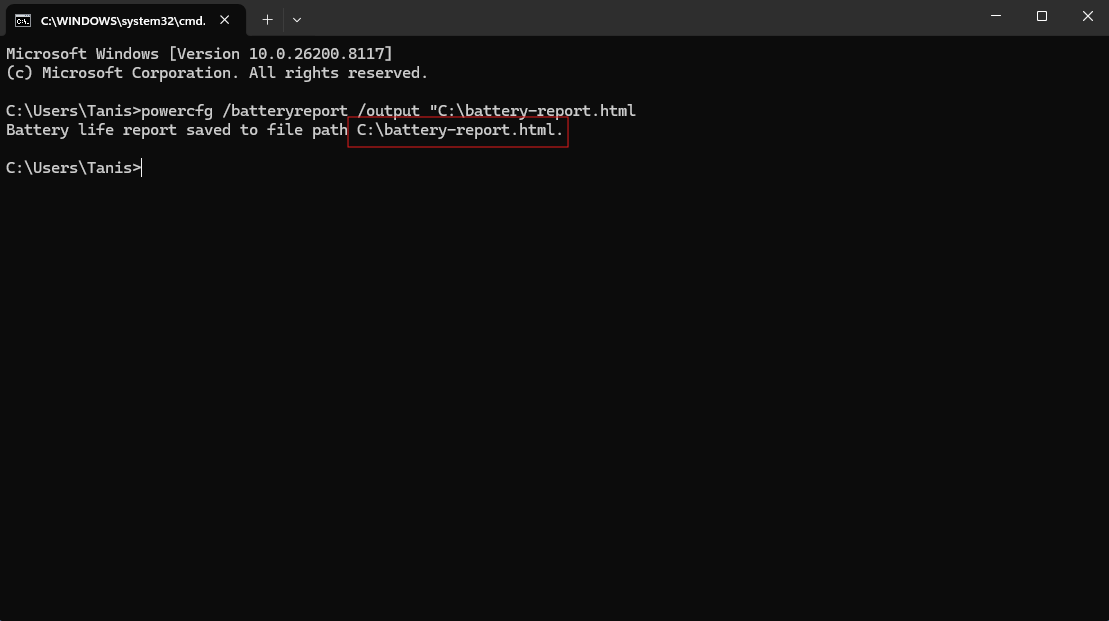
Open the Start menu and search for Command Prompt. Right-click it and select Run as administrator. In the window that opens, type the following and press Enter:
powercfg /batteryreport /output "C:\battery-report.htmlWindows will tell you the report has been saved. Open File Explorer, navigate to your C drive, and double-click battery-report.html. It opens in your browser as a readable page with everything Windows knows about your battery.
The whole thing takes about thirty seconds.
The Two Numbers That Actually Matter
Scroll down to the Installed Batteries section at the top of the report. Everything else in the report is context. These two numbers are the core of it.
Design Capacity is what your battery was built to hold when it left the factory. It is measured in milliwatt-hours (mWh). This number never changes. It is the manufacturer's original specification.
Full Charge Capacity is what your battery can actually hold right now, today, at its current state of health. This number has been declining ever since you first used the laptop.
To understand how degraded your battery is, divide Full Charge Capacity by Design Capacity and multiply by 100. That gives you your battery health as a percentage.
So if your Design Capacity is 60,000 mWh and your Full Charge Capacity is 45,000 mWh, your battery is at 75% health. You have lost a quarter of your original capacity and you will never get it back.
As a rough guide: above 80% is normal aging. Between 60% and 80% means your runtime has noticeably shortened and you should keep a charger nearby more often. Below 60% and the battery is genuinely worn out, and if you use the laptop away from a plug regularly, a replacement is worth considering. Below 40% and you are likely experiencing significantly shortened sessions and possibly unexpected shutdowns.
The Cycle Count
Just below the capacity numbers you will find the Cycle Count. A charge cycle is one full discharge and recharge of the battery. Charge from 50% to 100%, use it back down to 50%, and charge again, and that counts as one cycle.
Most laptop batteries are rated for somewhere between 300 and 500 full cycles before significant degradation sets in, though premium batteries in machines like ThinkPads and MacBooks often handle more. If your cycle count is above 400 and your Full Charge Capacity has dropped significantly, the degradation is expected and a replacement makes sense. If your cycle count is low but capacity has dropped sharply anyway, the battery may have been damaged by heat, poor storage, or a firmware issue worth investigating.
Some laptops do not report a cycle count at all because the manufacturer's firmware does not expose it to Windows. If yours is blank, focus on the capacity numbers instead.
Capacity History
Scroll further down and you will find the Battery Capacity History section. This shows how your Full Charge Capacity has changed month by month over the time Windows has been running on this machine.
Most batteries degrade gradually and the chart reflects that, a slow steady decline. What you are looking for is anything that is not gradual. A sudden sharp drop in a single month can indicate a firmware update that changed how the battery reports, a period where the laptop was left in a hot car or stored improperly, or genuine cell damage. Knowing when capacity dropped helps you understand why, and whether it is likely to continue at the same rate.
Battery Life Estimates
Near the bottom of the report is a section called Battery Life Estimates. It contains two numbers that are worth pausing on.
The first is the estimated runtime at full charge based on how you actually use the laptop. The second is what the runtime would have been at the original Design Capacity, in other words, when the laptop was new.
The gap between those two numbers is the most honest answer you will ever get to the question of how much your battery has actually aged in practical terms. If your laptop used to last six hours and the report now estimates three and a half, that is the real-world consequence of the degradation the capacity numbers describe.
Recent Usage
The Recent Usage section logs every time your laptop switched between battery power and AC power over the last few days, with timestamps and the capacity remaining at each switch.
This section is useful when your battery feels like it is draining faster than it should. If you see the percentage dropping steeply while the laptop is closed or supposedly sleeping, something is keeping it awake and consuming power in the background. That is a different problem from battery wear and has a different solution, typically tracking down a background app or a sleep setting that is not working correctly.
What to Do With What You Find
If your battery health is above 80% and the report looks normal, you do not need to do anything. Check again in six months.
If it is between 60% and 80%, the battery is aging but not urgent. Keep the charger accessible when you need long sessions. Avoid leaving the laptop in hot places, which accelerates degradation. Some manufacturers include a Battery Care or Conservation Mode setting that caps charging at 80% to slow future wear, worth enabling if yours has it.
Looking at the report If it is below 60%, the practical question is how much you use the laptop away from a plug. If you mostly work at a desk and the charger is always nearby, you can live with a degraded battery for quite a while. If you travel with it regularly or take it between rooms constantly, a replacement battery will make the machine feel new again at a fraction of the cost of buying a new laptop.
Battery replacements for most laptops cost between £40 and £100 for the part, with professional fitting adding a similar amount depending on the model. Before assuming the worst, check if your laptop manufacturer offers a battery replacement service or if a local repair shop can quote you. It is almost always cheaper than a new machine.
Final Thoughts
Most people never look at this report. They just notice that their laptop does not last as long as it used to and assume the machine is getting old. Sometimes it is. But often the machine is completely fine and only the battery needs attention. The report tells you exactly which situation you are in, and it has been sitting there waiting to be asked the whole time.
Frequently Asked Questions
How often should I check the battery report?
Every three to six months is a reasonable habit, or immediately if you notice your runtime has dropped noticeably. Generating it takes under a minute and gives you a clear picture of where your battery stands.
What if my cycle count is blank?
Some laptop manufacturers do not expose the cycle count to Windows through their firmware. This is common and does not mean anything is wrong. Focus on the Design Capacity versus Full Charge Capacity comparison instead, which is the more reliable health indicator in any case.
Can I improve my battery health once it has degraded?
No. Lost battery capacity is a chemical change in the cells and cannot be recovered through software, calibration, or charging habits. What you can do is slow future degradation by avoiding extreme heat, not storing the laptop at very low or very high charge levels for extended periods, and enabling a charge cap if your laptop supports one.
What does a sudden sharp drop in the Capacity History mean?
It could indicate a firmware update that changed how the battery is measured, a period of excessive heat exposure, or genuine cell damage. If the drop was recent and your laptop has not been stored in difficult conditions, check for a firmware update from your manufacturer that might address battery reporting.
How do I know if my battery is swelling?
The battery report will not tell you this. Physical signs of a swollen battery include the laptop chassis flexing or bowing, the trackpad popping up slightly, or the machine rocking on a flat surface when it did not before. A swollen battery is a safety issue. Stop using the laptop and take it to a repair shop immediately.



Discussion (0)
Be the first to comment.