




If you’ve seen the event
“The driver \Driver\WudfRd failed to load for the device ROOT\WindowsHelloFaceSoftwareDriver\0000”
in Windows 11, it looks more serious than it usually is.
In most cases, this is not a system failure. It’s a driver initialization issue tied to Windows Hello Face, often logged during startup and harmless unless you’re actually using facial recognition.
The key is knowing when to ignore it and when to fix it.
What This Error Actually Indicates
The message comes from the Windows User-Mode Driver Framework:
- WudfRd → Windows User-Mode Driver Framework Reflector
- Device → Windows Hello Face software driver
In simple terms, Windows attempted to load the facial recognition driver and it didn’t initialize at that moment.
That doesn’t necessarily mean it failed permanently. It may load later or not be needed at all.
Why This Happens
This error typically shows up for one of four reasons.
Windows Hello Face Is Not Fully Set Up
Windows still tries to load the driver even if:
- Facial recognition isn’t configured
- Setup was incomplete
This creates a log entry without affecting usability.
Your System Doesn’t Support It
If your device doesn’t have:
- An IR camera
- Compatible hardware
Windows may still attempt to initialize the driver and fail.
Timing During Startup
This is the most common cause.
Some drivers:
- Attempt to load before required services are ready
- Fail initially
- Succeed later or remain unused
Windows logs the first failure, which is what you see.
Driver or Update Inconsistency
Less common, but possible:
- Recent Windows updates
- Outdated or mismatched drivers
These can cause repeated errors.
When You Should Actually Fix It
You don’t need to act just because the error exists.
Ignore it if:
- Windows Hello Face works normally
- You don’t use facial recognition
- It only appears in Event Viewer
Fix it if:
- Face login is not working
- Errors appear repeatedly
- Camera or sign-in features are affected
Fix 1: Properly Set Up Windows Hello Face
If you use facial recognition, incomplete setup is often the issue.
Steps:
- Open Settings
- Go to Accounts > Sign-in options
- Under Facial recognition, select Set up or Improve recognition
This ensures the driver has a valid configuration.

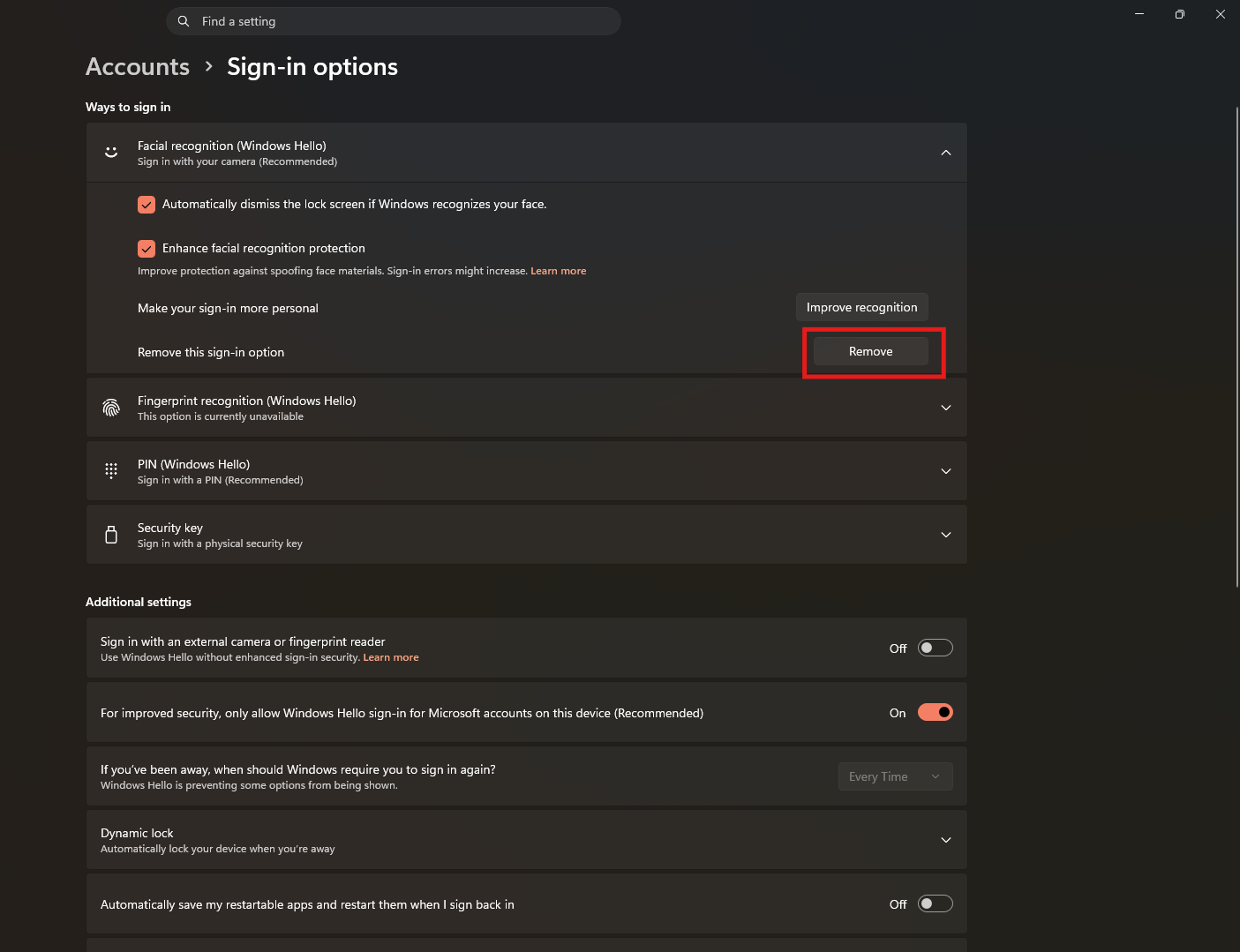
Fix 2: Disable Windows Hello Face (If You Don’t Use It)
If you don’t use face unlock, the simplest fix is to stop Windows from loading the driver.
Steps:
- Open Settings
- Go to Accounts > Sign-in options
- Remove or disable Facial recognition
This eliminates unnecessary driver calls.
Fix 3: Update Windows and Drivers
Driver mismatches are a common cause of repeated errors.
Do the following:
- Run Windows Update
- Install latest OEM drivers (especially camera and chipset)
Avoid relying only on older preinstalled drivers.
Fix 4: Repair System Files (If Errors Persist)
If the issue appears frequently or affects functionality, check system integrity.
Run in Command Prompt (Admin):
sfc /scannowDISM /Online /Cleanup-Image /RestoreHealth
This fixes underlying system inconsistencies.
Real-World Insight
This error is commonly seen in Event Viewer on otherwise healthy systems.
In practice:
- It often appears once during boot
- It rarely affects actual usage
- Many users only notice it while troubleshooting something else
The mistake is treating it as a critical failure when it usually isn’t.
What Not to Do
Avoid unnecessary escalation.
Do not:
- Reinstall Windows immediately
- Modify system files without reason
- Use random “driver fix” tools
Start with configuration and updates first.
Final Thoughts
The “WudfRd failed to load” error tied to Windows Hello Face in Windows 11 is typically a non-critical initialization issue, not a system problem.
If everything works, leave it alone.
If it affects functionality, the fix is usually simple: configure, disable, or update.
Understanding the context matters more than the error itself.
FAQs
What is WudfRd?
It’s part of the Windows User-Mode Driver Framework used for device drivers.
Is this error serious?
Usually no. It’s often just a startup log entry.
Does it affect performance?
Not unless tied to a real driver issue.
Should I disable Windows Hello?
Only if you don’t use facial recognition.
Do I need to reinstall Windows?
No, this issue rarely requires drastic action.



Discussion (0)
Be the first to comment.