




There’s a setting in Windows 11 that almost no one touches, yet it quietly affects how stable your Wi-Fi feels: Roaming Aggressiveness.
If you’ve ever noticed your connection jumping between networks, or holding onto a weak signal longer than it should, this setting is often the reason.
The problem is not that it’s complicated. It’s that it’s poorly explained.
What “Roaming Aggressiveness” Actually Means
Your device constantly decides which Wi-Fi access point to connect to.
If you have:
- Multiple routers
- Mesh systems
- Extenders
Your PC may see several networks with the same name.
Roaming aggressiveness controls how quickly your device switches between them.
- Low aggressiveness → Stays connected longer, even if signal weakens
- High aggressiveness → Switches faster to a stronger signal
That’s it. But the impact depends heavily on your setup.
Why This Setting Exists
In modern homes and offices, a single router is often not enough.
Instead, you have:
- Mesh Wi-Fi systems
- Multiple access points
- Overlapping coverage
Your device needs to decide:
- Stay connected
- Or switch to something stronger
Roaming aggressiveness influences that decision.
How to Change Wi-Fi Roaming Aggressiveness
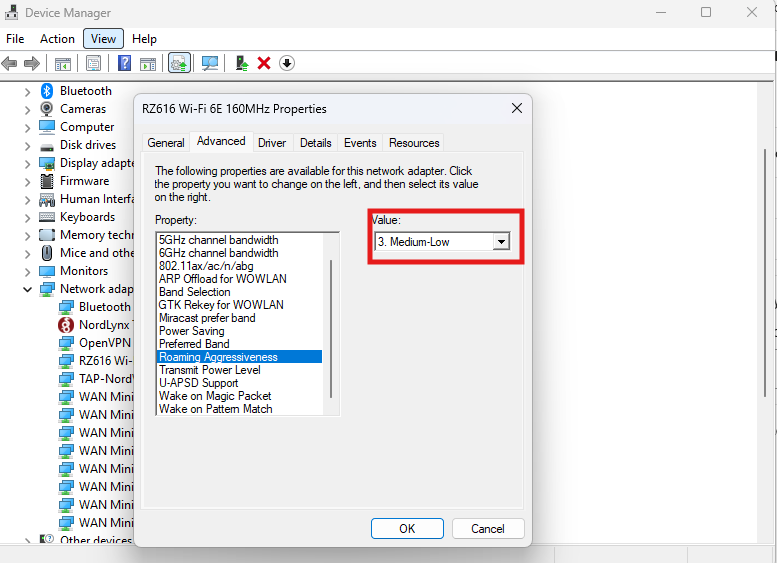
This setting is not in the usual Settings app. It lives inside the network adapter properties.
Step-by-step
- Right-click Start and open Device Manager
- Expand Network adapters
- Right-click your Wi-Fi adapter
- Select Properties
- Go to the Advanced tab
- Find Roaming Aggressiveness
- Choose a value:
- Lowest
- Medium-Low
- Medium
- Medium-High
- Highest
- Click OK
Changes apply immediately.
What Each Setting Actually Feels Like
This is where practical understanding matters more than definitions.
Lowest or Medium-Low
- Device sticks to the current network
- Fewer connection drops
- May hold onto weak signals too long
Best for:
- Single-router setups
- Stable environments
Medium (Default)
- Balanced behavior
- Occasional switching
- Works well for most users
This is usually where you should stay unless you have a reason to change.
Medium-High or Highest
- Switches aggressively to stronger signals
- Better for moving around spaces
- Can cause frequent reconnects
Best for:
- Mesh networks
- Large homes or offices
Real-World Scenarios
Understanding your environment is more important than the setting itself.
Single Router Setup
- Set it to Low or Medium
- Prevents unnecessary switching
Mesh Wi-Fi System
- Set it to Medium-High or High
- Helps your device stay on the strongest node
Frequent Movement (Laptop Users)
- Higher aggressiveness helps maintain better signal
- But may introduce brief connection interruptions
Why You Might Be Experiencing Issues
If your Wi-Fi feels inconsistent, this setting is often overlooked.
Common symptoms include:
- Sudden drops while moving around
- Staying connected to weak signal areas
- Frequent reconnects in mesh setups
Adjusting roaming aggressiveness can improve these without changing hardware.
What Not to Expect
This setting does not:
- Increase internet speed directly
- Fix poor router placement
- Solve all connectivity issues
It only influences how your device chooses networks.
Real Insight
Most users never need to touch this setting because the default is good enough.
But in environments with:
- Multiple access points
- Overlapping coverage
A small adjustment can noticeably improve stability.
It’s one of those settings that does very little until it suddenly makes a difference.
Should You Change It
Change it if:
- You use a mesh or multi-router setup
- Your connection feels inconsistent while moving
- Your device sticks to weak signals
Leave it as is if:
- Your connection is stable
- You use a single router
- You don’t notice any issues
Final Thoughts
Wi-Fi roaming aggressiveness in Windows 11 is a quiet setting with a specific purpose.
It doesn’t make your internet faster. It makes your connection smarter about where it connects.
And in the right setup, that’s exactly what you need.
FAQs
What is roaming aggressiveness in Wi-Fi
It controls how quickly your device switches between networks.
Should I set it to highest
Only if you use mesh networks or move frequently.
Does it affect speed
Not directly, but it can improve connection quality.
Where do I find this setting
In Device Manager under your Wi-Fi adapter properties.
What is the best setting
Medium for most users, higher for complex network setups.



Discussion (0)
Be the first to comment.