




Your drive is almost full. You open Windows Storage Settings, and it tells you that Applications are using 47GB and Other is using 31GB. You click on Other. Nothing useful happens. You still have no idea what is actually sitting on your drive eating all that space.
This is the problem WinDirStat solves, and it solves it in about two minutes. It scans your drive and turns the result into a visual map where every file on your PC is represented as a coloured rectangle. Bigger rectangles mean bigger files. You can see at an actual glance what is taking up space, click on any block, and go straight to the file responsible. This guide explains what WinDirStat is and how to use it to find and clear the things you do not need.
What Is WinDirStat?
WinDirStat stands for Windows Directory Statistics. It is a free, open-source disk usage analyzer that has been available since the early 2000s and remains one of the most downloaded disk tools for Windows. The project is actively maintained on GitHub and works on Windows 10 and Windows 11.
The core idea is simple. Windows shows you that your drive is full. WinDirStat shows you why. It scans every file and folder, calculates how much space each one uses, and displays the result three ways simultaneously: a folder tree sorted by size, a list of file types by space used, and a visual treemap where you can literally see your drive laid out in front of you.
It is completely free, has no ads, and requires no account to use.
How to Download and Install WinDirStat
Go to windirstat.net and download the installer. Run it and click through the standard setup steps. The whole installation takes under a minute. WinDirStat appears in your Start menu when it is done.
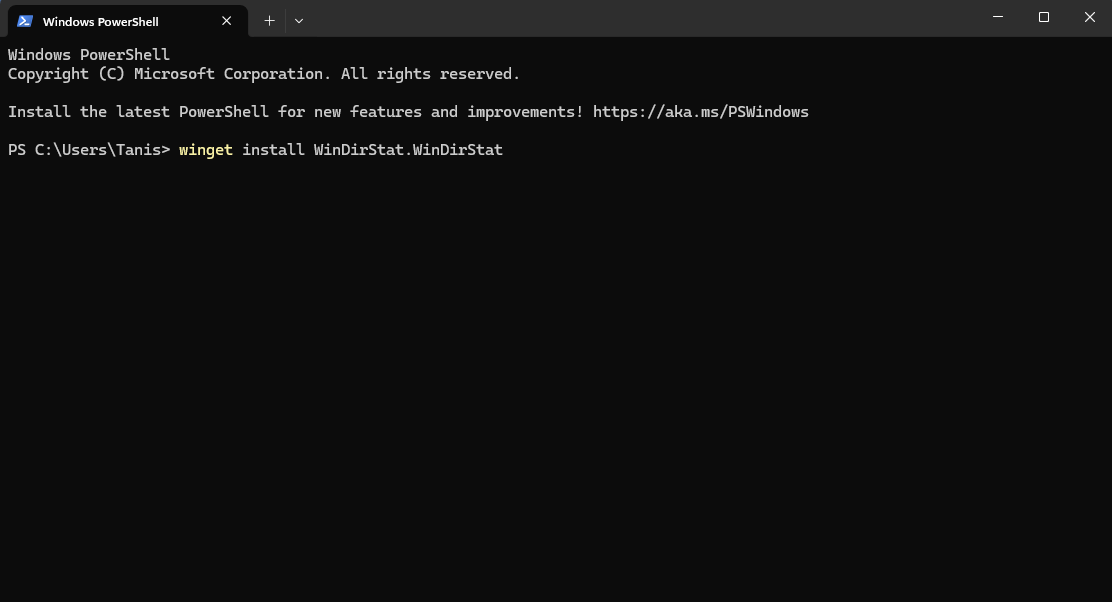
You can also install it using winget if you prefer the terminal. Open Windows Terminal and run:
winget install WinDirStat.WinDirStat
Either method works identically.
How to Scan Your Drive
Open WinDirStat. The first thing you see is a dialog asking which drives to scan. For most people, selecting Individual Drives and choosing your C: drive is the right starting point. That is where Windows, your apps, and most of your files live. If you have other drives, you can scan those separately or choose All Local Drives to scan everything at once.
Click OK and WinDirStat starts scanning. While it works, a Pac-Man animation runs across the folder list, which is a small but charming touch from a tool that has clearly been around long enough to have personality. Scanning a typical 500GB drive takes one to three minutes depending on how many files it contains.
When the scan finishes, the coloured treemap fills the bottom half of the window. This is where the useful work happens.
Reading the Treemap
The treemap is the whole point of WinDirStat. Every rectangle represents a single file. The bigger the rectangle, the bigger the file. Rectangles are colour-coded by file type, and a legend at the top of the screen shows you which colour belongs to which extension.
Large rectangles that stand out immediately are your starting point. These are the files taking the most space. Hover over any rectangle and the bottom status bar shows you the full file path and its size. Click on any rectangle and the folder tree on the left jumps to that file's location so you can see exactly where it lives.
This is what makes WinDirStat so useful compared to browsing through File Explorer manually. Instead of opening folder after folder hoping to find something large, you can see every oversized file on your entire drive simultaneously. The things that are eating your space are literally the biggest things on screen.
What to Look For
A few common culprits show up on almost every PC after a year or two of use.
Old downloads. The Downloads folder is where large files go to be forgotten. Installers, zip archives, video files, disk images, and software you tried once and never used again. These accumulate quickly and WinDirStat makes them immediately visible as a cluster of large rectangles.
Game files and installers. Games are often the single largest items on a drive, sometimes 50GB to 100GB each. If you installed a game years ago and never play it, WinDirStat makes its size unmissable.
Virtual machine disk images. If you use Hyper-V, VirtualBox, or WSL2, the virtual disk files these create are enormous and grow over time. They often sit quietly in a location you would never think to look, but they appear immediately in WinDirStat as some of the largest rectangles on screen.
Windows update and temporary files. Old Windows update caches, temporary files, and log files can accumulate into gigabytes over time. WinDirStat shows you where these live so you can decide whether to clean them through Disk Cleanup or Storage Sense.
Old backups and duplicates. Large backup archives, duplicate video files, and old project folders from years ago often survive simply because nobody thought to look for them.
How to Delete Files From WinDirStat
When you find something you want to remove, right-click any rectangle in the treemap or any item in the folder tree. The context menu gives you two deletion options.
Delete to Recycle Bin sends the file to the Recycle Bin the same way pressing Delete in File Explorer does. The file is gone from your drive but recoverable until you empty the bin. Use this for anything you are not completely certain about.
Delete with no way to recover permanently removes the file immediately without going to the Recycle Bin. Use this only when you are completely sure. There is no undo.
For anything you are unsure about, right-clicking and choosing Open in Explorer first lets you look at the file in its actual location before deciding what to do with it. This is the safe approach for unfamiliar files.
One important note: WinDirStat is a tool for finding what is taking up space, not for automated cleanup. It does not make decisions for you. You review, you decide, you delete. This is the right approach because no automated tool knows the difference between a video you treasure and a video you forgot you had.
WinDirStat vs Windows Storage Settings
| Feature | WinDirStat | Windows Storage Settings |
|---|---|---|
| Shows individual file sizes | Yes | No |
| Visual map of disk usage | Yes | No |
| Sorts folders by size | Yes | Partial |
| Lets you delete files directly | Yes | Limited |
| Shows hidden and system files | Yes | No |
| Scans external drives | Yes | No |
| Free | Yes | Yes |
| Requires installation | Yes | No, built-in |
Final Thoughts
WinDirStat is one of those tools that feels almost obvious once you have used it. The idea that you should be able to see your entire drive laid out visually, with the biggest files impossible to miss, is so straightforward that it is surprising Windows still does not do this natively. Until it does, WinDirStat fills the gap cleanly, quickly, and for free. If your drive is running low and Storage Settings is giving you vague, unhelpful answers, WinDirStat will tell you exactly what is going on in a few minutes flat.
Frequently Asked Questions
Is WinDirStat safe to use?
Yes. WinDirStat is a legitimate, open-source tool that has been trusted by Windows users for over twenty years. Download it only from the official site at windirstat.net to ensure you get the genuine version. The tool reads your drive in a read-only fashion during scanning and only makes changes when you explicitly choose to delete something.
Will WinDirStat delete anything automatically?
No. WinDirStat never deletes anything without your explicit action. It scans and displays. Any deletion requires you to right-click and choose to delete. Nothing is removed automatically.
How long does a WinDirStat scan take?
It depends on the size of your drive and how many files it contains. A typical 500GB drive with a normal number of files scans in one to three minutes. Larger drives or drives with millions of small files can take longer, occasionally up to ten minutes.
Can WinDirStat scan external hard drives and USB drives?
Yes. When WinDirStat opens, you can select any drive letter visible to Windows, including external hard drives, USB drives, and network drives. Scan them the same way you would your internal drive.
Does WinDirStat show hidden and system files?
Yes. WinDirStat shows all files including hidden and system files that Windows Explorer does not show by default. This is useful for finding space used by system caches and other files Windows normally hides, but it also means you should be careful before deleting anything in system folders you do not recognise.



Discussion (0)
Be the first to comment.