




Open the graphics settings of almost any PC game and VSync is sitting there waiting, usually with no explanation of what it does or whether you should touch it. Most people either leave it wherever it defaulted or toggle it based on a vague memory of something they read once. Few people actually understand the trade-off they are making.
VSync solves one real problem. In doing so, it creates two others that are often worse. Understanding all three is the key to knowing when to use it and, for most gamers, why the answer is almost always off.
The Problem VSync Was Built to Solve
Your monitor refreshes the image on screen at a fixed rate. A 60Hz monitor updates 60 times per second. A 144Hz monitor updates 144 times. That refresh cycle runs like clockwork regardless of what your graphics card is doing.
Your graphics card, meanwhile, produces frames at a rate that fluctuates constantly depending on what is happening in the game. A GPU capable of 200 frames per second in a quiet scene might drop to 90 in a heavy one. The frame rate and the monitor's refresh rate are almost never perfectly in sync.
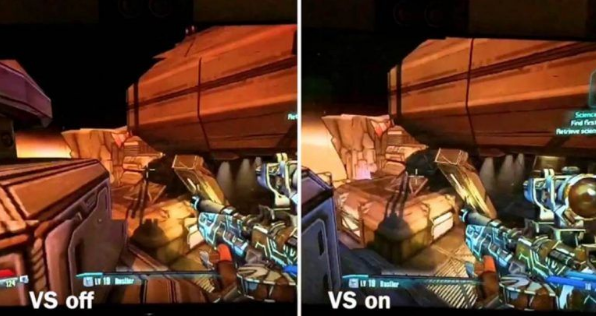
Screen tearing is what happens when they fall out of sync badly enough to matter. The GPU sends a new frame while the monitor is halfway through displaying the previous one. The monitor shows the top half of the new frame and the bottom half of the old frame simultaneously. The result is a visible horizontal line cutting across the image, particularly noticeable during fast camera movements. In a competitive shooter, it is genuinely distracting.
VSync's solution is simple: make the GPU wait. Before sending each frame to the monitor, VSync holds it until the monitor finishes its current refresh cycle. The frames and the refresh rate stay synchronised. Tearing disappears.
It sounds clean. The problem is what happens next.
The Two Problems VSync Creates
Input Lag
When VSync tells the GPU to hold a frame until the next refresh cycle, it introduces a delay between the moment your input is registered and the moment you see the result on screen. Your mouse moves, your key is pressed, and then the GPU waits before showing you what happened. Depending on your refresh rate and frame timing, this can add anywhere from 20 to 50 milliseconds of additional input lag.
That number might not sound significant, but in gaming terms it is enormous. The difference between a 10ms and a 60ms response is something your hands can feel even if your brain cannot consciously process it. Competitive players who have spent time with and without VSync almost universally notice the sluggishness it introduces. The game feels like it is responding slightly after you, rather than immediately.
The Stutter Problem
The second problem is subtler but equally frustrating. VSync does not simply cap your frame rate at your monitor's refresh rate. It locks frames to exact multiples of that rate.
On a 60Hz monitor, this means your frame rate must be exactly 60 frames per second. The moment your GPU drops even slightly below that, say to 58 frames per second in a demanding scene, VSync does not gracefully reduce to 58Hz. It immediately halves the output to 30 frames per second to maintain synchronisation with the monitor's refresh cycle.
Going from 60 frames per second to 30 frames per second is jarring. The game visibly lurches. The performance did not actually drop that severely, but VSync's rigid synchronisation makes a minor dip feel like a major one. This half-rate fallback is one of VSync's most consistently criticised behaviours, and it makes unstable frame rates feel far worse than they actually are.
When VSync Actually Makes Sense
Despite everything above, there are situations where VSync is the right call.
Single-player games with slow or cinematic pacing, games where you are not reacting to opponents, or games where your GPU comfortably and consistently exceeds your monitor's refresh rate without fluctuating are all cases where VSync can work reasonably well. If you are playing a turn-based strategy game, a narrative adventure, or anything where split-second reactions are not required, the input lag penalty is largely irrelevant and the absence of screen tearing makes the image look cleaner.
VSync also remains a valid choice if your GPU consistently produces more frames than your monitor can display and you have no adaptive sync technology available. In that scenario, VSync caps the output, reduces GPU heat and power draw, and prevents tearing without the stutter problem, because your frame rate never actually drops below the cap.
The moment frame rates become inconsistent or you need fast reactions, the downsides return.
What to Use Instead
The honest answer in 2026 is that for most people, VSync has been superseded by better solutions.
FreeSync and G-Sync are the correct replacements. Rather than holding the GPU to match a fixed monitor refresh rate, these adaptive sync technologies do the opposite: they make the monitor dynamically match whatever frame rate the GPU is producing at any given moment. No tearing, no stutter from half-rate fallback, and significantly less input lag than VSync. If your monitor supports either technology, enabling it and leaving VSync off is almost always the right setup. We have a full breakdown of FreeSync vs G-Sync if you want to understand the differences between them.
A frame rate cap is the underrated alternative for people without adaptive sync monitors. Capping your frame rate two or three frames below your monitor's refresh rate using Nvidia's in-driver limiter or a tool like RivaTuner Statistics Server reduces tearing significantly without the input lag penalty of VSync. Your GPU never runs fast enough to tear badly, but it also never has to wait for a refresh cycle. It is a rougher solution than adaptive sync but substantially better than VSync for responsive games.
Nvidia's Fast Sync and AMD's Enhanced Sync sit somewhere in between. Both allow uncapped frame rates and display only the most recently completed frame, reducing tearing at a lower input lag cost than traditional VSync. Neither is as clean as proper adaptive sync, but both are preferable to VSync for high frame rate situations where tearing is still an occasional issue.
The Recommended Settings for Most Setups
Adaptive sync monitor with Nvidia GPU: Enable G-Sync or G-Sync Compatible in the Nvidia Control Panel, leave VSync off in game. If your frame rate occasionally exceeds your monitor's maximum refresh rate and you see tearing at the top of the screen, set a frame rate cap just below your monitor's maximum rather than enabling VSync.
Adaptive sync monitor with AMD GPU: Enable FreeSync in your monitor's settings and AMD Software, leave VSync off in game. Same cap advice applies if needed.
No adaptive sync monitor, competitive games: Leave VSync off. Set a frame rate cap slightly below your monitor's refresh rate to reduce tearing while keeping input lag low.
No adaptive sync monitor, single-player games: VSync is reasonable here. If you notice stutter from the half-rate fallback, try triple buffering if the game supports it, or switch to a frame rate cap instead.
Final Thoughts
VSync was a reasonable solution when it was the only one available. The problem it solved, screen tearing, is real and visually unpleasant. The problems it created in exchange, input lag and harsh stutter from half-rate locking, are also real and for many gamers more disruptive than the tearing it was meant to fix.
In 2026, with adaptive sync monitors available at every price point and frame rate capping tools freely available, VSync is rarely the best tool for the job. Leave it off, use whatever adaptive sync your monitor supports, and set a frame rate cap if tearing is still an occasional issue. Your hands will notice the difference before your eyes do.
Frequently Asked Questions
Does turning VSync off always cause screen tearing?
Not necessarily. If your GPU's frame rate is consistently at or below your monitor's refresh rate, tearing rarely occurs because the GPU is not producing frames fast enough to outpace the display. Tearing becomes noticeable when the GPU significantly exceeds the refresh rate. Setting a frame rate cap just below your monitor's maximum is an effective middle ground.
Does VSync affect FPS?
Yes, in two ways. When VSync is active it caps your frame rate at your monitor's refresh rate, preventing the GPU from rendering above that ceiling. If your frame rate drops below the cap, VSync may halve the output to maintain synchronisation, causing a visible drop even when the actual performance reduction is minor.
Can I use VSync together with FreeSync or G-Sync?
Generally no, and generally you should not need to. Adaptive sync technologies already eliminate tearing across the variable refresh rate range without VSync's drawbacks. The one exception is enabling VSync as a ceiling cap when frame rates exceed your monitor's maximum refresh rate, but a manual frame rate cap achieves the same result without the input lag penalty.
How much input lag does VSync actually add?
This varies depending on your monitor's refresh rate, your frame timing, and the game's implementation. On a 60Hz monitor, measurements typically show 24 to 50 milliseconds of additional delay. On a 144Hz monitor the window is smaller and the added lag is proportionally less, but it remains measurable and perceptible to experienced players.
If VSync is bad, why do so many games enable it by default?
Many games default to VSync because it prevents uncapped frame rates from causing GPU temperatures and power draw to spike unnecessarily in menus and loading screens where thousands of frames per second might otherwise be rendered pointlessly. It is also a conservative default that avoids tearing complaints from players who may not understand what they are seeing. The default is not necessarily what is optimal for your specific setup.



Discussion (0)
Be the first to comment.