



If you’ve ever opened advanced Wi-Fi adapter settings in Windows 11, you’ve probably seen something called U-APSD support.
It’s one of those settings that looks technical enough to ignore, and for most users, that’s exactly what happens. But it does have a real purpose, especially when it comes to power efficiency and wireless behavior.
What U-APSD Actually Is
U-APSD stands for Unscheduled Automatic Power Save Delivery.
At a basic level, it’s a feature designed to:
- Reduce power consumption on Wi-Fi devices
- Allow devices to “sleep” more efficiently
- Deliver data only when the device is ready
Instead of constantly staying active and listening for data, your device:
- Goes into a low-power state
- Wakes up when needed
- Receives buffered data from the router
It’s part of Wi-Fi power-saving standards, especially relevant for mobile devices.
Why This Feature Exists
Wi-Fi devices, especially portable ones, consume power even when idle.
Without U-APSD:
- The device stays active waiting for packets
- Power usage remains higher
With U-APSD:
- The router temporarily stores data
- The device requests it when awake
- Idle power usage drops significantly
This is particularly useful for:
- Laptops
- Smartphones
- Tablets
How It Works (Without Overcomplicating It)
Think of it like this:
Without U-APSD:
- Your device keeps checking for messages constantly
With U-APSD:
- Your device says, “Hold my messages until I ask”
When it wakes up, it pulls everything at once.
This reduces unnecessary activity.
Where You’ll Find It
In Windows 11:
- Open Device Manager
- Go to Network adapters
- Right-click your Wi-Fi adapter → Properties
- Open the Advanced tab
- Look for U-APSD support
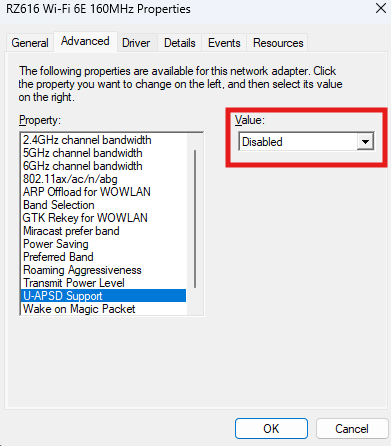
It’s usually set to Enabled by default.
What It Changes in Real Use
This is where expectations need to be realistic.
When Enabled
- Slightly better battery life
- Lower background Wi-Fi activity
- More efficient idle behavior
When Disabled
- Wi-Fi stays more consistently active
- Slightly higher power usage
- Potentially more stable for certain real-time tasks
For most users, the difference is subtle.
When U-APSD Can Cause Issues
In some cases, especially with certain routers or drivers, U-APSD can lead to:
- Delayed notifications or packets
- Minor latency spikes
- Inconsistent performance in real-time applications
This is not common, but it does happen.
When You Should Disable It
Consider disabling U-APSD if:
- You experience unexplained Wi-Fi lag
- Online gaming feels inconsistent
- Real-time apps (calls, streaming) behave unpredictably
Disabling it keeps the connection more “active” and predictable.
When You Should Leave It Enabled
Keep it enabled if:
- You’re using a laptop on battery
- You don’t notice any connectivity issues
- You want better power efficiency
This is the default for a reason. It works well in most cases.
Real-World Insight
U-APSD is one of those features that:
- Matters more on mobile devices than desktops
- Works quietly in the background
- Only becomes noticeable when something goes wrong
Most users never need to touch it.
But if you’re troubleshooting Wi-Fi behavior, it’s one of those settings worth checking.
Should You Change It
Ask yourself one question:
Is your Wi-Fi working fine?
- If yes, leave it enabled
- If no, try disabling it and observe
There’s no universal “best” setting. It depends on your setup.
Final Thoughts
U-APSD support in Windows 11 is a small, technical feature designed to improve efficiency, not performance.
It helps your device save power by being smarter about when it communicates over Wi-Fi.
Most of the time, it does its job quietly. And unless you’re facing specific issues, that’s exactly how it should stay.
FAQs
What does U-APSD do
It reduces Wi-Fi power usage by allowing the device to sleep between data transmissions.
Should I disable U-APSD
Only if you experience latency or connectivity issues.
Does U-APSD improve speed
No, it affects power efficiency, not speed.
Is it useful on desktops
Not significantly, it’s more relevant for laptops.
Is it safe to change this setting
Yes, it’s completely reversible.



Discussion (0)
Be the first to comment.